Listing Sync
Listing Sync in Business App sends your Business Profile information to Google Business Profile, Facebook, Bing, X, and other directories, so your name, address, phone number, and other details stay accurate and consistent everywhere.
What is Listing Sync?
Listing Sync allows you to sync common business data to your Google Business Profile, Facebook, Bing, and X profiles to ensure the accuracy and consistency of your contact info. This helps improve SEO and customer acquisition while reducing the time it takes to update multiple online profiles.
Why is Listing Sync important?
- Increased visibility: People use online maps and directories daily to find businesses. By keeping your listings up to date, you can attract more local customers.
- Time savings: Update your business information once in your Business Profile, and it syncs automatically across Google, Facebook, Bing, X, and other directories. You don't need to manually update each platform separately.
- Reduced errors: Manual updates across multiple platforms can lead to typos, outdated information, or inconsistencies. Listing Sync ensures your data stays accurate and uniform everywhere.
- Customer trust: When customers see the same accurate information across all directories, they can find you easily and trust that your business details are reliable.
- Local SEO benefits: Consistent Name, Address, and Phone (NAP) data across directories helps search engines verify your business information, which can improve your local search rankings.
- Enhanced features: You can add details like logos, cover images, and action links on supported directories to make your listing stand out.
What's included with Listing Sync?
You can sync the core data that helps customers find you:
- NAP data: Name, Address, Phone number
- Website URL
- Attributes: Payment methods, business logo, primary photo, long/short descriptions, and social media URLs
Each directory decides which attributes to display.
How do I set up Listing Sync?
- Go to
Local SEOand open theListing Synctab. - Click
Connectnext to Google, Facebook, X or Apple. - Enter your login credentials for that source.
- Click
Allowor grant permissions for the source to sync.
Google Business Profile mismatch warning
After you select a Google account, the system checks whether the Google Business Profile's business name and address match your Business Profile. If either doesn't match, a warning appears so you can confirm before continuing. This helps you avoid connecting the wrong Google Business Profile, which can result in that listing being suspended.
The warning only checks business name and address — a mismatched phone number or website does not trigger it.
Multiple social connections
If you connect multiple Facebook, Instagram, or X pages through Business App or other connected products, you can choose which page Listing Sync updates.
How to select a page:
- In
Local SEO, open theListing Synctab. - Click the desired source.
- In the side panel, choose which connected page to sync to.
- Click
Sync to.
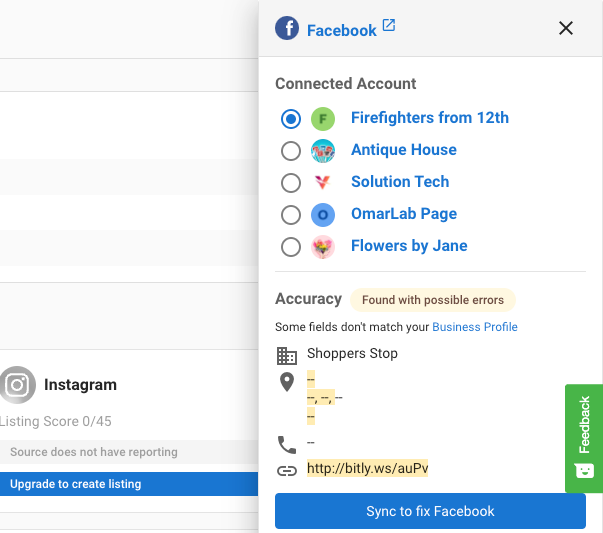
The Instagram source selection does not have an edit button because it is managed by the Facebook source selection.
Service area businesses
If your business does not have a physical customer-facing storefront, you can mark it as a Service Area Business in your Business Profile. This allows you to hide your address on listings while still appearing in local search results. You can add the service areas you provide to, so customers in those locations can find you when searching for your services.
How accuracy is marked for service area businesses
- If you mark a business as a Service Area Business in the Business Profile, the system will still attempt to match and pull listings into the platform.
- If an external source's Business Name, Phone Number and Website URL matches your Business Profile, it appears as an accurate listing.
- If the Business Name, Phone Number and Website URL does not match, it appears as "listing found with possible errors," and you must edit it on the external source.
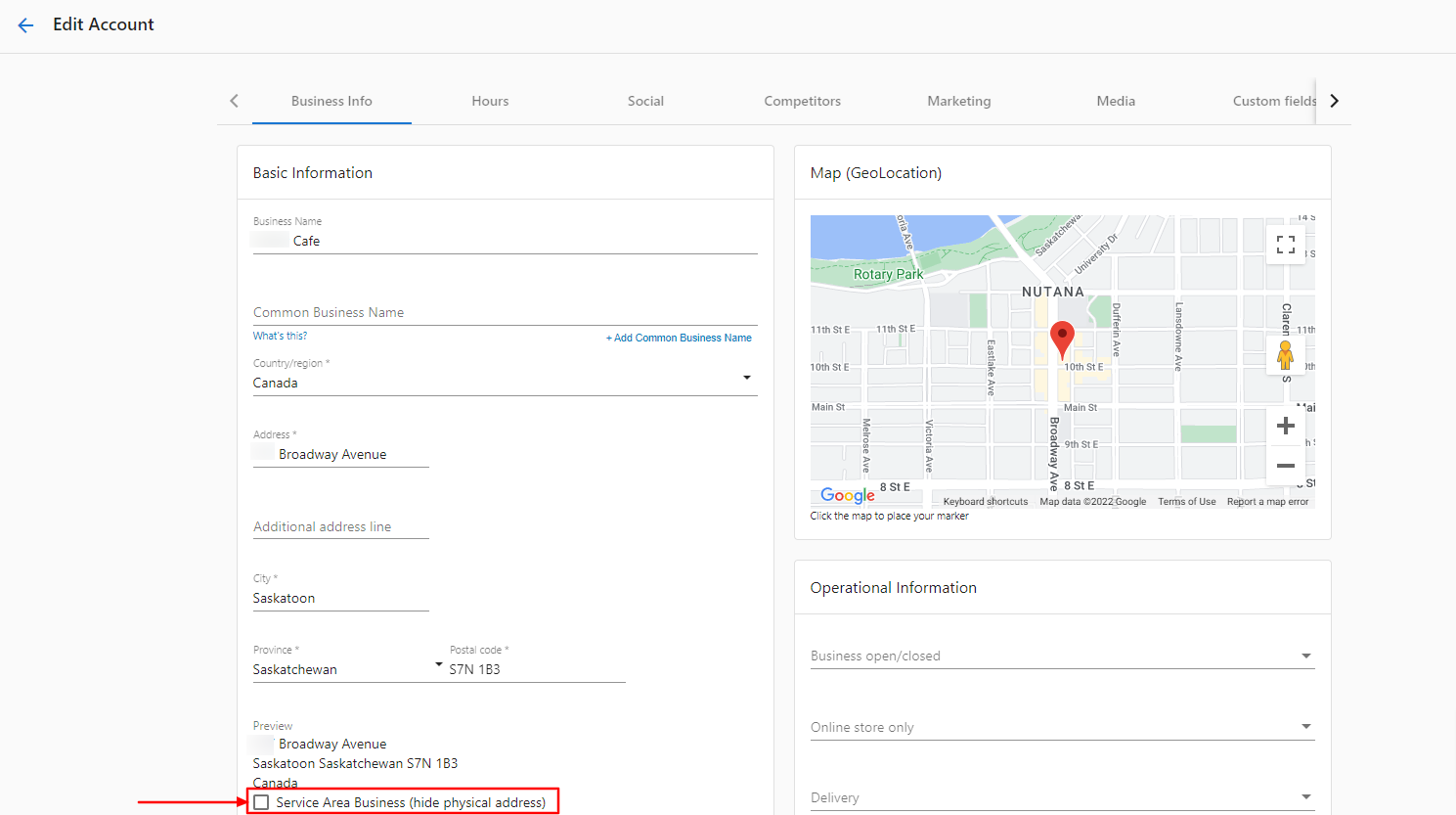
Which platforms support service areas
Only Google Business Profile and Bing receive service area data. Apple Maps, Foursquare, and most other directories require a physical address and will not list pure service area businesses.
Hybrid businesses — businesses that display a physical address alongside a service area — are supported on Apple Maps and other address-required sources. If you want to appear on these platforms, keep your physical address visible in your Business Profile.
Service area configuration rules
When adding service areas to Google Business Profile:
- You can add up to 20 service areas.
- Specify areas by city or postal code — distance-based radius settings are not supported.
- Service areas must fall within roughly a 2-hour driving radius of your business location.
Why some listing sources don't appear
The available listing sources vary by account based on several factors:
- Physical address required: Sources that require a street address will not appear for pure service area businesses with a hidden address.
- Business category restrictions: Some directories do not accept certain business categories and are hidden automatically for those accounts.
- Hybrid businesses: If your business shows a physical address alongside a service area, more sources become available.
Improve your listing score
To get the most value from Listing Sync:
- Fill out your Business Profile completely and ensure the information is 100% accurate.
- Select a primary category and two secondary categories.
- Keep your Google Business Profile optimized every month.
- Ensure the business address is searchable with a quick online search.
Listing score considerations
The listing score per source has a maximum attainable value, but there is no fixed maximum across all sources. Overall scores can change as sources are added or removed. You can see the per‑source maximum on the listings table under Listing Sync.
How listing scores are calculated
Listing scores are weighted by directory authority:
- The top 30 of the top 100 directories earn the most points per listing.
- The remaining directories in the top 100 earn 5 points each.
- Directories outside the top 100 earn 2 points each.
Scores are based on both listing presence (whether a listing exists) and accuracy (whether NAP data matches exactly).
What "Max score" means
The Max score reflects the maximum points achievable from the actual listing sources found for your business. Your total score can exceed Max because citations — which have no fixed cap — also contribute to the total score.
Why your listing score might drop
- Inconsistent NAP data: If your business name, address, or phone number varies across directories, those listings score lower for accuracy.
- URL mismatches: Different URL formats (for example,
www.example.comvs.example.com) may not be recognized as matching. Use the exact same URL format consistently across all sources.
To keep your score high, keep NAP data consistent across all directories and ensure the website URL in your Business Profile matches what appears on your website exactly.
What information syncs
Common fields that sync to multiple sources include:
- Company name
- Address & Service areas
- Phone number
- Website
- Payment methods
- Brands / brands carried
- Hours of operation and special hours
- Logo / primary photo
- SEO keywords
- Social URL's
- Attributes
For source‑specific details inside the product: open Local SEO > Listing Sync > choose a source > Syncing Info.
Where do I edit these fields?
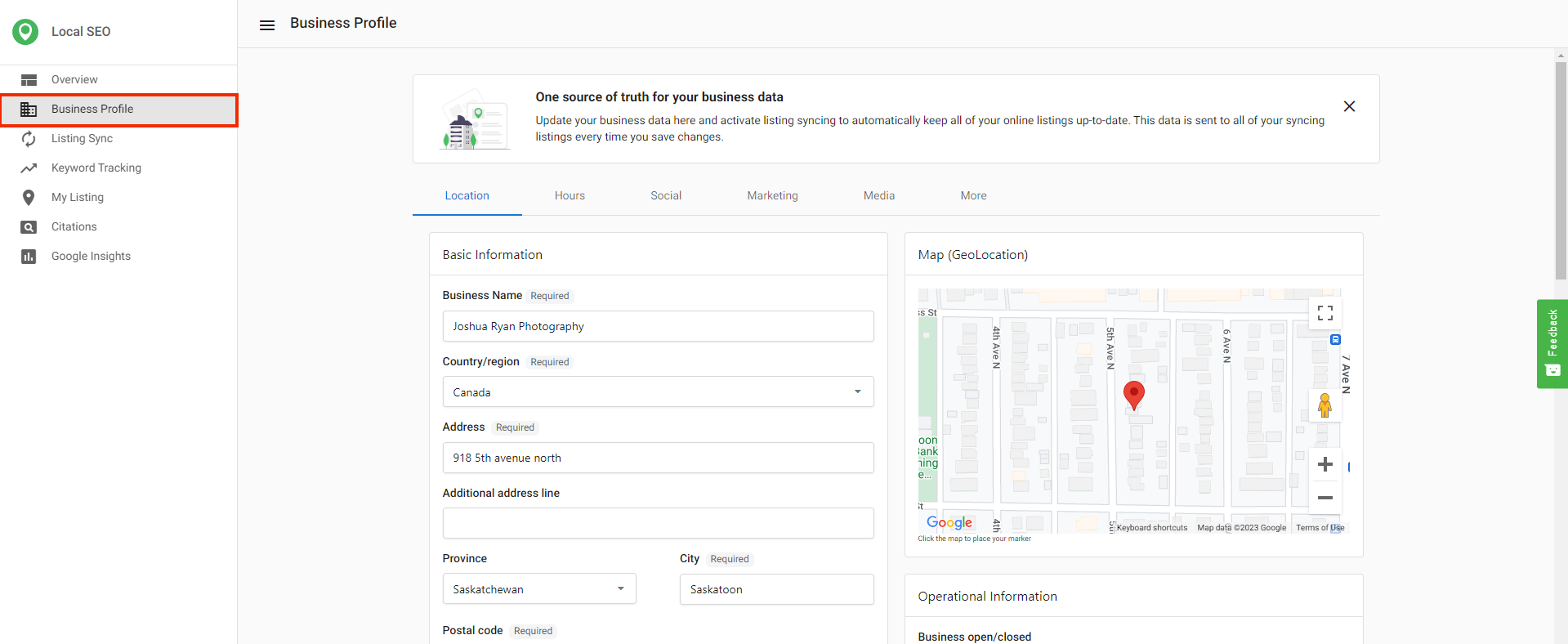
Use Business Profile in the product to update all fields that Listing Sync Pro syncs.
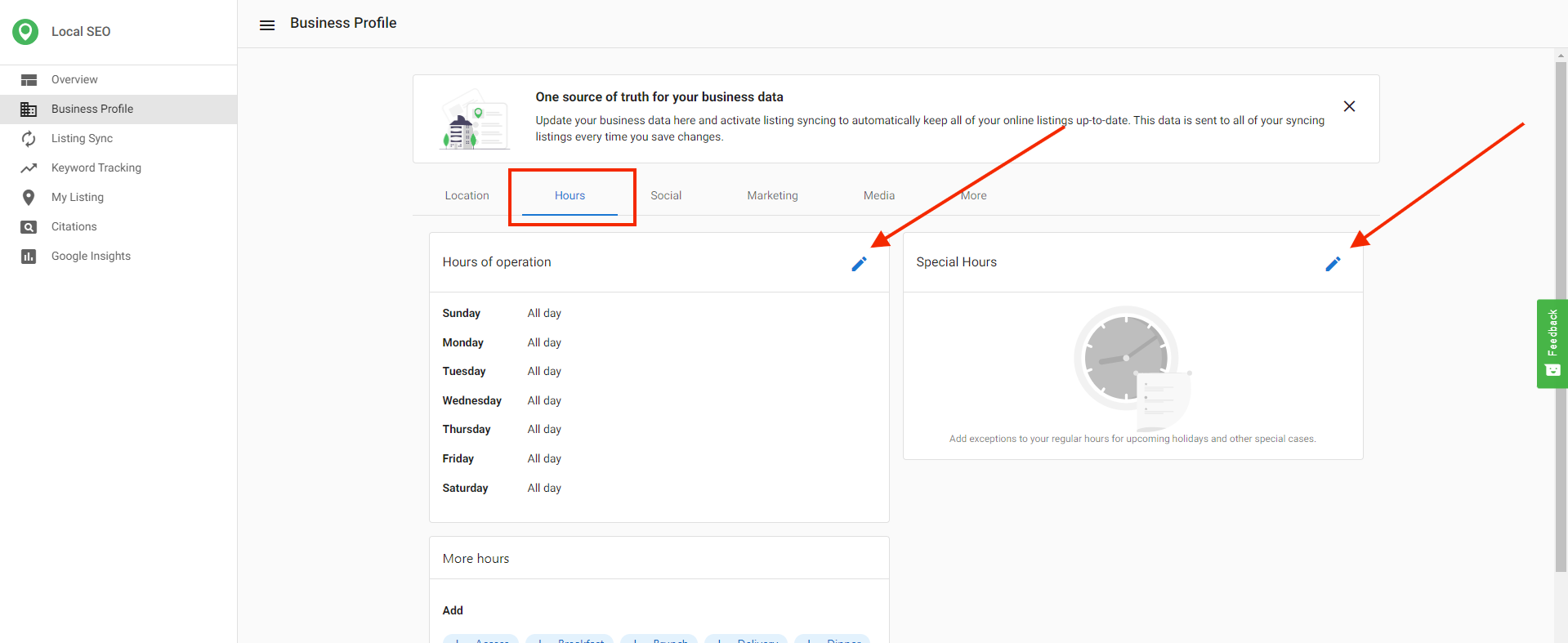
Update hours under the Hours tab.
Listing Sync timeline
- Most sources receive submissions within 15 minutes to 1 hour.
- Listings can take up to 4 weeks to publish across the network.
- Upon initial activation, allow 6–8 weeks for all sources to sync.
- Directories have different update cycles. Allow 24–72 hours for updates before troubleshooting.
- GPS directories can take up to 30 days.
- Bing and Apple Maps can take longer because they also pull and verify data from other sources.
- Some directories require data cleansing (reformatting business name, address, and latitude/longitude), which adds time.
- Directories with mandatory cleansing include Apple, Yelp, Foursquare, Baidu, and HERE.
- If a listing remains in a
syncingstatus for over 4 weeks, contact support with the account name and the specific source.
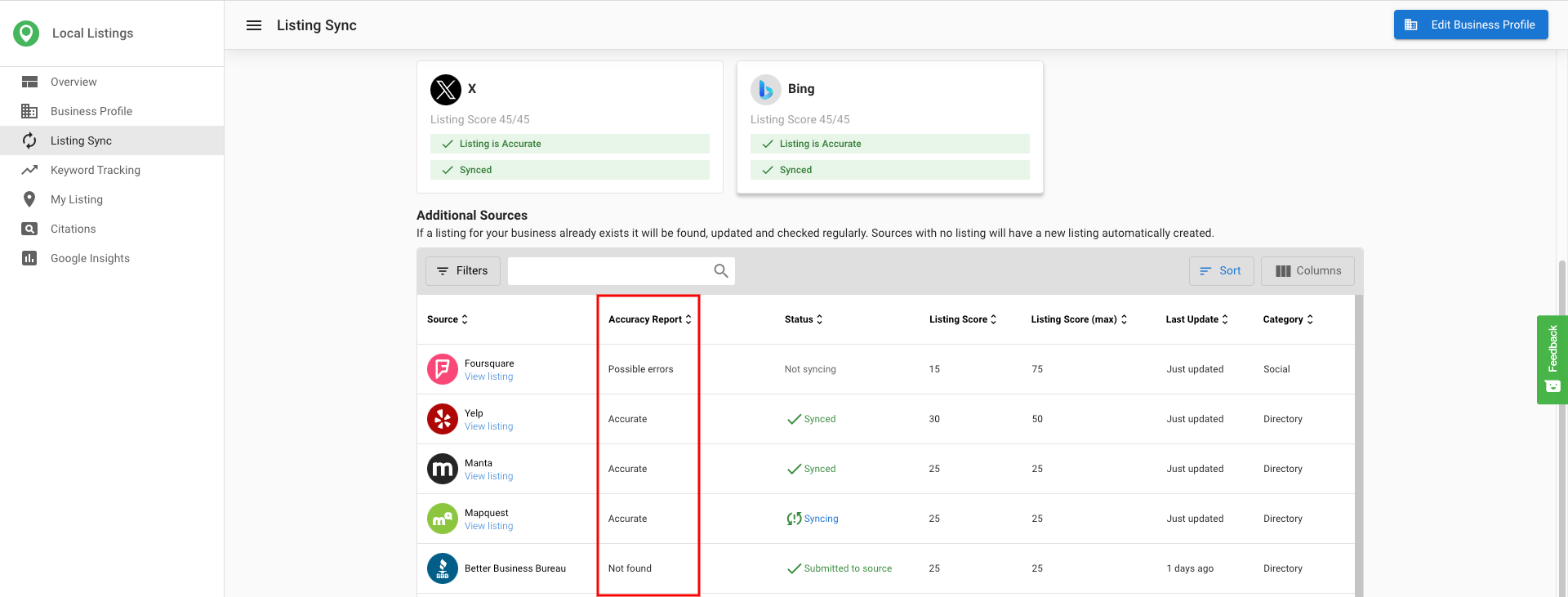
Accuracy report
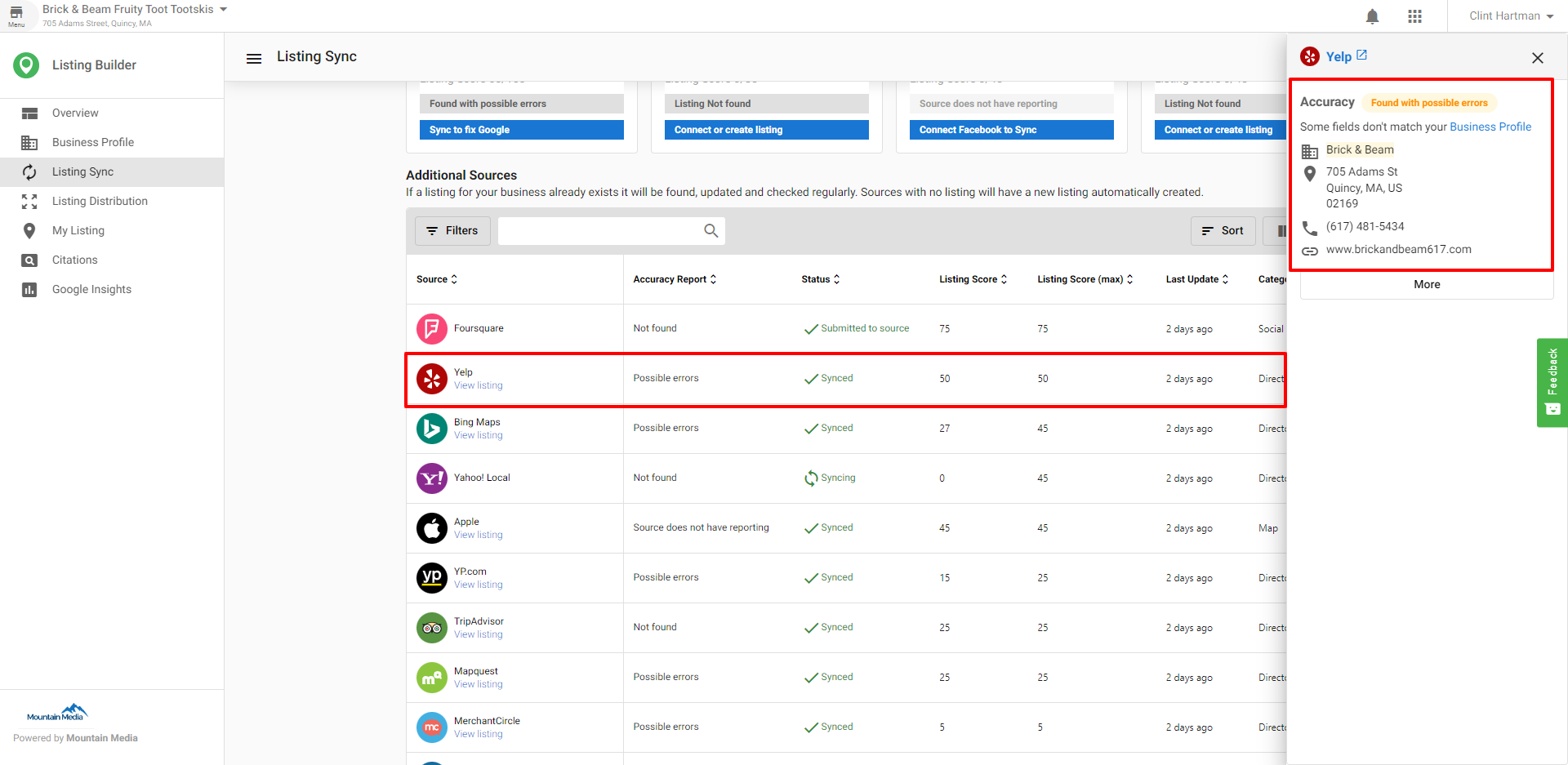
The Accuracy Report column reflects independent reporting on data submitted to directories. When you add a source, the system pushes your Business Profile data to that directory. The directory can communicate back that the data was accepted, rejected, or published. The Accuracy Report shows these results.
Accuracy report statuses
- Accurate: There is a 100% match between your Business Profile data and the listing source. Some directories require cleansing, which can cause the report to differ from your raw Business Profile data. Mandatory cleansing directories include Apple, Yelp, Foursquare, Baidu, HERE, and Tripadvisor.
- Possible errors: An incorrect listing was found. The listing data is being updated on the source. This status can persist for some time.
- Not found: The system did not find a good listing match.
- Source does not have reporting: The system cannot verify whether data was updated because the directory cannot communicate a status back. GPS sources commonly show this. Data submission is when data is pushed to the directory, while data collection is when systems explore the internet to verify updates; some sources do not support robust data collection.

Listing statuses
- Submitted to source: The system submitted your Business Profile information to the directory. Each source controls its own publishing timeline. Allow 24–72 hours for most sources, up to 30 days for GPS directories. Bing and Apple Maps can take longer. Voice sources are submission-based and may take longer.
- Synced: The directory reported back that the listing was updated. The
Accuracy Reportthen shows the accuracy of that data. If it showsAccurate, the listing is live with 100% data accuracy. - Syncing: The listing is being updated on the source. This status can persist for some time.
- Not syncing: The business may have a paid advertising relationship with the source that blocks updates from the system.



Claimed listings
When a listing is marked as claimed, someone controls it. Claimed listings are verified by the owner through a paid relationship with the site or via a third‑party syncing service. Only the verifier can maintain it. Listing Sync cannot manage or update claimed listings. If you want Listing Sync to manage them, you must contact the listing site or service provider and ask them to release the listings.
"As I am managing my business online listings through a technical service provider, I kindly ask you to release the listing -(insert link here)- or completely delete it, so that my business data can be automatically submitted and updated onto your directory. Please inform me as soon as the optimization of my online presence can be resumed. Kind regards, YOUR NAME".

How do I stop listings from syncing?
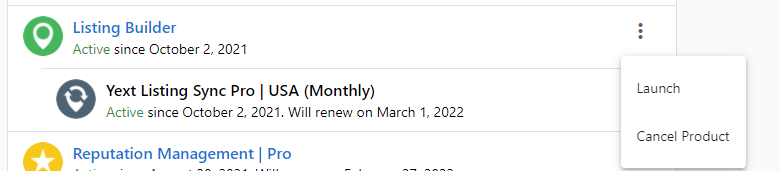
- If Listing Sync Pro is active, syncing continues until the billing cycle ends, even after cancellation.
- To stop syncing immediately, click schedule deactivation, then click
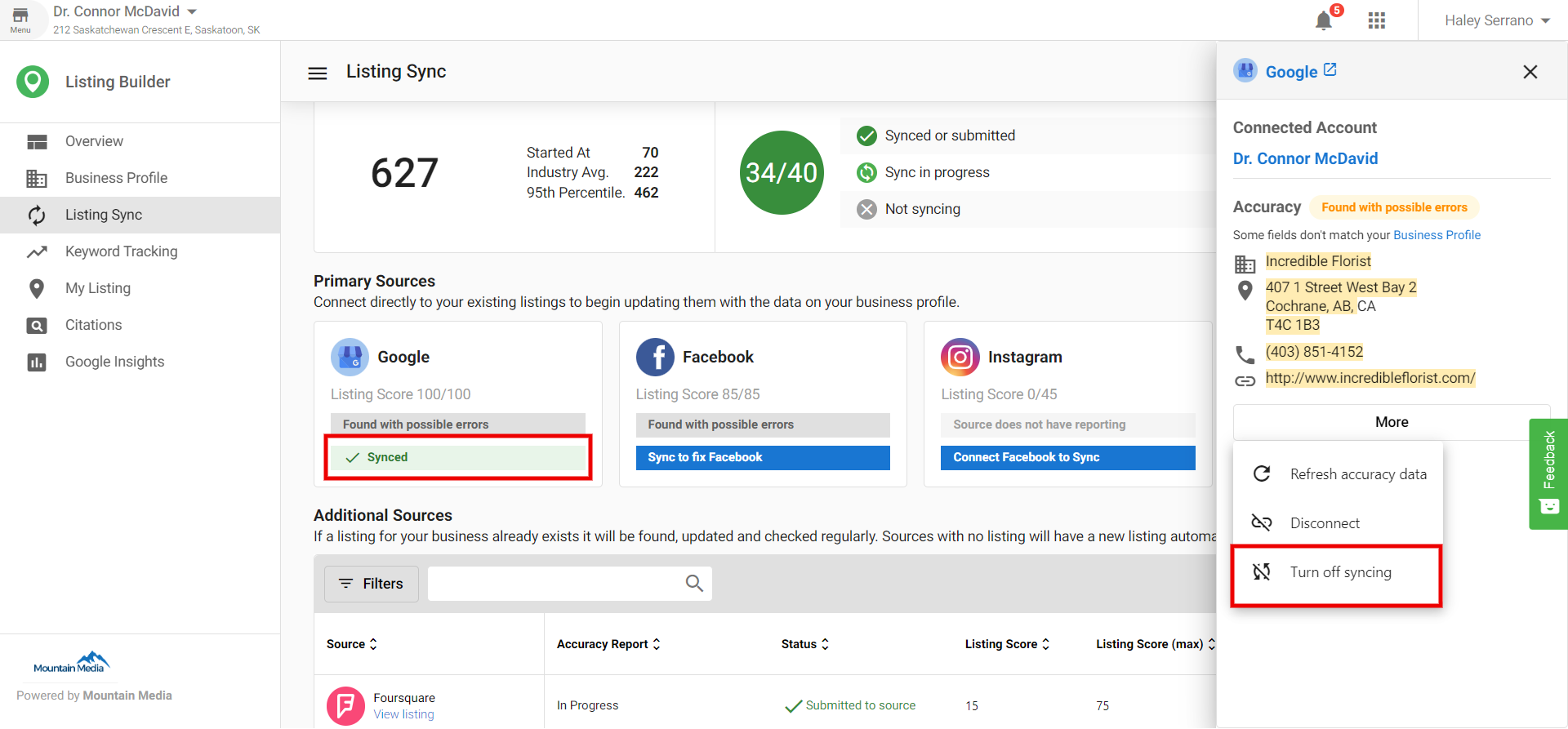
immediatelyin the menu. - You can turn sync on/off for Google, Facebook, Instagram, or X by clicking the sync button for each source, then
More>Turn off Syncing. - Turning off sync for Facebook also turns off Instagram.
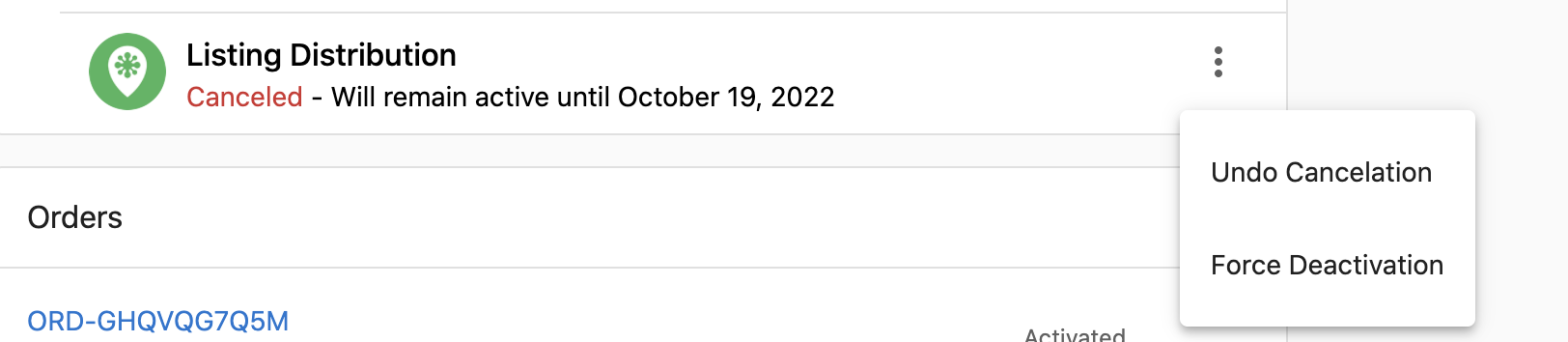
Force deactivation steps
- Open the account and locate the cancelled add-on under
Products. - Click the kebab menu and choose
Force deactivation. - In the confirmation, select
Deactivate nowto proceed.
Forcing deactivation removes the add-on and ends syndication services. Billing continues until the end of the commitment.
Apple Maps sync behavior
Apple Maps receives your listing data through a submission feed. Because Apple processes submissions on its own schedule, there is no confirmation of exactly when data is processed or published. Updates to business hours can take up to 4 working days to appear on Apple Maps.
Website URL requirement: Apple Maps only accepts websites that are IPv6-compatible. If a business's website is not IPv6-compatible, it may not appear on Apple Maps regardless of other settings.
Service area businesses: Apple Maps requires a physical address. Pure service area businesses (with hidden address) will not receive an Apple Maps listing. Hybrid businesses — those that display a physical address alongside a service area — are supported.
Permanently closed listings: Permanently closed listings remain visible on Apple Maps but are not searchable by category and appear below open locations. Apple will eventually remove them from search results.
Special hours on Apple
- Apple displays Holiday Hours as
Special Hoursfor a 7‑day timeframe if you are within 4 days of the holiday. - Updates to special hours can take up to a week to display on Apple Maps. Apple allows a maximum of 50 holiday hour entries.
- Apple does not display all special hours for the entire year at once.
Bing duplicate listing alternative
You cannot suppress duplicates on Bing, but you can suggest an edit to downgrade and possibly remove duplicates:
- Open the Bing listing that should be removed.
- Click the three dots in the top-right corner.
- Select
Suggest an edit. - Choose
Remove this placeand mark it as closed, nonexistent, or duplicate.
The more people who submit the suggestion, the faster the wrong entry may be downgraded.
Columns and actions in Listing Sync
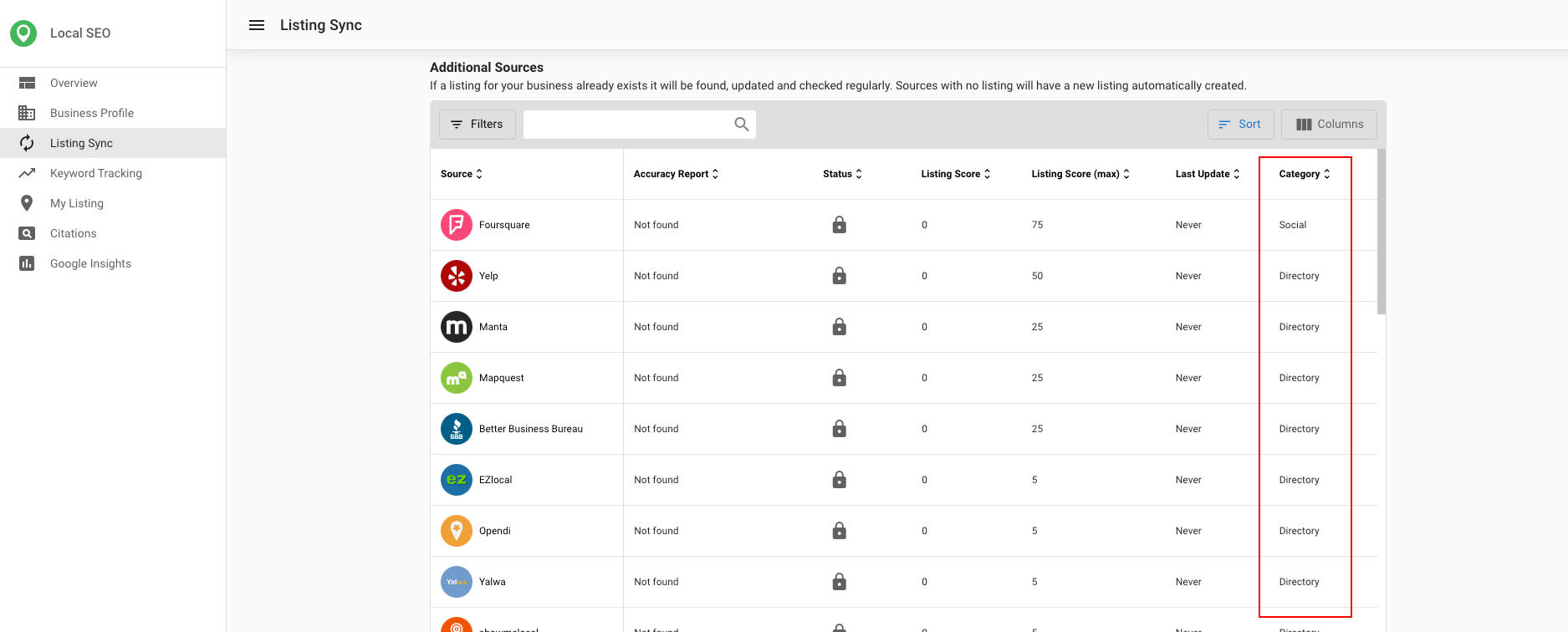
Category column
The category column shows the type of directory source:
- Directory: An online listing directory
- Map: Sites with online maps (for example, mapping services)
- Social: Social media networks
- Aggregator: Publishers that push their listing information to other sources
- App: Standalone applications that are not GPS services
- GPS: Sources that power GPS applications
What data is synced to each source
- Google: Business name; street address, zip/postal code, city, state (street address and zip/postal code are hidden for service area businesses); phone number; website URL; hours of operation and special hours; Google attributes.
- Facebook: Street address, city, state, zip code (street address and zip/postal code are hidden for service area businesses); phone number; website URL; hours of operation; payment methods; logo.
- X: Street address, city, state, zip code (street address and zip/postal code are hidden for service area businesses); website URL; logo; short description (if less than 160 characters).
- Instagram: Street address, city, state, zip code.
- Bing: Business name; street address, zip/postal code, city, state (street address and zip/postal code are hidden for service area businesses); website URL; logo; Bing attributes; primary phone number; regular hours of operation.
Last update column
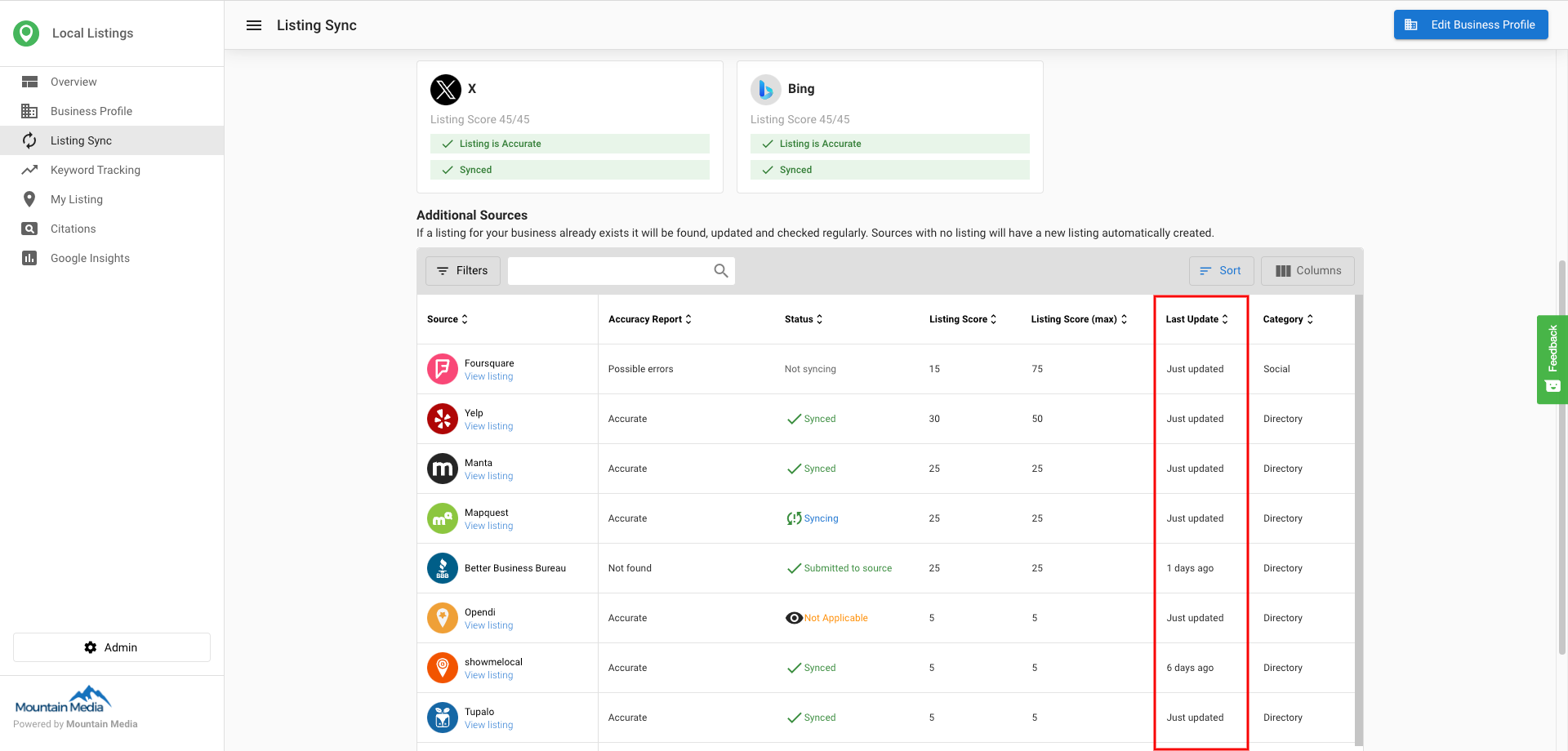
The Last Update column shows the last time the system pulled data from the internet for that listing.
Refresh listing button
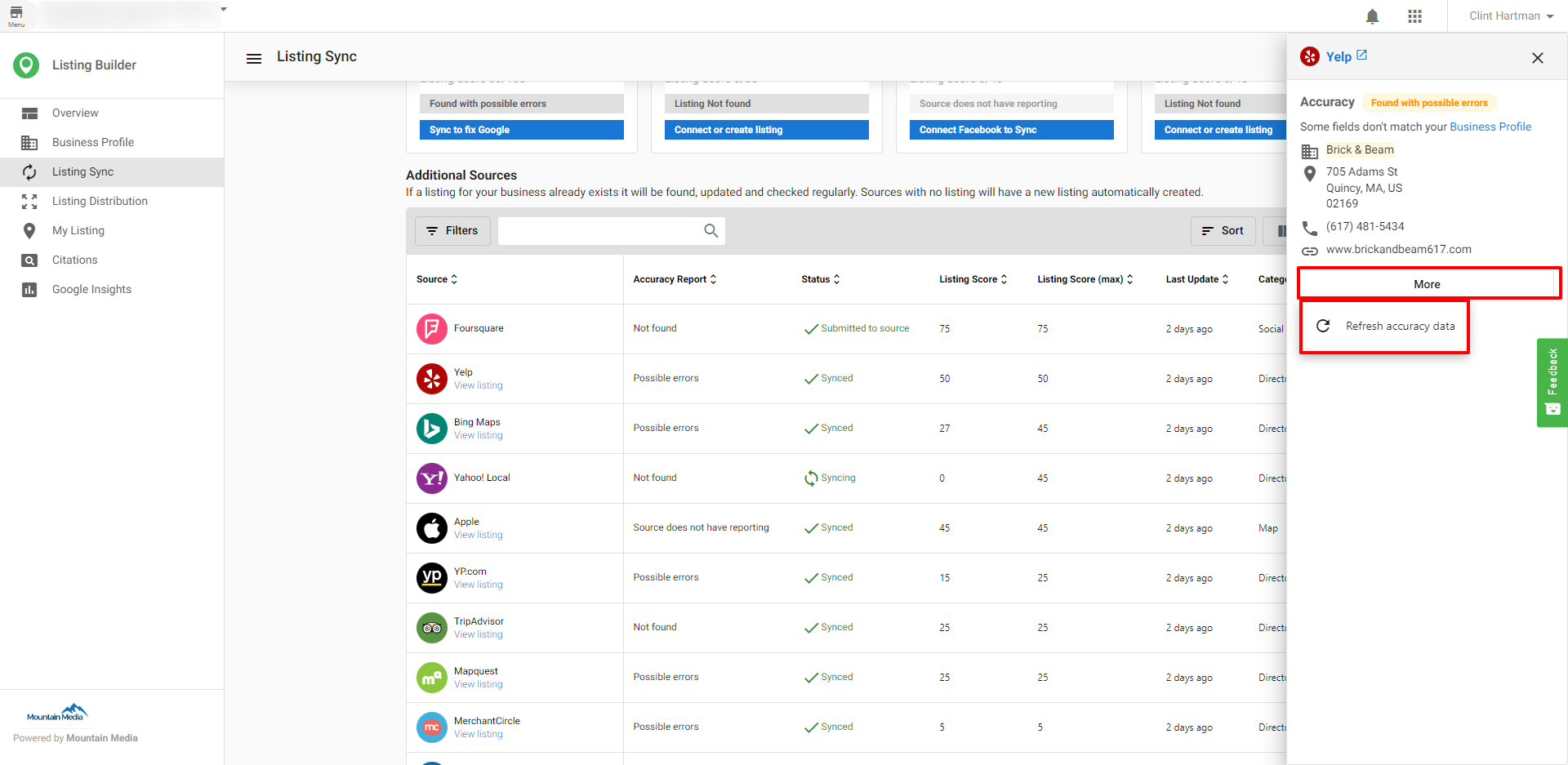
Use Refresh Listing to get an updated state of your listing. This updates the Accuracy Report if the system finds new information.
Frequently asked questions (FAQs)
What is the difference between "Primary Sources" and "Additional Sources"?
Primary Sources are directories you connect to directly (e.g. Google, Facebook, Instagram, and X). We sync your Business Profile to these so your listing stays accurate there. You need to connect each of these before we can sync to them.
Additional Sources are other directories we sync to as well, but they do not require a connection from you. We still push your Business Profile to these sources: if we find an existing listing for your business we update it, and if we don't find one we can create a new listing. So your information is kept in sync on these directories without you having to connect each one.
What is a claimed listing?
When a listing is marked as claimed, someone controls it. Claimed listings are verified by the owner through a paid relationship with the site or via a third‑party syncing service. Only the verifier can maintain it. The service cannot manage claimed listings unless the listing source releases control.
How do I stop listings from syncing?
Syncing continues until the billing cycle ends. To stop immediately, cancel the product and click Force deactivation. You can also turn sync on/off per social source; turning off Facebook also turns off Instagram.
What does the status "Submitted to source" mean?
Your data was submitted to the directory. Publishing timelines vary by source; allow 24–72 hours for most, up to 30 days for GPS directories. Bing and Apple Maps can take longer. Voice sources may also take longer.
What does the status "Synced" mean?
The directory reported that your listing was updated. Check the Accuracy Report for the data match. If it shows Accurate, the listing is live with a 100% match.
What does the status "Not syncing" mean?
The business may have a paid advertising relationship with that source, which blocks updates.
What does the Accuracy Report show?
It reports whether a directory accepted, rejected, or published your submitted data, and whether the live data matches your Business Profile.
What do the Accuracy Report statuses mean?
We check what's actually live on each directory (e.g. Google) and compare it to your Business Profile information. If every field we check (name, address, phone, city, state, zip, country, website) matches the profile, or you've marked the listing as accurate, we show it as accurate listing found.
How long does syncing take?
Submissions occur within 15 minutes to 1 hour. Publishing can take up to 4 weeks, and initial activation can take 6–8 weeks for all sources. GPS sources can take up to 30 days.
What if my listing has been syncing for over 4 weeks?
If the listing has been in a "syncing" status for over 4 weeks, contact support with the account name and the specific source.
How are Service Area Businesses handled?
For service area businesses, address is hidden on the listing, so we don't match on address. If any of the other fields don't match, we show possible errors and which fields are incorrect; you can fix them by updating your Business Profile and syncing to that directory, we'll reflect the change after the next time we check.
Can I remove duplicates on Bing?
You cannot suppress duplicates directly. Use Suggest an edit on the listing and select Remove this place to mark it as closed, nonexistent, or duplicate.
Do special hours sync to Apple?
Apple displays special hours within 4 days of the holiday for a 7‑day timeframe. Updates can take up to a week to show, with a maximum of 50 holiday hour entries.
What should I expect after I request a listing release from a claimed source?
After the business owner contacts the listing source to request a release, timelines vary by directory — some release within days, others may take weeks. Once the source releases the listing, Listing Sync will begin managing and updating it automatically. There is no in-product notification when a release is complete; check the listing's status in the Listing Sync tab after a few days.
Why does my Facebook profile picture keep changing back?
When Listing Sync is active, the logo and primary photo set in your Business Profile media section automatically sync to Facebook. Any time the sync runs, it will push those images again. To stop this, you can either disable Facebook sync or remove the logo and primary photo from the Business Profile media section.
How does Instagram sync work?
Instagram does not have a direct integration. Instead, the system syncs listing data to Facebook, which then creates or updates the associated Instagram location page. Because of this, the Instagram source selection in Listing Sync is managed through the Facebook connection — there is no separate Instagram login required.
Why does my listing score show higher than the Max score?
The Max score reflects the maximum points achievable from the listing sources found for your business. Citations — which are separate from directory listings and have no fixed cap — also contribute to your total score. This means your total score can legitimately exceed the Max value.
Do basic listings require verification?
Most basic listings do not require a separate verification step in Local SEO. Google Business Profile is the listing that most often needs verification in Google before changes show reliably on Search and Maps.
Where should I keep listing details current, and how does syncing work?
Keep the Business Profile in Local SEO as the source of truth. Connect the listing sources you use, then push updates such as hours or descriptions to those connected sources. Google and Facebook usually need an explicit connection before sync works.