How do I get started with Business App?
Business App is the dashboard where you manage your business profile, talk with customers, and track your performance. To get started, work through the Complete Setup checklist on your Home screen, then connect integrations, set up AI and web chat, and register for SMS.
What can I do in Business App?
-
Manage your business profile
Update your business info and make sure your details appear correctly wherever customers find you online. -
Connect and communicate
Send and receive messages with your leads and customers, and respond to reviews or inquiries through Conversations. -
Track your performance
See important business analytics such as website traffic, reviews, and leads either in your Executive Report or your Home screen. -
Access your tools and products
Quickly launch any apps or services you've activated to market your business, connect with customers, or boost productivity. -
Multi-location management
If you manage more than one business location, view and control them all from a single login.
Getting started checklist
- Complete your onboarding checklist: Work through the setup card on your Home screen.
- Update your business profile: Ensure your business info is accurate across the app.
- Connect key integrations: Link Google Business Profile, QuickBooks, and other tools.
- Set up AI and web chat: Capture leads and engage visitors 24/7.
- Register for SMS and customize notifications: Enable text messaging and stay on top of alerts.
- Customize language: Use Business App in your preferred language.
Step 1: How do I complete my onboarding checklist?
When you first log in, you'll see a "Complete Setup" card on your Home screen. This is your personalized onboarding checklist to help you set up your account.
Finishing these steps helps you use all of the features in Business App. You'll:
- Start seeing results in your Executive Report sooner.
- Respond faster to customer reviews and questions.
- Collect more leads and feedback.
- Discover features that save you time or help your business grow.
The setup card will disappear when you complete each item.
The checklist may include:
- Meeting your AI Workforce: Capture leads and engage customers around the clock. Start a chat and see which tasks an AI employee can handle for you. Navigate to
AI>AI Workforceto chat with and configure your AI Employees. - Connecting your Google Business Profile: Collect and respond to Google Reviews, sync your Business Profile, and more.
- Setting up and installing Web Chat: Engage website visitors with AI trained on your business. Install the chat widget to get leads in Conversations.
- Connecting your business system: Import existing customers from platforms like QuickBooks to automatically request reviews and manage relationships all in one place.
- Registering for SMS: Register to send SMS messages to your customers and enable text conversations.
- Enabling push notifications (Mobile App only): Get alerts for important customer messages and manage your notifications.
Step 2: How do I update my business profile?
Your Business Profile is the central source for your business name, address, hours, services, and more. Keeping it complete and up to date ensures your information appears correctly in listings, reports, and lead capture tools.
How do I edit my business profile details?
- Go to
Administration>Business Profile. - Use the Primary Info, Hours, and Descriptions tabs to update your details.
- Click Save to apply changes.
Complete your profile early. Other features in Business App use this data to power automations, AI responses, and reporting.
Step 3: How do I connect key integrations?
Connections bring your most important business data into one place. When you connect platforms like Google Business Profile and QuickBooks, Business App can sync location details, power your Executive Report, and trigger automations.
How do I add integrations?
- Go to
Administration>Integrations. - Search for or scroll to the integration you need (for example, Google Business Profile or QuickBooks).
- Click the integration tile and follow the authorization steps.
Common connections to set up early:
- Google Business Profile: Syncs location details and visibility metrics. Data can appear in your Executive Report within about 5 minutes. For setup details, see Business Profile and Integrations.
- QuickBooks Online: Import existing customers, automate review requests from invoiced customers, and surface financial insights. See QuickBooks integration for connection steps.
Step 4: How do I set up AI and web chat?
AI Workforce lets you automate conversations, capture leads, and answer customer questions 24/7. The Web Chat widget engages website visitors and sends leads directly to your Conversations inbox.
How do I start using AI Workforce?
- Go to
AI>AI Workforce. - Start a chat with an AI Employee to see what they can do.
- Configure the Chat Receptionist or Voice Receptionist to match your business.
How do I install Web Chat on my website?
- Go to
Conversations AI>Conversations AI Settings. - Click Configure Web Chat and add your business knowledge.
- Copy the installation code and add it to your website, or use the WordPress plugin if you have a WordPress site.
Train your AI with your website content and frequently asked questions so responses stay accurate and on-brand.
Step 5: How do I register for SMS and customize notifications?
If you want to send and receive text messages with customers, complete SMS registration (required for US businesses). You can also adjust how you receive alerts so you never miss important activity.
Do I need to register for SMS?
US-based businesses must complete A2P 10DLC registration before sending SMS. Registration can take a few weeks. Canadian businesses can use SMS immediately. See SMS setup for full details.
How do I customize my notifications?
- Go to
Settings>Notification Settings. - Choose whether you want instant emails, daily digests, or both.
- Expand each product section to fine-tune which events trigger notifications.
See Notification settings for a full overview.
Step 6: How do I change the language?
You can use Business App in your preferred language.
How do I update the Business App language?
-
Log in to Business App.
-
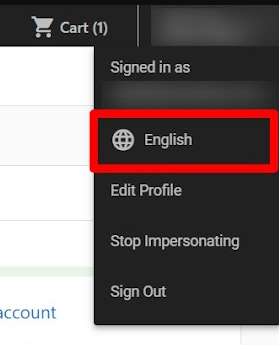
Click your profile name in the top-right corner, then click the current language.
-
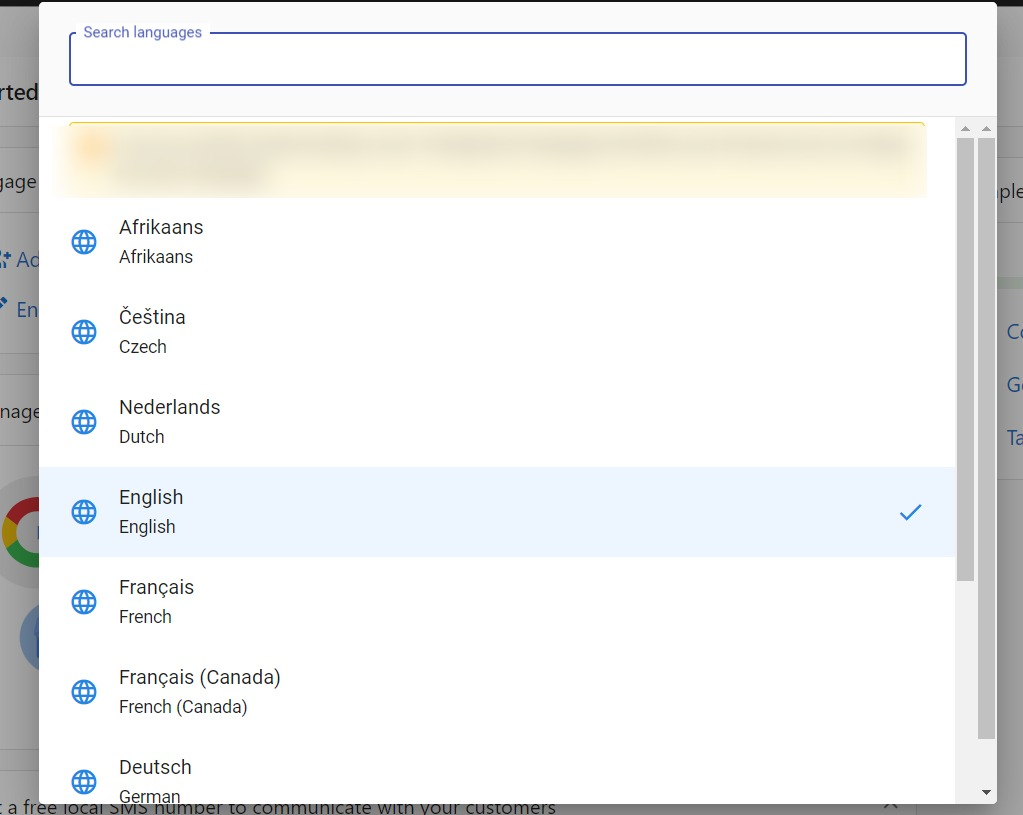
Select your preferred language from the available list.
Some items keep their original wording in every language. These include product names, the names and descriptions of AI capabilities, and the names of your knowledge sources.
Frequently asked questions
What happens when I finish the setup checklist?
The onboarding checklist will disappear once you complete each item. You can always revisit completed tasks or explore new features from your Home screen and dashboard.
How long does it take to see data in my Executive Report?
Data from Google Business Profile can appear within about 5 minutes after you connect it. Other products may take up to 48 hours to populate. See the Executive Report overview for more details.
Can I invite team members to use Business App?
Yes. From the Home screen, select Invite Team Member in the top-right corner, enter the person's name and email, and click Send Invite.
Where do I manage my integrations after connecting them?
Go to Administration > Integrations and use the Connected filter to see all active integrations, reconnect expired authorizations, or disconnect platforms.
Is SMS available for my business?
SMS is available for businesses located in the United States and Canada. US businesses must complete A2P 10DLC registration before sending messages. See SMS setup and SMS registration for US businesses for details.
Where do I connect my Google Business Profile?
Go to Administration > Integrations. Search for Google Business Profile, click the integration tile, and follow the authorization steps.
How do I add the web chat to my website?
Go to Conversations AI > Conversations AI Settings, click Configure Web Chat, and add your business knowledge. Then copy the installation code and add it to your website, or use the WordPress plugin if you have a WordPress site.
How do I choose which email notifications I receive?
Go to Settings > Notification Settings and choose instant emails, daily digests, or both. Expand each product section to choose which events trigger notifications.
Why does my last-login date stay old even though I use the app?
The last-login timestamp updates only when you sign in with a username and password or an external sign-in provider (for example Google or Microsoft). It does not track last activity. If you already have an active session and are not asked to sign in again, the date does not change.