My Listing
The My Listing feature in Local SEO allows businesses to create a customizable online business profile that showcases their business information, services, and other important details. This section provides information on how to create, customize, and analyze your My Listing page.
What is My Listing?
My Listing lets you create a customizable online business profile that showcases business information, services, and other details. You can choose a theme, add branding, customize the domain, create pages, and track engagement through event analytics.
Why is My Listing important?
- Present essential business information in one place
- Use responsive themes that adapt to different screen sizes
- Customize branding and domain to match your needs
- Track how visitors interact with your listing
What’s included with My Listing?
- Business Profile: Complete the profile that powers your listing content
- Themes: Choose a responsive layout
- Branding: Upload logo, favicon, and mobile shortcut icons
- Domains: Use a custom slug, custom domain, or mobile subdomain
- Pages: Create and manage pages such as Images, Contact, Coupons, Videos, and Custom
- Home Page: Edit title, content, and metadata
- Event Analytics: Track visitor actions such as viewing hours, map, contact info, and more
How to create and customize your listing
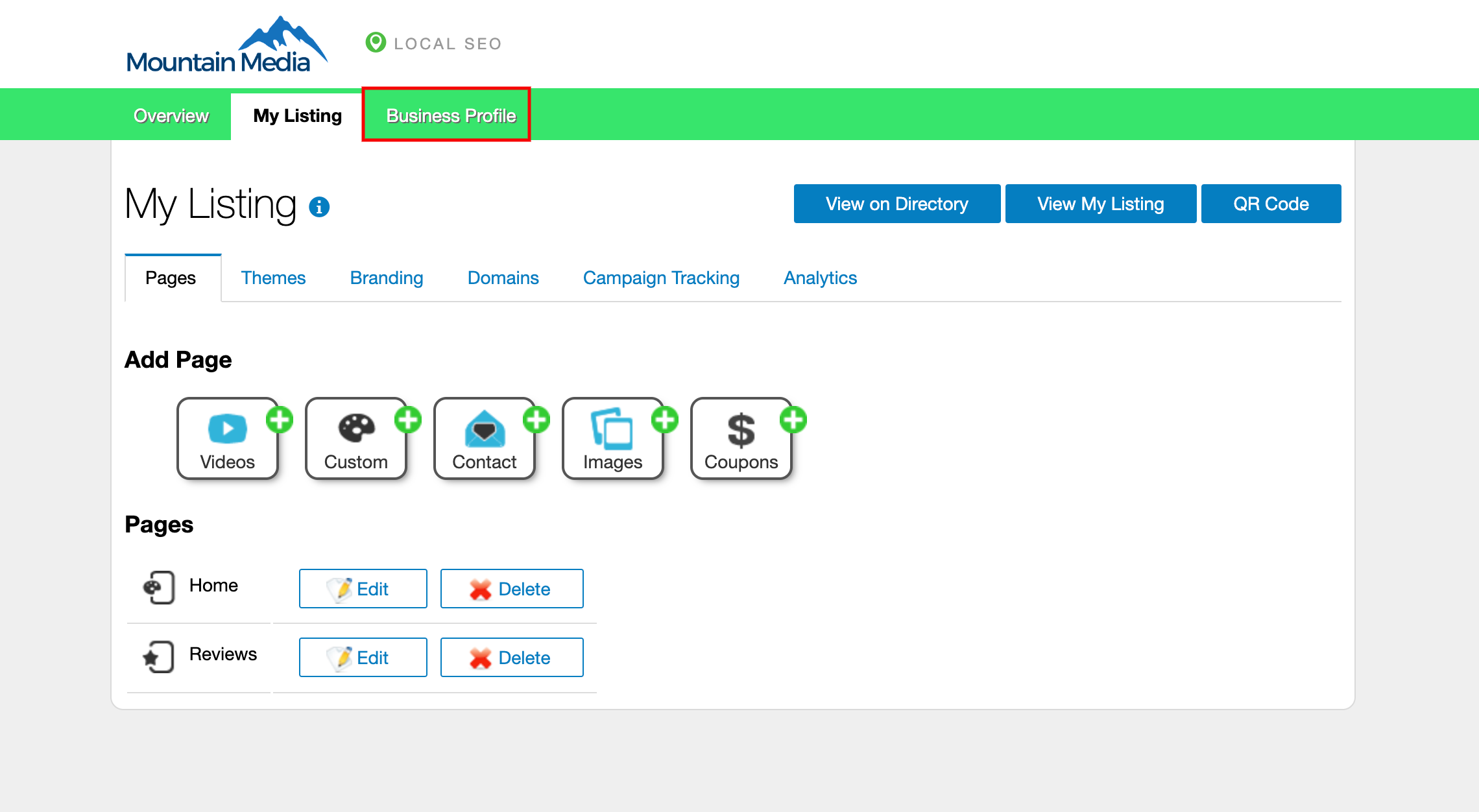
1) enter business information
Open Local SEO > My Listing > Manage My Listing > Business Profile and complete the profile. The information you enter will appear on the listing.
2) select a theme
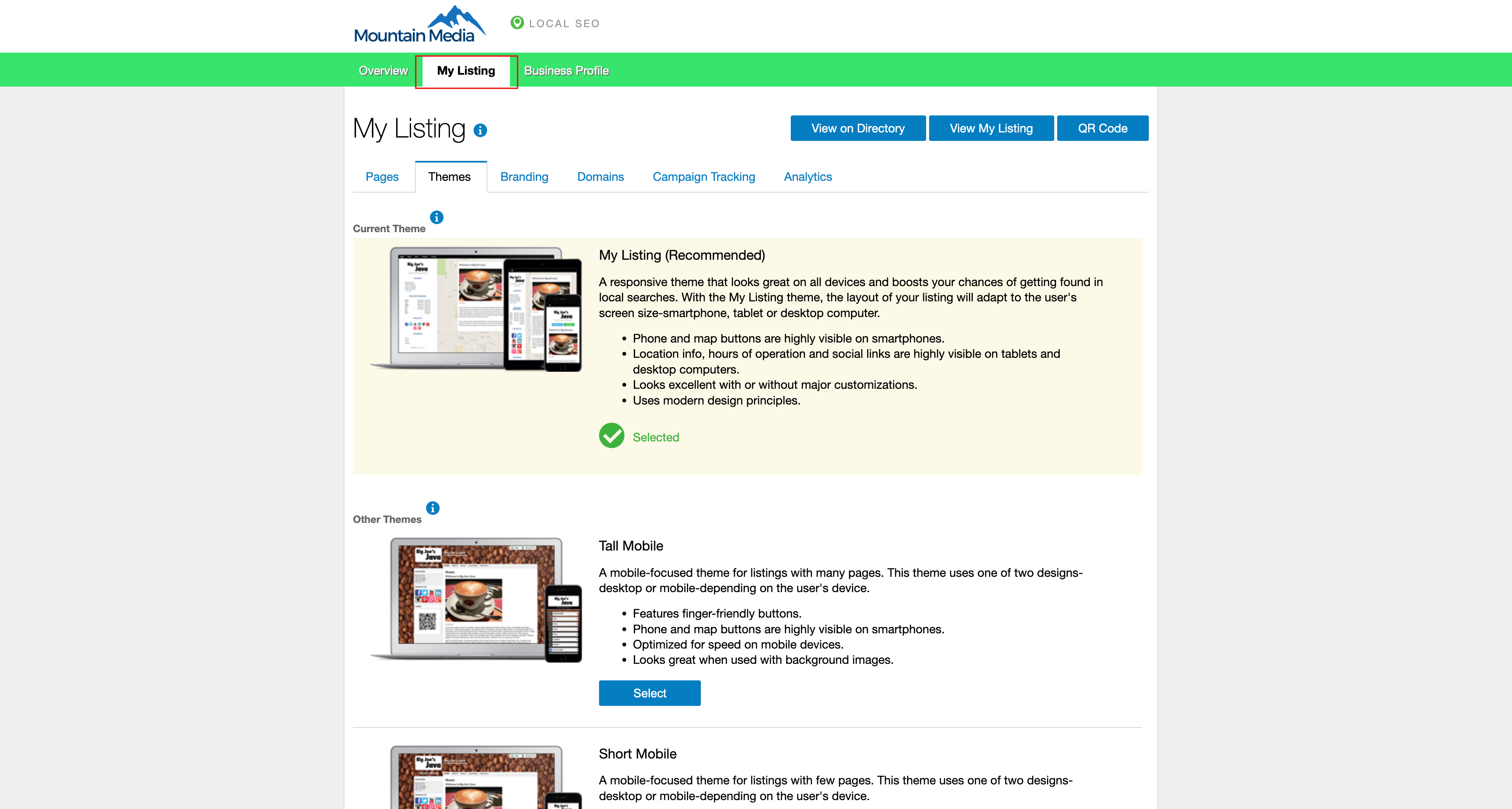
Go to My Listing > Themes to select the listing style. The My Listing Page theme is the default and is responsive. Responsive will adapt to different screen sizes, while Short Mobile or Tall Mobile are designed primarily for smartphones.
3) customize the branding
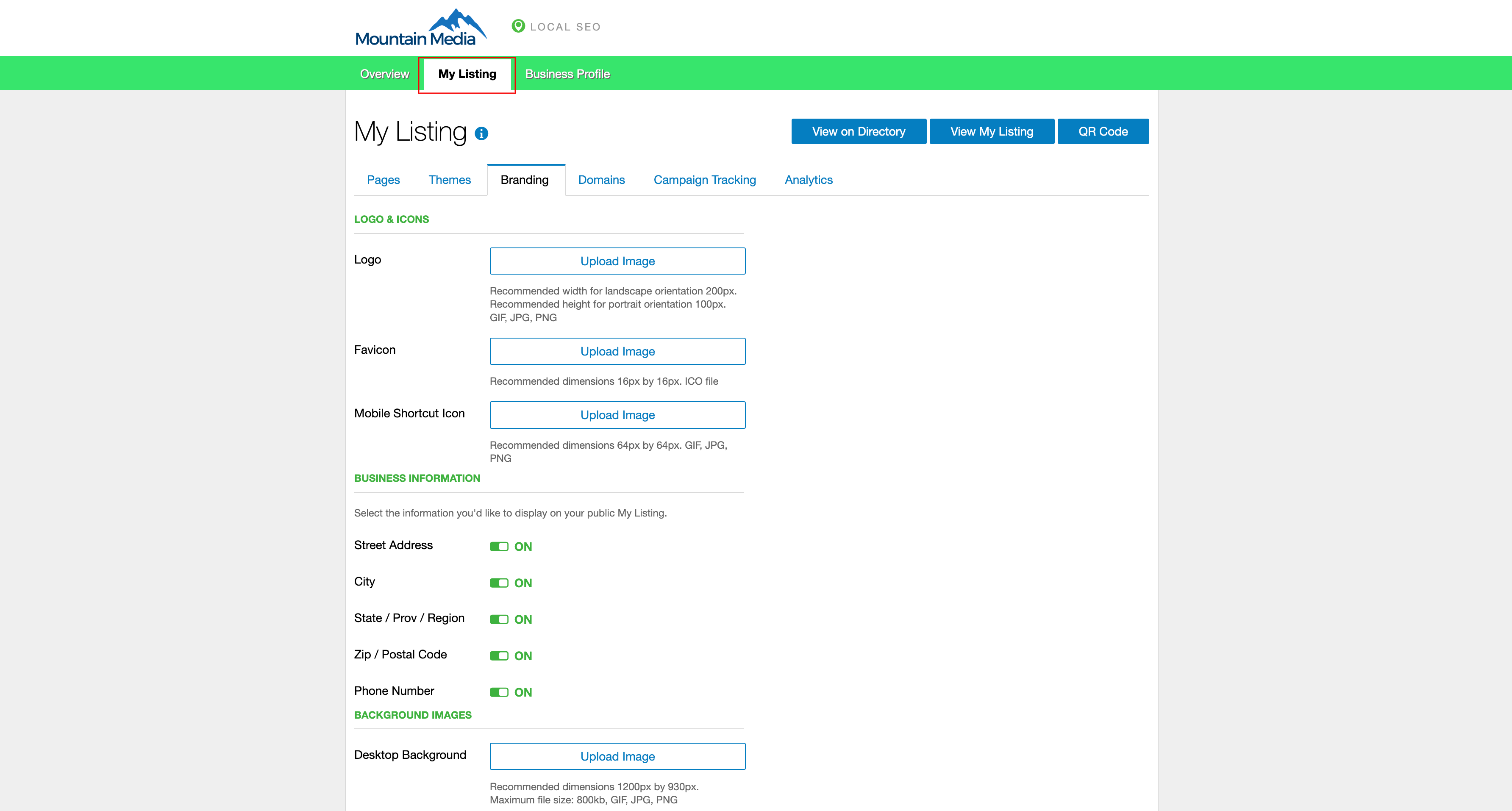
Upload your logo, favicon, and iPhone/Android Shortcut Icon.
If the business is home-based or service-based, you can select the information you want to hide from the listing.
If you upload a background image, ensure it meets the specified size. Background images appear only when the device matches the corresponding size. On other screens, the background color displays instead.
4) customize the domain
There are three ways to customize the URL of your listing:
-
Custom Slug: Keep the listing on your Local SEO domain but customize the end of the URL (the slug).
- Go to
My Listing>Manage My Listing>Domains. - In
Edit Slug, enter the text that should appear after the root domain. Replace spaces with dashes. - Cost: Free
- Go to
-
Custom Domain: Use your listing as the main website (for example,
www.mybusiness.com).- You will need to add TXT and A record entries in your DNS settings.
-
Custom Domain on mobile subdomain: Use your listing as the mobile site (for example, desktop at
mybusiness.com, listing atm.mybusiness.com).- You will need to add TXT and CNAME entries in your DNS settings.
5) update the home page
Go to My Listing > Pages and click Edit beside the Home page.
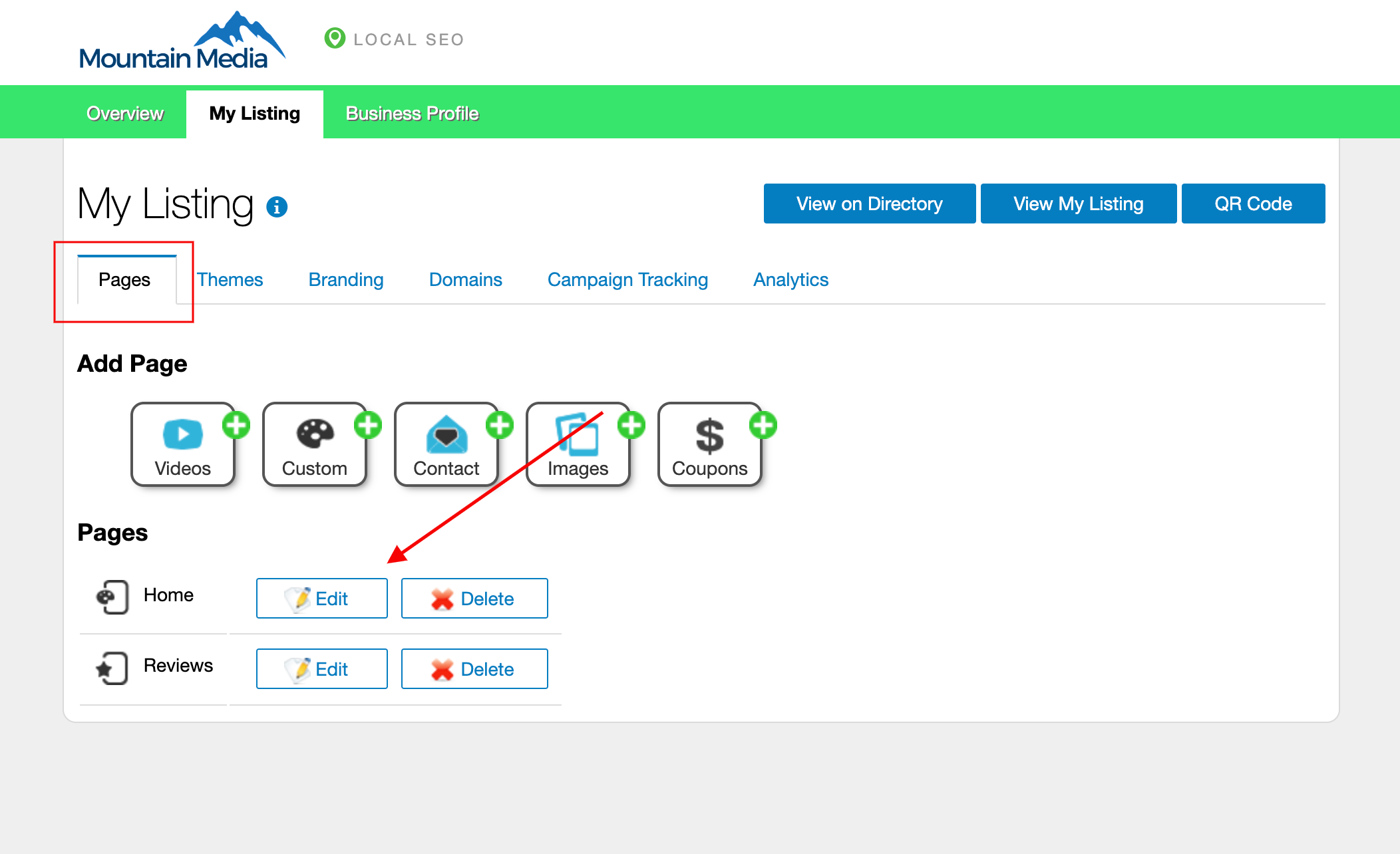
Fill in the fields as you want them to display on the site.
- Although
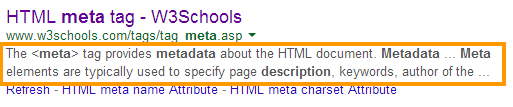
Meta Keywordsare not commonly used by larger search engines, you can enter site keywords separated by commas. Meta Descriptionis the two lines of text that appear below a site in web search. Limit to 155 characters and write a descriptive, keyword-rich summary. Each page should have a unique description.
6) create additional pages
Click a page type to create a new page:
Images: Create gallery-like pages for the websiteContact: Create a page for visitors to contact the businessCoupons: Create a page dedicated to promotion coupons (set start, end, and expiry dates, and select an image for each coupon)Videos: Create a videos page where you can embed videos from online video hostsCustom: Create pages that are not covered by the other categories
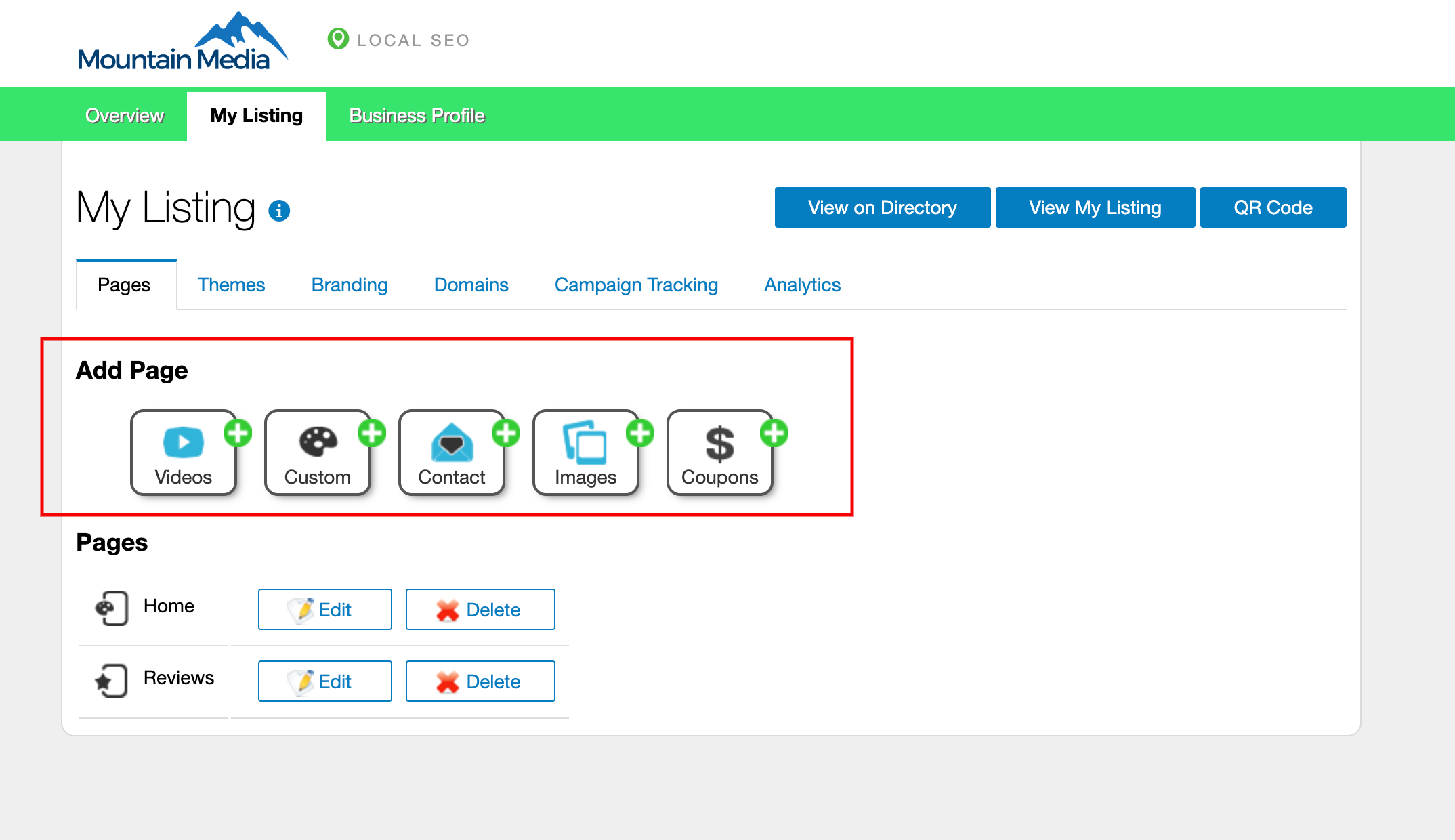
Enter the order in which the page should appear in the main website menu. Fill in all mandatory fields and as many other options as needed. Click Create Page and repeat as required.
My Listing event analytics
Each time a visitor takes an action on your listing (for example, viewing the map), the event is tracked and added to the Event Analytics chart so you can measure engagement.
Tracked events include:
- View Hours
- View Map
- View Contact Information
- View Video
- Call Business
- Link to Full Website
- View Image
- Scanned QR Code
Frequently asked questions (FAQs)
What is My Listing used for?
My Listing creates a customizable, public-facing online business profile. It allows you to display business information, services, contact details, and promotions in a professional format, independent of your main website. Your My Listing page does not have to be your main website, but having a My Listing site can help improve your business's online presence and visibility.
What is the difference between a custom slug and a custom domain?
A custom slug modifies the end of the default Local SEO URL (e.g., /my-business-name), which is free. A custom domain allows you to use your own web address, which requires DNS configuration.
What themes are available for My Listing?
You can choose from a standard Responsive theme (adapts to all screens) or mobile-specific themes like Short Mobile or Tall Mobile, designed for smartphone viewing.