Store
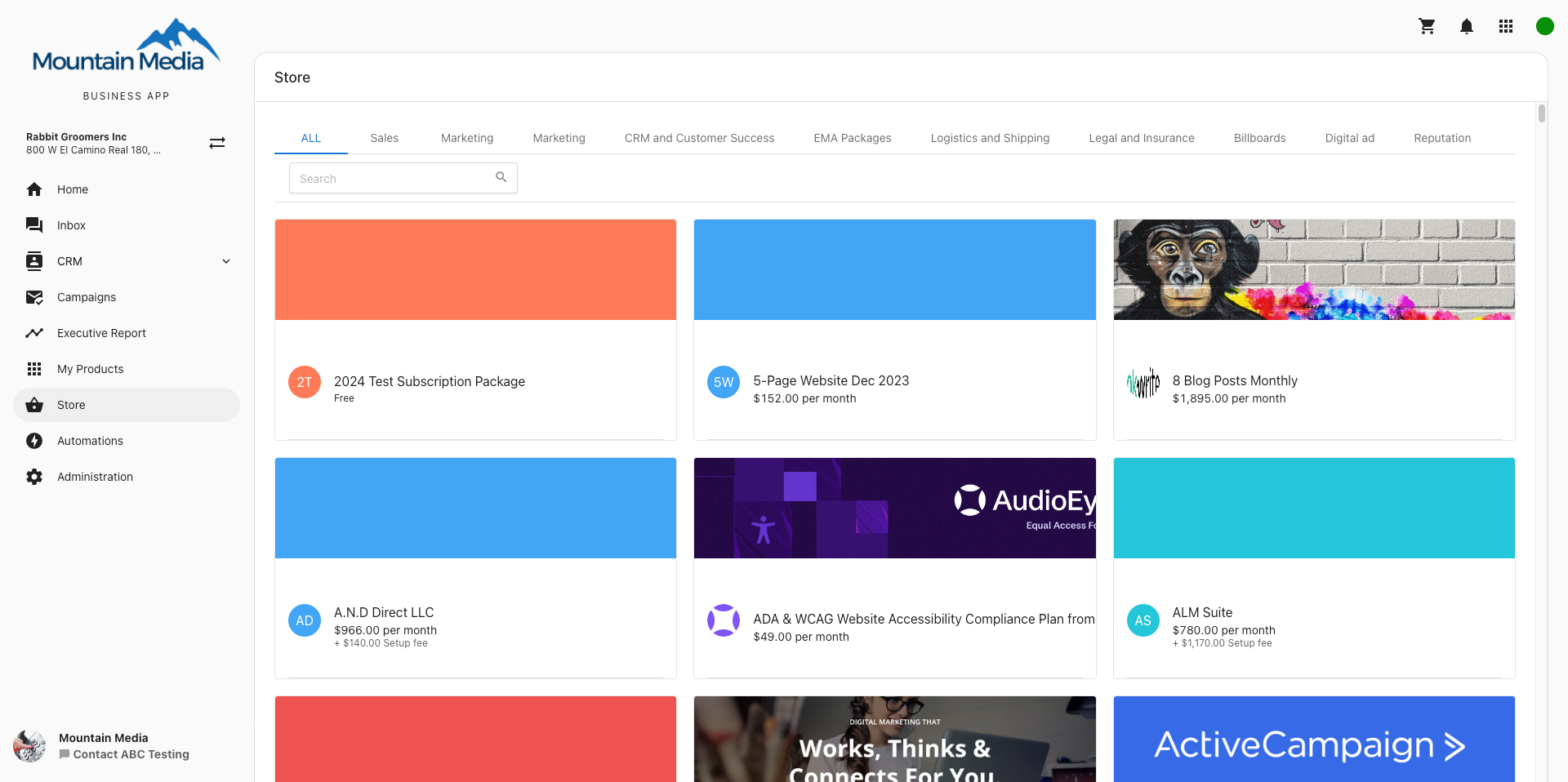
The Store tab in Business App lets you browse and purchase products and packages, or express interest, directly from the app. When you open the Store, you'll see all the products and packages available to you.
How to access the Store
Log in to Business App and click Store.
How to use the Store
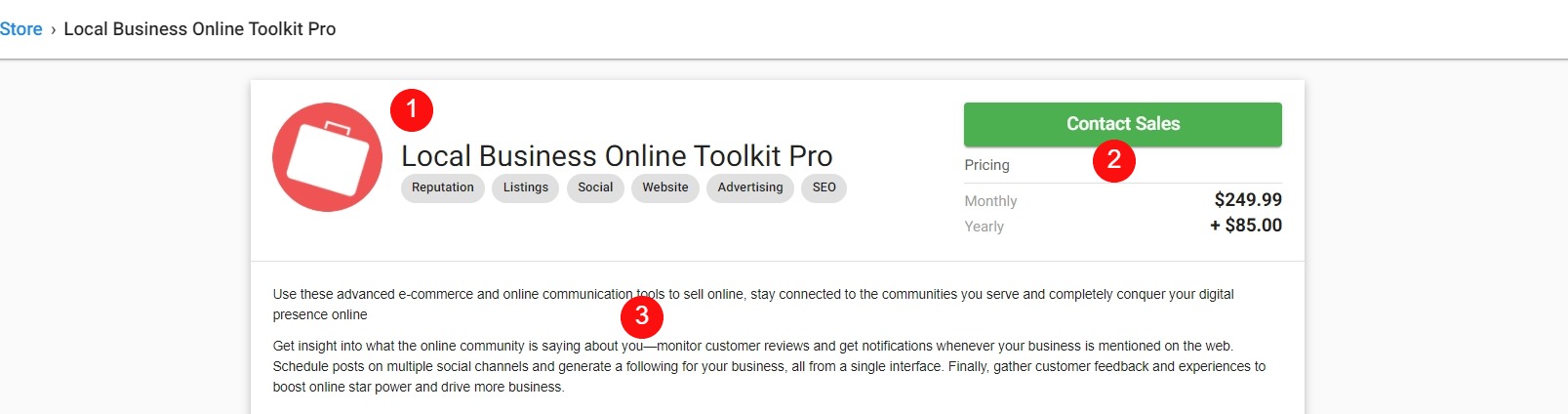
Click any package to open its information page. There you can review marketing materials, product details, pricing, and more.
-
Package information — Package name, tagline, and solution type.
-
Pricing — Price for the package and the purchase button (see below).
-
Package description — Overview of the package.
-
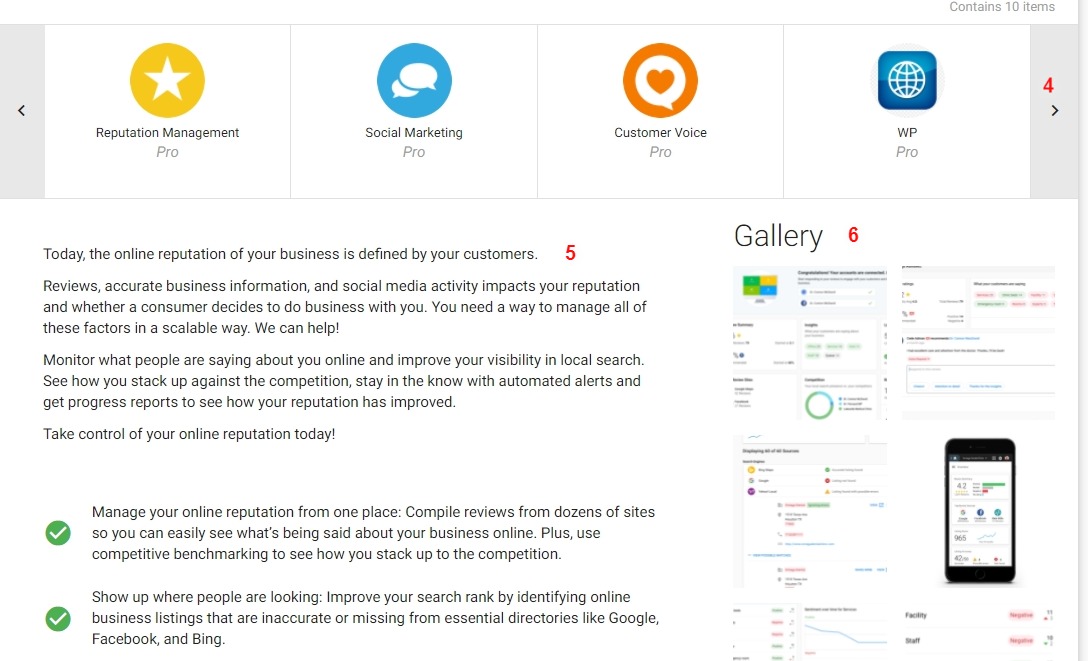
Product selection — Choose a product to view more information.
-
Product description — What the product does and how it helps.
-
Gallery — Media showing how the product works.
-
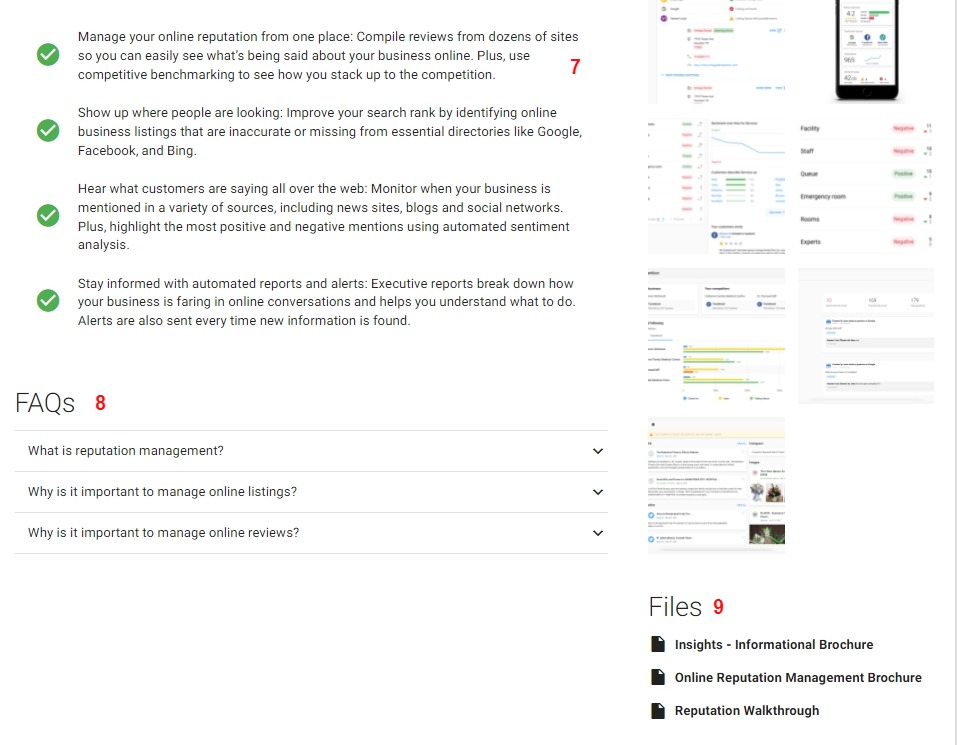
Key selling points — How the product can help you.
-
FAQs — Answers to common questions before you purchase.
-
Files — Case studies, walkthroughs, brochures, and similar materials.
Taking action on a package
After browsing a package and reviewing its details, you'll see one of the following options depending on how the package is configured:
- Add to Cart — Add the package to your shopping cart and complete the purchase yourself.
- Contact Sales — Send an email to express interest and connect with a sales representative.
- Get It Now — Takes you directly to checkout for this package.
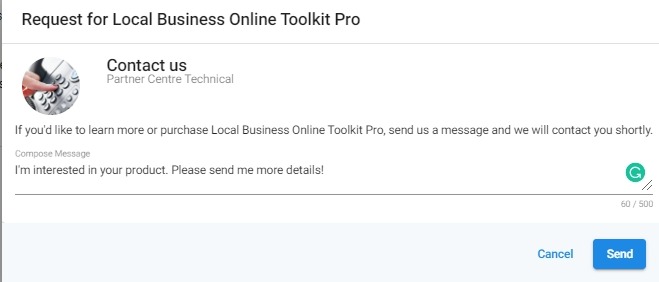
Using the cart
You can access your cart at any time by clicking the cart icon in the top-right corner of Business App. A dropdown shows the items in your cart, the price for each item, and the subtotal.
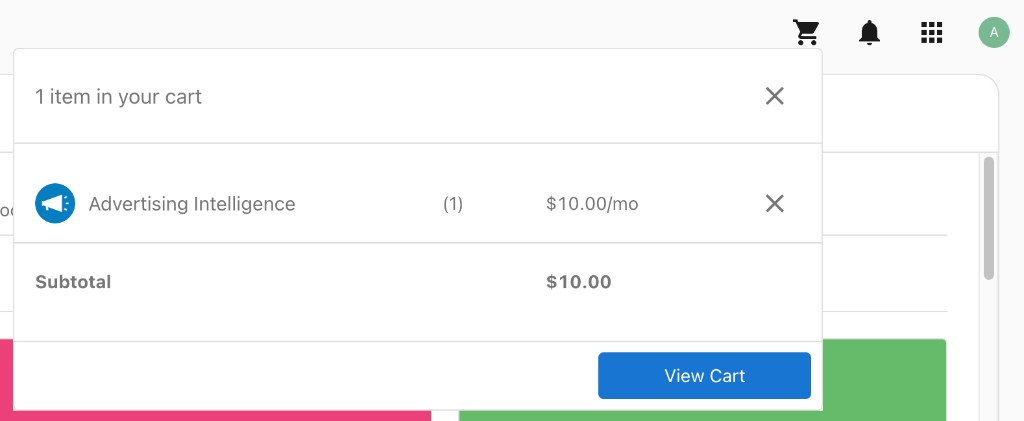
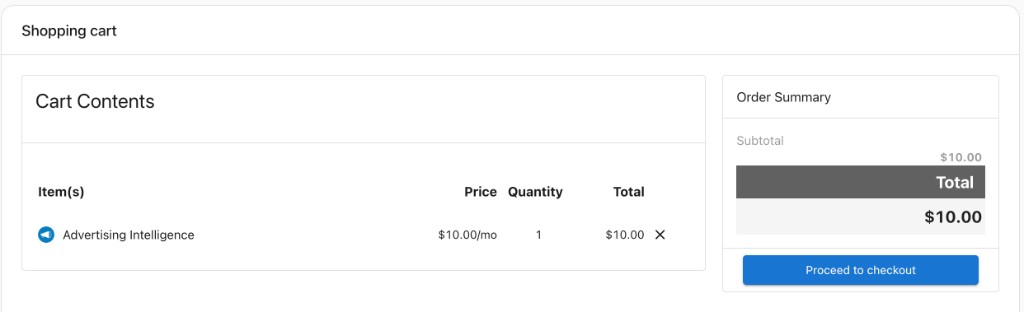
Click View Cart to open the full shopping cart page, where you can review your cart contents, adjust quantities, remove items, and proceed to checkout.
Frequently Asked Questions
What happens when I click "Upgrade now"?
Clicking "Upgrade now" takes you through the standard Store purchase flow where you can review package details, pricing, and complete your purchase.