Apple Business Setup Guide: Connect & Sync Your Business Listing with Local SEO
What is Apple Business and how does it work?
You can connect and authenticate your Apple Business listing with Local SEO through an integrated workflow with Apple Business. This allows for direct data syndication to Apple's ecosystem, improving visibility and trustworthiness of your business information on Apple Maps, Siri, Wallet, Messages, and more.
Why Apple Business matters for Local SEO and business visibility
Connecting your Apple Business listing offers several advantages for your business:
- Higher Data Accuracy: Manage your phone number, email, addresses, website, hours, and more to have accurate and consistent data across Apple apps.
- Greater Visibility: Claimed businesses get 30% more views. Add your logo, cover photo, photos of your business, and more to help your place card stand out.
What's included with Apple Business?
Connecting your listing enables:
- Syndication of verified data to Apple's services.
- Branding and customization of your Apple Maps place card.
- Automatic syncing of updates made in Local SEO.
How to claim your Apple listing
Before you connect your listing, you must claim it. Here are the steps to claim your business's Apple listing:
- Go to Apple Business and register.
- Add information about the owning organization (e.g., legal entity or parent company).
- Add your brand.
- Verify the business using official documents like a utility bill or lease.
- Claim or add your business's location and address.
- Update or add details such as your business category, phone number, and website.
- Add your logo, a cover photo, and other brand content to enhance your business's presence.
- Set your typical business hours.
How to connect Apple Business
Once your listing is claimed, you can connect it through either Local SEO or the Business App.
- Option 1: Via Local SEO
- Option 2: Via Business App Integrations
-
Navigate to the
Listing Synctab.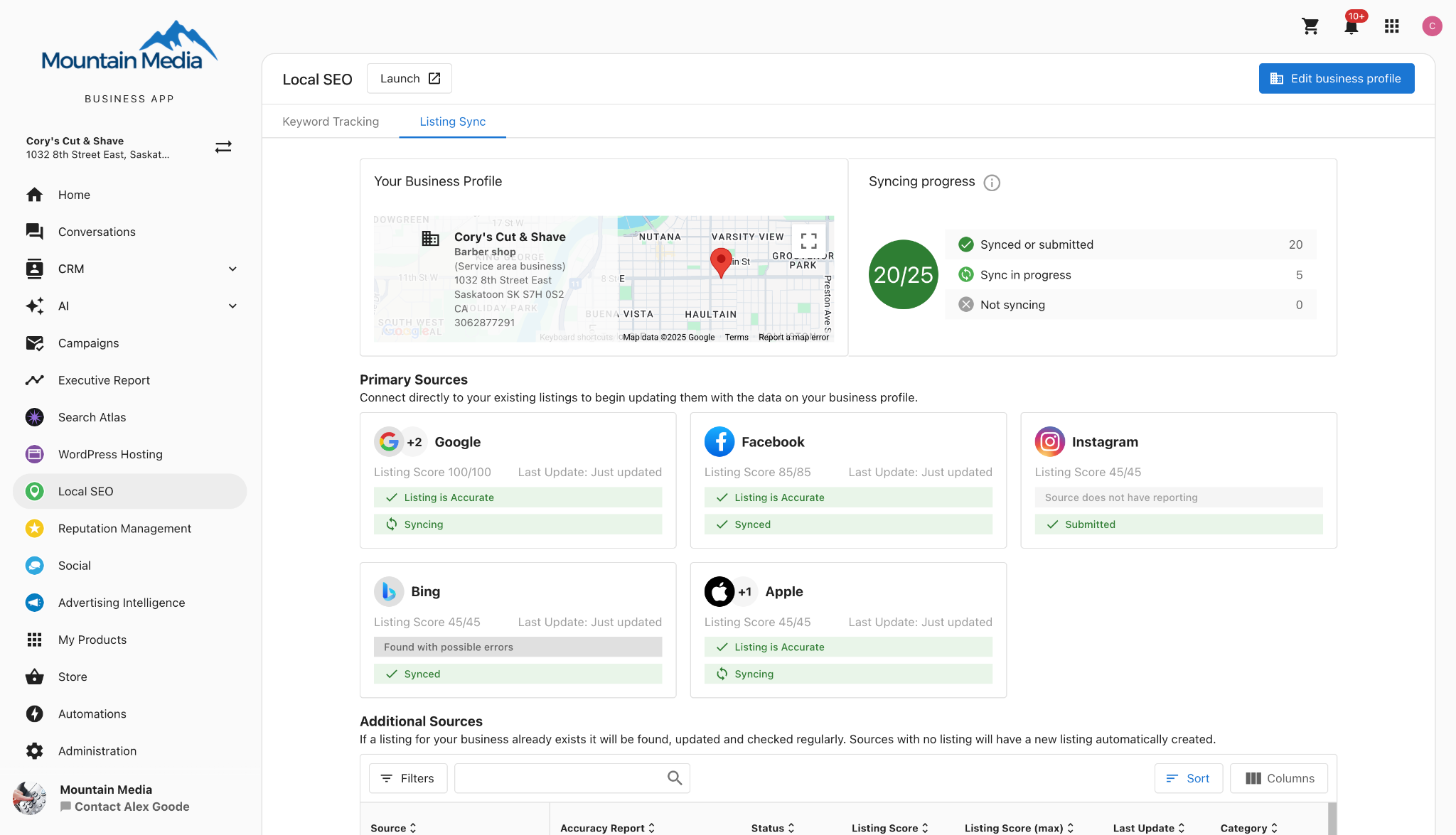
-
Select the Apple listing card and click
Connect Now.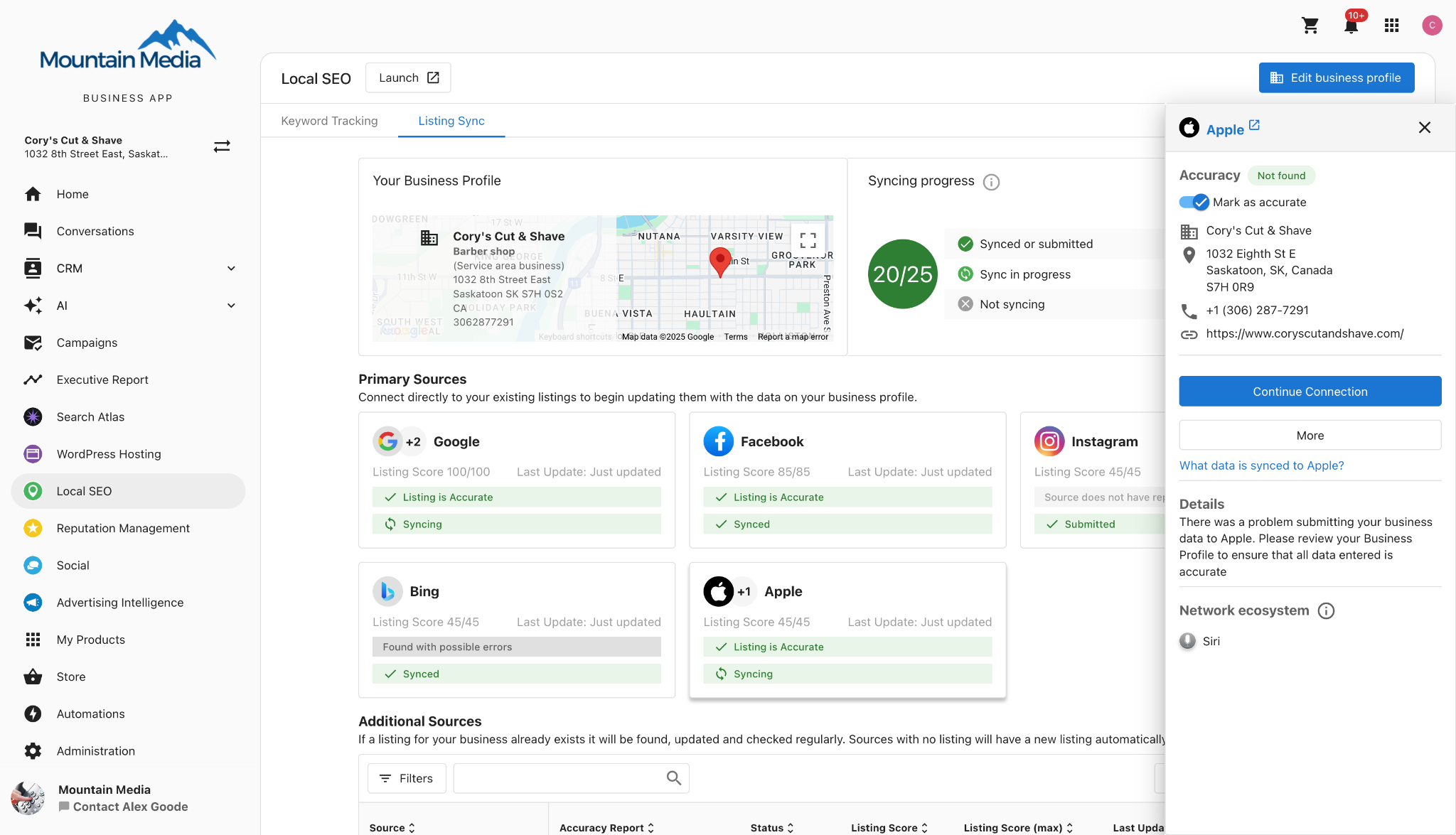
-
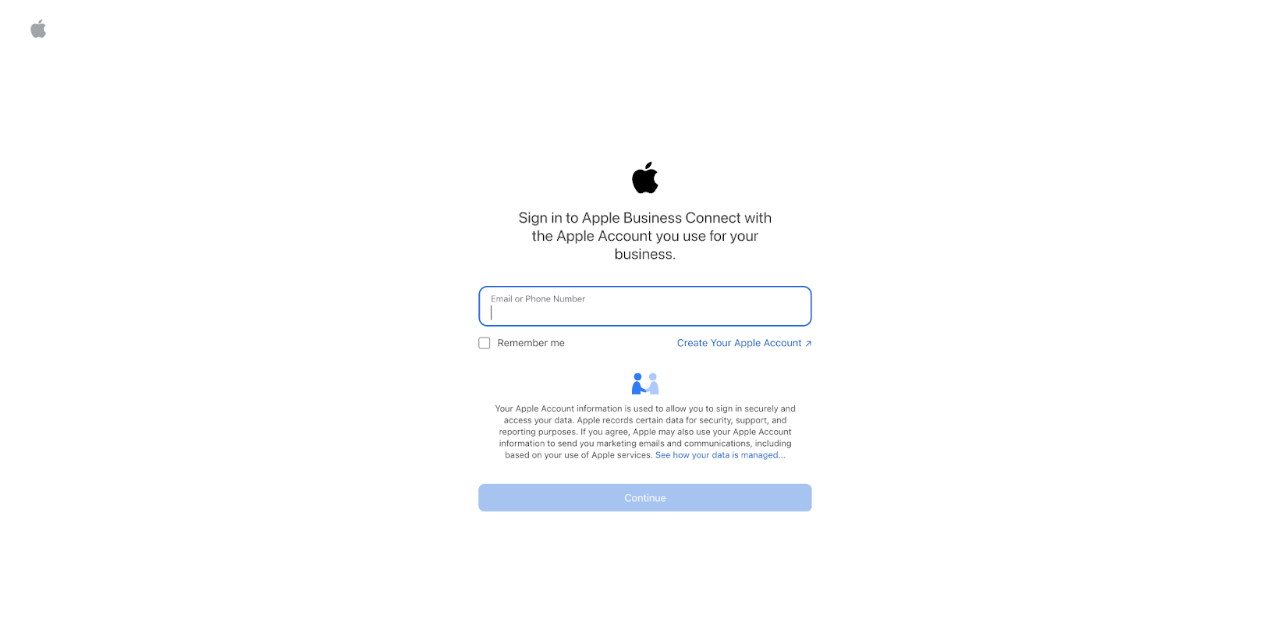
Sign in to Apple Business using the email or phone number associated with the Apple Business account.
-
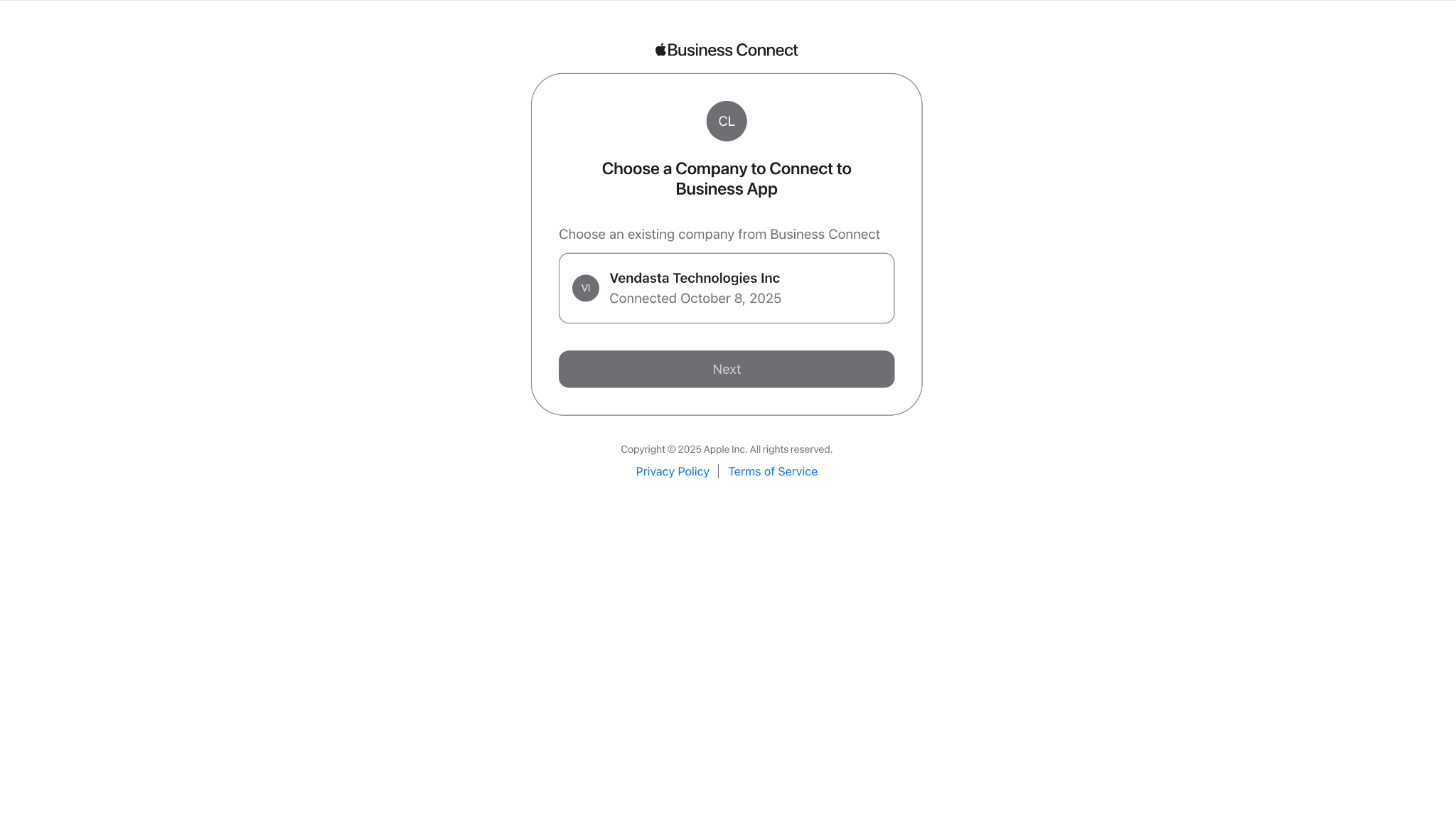
Select a company to connect.
-
You will be automatically redirected back to Local SEO.
-
Go to the
Administrationtab.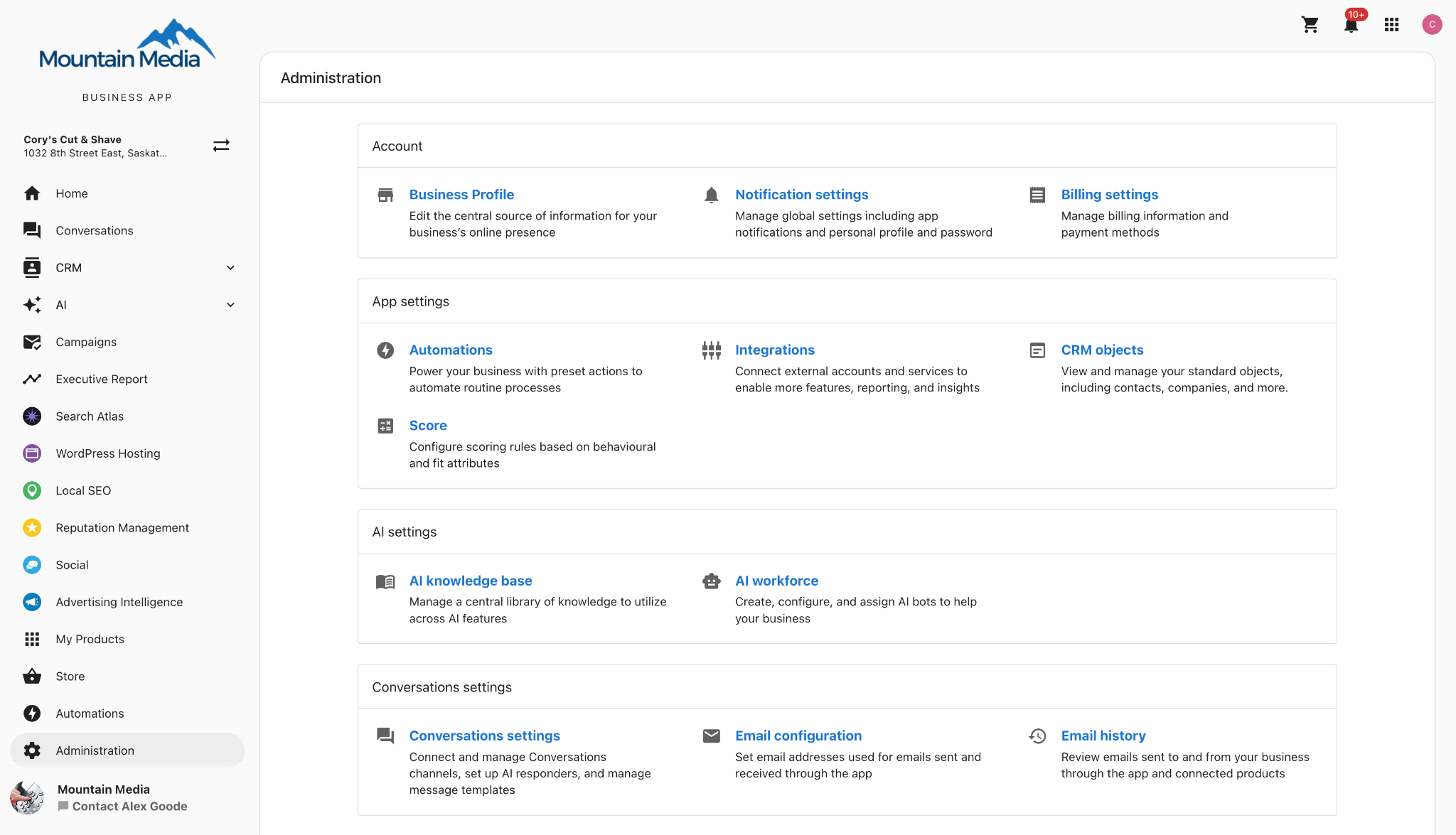
-
Click on
Connectionsand selectApple Business.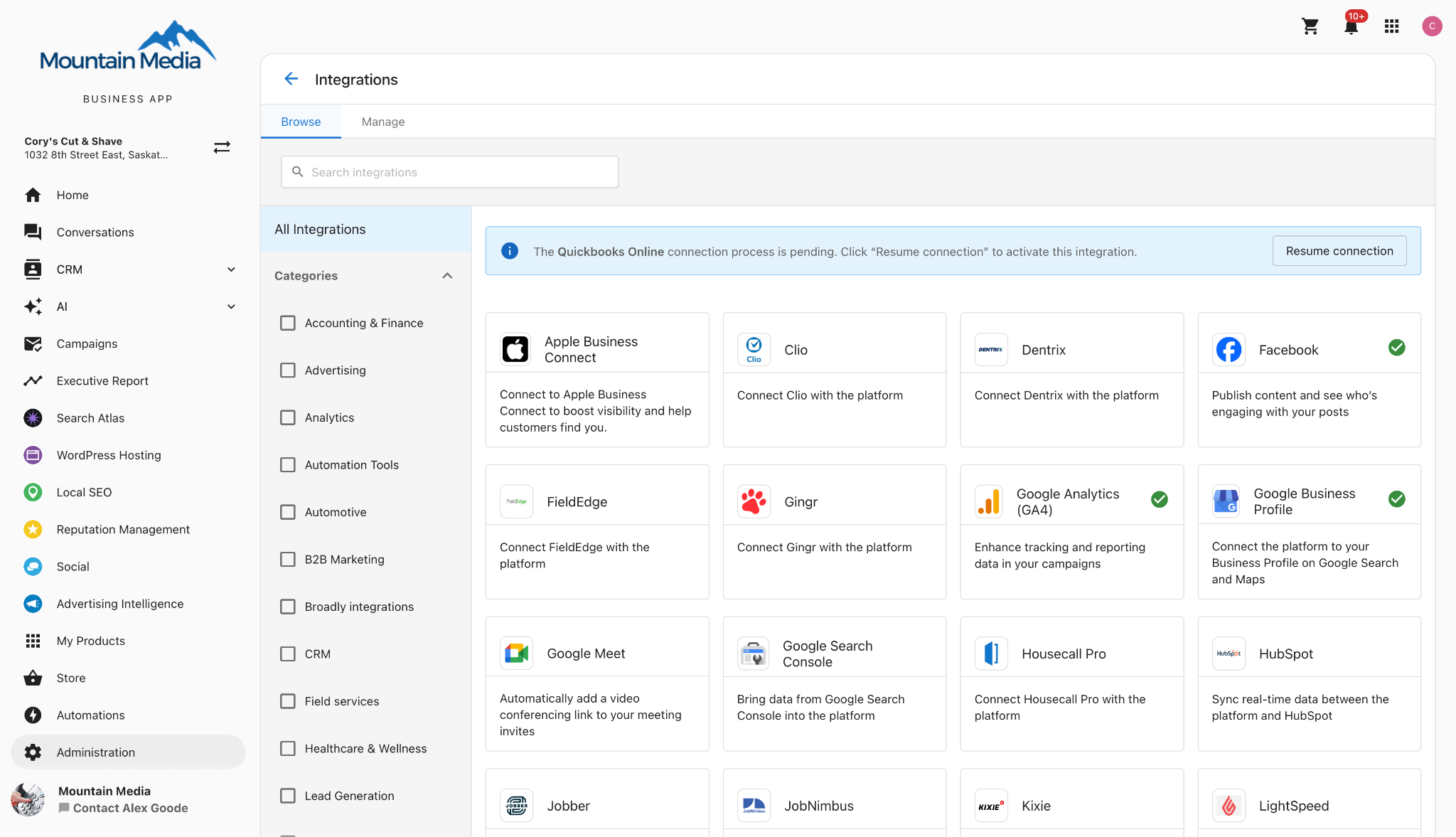
-
Click
Add Connection. You will be redirected to Apple Business.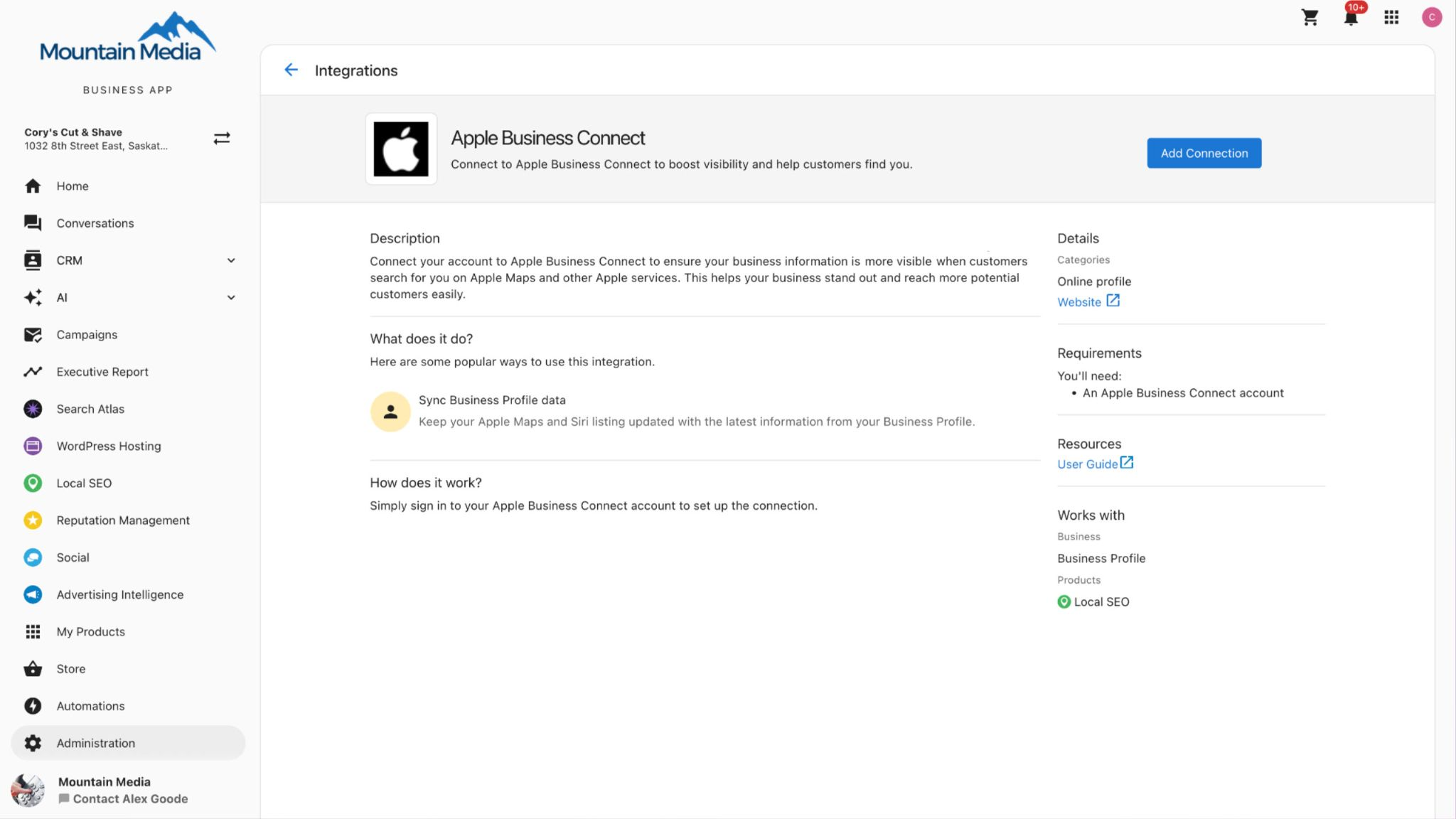
-
Sign in to Apple Business using the email or phone number associated with the Apple Business account.
-
Select a company to connect.
-
You will be returned to the Apple Business page within the Business App.
After successful authentication, your verified business information will be synced automatically, ensuring your presence across Apple applications is accurate and up-to-date.
Frequently asked questions (FAQs)
Does Apple Business support businesses with multiple locations?
Yes. Apple Business supports multi-location businesses and offers a brand portal for large chains and enterprises. Through Local SEO's integration with Apple Business, each location can be managed from a single dashboard while syncing reliably to Apple Maps. This allows scaling from a few stores to hundreds without managing multiple Apple Business accounts separately.
How does Apple Business benefit my business?
Apple Business ensures accurate, consistent information across Apple Maps, Siri, Apple Wallet, and other Apple apps, which is used by billions of Apple users daily. With Local SEO's integration with Apple Business, updates sync automatically across the entire Apple ecosystem. Apple Business listings can include photos, logos, and action buttons such as Book Now. Apple Business also provides valuable insights showing how people find and interact with a business through Apple Maps and Siri, offering more visibility into online presence and customer behavior.
How can I manage and update my business info across so many listing sites?
Manually updating each platform is possible but not scalable. Tools like Local SEO and Listing Sync Pro allow for updates to be made once and pushed to 50+ directories in real time, including Apple Maps and other major platforms. These tools also monitor accuracy, correct unauthorized changes, and flag duplicates, ensuring consistency across platforms like Apple Business, Google Business Profile, and social media listings.
What are some best practices for local listings?
- Claim and verify major listings (Apple Business, Google Business Profile, Facebook, Bing, key industry sites).
- Keep information consistent (name, address, phone, website) across all platforms including Apple Maps and Apple Business.
- Complete profiles with categories, hours, photos, and services, taking advantage of Apple Business's enhanced features like branded place cards.
- Update promptly when details change; tools like Listing Sync Pro can update in real time across Apple Business and 50+ other directories.
- Monitor and fix duplicates to avoid confusion, especially across Apple Maps and other Apple ecosystem services.
- Encourage and respond to customer reviews on all platforms including those visible through Apple Maps and Siri.
- Use special platform features (e.g. Apple Showcases, Google posts, Apple Business custom actions).
- Apply a consistent multi-location strategy that works across Apple Business's enterprise tools and Local SEO's management dashboard.
- Audit regularly to catch errors and track improvements across your Apple Business presence and other listings.
Which products include Apple Business syncing, and does it cost extra?
It is included in the below product with no additional cost:
- Local SEO Pro
- Local SEO (Standard) + Listing Sync Pro
- Listing Sync Pro (Yext)