NPS Overview
The Net Promoter Score (NPS) feature in Reputation AI Premium allows you to send customer satisfaction surveys before requesting public reviews. This workflow helps identify unhappy customers early, enabling businesses to address concerns before prompting reviews on platforms like Google Business Profile or Facebook.
Using NPS surveys improves feedback accuracy and increases the likelihood of receiving positive public reviews. It also supports internal service improvement by highlighting satisfaction trends.
Why use NPS?
Sending direct review requests to all customers may result in negative public feedback, especially from dissatisfied clients. NPS surveys offer a buffer by letting you gather private feedback first. By identifying and responding to detractors privately, you reduce the risk of negative public reviews and strengthen your overall online reputation.
What's included
- Email and SMS NPS survey capabilities
- Configurable NPS templates using a drag-and-drop email builder
- Automatic redirect options for promoters to leave public reviews
- NPS score tracking and feedback history
- Filterable feedback view by promoter, passive, or detractor
Get started
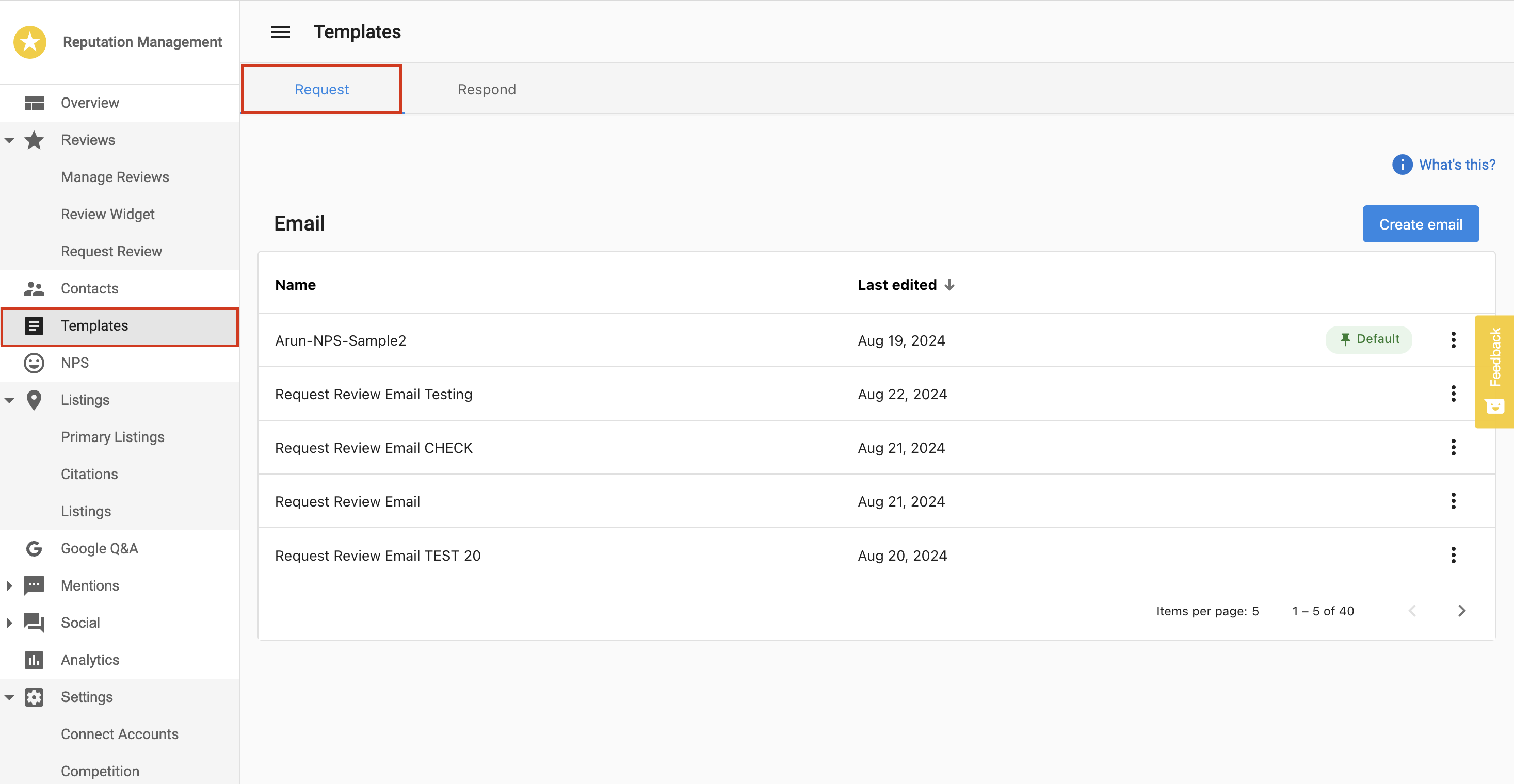
- Go to
Templatesin the side menu of Reputation AI Premium. - Select the
Requesttab. - Click
Create Emailto open the email builder. - Add the NPS block to your template.
- Enable the option to redirect customers with scores above 7 to a public review site.
- Send NPS surveys via
Review Requests.
How to Create an NPS Template
- Go to
Templatesin the side menu of Reputation AI Premium. - Select the
Requesttab. - Click
Create Emailto open the email builder. - Click
Add New Blockand insert the NPS block. - Choose your preferred display option:
- Button Option: One-click feedback buttons inside the email.
- Inline Option: Number scale (0–10) directly embedded in the email.
- Enable the option to redirect customers with scores above 7 to a public review site (e.g., Google).
- Click
Saveonce all configurations are complete.
The SMS version of the NPS message is currently not customizable. It sends the default:
"[Business Name]: We'd love to hear about your recent experience with us. Leave us a review here."
You can use the default SMS request flow for NPS outreach.
How to View NPS Feedback
- Go to
NPSin the side menu of Reputation AI Premium. - Review the average score within a selected date range.
- See the percentage of:
- Promoters (9–10)
- Passives (7–8)
- Detractors (0–6)
You can also view individual feedback responses, including the score, written comments, and contact details.
Export NPS data
You can export NPS responses from the ML Data Exporter tab.
- Go to
Reputation AI>Analytics>ML Data Exporter. - In the data type dropdown, select
NPS. - Review the NPS table. The table columns update for NPS data.
- Apply filters to narrow results. You can use the same filter behavior available for reviews, including the
Pagefilter in single-location view. - Export the filtered data.
NPS export is visible only when this option is enabled for your account.
NPS feedback entries also appear in the Conversations AI timeline as system activity for the related contact. This gives you one place to track scores, comments, and other conversation activity.
NPS calculation and trends
NPS Formula:
NPS = % Promoters - % Detractors
- Promoters are likely to recommend your business.
- Detractors are not likely to recommend your business.
- Passives are neutral and not included in the calculation.
The Trends section shows NPS score changes over time, helping you track improvements or issues in customer satisfaction.
Frequently Asked Questions (FAQs)
Can I redirect only satisfied customers to leave a public review?
Yes. You can enable a setting that redirects customers with scores above 7 to a review site such as Google.
Can I customize the SMS message?
No. The SMS message is hardcoded and is not customizable.
Why don't I see NPS in the ML data exporter dropdown?
The NPS export option appears only when it is enabled for your account.
Can I use both email and SMS for NPS surveys?
Yes. You can select both delivery methods when sending a review request.
Where can I view customer feedback from NPS surveys?
Go to the NPS tab to see scores, written responses, and contact info.
Why don't I see NPS in the ML data exporter dropdown?
The NPS export option appears only when it is enabled for your account.
Can I export NPS data?
Yes. Go to Reputation AI > Analytics > ML Data Exporter, select NPS, apply filters, and export your data.
Can I use AI to respond to NPS feedback?
No. NPS is designed for private feedback collection and does not include AI-generated responses.
What do the NPS categories mean?
- Promoters (9–10): Highly satisfied, likely to recommend.
- Passives (7–8): Satisfied, but not enthusiastic.
- Detractors (0–6): Dissatisfied, may share negative feedback.
Is the NPS email customizable?
Yes. Use the email builder to fully design your message and choose between Button or Inline score options.
Does NPS impact public reviews automatically?
Only if configured to redirect promoters. Otherwise, feedback remains private.
Can I use an NPS survey link without sending it to a contact (for example, at point of purchase)?
No. NPS surveys must be sent to a contact via Email or SMS. NPS is designed to collect feedback from identifiable contacts so responses can be properly submitted and displayed in the Reputation Dashboard. Using a direct URL without a contact is not supported and may cause errors.