Add Google Analytics Account
WordPress Hosting has a built-in dashboard that displays highlights of your site’s visitor information using Google Analytics. However, we understand that you may want to dig deeper using your own account. That’s why WordPress Hosting provides an easy way to do just that.
Plugins meant to support Google Analytics are available, but these often fail to track or gather data in the WordPress Hosting environment.
- Sign up for Google Analytics and configure it for your site, or just log in if you’ve already completed that step.
- Click Admin
- Use the account and property selector at the top of the page to choose your site’s account and property
- Under
Property settings, expandData collection and modificationand clickData streams - Select your site’s data stream to view its Measurement ID
- Copy that Measurement ID
- Sign in to your WordPress Hosting site’s WordPress admin panel
- Navigate to
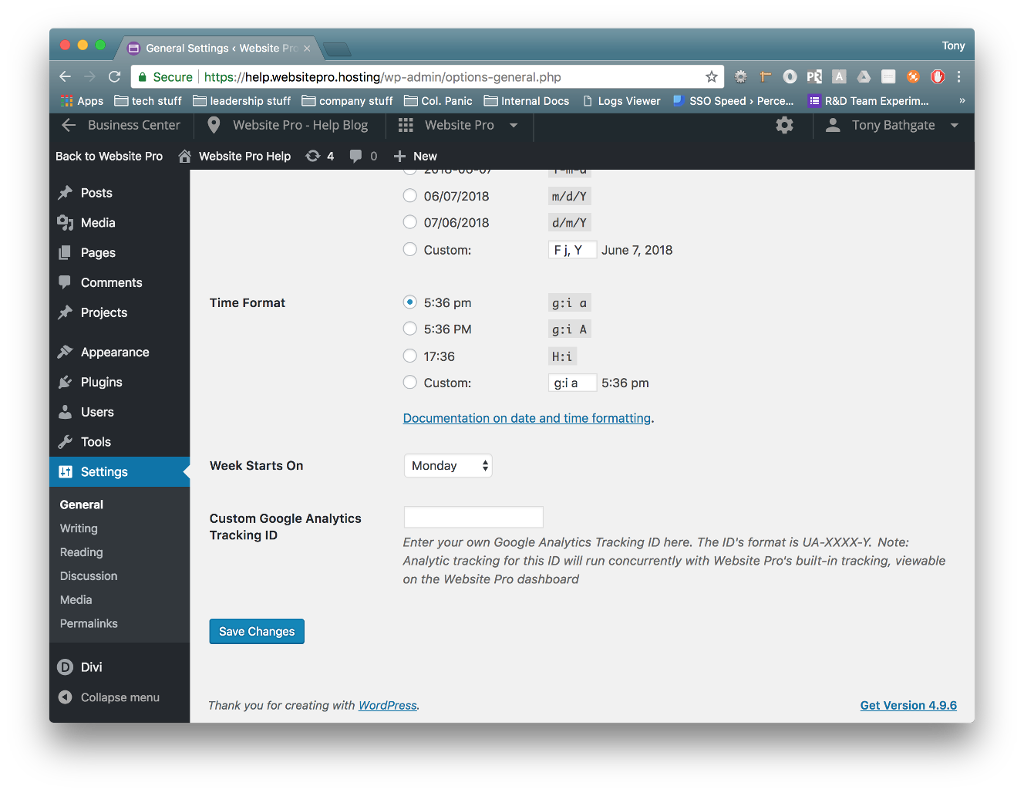
Settings→General Codeand scroll to the bottom - Paste that Measurement ID into the
Custom Google Analytics Tracking IDand clickSave Changes
Please keep in mind that this ID will run concurrently with WordPress Hosting’s built-in analytic tracking, which will remain on the WordPress Hosting dashboard.
Frequently Asked Questions (FAQs)
How do I add my Google Analytics account to WordPress Hosting?
There are two ways to install Google Analytics in WordPress Hosting: using the built-in settings or by manually injecting the tracking code.
Method 1: Use the Tracking ID field in Settings
- Sign in to your Google Analytics account.
- Navigate to:
Admin→Property settings→Data collection and modification→Data streams - Select your data stream and copy your Measurement ID (format:
G-XXXXXXX) - In your WordPress dashboard:
- Go to
Settings→General - Scroll to the bottom and paste your Measurement ID into the
Custom Google Analytics Tracking IDfield - Click
Save Changes
- Go to
To ensure accurate data syncing, also verify that Google Analytics is connected in Business App → Administration → Integrations.
Method 2: Add the script manually in Divi
- In your WordPress dashboard, go to
Divi→Theme Options - Paste your Google Analytics
gtag.jsscript into theBody Codesection - Save changes
This ensures the script loads on all pages across your site.
Why is my bounce rate lower than expected in Google Analytics?
Very low bounce rates (e.g., under 10%) usually indicate a technical issue, such as:
- Duplicate Google Analytics tracking (e.g., from both a plugin and hardcoded script)
- Event-based tracking falsely counting interactions
- Improper tag placement in your theme or plugin
Use the Google Tag Assistant Chrome Extension to inspect your tags and verify correct implementation: Google Tag Assistant Tutorial
If needed, clean up duplicates by:
- Disabling redundant plugins
- Removing extra manual script embeds
- Reviewing tag behavior in Google Tag Manager
How do I check if my website is indexed by Google?
Google Search Console is the best tool to verify and manage site indexing.
Step 1: Submit your domain
- Go to Google Search Console
- Choose
URL PrefixorDomainsetupURL Prefix: Requires only access to your site (e.g., via tracking tag)Domain: Requires access to your domain registrar (to add a TXT DNS record)
- Verify domain ownership through the guided steps
DNS changes can take 6–12 hours to propagate.
Step 2: Submit your XML sitemap
After verification, submit your XML sitemap to help Google crawl your site.
To find your sitemap:
- Yoast SEO: Log in to WordPress > SEO > General > Features tab Yoast Sitemap Help
- Rank Math SEO: Rank Math Sitemap Video Tutorial
Submit the sitemap under the Sitemaps tab in Search Console.
Step 3: Manually request page indexing
- In the GSC dashboard, click the
URL Inspectiontool - Paste in the URL you want indexed
- If it says "URL is not on Google," click
Request Indexing
Crawling and indexing can take 7–15 days to reflect in search results.