Managing Contacts
What is managing contacts?
Managing contacts allows you to work with existing contact records by adding internal notes, viewing interaction timelines, enriching profiles with additional data, and exporting your contact list. These tools help you maintain context, track engagement, and keep your contact information comprehensive and actionable.
Why is this important?
Effective contact management helps you:
- Keep important context and notes attached to each contact
- Track the full history of interactions with prospects and customers
- Enrich contact profiles with up-to-date professional and company data
- Export contact lists for reporting or integration with other systems
- Prepare for meetings by quickly reviewing past interactions
What's included?
Contact management provides several key features:
- Contact Notes: Add and save internal notes for each contact
- Contact Timeline: View a chronological history of emails, replies, and meetings
- Contact Enrichment: Retrieve additional professional and company data (add-on feature)
- Export Contacts: Download your complete contact list
How to add notes to contacts
You can add internal notes to any contact to save important context, meeting takeaways, or reminders.
For Gmail
In the Yesware Contact Sidebar:
- Open the sidebar and search for or select a contact.
- Scroll to the
Notessection. - Type your notes in the notes field.
- The notes will be saved automatically to the associated contact.
This is a great way to keep information on your contacts easily accessible while emailing with them.
For Gmail and Outlook (App Site)
On the app site:
- Go to the Contacts page.
- Select a contact to open their profile.
- Add notes in the
Notessection on the right-hand side. - Make sure you click the
Savebutton on the bottom right to update the notes section.
You can edit or delete notes at any time by returning to the contact profile.
How to use the Contact Timeline
The Contact Timeline allows you to see all activity with a particular contact, including emails sent, replies received, and meetings booked.
What shows in the Contact Timeline
The timeline displays:
- Messages sent (both tracked and untracked emails)
- Replies received from the contact
- Meetings booked through Meeting Scheduler
The timeline is organized by activity date, with the most recent activity shown first.
Accessing the Contact Timeline
For Gmail: The timeline is visible in the Contacts Sidebar when you view a contact profile. When viewing an email, the sidebar will auto-load the associated contact profile, showing their timeline.
For Outlook:
The Contact Timeline lives within the Yesware sidebar under the Tracking tab. You can also view it in the app site on each contact's profile page.
Understanding timeline activity
- The timeline lists activity in order of activity date
- For meetings booked, the meeting date will be shown along with the booking activity date
- You'll see the email address for the recipient at the top of the Contact Timeline
The timeline will not show activity for your first inbound email from a recipient, and it will not show activity for internal emails with colleagues.
Multiple recipients on an email
If there are multiple recipients on an email, the timeline will show activity for the first external email on the thread. You'll see the email address for the recipient at the top of the Contact Timeline.
How to enrich contact data
Contact Enrichment gives you instant access to up-to-date information about the prospects and customers you're engaging with, right from your inbox or the Yesware web app.
Whenever you email someone, a contact record is created automatically. You can then enrich that contact to retrieve additional professional and company data, helping you personalize outreach and understand who you're contacting.
Contact Enrichment is an add-on to your existing Yesware plan and uses enrichment credits. Each enrichment uses one credit.
Enriching contacts in the App Site (Gmail and Outlook)
- Go to the
Contactspage in the Yesware web app. - Find the contact you want to enrich.
- Click
Enrich Dataon the right side of the contact record. - The system will display both the existing profile and newly enriched information.
- Click
Saveto update the contact with the enriched details.
Enriching contacts in Gmail
- Open the Yesware Contacts Sidebar inside Gmail.
- Select a contact.
- Click the
Enrich Databutton. - A credit will be used, and additional details will appear alongside the existing contact data.
- Click
Saveto update the contact.
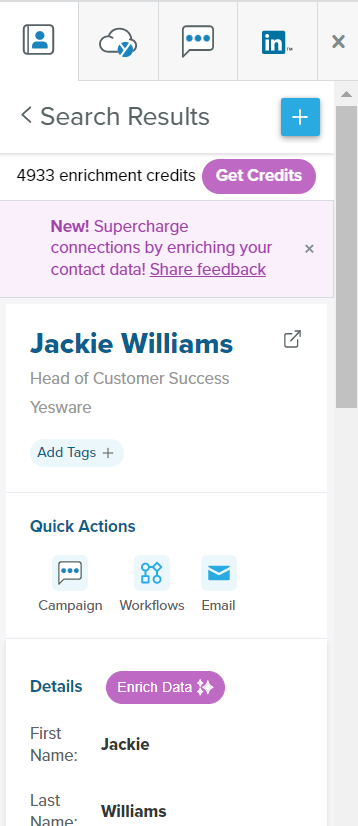
This feature helps you keep your records complete and up to date, without manual research.
How to export contacts
You can export all of your contacts from Yesware to use in other systems or for reporting purposes.
To export all contacts:
- Go to the Yesware web app.
- Click on the
Contactstab. - Check the
Select Alloption to select all contacts. - Click on
Export Contacts.
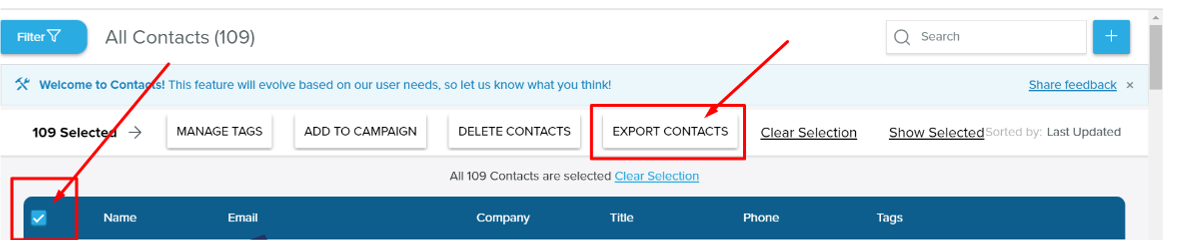
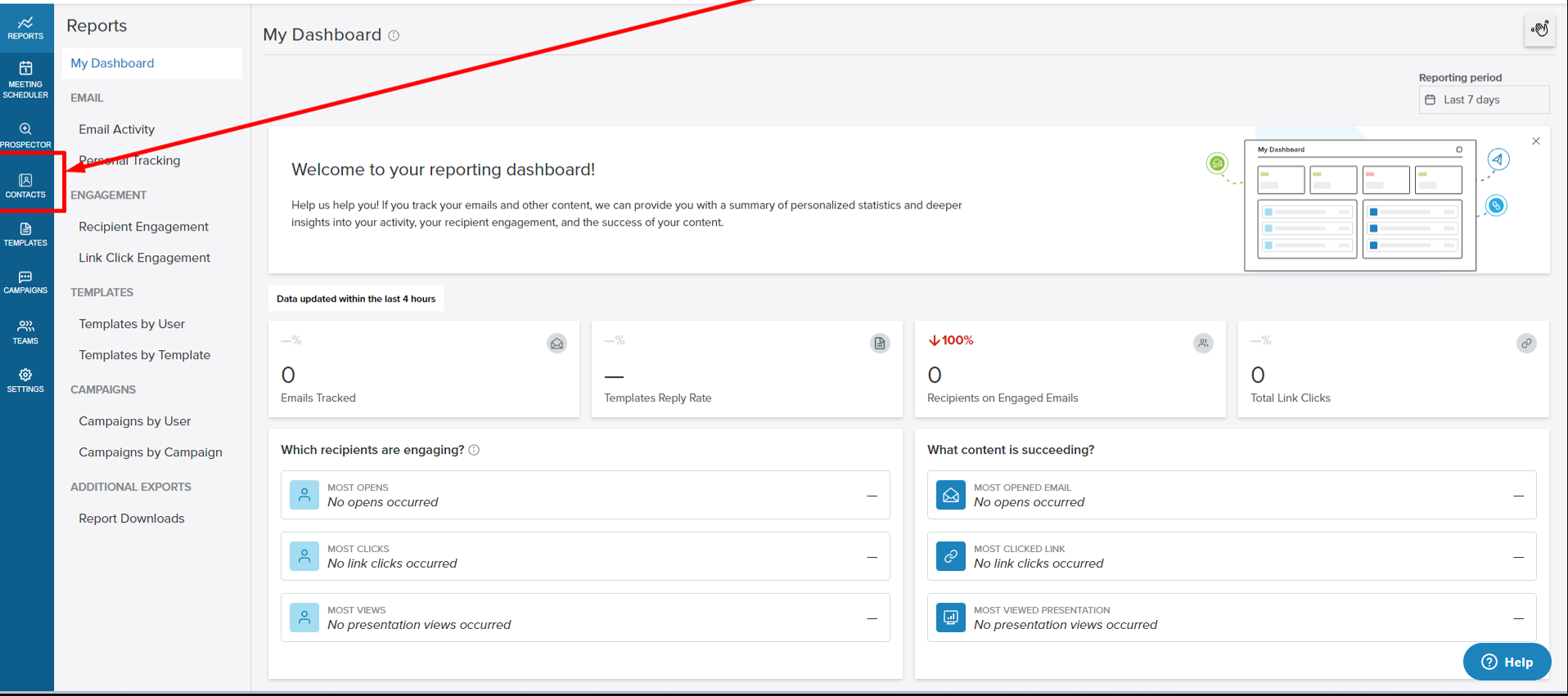
The export will download as a file that you can open in spreadsheet applications or import into other systems.
Frequently asked questions
Why am I seeing no activity for a contact in the timeline?
The timeline will not show activity for your first inbound email from a recipient. It also will not show activity for internal emails with colleagues. If you recently added a contact manually, their timeline will only populate after you begin emailing with them.
How many enrichment credits do I have?
Contact Enrichment is an add-on feature that uses credits. To check your available enrichment credits, contact your account administrator or check your plan details in the Yesware app. Each enrichment uses one credit.
Can I export specific contacts instead of all contacts?
The export function currently allows you to select all contacts. If you need to export specific contacts, you can select them individually on the Contacts page before clicking the export button. Alternatively, you can export all contacts and filter the results in your spreadsheet application.
Are my notes visible to anyone else?
Notes are internal to your Yesware account. They are not visible to email recipients or shared externally. However, if you're part of a team or organization, check with your administrator about note visibility within your organization.
What happens if I enrich a contact that already has information?
When you enrich a contact, the system will display both the existing profile information and the newly enriched data. You can then choose which information to save. Enriching an existing contact can help you update outdated information or fill in missing fields.
Can I delete notes from a contact?
Yes, you can edit or delete notes at any time by returning to the contact profile. Simply access the Notes section, make your changes, and click Save to update.