Set up the mobile app
The BusinessApp.io mobile app puts your customer messages, contacts, and reviews on your phone. It also sends you an alert the moment a new lead or message comes in, so you can reply quickly, even when you are away from your computer.
Setup takes about five minutes. You need your phone and access to the email inbox you use to sign in to Business App.
Getting started checklist
- Download the app: get BusinessApp.io from your phone's app store
- Sign in: use your Business App login and a code from your email
- Turn on notifications: make sure alerts can reach your phone
- Check that alerts work: send yourself a test lead
Step 1: Download the app
The app is free. Its name in the app store is BusinessApp.io.
- On your phone, tap the link for your type of phone:
- iPhone: BusinessApp.io on the App Store
- Android: BusinessApp.io on Google Play
- Tap
Get(iPhone) orInstall(Android). - Wait for the download to finish, then tap
Open.
If the app does not install or will not open, your phone may need an update. Open your phone's Settings and look for a software update.
Step 2: Sign in
You use the same login you already use for Business App on your computer. You do not need a new account.
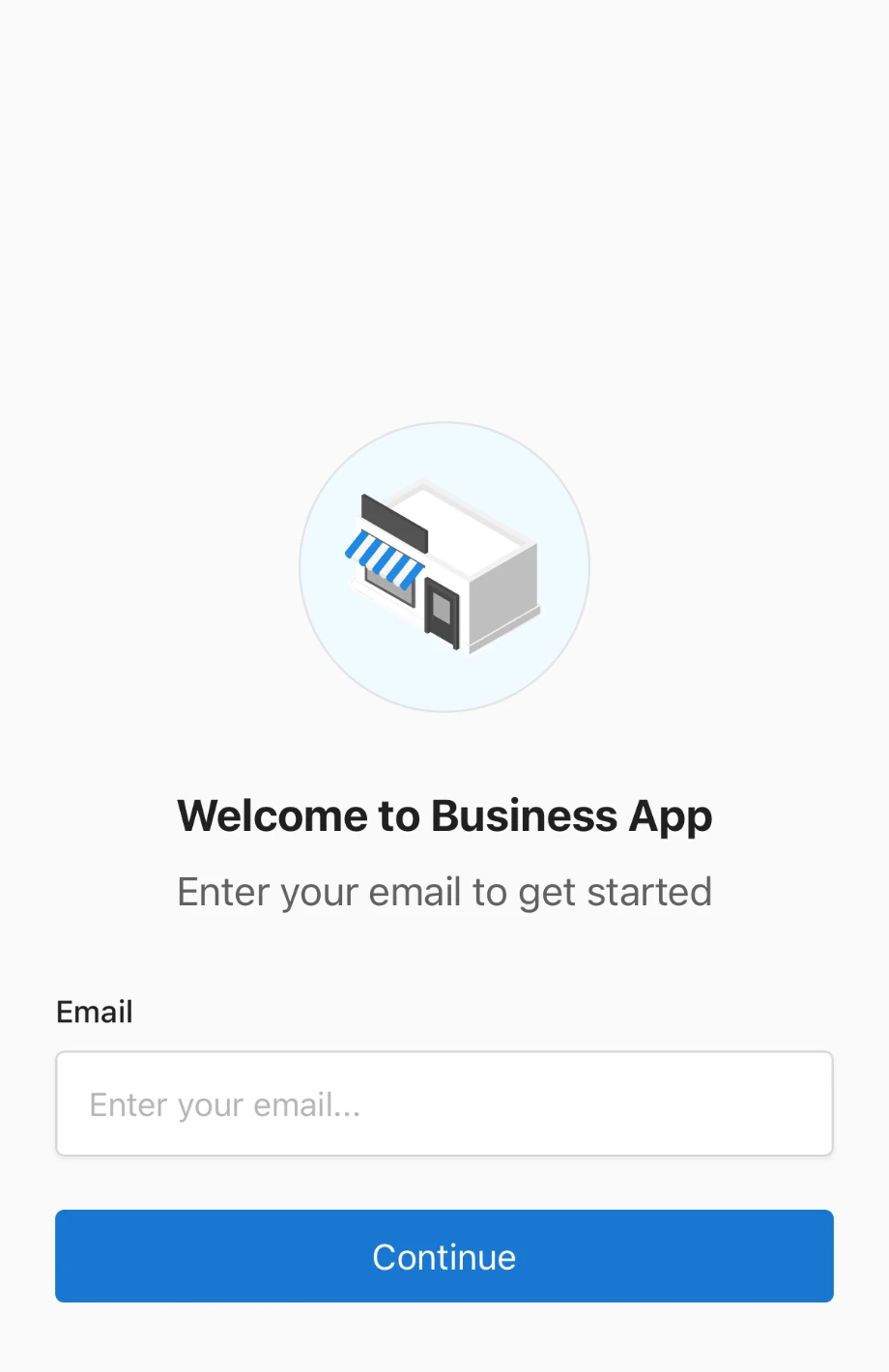
Enter your login
- Open the BusinessApp.io app.
- In the
Emailbox, type the email address you use to sign in to Business App on your computer. - Tap
Continue.
Enter the code from your email
To keep your account safe, the app sends a 6-digit code to your email address. The code works only once, so you get a new one each time you sign in.
- Open your email on your phone or computer.
- Find the email from businessapp.io with your code.
- Type the 6 digits into the boxes in the app.
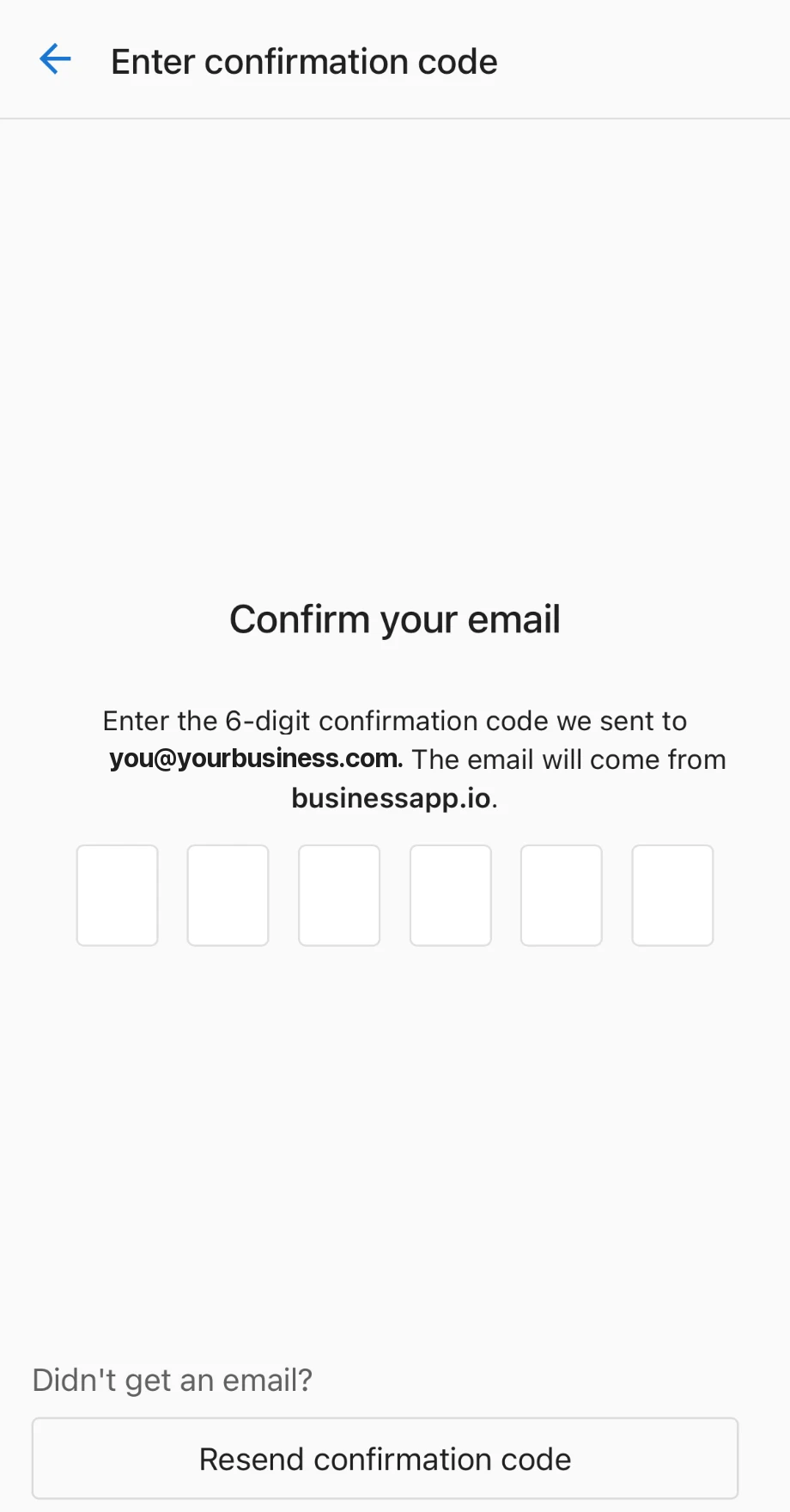
Can't find the code? Check your spam or junk folder, and wait two to three minutes. If it still has not arrived, tap Resend confirmation code and use the code from the newest email.
Choose your business
If your email has access to more than one business, the app shows a Select location screen with a list of your businesses. Tap the business you want to open. If the list is long, type the business name or address in the search box. If you have only one business, the app skips this step.
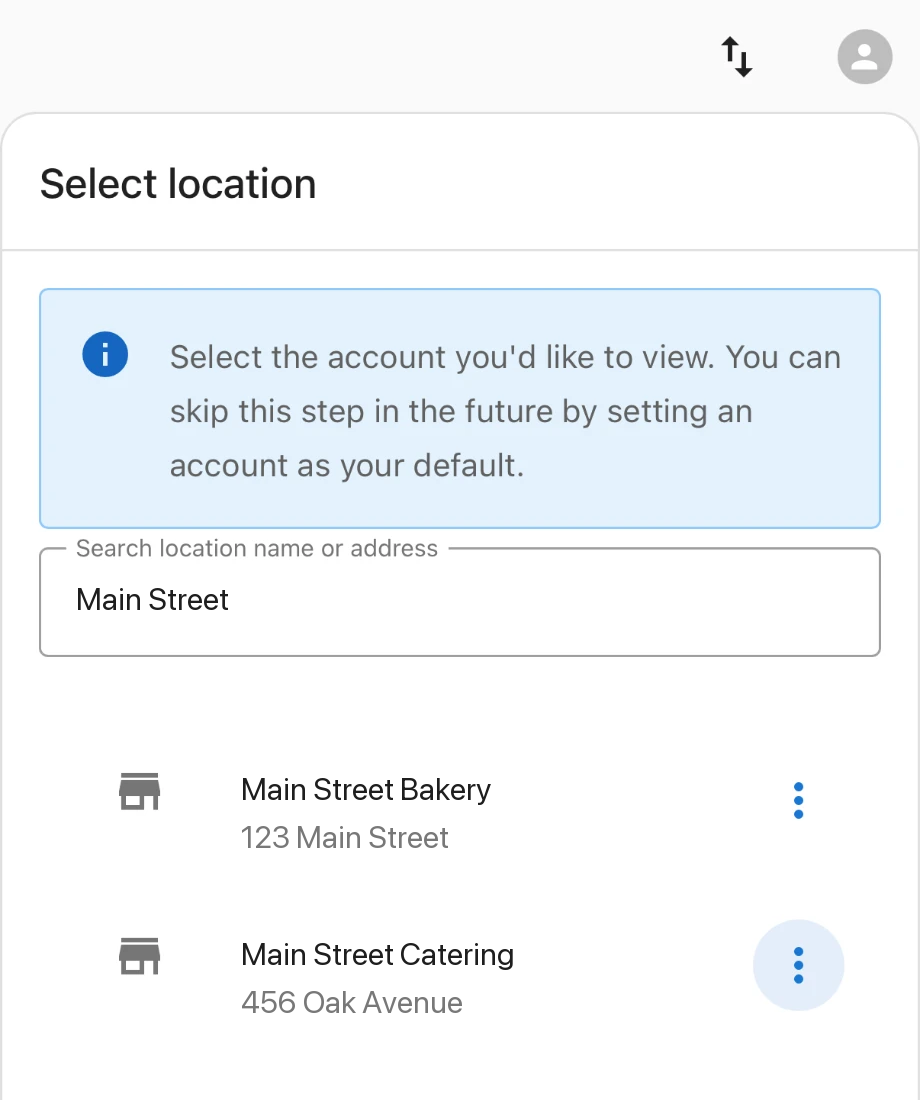
You can set a business as your default so the app skips this screen next time.
Step 3: Turn on notifications
Notifications are the alerts that pop up on your phone's screen, even when the app is closed. They are the main reason to have the app, so this step is important.
Alerts reach your phone only when both your phone and your Business App notification settings allow them.
Allow notifications on your phone
The first time you open the app, your phone asks if BusinessApp.io can send you notifications. Tap Allow.
If you tapped Don't Allow by mistake, or alerts are not showing up, turn them on in your phone's settings:
- Open your phone's
Settings, thenNotifications. - Find BusinessApp.io in the list of apps.
- Turn on
Allow Notifications.
The menu names are a little different on iPhone and Android, but both phones have a Notifications section with a switch for each app.
Choose which alerts you get
Your notification settings decide which alerts Business App sends to the app. Each type of notification has an App checkbox and an Email checkbox. Check the App box for each alert you want on your phone, such as new leads and new messages, then save your changes.
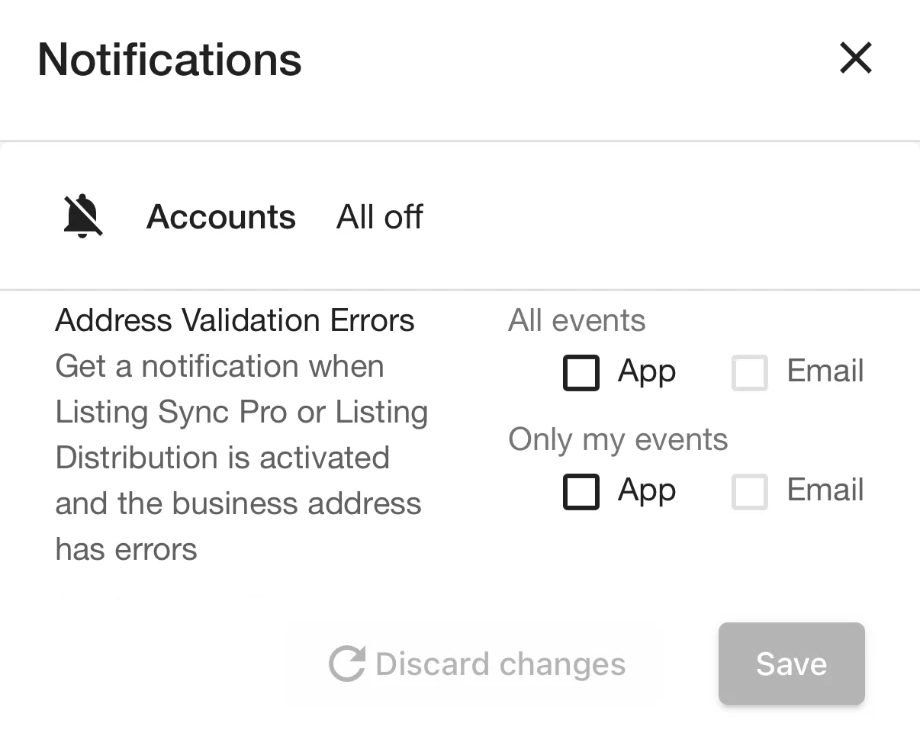
If you have more than one business, notification settings are separate for each one. Turn them on in every business you want alerts from.
To find these settings and see every option, see notification settings.
Step 4: Check that alerts work
A new lead alert arrives only when a visitor shares a way to contact them, such as a name, phone number, or email. A chat that only says "hello" or "test" does not create a lead, so it does not send an alert.
To test your alerts:
- On a computer or another phone, open your business website.
- Start a chat with the chat window on your site.
- Type a name and a phone number or email, like a real customer would.
- Check your phone for a new lead alert.
If the alert does not arrive, close the app fully, open it again, and repeat the test. To learn how website chat collects contact details, see web chat.
Frequently asked questions
Does the app cost anything?
No. The BusinessApp.io app is free to download.
Do I need to create a new account?
No. You sign in with the same login you use for Business App on your computer. Your messages, contacts, and settings are already there.
Why does the app ask for a code every time I sign in?
The code proves that you can open the email inbox on your account. This keeps someone else from signing in, even if they know your login.
How do I switch to a different business?
The app opens one business at a time. Tap your profile icon in the top-right corner, tap Sign out, then sign in again and choose the other business from the list.
Why did a page open in my web browser?
Some pages, such as Listings and some settings, open in your phone's web browser instead of the app. Your browser has its own sign-in, so it may ask you to log in once.
I still don't get notifications. What else can I check?
Go through each part of Step 3 again, then test with a real lead as shown in Step 4. For more help, see the troubleshooting section in Mobile App.