AI Voice receptionist overview
The AI Voice Receptionist in Business App answers your business calls 24/7, answers callers' questions from your knowledge sources, captures lead contact details, books appointments, and transfers calls. Set it up in AI > AI Workforce.
In this guide, you will learn:
- What you need to get started with your AI Voice Receptionist
- How to configure basic settings
- How to test performance and troubleshoot
- Where to find answers to frequently asked questions or for deeper integration guides
Why use an AI Voice Receptionist?
When a customer calls a business, they are usually a high-intent lead that wants to get an answer and get it fast. If a customer doesn't receive an answer, they will move on to calling the next business.
Having an AI Voice Receptionist helps stop customers from moving on to the next business by at minimum answering their questions and potentially even booking an appointment. While some customers may prefer speaking to a human, being able to speak to someone representing the business is an improvement over not being able to answer the phone at all.
How do I set up the AI Voice Receptionist?
AI Voice Receptionist call flow & routing
There are a number of ways to route calls to and from your Voice Receptionist to ensure that you never miss a lead.
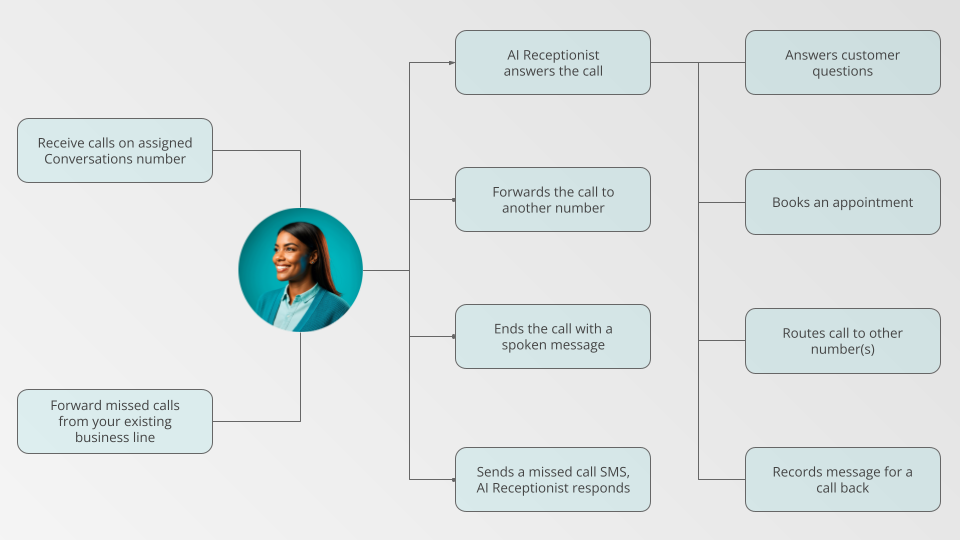
Routing phone calls to your AI Voice Receptionist
To have your Voice Receptionist handle calls for your business, you can:
-
Direct calls to your Conversations number
Calls made directly to your Conversations phone number are sent to your AI Receptionist automatically. -
Forward calls from your business line to your Voice Receptionist
Customers can keep calling your existing business number and your telephone provider can then forward calls to your Conversations number.Depending on your phone provider and telephone system your options to forward calls might include:
- Forwarding all calls to your Conversations number
- Forwarding calls to your Conversations number after a certain number of rings
- Forwarding calls automatically after-hours
For more help forwarding calls, see Voice AI.
Handling calls from your AI Voice Receptionist
Once a call reaches your AI Voice Receptionist, there are a number of potential ways the call can be handled:
-
AI Voice Receptionist answers calls
The AI greets callers, answers FAQs using your knowledge base, captures contact details, and can book appointments. -
Forward calls
The call is routed to another phone number automatically. See Transfer calls to other numbers to configure rules and destinations. -
End with a custom message
A branded or informational message is played before the call is ended automatically. -
Missed-call SMS
A text message is sent to callers, prompting them to leave a voicemail or schedule a callback.
While this guide will cover accessing these other options, it will focus on setting up the AI Voice Receptionist to answer calls. For more detail on using the other options, see Conversations Settings.
Prerequisites for AI Voice Receptionist setup
Before you begin, make sure you've completed these prerequisites so your AI Voice Receptionist setup goes smoothly.
| What you need | Where to find it | Notes |
|---|---|---|
| AI Voice Receptionist access | AI > AI Workforce | Requires the Premium edition of Conversations AI. See the Conversations AI Overview for region availability. |
| Conversations AI phone number | Administration > Conversations Settings | You will need this number for call-forwarding and publishing. This number is assigned after activating the Pro or Premium edition of Conversations AI. |
| (Optional) Calendar connection | CRM > My Meetings > Settings > Defaults > Connect Calendar | Lets your AI Voice Receptionist book meetings and appointments on the connected calendar. |
Step 1: Set up your AI Voice Receptionist profile and communication channels
While your AI Voice Receptionist is capable of being a great representative for your business with very little configuration, there are a few things you can do to make them feel more on-brand and ensure they are set up correctly.
To get started, go to AI > AI Workforce and click Configure on the Voice Receptionist.
Set your AI Voice Receptionist's name and image
Give your AI Voice Receptionist a friendly, professional name and upload a photo or icon. Your Voice Receptionist will use this name when speaking to callers, and the photo helps you quickly identify it among your other AI Employees in the app.
Set your AI Voice Receptionist's role
The Role section is where you define how your AI Voice Receptionist should behave and what it should prioritize. Include instructions about your business's voice, how the AI should greet callers, what information it should emphasize, and any important policies or procedures. This is where you make your AI Voice Receptionist uniquely suited to represent your business.
Choose your AI Voice Receptionist's voice
Under the Profile accordion, click on the Speech tab to reveal the dropdown for Voice family and Voice. Pick a voice family and voice that matches your brand. You can preview the different voices by selecting a Voice and clicking on the play arrow.
Each voice family and voice have different strengths and weaknesses like response speed, expressiveness, and multi-lingual capabilities. While you will see a "Recommended" voice family and voice for your business, you can choose a different voice if you prefer!
Choose your AI Voice Receptionist's communication channels
Under the Channels section, you will see all of the channels the AI Voice Receptionist can be assigned to work with. Your AI Voice Receptionist should be assigned to the Conversations AI phone number by default.
Step 2: Configure your AI Voice Receptionist capabilities
Your AI Voice Receptionist has a number of capabilities available by default that let them take calls like a human receptionist would.
You can:
- Enable or disable these capabilities as needed
- Edit or configure the prompt for each capability
- Add new custom capabilities to expand their skills.
For more detailed information on Capabilities, see the AI Workforce Overview.
Default voice lead capture for AI Voice Receptionist
The default voice lead capture capability guides your AI Employee to offer to help customers by answering questions and then gathering their contact information. This capability is turned on by default.
Note: If this is turned off, the Voice Receptionist will not be able to capture caller information but will still answer questions to the best of their ability.
What happens when your AI Voice Receptionist captures a lead
When your AI Voice Receptionist captures a caller's name and contact information, a few things happen automatically:
- A contact is created in your CRM with the details the caller provided, such as first name, last name, phone number, and email address.
- The call, along with its recording and transcript, is saved to the
Conversationstab against that contact. - A
New Leads from Conversations AInotification is sent to everyone on the account who has that notification turned on. This covers both the instant email and the daily digest, and both are enabled by default.
New lead notifications are per user, so each person on the account controls their own. To check or change yours, go to Settings > Notification Settings, expand the Business App section, and confirm New Leads from Conversations AI is enabled. See Notification settings for the full list.
Book appointments with your calendar
The Book appointments with calendar capability connects to your integrated calendar, enabling the AI Voice Receptionist to offer real-time availability to callers, collect all necessary booking details, and automatically create events on your calendar.
On the Book appointments with calendar panel, use the Select event link to book with dropdown to choose which calendar your receptionist should use to determine availability as well as which kind of appointments they can offer.
Book multiple services in one call
You can configure your AI Voice Receptionist to book multiple services in one call when those services are grouped in the same Service Menu/Group.
How to enable:
- Go to
AI>AI Workforce>Voice Receptionist>Configure. - In
Capabilities, addBook Multiple Services. - Select the
Service Menu/Groupto use for multi-service requests. - Keep
Book appointments with calendarenabled and select the event link to book with. - Click
Save, then test with a caller request that includes multiple services.
When this is enabled:
- The AI confirms the services before finalizing the booking.
- The AI offers back-to-back options that fit the full service session.
- If a combined slot is not available, the AI offers alternatives, such as another time or splitting the booking.
- The AI collects required booking details before confirmation.
- The system sends one consolidated confirmation per enabled notification channel.
Additional instructions for AI Voice Receptionist
The Additional Instructions capability lets you give your AI Voice Receptionist custom guidance to shape its responses, tone, and logic. It sits at the top of the AI’s prompt stack to refine how it interacts with callers.
To add additional instructions, click on the Additional Instructions tab in the Capabilities panel. From there you can write plain language instructions to your AI Voice Receptionist.
Some examples of instructions you might want to add include:
Ask for the caller's addressDo not promise a priceIf the caller asks to speak to a human, let them know you can't connect them with one today, but you can take a message and have them call back.
Add a capability to your AI Voice Receptionist
You can extend your AI Voice Receptionist's capabilities by building your own custom capabilities. By adding your own "Tools" to custom capabilities, you can give your AI Voice Receptionist the ability to perform tasks that are specific to your business and build connections with other software you use.
For more details on creating custom capabilities, see Creating Custom Capabilities.
Transfer calls to other numbers
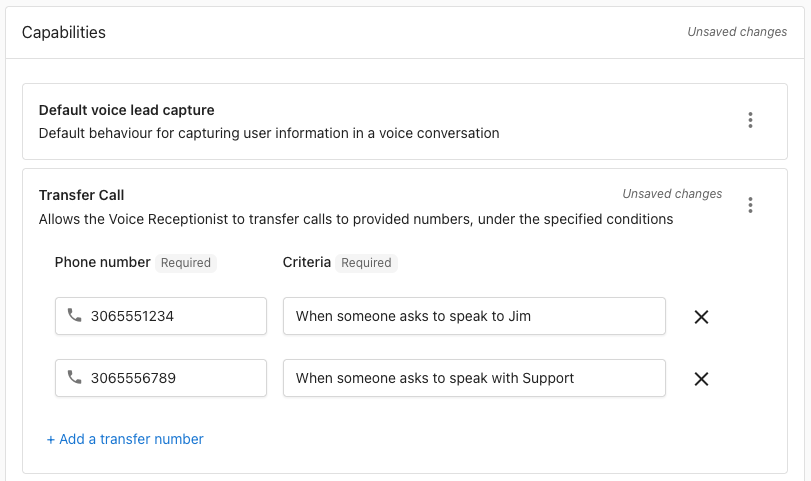
Enable your AI Voice Receptionist to live-transfer callers to one or more phone numbers based on caller intent and conditions you define. For example, route callers asking for "billing" to your billing department, send incoming calls to different teams based on the time of day, or transfer VIP clients directly to their account manager.
How to enable:
- Go to
AI>AI Workforce>Voice Receptionist>Configure - In
Capabilities, clickAdd new capability - Select
Transfer call - Add one or more destination numbers and define criteria (e.g., sales vs. support, business hours)
Destination numbers must be in international format: a + sign followed by the country code and phone number, with no spaces or special characters. Incorrect formatting is the most common cause of transfer errors.
| Region | Example |
|---|---|
| United States | +12025551234 |
| Canada | +16045551234 |
| United Kingdom | +441632960123 |
Best practices:
- Keep transfer criteria simple and unambiguous
- Specify after-hours behavior (e.g., transfer to after-hours line vs. take a message)
Once a call is transferred, recording ends and the system does not record or transcribe the destination leg. If the destination doesn't answer, the transfer is not reverted; the caller would need to call again to speak with the AI.
Dispatch calls to on-call staff
The On-call dispatch capability screens urgent calls and connects the caller to your on-call technician — the AI gathers who is calling, the nature of the emergency, and the service location, places the caller on hold, and announces the call to whichever technician answers. If no one can be reached live, the caller is told the on-call technician has been notified and will follow up — and a completed dispatch fires an automation trigger with the call details, so you can text those details to the on-call number and make that notification real. See On-call dispatch for setup steps, announcement template variables, and the companion automation.
Step 3: Add knowledge sources to your AI Voice Receptionist
The Knowledge sources panel lets you choose which information your AI Voice Receptionist can reference when answering calls. When your Voice Receptionist does not immediately have an answer to a caller's question, they will let the caller know they are taking a moment to look up information. If the Receptionist doesn't find the answer, they will let the caller know they don't have the information and offer to take a message and have someone call them back.
By default your Voice Receptionist has access to your:
- Business Profile: Information shown in common business listings sites such as Services, Hours, and contact info.
- Website Homepage content: Any relevant information available on your website's homepage that is written in text.
If you need to add more detailed information for your AI Receptionist, you can use the Add knowledge bar to + Add new knowledge. From here you can add text, website, or file information to your Knowledge Base and immediately have it available to your AI Voice Receptionist.
For more details on knowledge sources and adding them to the Knowledge Base, see the Knowledge Base Overview.
How do I test and monitor my AI Voice Receptionist?
Once your AI Voice Receptionist is set up, it’s important to test how it handles real calls and monitor its performance over time. This helps you ensure the AI is providing accurate answers, capturing leads, and delivering a professional experience to your callers. Regular testing and review will also help you spot opportunities to improve your AI’s responses as your business grows.
Testing and reviewing the AI Voice Receptionist's responses
Click the Try it button on your AI Voice Receptionist's card from AI > AI Workforce to quickly see the phone number assigned to your AI Voice Receptionist.
Before going live with your AI Voice Receptionist, you should test their responses to make sure they are performing how you would like when:
- Greeting callers
- Asking for and recording information
- Answering common questions accurately
- Offering to take a message and have someone call the caller back if they don't have an answer
- Offering to book an appointment with your calendar
- Handling requests that include multiple services in one booking session (if
Book Multiple Servicesis enabled)
Monitor and improve the AI Voice Receptionist
You can review call recordings and transcripts of the conversations your AI Voice Receptionist has with callers by going to the Conversations tab in Business App.
By reviewing the call recording and transcripts regularly, you can see how your AI Voice Receptionist is performing and make adjustments to your configuration as needed.
If the AI Voice Receptionist is unable to capture a caller’s contact information, those calls may appear without all contact details in your Conversations.
Frequently asked questions
Getting started
What do I need before setting up my AI Voice Receptionist?
Before getting started, make sure you have:
- AI Voice Receptionist access through the Premium edition of Conversations AI (see AI Workforce Overview for region availability)
- Conversations AI phone number assigned after activating Pro or Premium (found in
Administration>Conversations Settings) - Business Profile complete with your basic business information (see Business Profile Overview)
- (Optional) Calendar connection for appointment booking (set up in
CRM>My Meetings>Settings)
Your AI Voice Receptionist will work with minimal setup, but having these prerequisites ensures the best experience for your callers.
How do I get calls to reach my AI Voice Receptionist?
There are two main ways to route calls to your AI Voice Receptionist:
- Direct calls to your Conversations number - Calls made directly to your assigned Conversations phone number are automatically sent to your AI Receptionist
- Forward calls from your business line - Set up call forwarding from your existing business number to your Conversations number so customers can keep calling your familiar number
For detailed call forwarding setup instructions, see Voice AI.
Can I use my existing business phone number?
Yes! You can set up call forwarding from your existing business number to your assigned Conversations phone number. This allows customers to keep calling your familiar business line while having your AI Voice Receptionist handle the calls.
Most mobile carriers support simple star-codes for call forwarding. Check your Conversations Settings for carrier-specific activation codes and step-by-step instructions.
Configuration and customization
How do I choose the best voice for my business?
Each voice family and voice have different strengths like response speed, expressiveness, and multi-lingual capabilities. To choose the best voice:
- Go to your AI Voice Receptionist configuration
- Under the
Profile>Speechtab, browse the available voice families and voices - Preview different voices by selecting them and clicking the play button
- Choose the voice that best matches your brand and provides the clarity your callers need
While you'll see a "Recommended" voice for your business, you can select any voice that fits your preferences.
Can the AI answer calls in different languages?
Yes! Your AI Voice Receptionist can detect and respond in multiple languages. To prioritize a specific language, add instructions in the "Additional Instructions" capability section of your configuration.
Important: Different voices have varying language capabilities. When selecting your voice, pay attention to the suggested language capabilities to ensure optimal performance in your preferred languages.
How do I teach my AI about my business?
Your AI Voice Receptionist learns about your business through Knowledge Sources. By default, it has access to:
- Business Profile information (hours, services, contact info)
- Website homepage content
To add more detailed information:
- Go to the Knowledge Sources panel in your AI configuration
- Click "Add knowledge" to add text, website pages, or file uploads
- Organize information by topic for better AI understanding
For more details, see the Knowledge Base Overview.
Can I add custom capabilities to my AI Voice Receptionist?
Absolutely! You can extend your AI Voice Receptionist's capabilities by creating custom tools and integrations specific to your business needs. This allows your AI to perform tasks like checking inventory, scheduling specific services, or connecting with other software you use.
For detailed guidance on creating custom capabilities, see Creating Custom Capabilities.
Operations and performance
What happens if the AI can't answer a caller's question?
When your AI Voice Receptionist doesn't have the information needed to answer a question, it will:
- Let the caller know it's looking up the information
- Search your Knowledge Base for relevant details
- If no answer is found, acknowledge that it doesn't have the information
- Offer to take a message and have someone call the caller back
- Capture the caller's contact details for follow-up
This ensures no lead is lost even when the AI reaches its knowledge limits.
How do I monitor and improve my AI's performance?
You can track your AI Voice Receptionist's performance by:
- Reviewing call recordings and transcripts in your Conversations tab
- Checking lead capture success in your CRM
- Testing regularly using the "Try it" button on your AI's configuration card
- Updating knowledge sources based on common questions you notice
- Adjusting capabilities and instructions as needed
Regular monitoring helps you identify opportunities to improve responses and ensure your AI is representing your business well.
How will I know when the AI Voice Receptionist captures a lead?
You do not have to watch the Conversations tab to catch new leads. When your AI Voice Receptionist captures a caller's contact information, a New Leads from Conversations AI notification is sent to everyone on the account who has that notification enabled, and a contact is created in your CRM at the same time.
This notification is enabled by default for both instant email and the daily digest, but it is set per user. If someone on your team is not receiving new lead notifications:
- Have them go to
Settings>Notification Settingsin Business App. - Expand the
Business Appsection. - Confirm
New Leads from Conversations AIis enabled underInstant Email Notifications,Daily Digest Emails, or both. - Click
Save.
Also check the global settings at the top of that page, since a global Disabled value overrides the individual product settings. For more detail, see Notification settings.
Where do call recordings and transcripts go?
All call recordings, transcripts, and summaries are automatically saved to:
- Conversations tab for message history and follow-up
- CRM for lead tracking and contact management
This allows your team to review interactions, follow up with callers, and maintain a complete record of customer communications. Note that call recordings and transcripts are available with Premium Conversations AI.
Troubleshooting
I tested my AI Voice Receptionist but never received the text message
Text messages are sent to the phone number captured during the call. If you place the test call from a conferencing tool, a softphone, or any service without an SMS-capable number, there is no number for the AI to text and no message arrives, even though the call itself behaves normally.
Test text messages by calling from a mobile phone that can receive SMS.
Why isn't my call transfer working?
Call transfer failures are most commonly caused by an incorrectly formatted destination number. All numbers must be in international format: a + sign followed by the country code and phone number, with no spaces or special characters (e.g., +12025551234 for a US number).
To update a transfer destination:
- Go to
AI>AI Workforce>Voice Receptionist>Configure - In
Capabilities, open theTransfer callcapability - Update the number to use the correct international format
- Save your changes
My AI isn't answering calls - what should I check?
If your AI Voice Receptionist isn't answering calls, verify:
- Subscription level - AI Voice Receptionist requires Premium Conversations AI
- Phone number assignment - Confirm your Conversations number is active (
Administration>Conversations Settings) - AI configuration - Ensure your Voice Receptionist is configured and the "Phone call: Answer with Voice AI" setting is enabled
- Call routing - Check that calls are being routed to your Conversations number (not another destination)
For additional troubleshooting, see Voice AI.
Can the AI book meetings on my calendar?
Yes. Connect your calendar in CRM > My Meetings > Settings > Defaults > Connect Calendar. Then enable the Book appointments with calendar capability in your AI configuration. If your booking link uses Microsoft Teams or Google Meet, meeting links are included automatically. See [My Meetings](../../crm/My meetings/) for details.
Can I change my AI's knowledge or instructions after setup?
Yes! You can update your AI Voice Receptionist anytime by:
- Adding or removing knowledge sources in the Knowledge Sources panel
- Modifying capabilities like appointment booking or lead capture settings
- Updating additional instructions to refine tone and behavior
- Changing voice settings in the
Profile>Speechsection
Changes take effect immediately, so you can continuously improve your AI's performance based on real-world interactions.
Can I route calls from my VOIP system to the AI Voice Receptionist?
Yes, if your VOIP provider supports transferring calls to external phone numbers. Add your Conversations AI phone number as an external transfer destination in your VOIP system settings, then configure your routing rules there.
Check with your VOIP provider to confirm whether outbound transfers to external numbers are supported, as this varies by platform.
Can I block specific phone numbers from reaching my AI Voice Receptionist?
Call blocking is not a supported feature. If you receive unwanted calls, you will need to manage them manually through your phone provider or VOIP system.
Can callers choose a specific team member when booking an appointment?
No. The AI Voice Receptionist books appointments using your primary meeting type and cannot present team member selection to callers. If you use a booking link that requires the caller to choose a team member, those calls will not be handled as expected.
To use team member selection, share your booking link directly with the caller via a follow-up SMS or email after the call.
What regions support AI Voice Receptionist?
AI Voice Receptionist is available for businesses located in the United States and Canada only. This feature requires:
- Premium Conversations AI subscription
- Business address in a supported region
- Phone number assignment through Conversations
For the most up-to-date region availability, see the AI Workforce Overview.
What are the calendar limits when the AI books meetings?
The built-in meeting scheduler checks availability on a linked Google or Microsoft calendar. A third-party system may sync customer data without full two-way calendar sync. Confirm the exact integration, and use an approved connector or workaround when round-trip calendar availability is required.
Can the AI receptionist use round-robin for live call transfers?
Meeting booking can use round-robin when calendars are configured for it. Native round-robin for live call transfers is not supported. Use a third-party VoIP or telephony workflow when that routing is required.