Automations Overview
Automations let you create workflows that run on their own when specific events happen. Use them to save time, improve consistency, and respond to customers faster—without manual effort.
What you can automate
- Send SMS or plain-text emails when a contact is created or updated
- Apply tags, update CRM fields, or create tasks based on activity
- Notify your team or log sales activities when messages are sent/received
- Kick off follow-ups after meetings, orders, or invoices
- Trigger workflows when a conversation summary is created
- Create tasks, notes, and logged calls on opportunities
- Get a response from an AI Employee as part of a workflow
How it works
Every automation includes:
- Trigger: The event that starts your workflow (for example, When a contact is created)
- Conditions: Optional filters that must be met for the automation to run (for example, Contact has specific tag, or Company field equals value)
- Steps: What happens next (for example, Send SMS, Send plain-text email, Update company)
How automations flow
            Event Occurs
                  ↓
              Trigger
                  ↓
         Are conditions met?
                  ↓
       ┌──────────┴──────────┐
       ↓                     ↓
      Yes                    No
       ↓                     ↓
  Execute Steps       Skip Automation
       ↓
    Complete
For example: Form submitted (event) → When form is submitted for a contact (trigger) → Contact has "New Lead" tag? (condition) → Send welcome email (step) → Complete
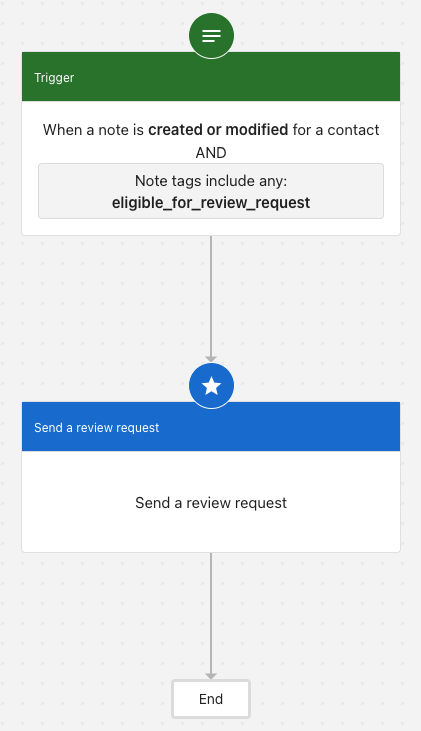
Here is an example of a simple automation workflow that sends a review request when a note tagged "eligible_for_review_request" is created or modified for a contact.
Before building an automation, run the process manually a couple of times to make sure it works the way you expect. Once you're confident in the process, automate it — you'll catch fewer surprises and build a more reliable workflow.
Getting started
There are two ways to create an automation: start with a pre-built template or build your own from scratch. Templates are the fastest way to get started—they come with triggers and steps already configured, so you just customize them for your business. Building from scratch gives you complete control over every step.
- Go to Business App > Automations
You can also find Automations under Business App > Administration > Automations.
- Select Create Automation

- Choose how you want to start:
From a template — pick a template from the gallery that matches your goal. Templates come with triggers and steps pre-configured, so you just customize them for your business.
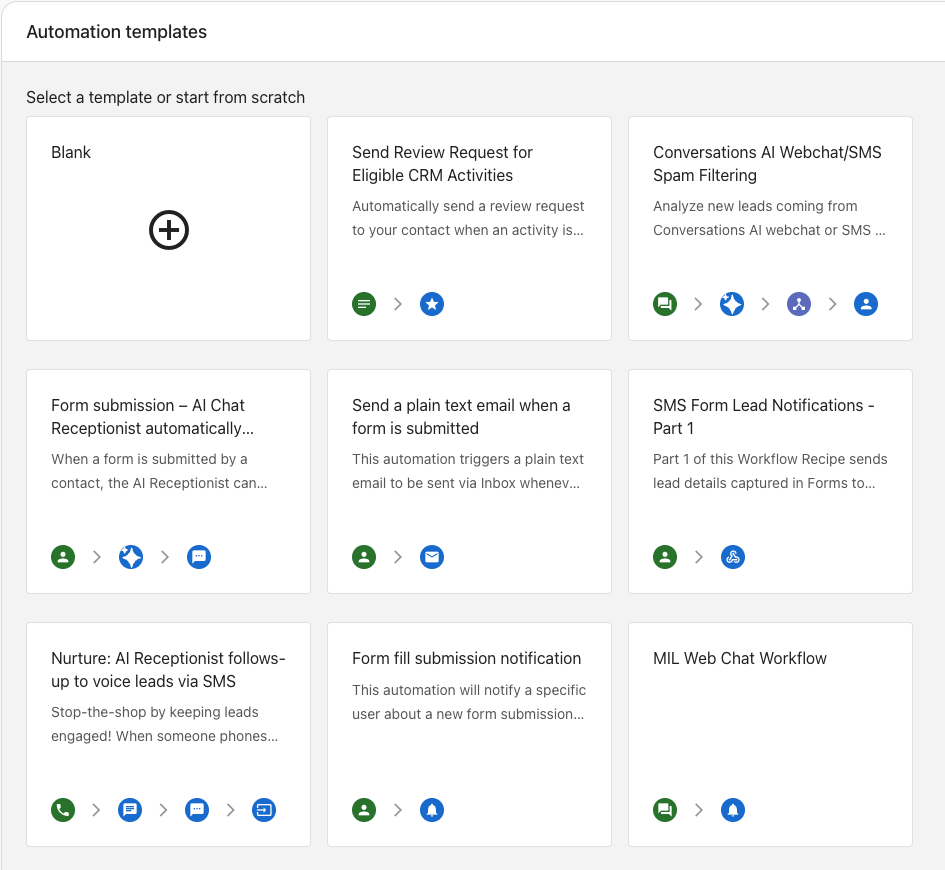
From scratch — choose Blank to open an empty workflow canvas and build every step yourself.
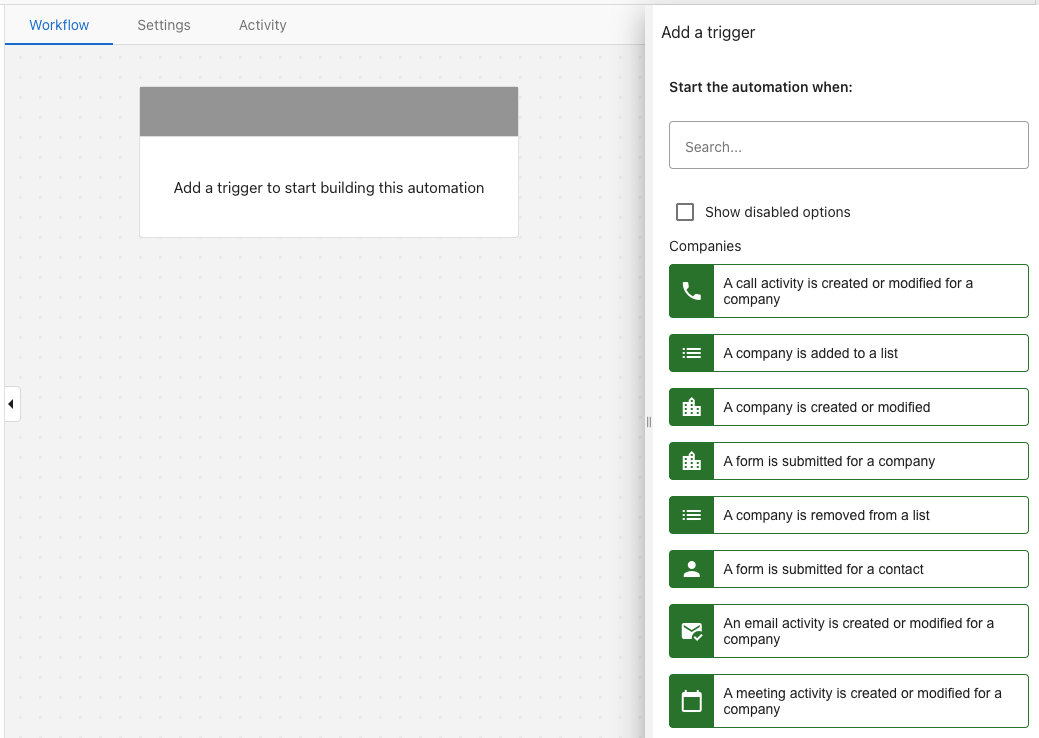
- Add a Trigger — select the event that starts your workflow (templates have one pre-selected; adjust it if needed)
- Example: "When a form is submitted for a contact", "Contact created", "Meeting booked"
- Add Conditions if needed to filter when it runs

-
Add a Step — define what happens when the trigger fires (templates include steps already; you can edit, remove, or add more)
- Example: "Send a plain text email via Inbox", "Send SMS", "Create task"
-
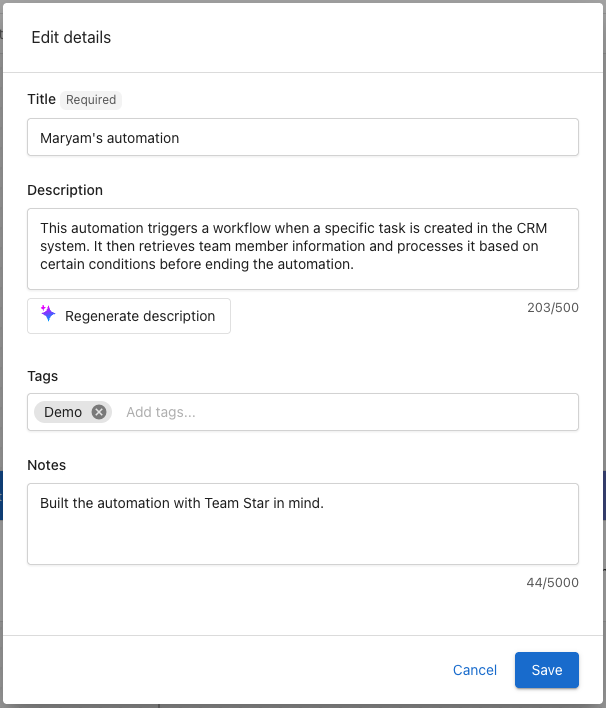
Edit automation details — select
Edit detailsfrom the side panel to name and organize your automation. Give it a title, add a description (or selectRegenerate descriptionto have AI draft one), apply tags to make it easier to find on the Automations page, and add notes.
- Save and toggle your automation On

You must turn off your automation before you can edit its triggers, conditions, or steps.
Turning on an automation
When you toggle an automation on, you'll be prompted to review and confirm three settings before it goes live:
- Entry settings: control how frequently the automation runs for the same contact or company (only once, multiple times, or one at a time)
- Error handling settings: choose whether to skip a failed step and continue, or stop the run entirely
- Error notifications: optionally subscribe to be notified when the automation encounters an error
See Automation settings for a full explanation of each option.
Turning off an automation
When you toggle an automation off, you'll be asked how to handle any runs that are currently in progress:
- Stop automation runs in progress — immediately aborts all active runs. Stopped runs will not resume if the automation is turned back on.
- Drain automation runs — allows runs in progress to complete. The automation turns off automatically once all ongoing runs have been processed.
Use Drain when you want to avoid interrupting processes that are mid-workflow. Use Stop when you need to halt everything immediately — for example, if the automation is behaving unexpectedly.
Related resources
- Automation triggers - Full list of available triggers by category
- Automation conditions - Filter when your automation runs using AND/OR logic
- Automation settings - Control how often it runs and how errors are handled
- Automation activity - Review what ran, when it ran, and troubleshoot issues
- Messaging steps - Send SMS and email messages
- Campaign steps - Pause campaigns intelligently
- Review request automation - Collect customer reviews automatically
- Zapier integration - Connect with thousands of external apps
Frequently asked questions (FAQs)
Can I get a response from an AI Employee inside an automation?
Yes. Add the "Get a response from an AI Employee" step to send context (for example, a conversation summary or form submission) to your AI Employee and use the response later in the workflow.
How do I trigger automations for entire lists?
Use the "Start automation for a list" step in your automation builder. Select your target list (contacts, companies, or custom objects) and choose which automation to run. The automation will execute for each record in the list.
What are getter steps in automations?
Getter steps let you retrieve related data during automation runs. For example, "Get company from contact" retrieves company information when your automation is processing a contact record. This helps you work with connected data across your CRM.
What's the difference between regular automations and list automations?
Regular automations trigger based on events (like "when a contact is created"). List automations let you manually trigger a workflow for an entire existing list of records, making them ideal for bulk operations and targeted campaigns.