Zapier Integration
Zapier is an automation platform that connects thousands of apps and services. In Zapier, automated workflows are called Zaps. Each Zap has a trigger (something that happens in one app) and one or more actions (things that happen in other apps as a result). With Business App's Zapier integration, you can link your Business App automations to the other external tools you already use without writing any code.
The integration works in two directions:
| Direction | What it does | Example |
|---|---|---|
| Business App → Zapier | Use the Send a webhook step in your Business App automation to push data out to Zapier | Opportunity marked as won in Business App → create a new customer in QuickBooks Online |
| Zapier → Business App | Use the Run Automation action in Zapier to fire any of your automations | New QuickBooks payment → send a review request to the customer |
Connecting Business App to Zapier
You'll need a Zapier account to use this integration. A free Zapier account is enough to get started, though more complex multi-step Zaps may require a paid plan.
- In Business App, go to
Administration>Integrations
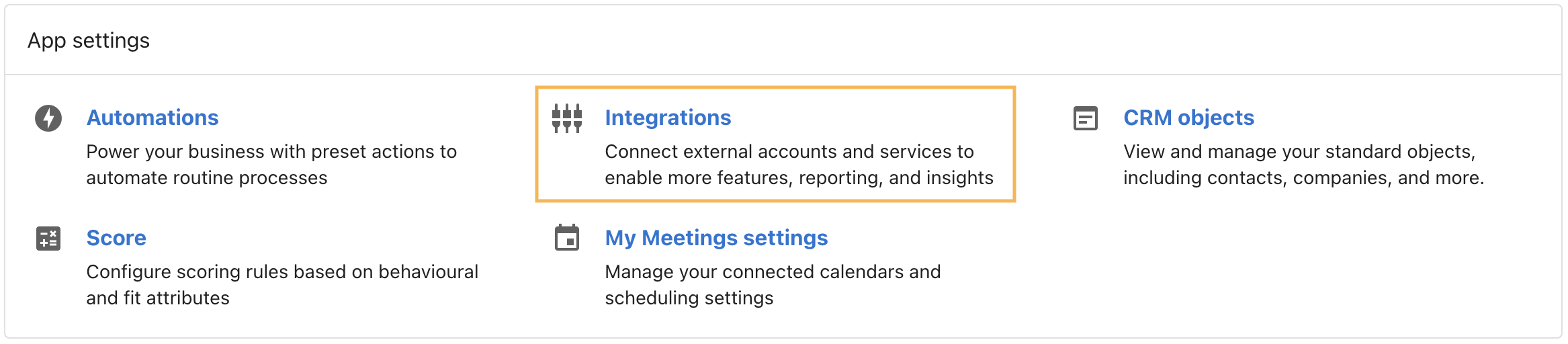
- Locate the Zapier tile
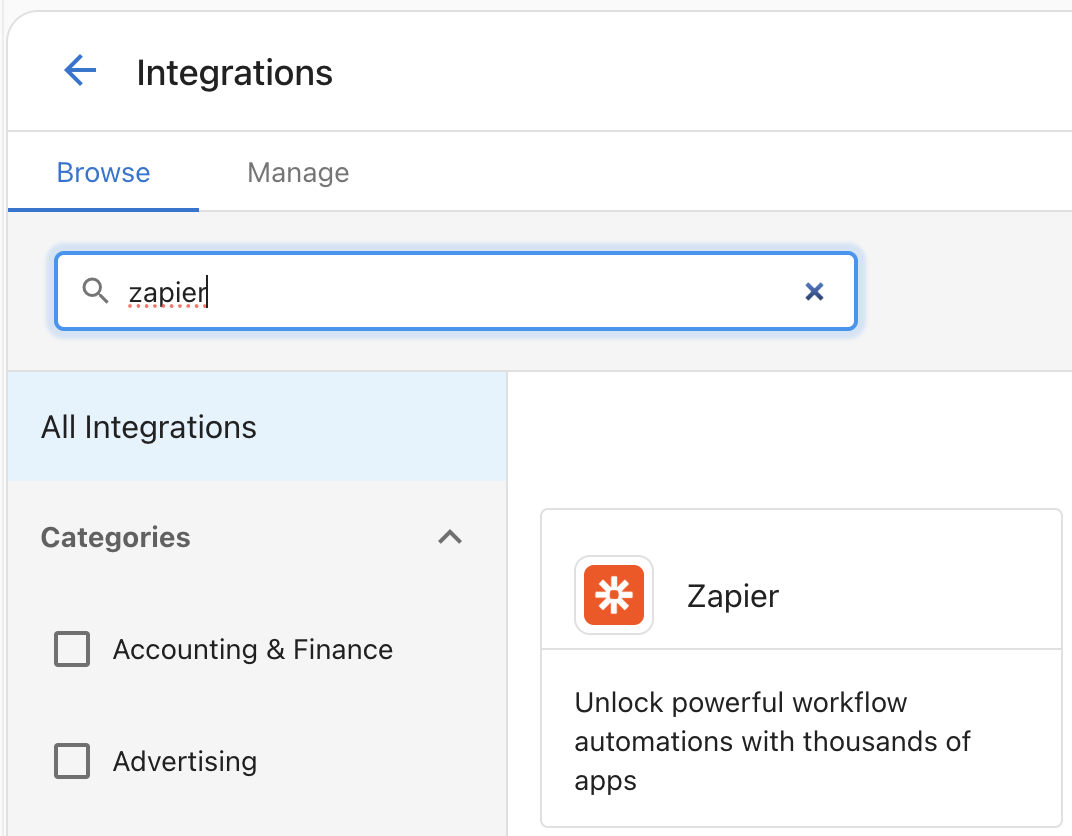
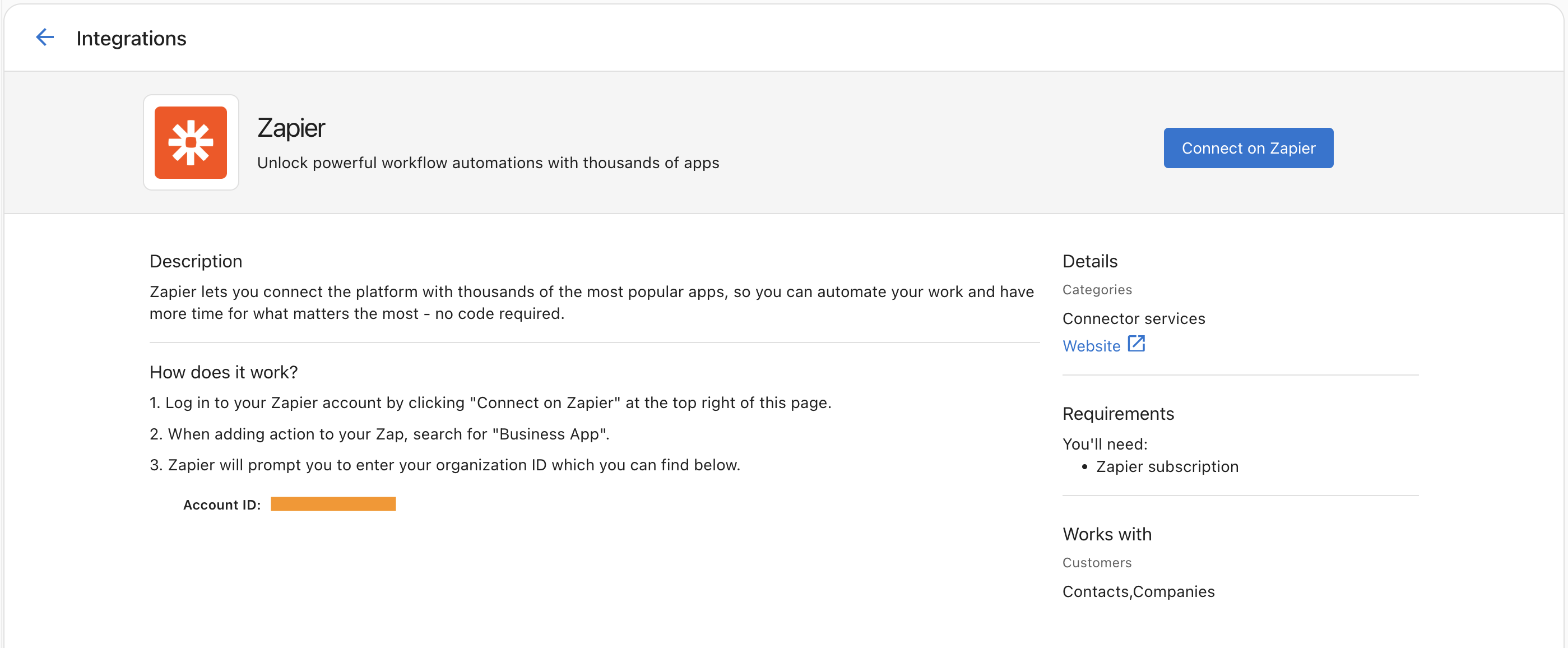
- Make note of your Account ID, then click
Connect on Zapier
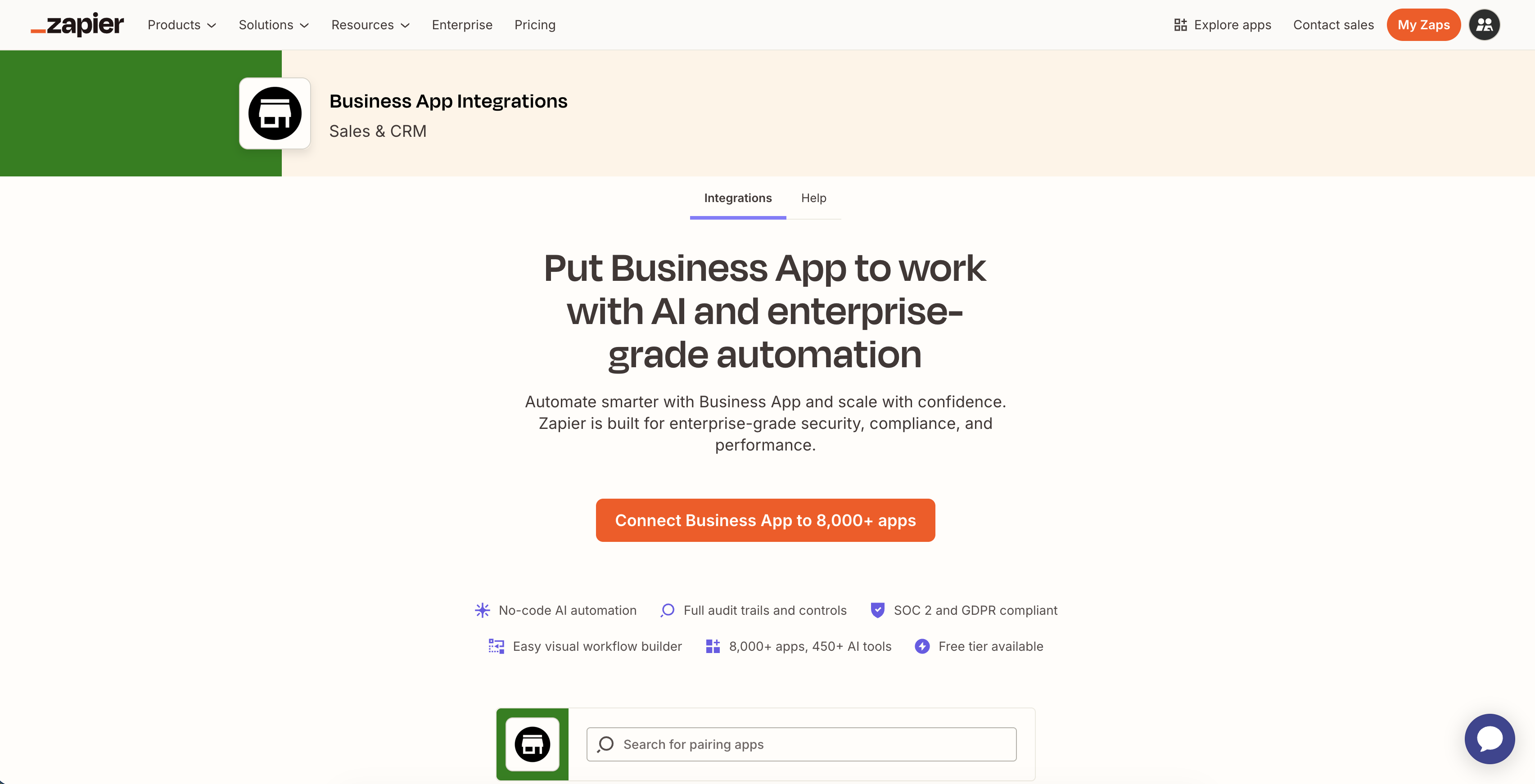
- Click the orange
Connect Business App to 8,000+ appsbutton on the Zapier page
- Zapier will prompt you to enter your Account ID. Enter your Account ID (from step 3), then click
Yes, Continue to Business Appto grant access
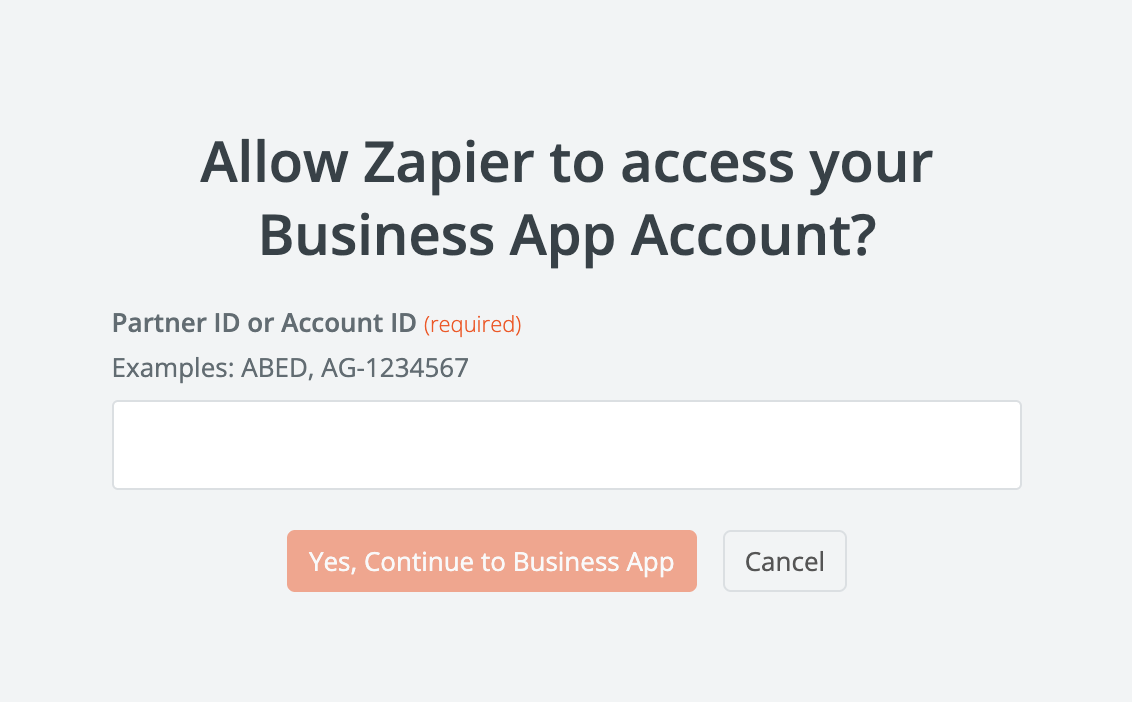
Once connected, your Business App account is linked to Zapier. You only need to do this once: the same connection is used across all your Zaps.
How to get started
Choose the direction that fits your use case:
- Zapier → Business App: an event in another app fires one of your automations
- Business App → Zapier: an automation step pushes data out to Zapier
Frequently Asked Questions
Do I need a paid Zapier plan?
Basic Zaps can be created on a free Zapier account. More complex multi-step Zaps may require a paid Zapier plan. Check Zapier's pricing for details on plan limits.
Can I use the same Zapier account for multiple automations?
Yes. Once you connect your Business App account to Zapier, you can use it across as many Zaps as you need. You only go through the sign-in and permissions step once.
What happens if a Zap fails?
Zapier logs all Zap runs and failures in your Zapier account under Zap History. You can review errors there and re-run failed tasks. Setting up error notifications in Zapier is recommended so you're alerted if something goes wrong.
Can I test a Zap before turning it on?
Yes. Both Zapier and the Business App automation builder have test options. Always test before publishing to make sure data is being passed correctly between systems.
Is there a limit to how many Zaps I can create?
Zapier's own plan limits apply to the number of Zaps and tasks you can run. Business App does not impose a separate limit on Zapier connections.