Steps
Automation steps are what happen after a trigger fires. Each step defines a specific action your workflow performs: sending a message, updating a record, creating a task, and so on. You can add multiple steps to a workflow and they run from top to bottom.
Step types
There are two types of steps in the Automation Builder, distinguished by color:
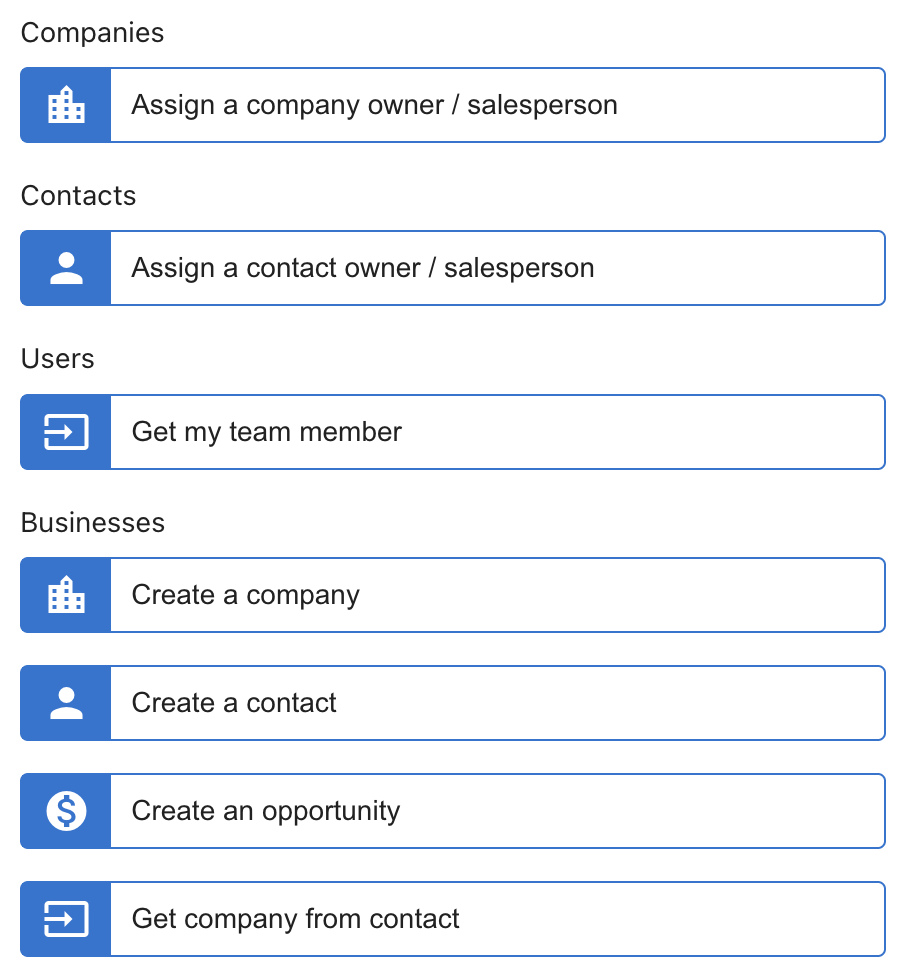
Action steps (blue) do the work: they send messages, update records, create tasks, log activities, and interact with your CRM and connected apps. Most steps are action steps. See the Step Reference for the full list.
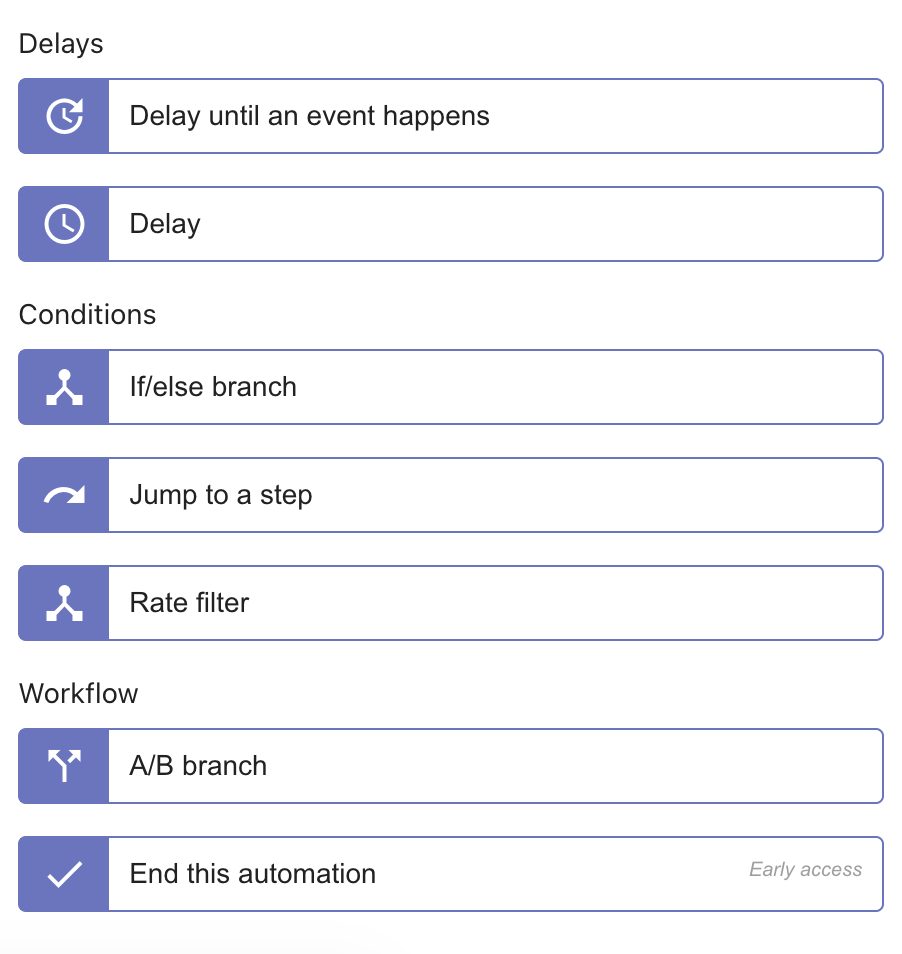
Logic steps (purple) control the flow of the automation: they don't perform an action themselves, but decide what happens next. Use them to introduce delays, branch based on conditions, jump to a different point in the workflow, or end the run early. See the Step Reference for the full list.
Common logic steps
Delay
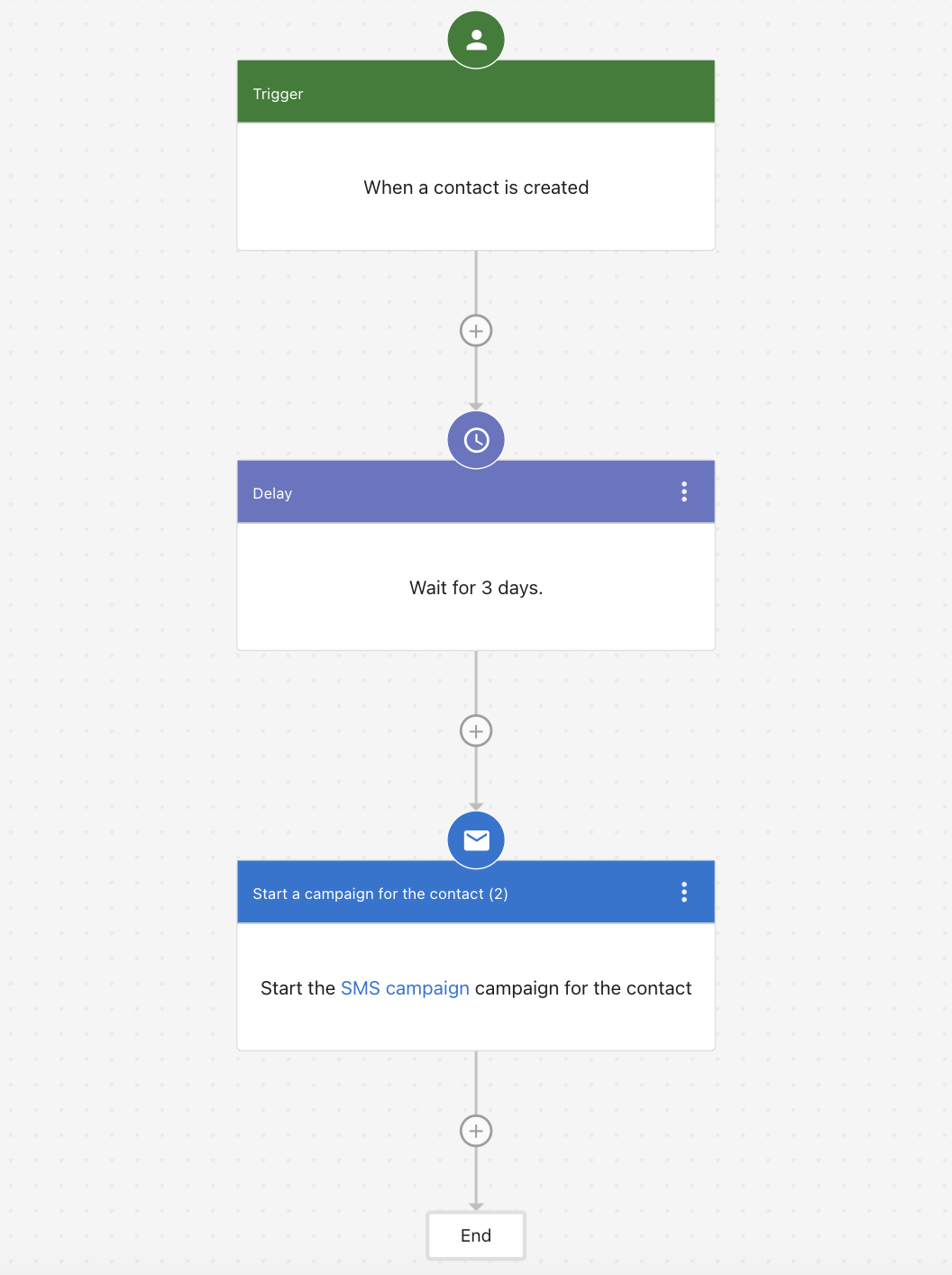
The Delay step pauses the automation for a fixed amount of time before moving to the next step. Use it when timing matters, for example, waiting a day before sending a follow-up, or giving a contact time to respond before escalating.
Example:
- Trigger: When a contact is created
- Step 1: Delay 3 days
- Step 2: Start the SMS campaign for the contact
Delay until an event happens
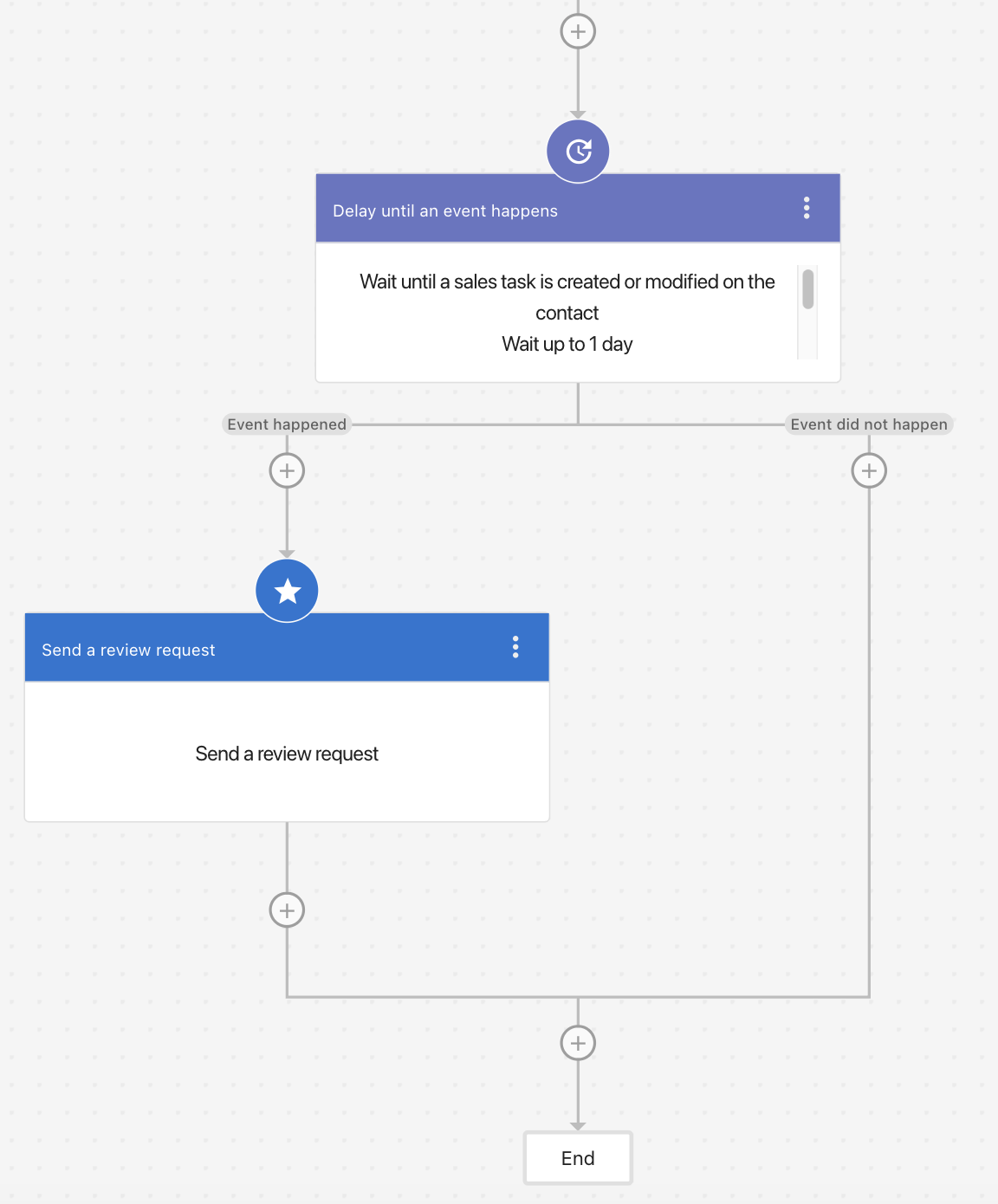
The Delay until an event happens step pauses the automation and waits for a specific event to occur before continuing, rather than waiting a fixed amount of time. Use it when the next step depends on something happening, not just time passing.
Example:
- Delay until: A sales task is created or modified on the contact (wait up to 1 day)
- Event happened → Send a review request
- Event did not happen → End
If the contact becomes ineligible for the workflow while waiting (for example, the automation is turned off), the run may be cancelled.
If/Else branch
The If/Else branch splits your workflow into multiple paths based on the conditions you define. You start with two branches, but you can add more to handle additional scenarios:
- If branch — runs when the condition is true
- Else branch — runs when no other condition is met (the fallback)
Each branch can have its own steps, so the automation does something different depending on the situation.
How to add an If/Else branch: Define your filter (for example: contact tag equals "Call", or city equals "Austin"). Add steps to the If branches and the Else branch as needed.
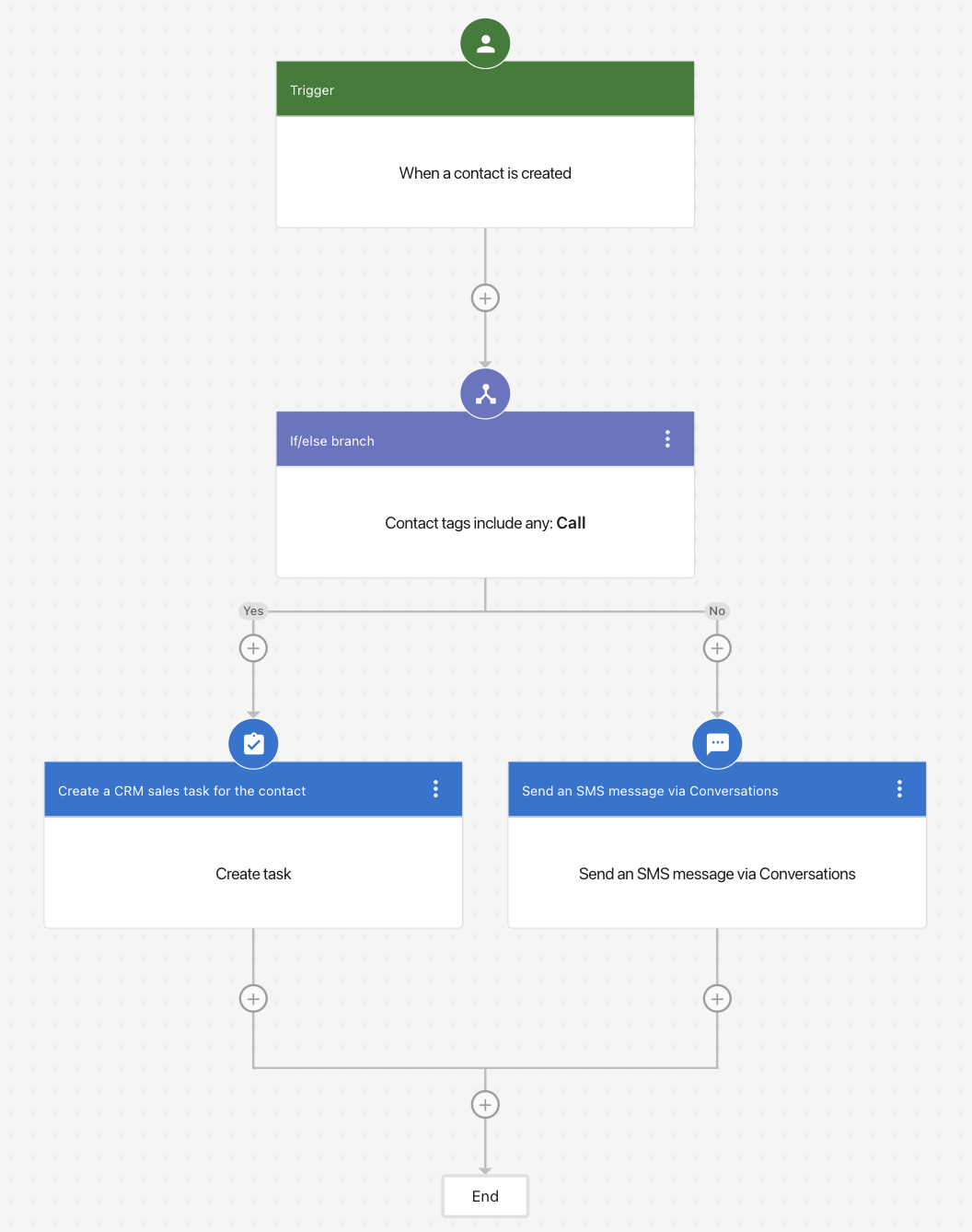
Branches are checked from top to bottom. As soon as a condition is met, the automation follows that branch and skips the rest.
End This Automation
The End This Automation step immediately stops the current run. It's most useful inside an If/Else branch when one path should proceed and the other should stop entirely, without needing to restructure your existing steps.
Example:
- Trigger: When a form is submitted
- If contact already has tag "contacted" → End This Automation
- Else → Send follow-up email → Create CRM task
When you need to add an If/Else branch above a series of existing steps, you don't have to move each downstream step into the new branch. Instead, place the If/Else at the top, put End Automation in the branch that should stop, and leave your existing steps in the main flow below. This saves you from manually reorganizing everything.
Finding your way around the canvas
Long automations get hard to scan. The Automation Builder has a set of canvas tools for this — step search, step references, and the minimap. See Navigating the canvas.
Step Reference
Companies
| Step | Description |
|---|---|
| Assign a company owner / salesperson | Assigns a team member as the owner or primary contact for a company record |
Contacts
| Step | Description |
|---|---|
| Assign a contact owner / salesperson | Assigns a team member as the owner or primary contact for a contact record |
Users
| Step | Description |
|---|---|
| Get my team member | Retrieves a specific team member from your account for use in later steps, such as assigning a record to them or sending them a notification |
Businesses
| Step | Description | Special Cases |
|---|---|---|
| Create a company | Creates a new company record in your CRM | Duplicates are not checked. Company name is required |
| Create a contact | Creates a new contact record in your CRM | |
| Create an opportunity | Creates a new opportunity and adds it to your sales pipeline | Requires at least one of Company or Contact to be linked upstream. If both are provided, the opportunity is associated with both |
| Get company from contact | Retrieves the company linked to a contact so it can be used in later steps | Returns an error if no associated company exists |
| Get contact from company | Retrieves a contact linked to a company so it can be used in later steps | Returns an error if no associated contact exists |
| Get custom object from company | Retrieves a custom object record linked to a company | |
| Get custom object from contact | Retrieves a custom object record linked to a contact | |
| Get opportunity from company | Retrieves an opportunity associated with a company | Returns an error if no associated opportunity exists |
| Get opportunity from contact | Retrieves an opportunity associated with a contact | Returns an error if no associated opportunity exists |
| Find contact | Searches for an existing contact record in your CRM based on specified criteria | |
| Update company | Updates one or more fields on an existing company record | |
| Update contact | Updates a contact record in your CRM. Supports appending to or clearing existing field values |
Campaigns and Emails
| Step | Description |
|---|---|
| Pause campaign for company | Pauses an ongoing campaign for the company. This applies to all contacts associated with the company (up to 50) |
| Pause campaign for contact | Pauses an ongoing email campaign for the contact |
| Start a campaign for the contact | Enrolls a contact in a specified email campaign |
| Start a campaign for the company | Enrolls all contacts associated with a company in a specified email campaign |
| Start a campaign for the custom object | Enrolls the contacts associated with a custom object record in a specified email campaign (up to 50). A contact associated with multiple records in the same automation run is enrolled once. If the record has no associated contact, the step is skipped and the reason appears in the automation activity feed |
| Start a Yesware campaign for the contact | Enrolls a contact in a Yesware email sequence |
| Send a marketing email template to a contact | Sends a marketing email from a template to a contact's email address |
| Send a marketing email template to a company | Sends a marketing email from a template to the primary address on file for a company |
| Send a marketing email to a contact | Sends a standalone email to a contact |
| Send a review request | Sends a review request email to a contact |
Notifications
| Step | Description |
|---|---|
| Notify a user | Sends an in-app and email notification to a team member. Select a specific user, or insert a dynamic user ID from a previous step so the notification routes to the right person automatically |
Conversations AI
| Step | Description |
|---|---|
| Send a plain text email via Conversations | Sends a plain-text email from your Conversations inbox to a contact |
| Send an SMS message via Conversations | Sends an SMS message via your Conversations inbox to a contact |
| Send an SMS message to a phone number | Sends an SMS to any phone number you specify, including numbers not in your CRM |
| Send a WhatsApp template to a contact | Sends a pre-approved WhatsApp template message to a contact |
| Make outbound call with an employee | Places an outbound AI phone call to a contact using a selected AI Employee |
Advanced
| Step | Description |
|---|---|
| Send a request to an AI employee | Sends a prompt or context to your AI Employee and retrieves its response for use in later steps |
| Associate company with contact | Links a company record to a contact record in your CRM |
| Log a call activity to the company | Logs a call record on a company's activity timeline |
| Log a call activity to the contact | Logs a call record on a contact's activity timeline |
| Add a note to the company | Adds a note to a company record |
| Add a note to the contact | Adds a note to a contact record |
| Create a CRM sales task for the company | Creates a new sales task associated with a company |
| Create a CRM sales task for the contact | Creates a new sales task associated with a contact |
| Get my business profile | Retrieves your business profile data for use in later steps, such as personalizing messages with your business name or address |
| Modify a call activity for the company | Updates an existing call activity on a company's timeline |
| Send a webhook | Sends an HTTP POST request with custom data to an external URL |
| Send a prompt to AI | Sends a text prompt to an AI model and returns the response for use in later steps |
| Format text | Transforms a text value using formatting rules (e.g. uppercase, trim, replace) before passing it to another step |
Integrations
| Step | Description |
|---|---|
| Add contact to Kixie powerlist | Adds a contact to a Kixie powerlist for automated outreach calling |
| Remove contact from Kixie powerlist | Removes a contact from a Kixie powerlist |
Delays (logic steps)
| Step | Description | Special Cases |
|---|---|---|
| Delay | Pauses the automation for a set amount of time before continuing to the next step | The automation run may be cancelled if the contact or company becomes ineligible for the workflow while waiting |
| Delay until an event happens | Pauses the automation and waits until a specified event occurs (e.g. a task is completed, a campaign email is clicked) |
Conditions (logic steps)
| Step | Description |
|---|---|
| If/else branch | Splits the workflow into two paths based on whether a condition is met, so different steps run for different scenarios |
| Jump to a step | Skips forward or backward to a specific step in the workflow |
| Rate filter | Limits how frequently the automation can proceed for a given contact, preventing the same person from moving through too often |
Workflow (logic steps)
| Step | Description |
|---|---|
| A/B branch | Randomly splits contacts into two groups so you can test different workflow paths |
| End this automation | Immediately stops the current automation run |
Related resources
- Automation triggers - Events that start your workflow
- Automation conditions - Filter when your automation runs using AND/OR logic
- Messaging steps - Send SMS and email messages via Conversations
- Campaign steps - Pause and start campaigns from a workflow
- Review request automation - Collect customer reviews automatically
- Dynamic content - Personalize steps with dynamic contact and company data
- Automation settings - Control how often it runs and how errors are handled