Review request automations
Review request automations send review request emails to customers after a purchase, visit, or other interaction—so you don't have to send each request manually.
Setting up review request automations
-
In Business App, go to Automations in the left menu.
-
On the automations dashboard, find the Review Request automation card.
-
Click Edit on the Review Request card.
-
Use the configuration page to turn the automation on or off and customize it.

Configuring the automation
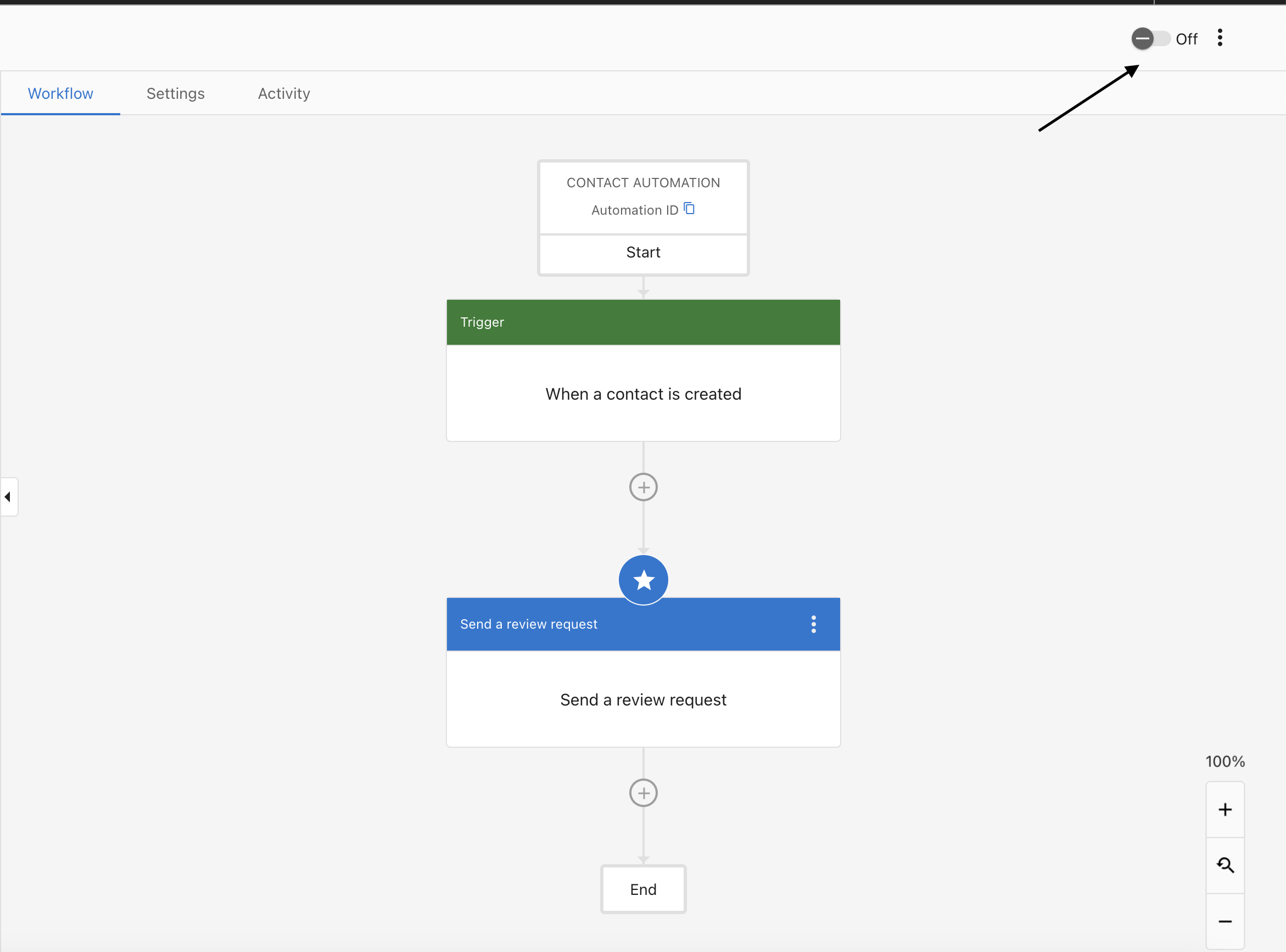
Enable or disable
At the top of the configuration page, use the switch to turn the automation on or off. When it's on, review requests are sent according to your settings.
Email template
You can customize the email that customers receive:
- Edit the Subject Line.
- Add or edit the Preview Text (optional; shown in some email clients before the email is opened).
- Change the Content in the rich text editor.
You can use placeholders such as {{ business_name }}; they're replaced with your real business name when the email is sent.
Review sites
Choose which review sites to include in the email:
- Turn on or off sites like Google, Facebook, and others.
- Only the sites you turn on appear in the request.
Timing
Set when the automation runs:
- Set how many days after a transaction or interaction the review request is sent.
- Optionally set the time of day to send the emails.
Customer list
Choose who receives the automated review requests:
- Send to All Customers or to a specific segment.
Test email
Before turning the automation on, you can send a test email:
- Click Send Test Email.
- Enter the email address that should receive the test.
- Click Send.
Review activity analytics
After the automation is on, you can see how it's doing in the Review Activity section:
- See how many emails were sent, opened, and clicked through to review sites, and how often they led to a review.
- See ratings from reviews that came from the automation.
Best practices
- Timing: Sending requests 1–3 days after a transaction often gets better response rates.
- Personalize: Use the customer's name and details about their visit or purchase when you can.
- Keep it short: Short emails with a clear call-to-action usually work best.
- Check analytics: Review performance regularly and adjust timing or content as needed.
- Follow regulations: Make sure your review requests follow email and review solicitation rules in your region.
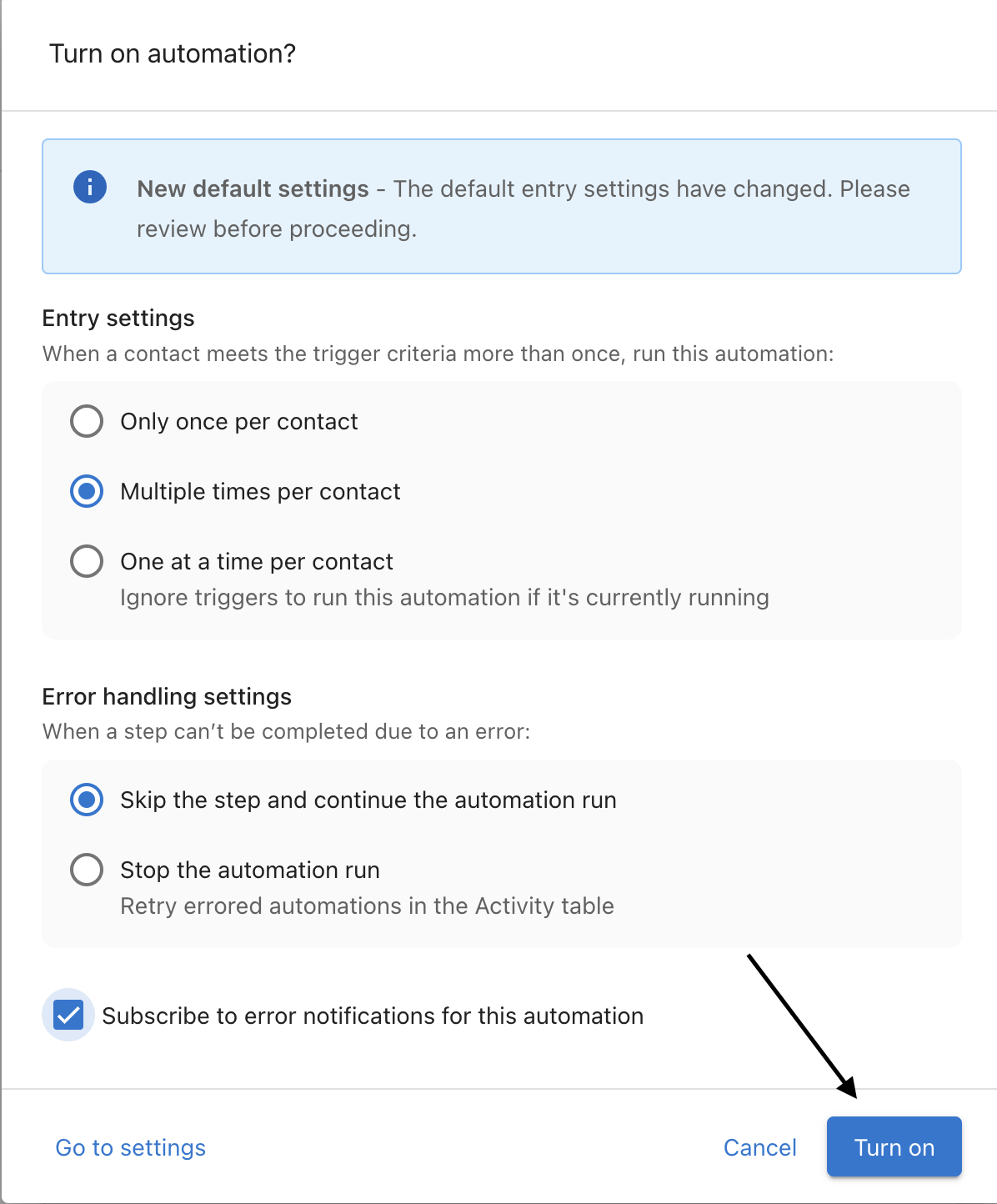
Turn the automation on and check Review Activity regularly to monitor results.