Automation settings
Each automation has a Settings tab where you control how and when your workflow runs. These settings help you avoid duplicate runs, manage errors gracefully, and ensure automations behave as expected.
Where to find settings
- Go to Business App > Automations
- Open an automation
- Select the Settings tab
- Configure entry settings and error handling options
Open goals and run settings from the editor
While you edit an automation, you can open goals and run settings directly from the editor.
- Add goal: Select Add goal to open the goal form in a modal.
- View goal: When the automation has a goal, the button changes to View goal. Select it to open the goal in a modal.
- Run settings: Select Run settings to open the automation's run settings in a modal.
You can edit goals and run settings in edit mode only.
What a goal is
A goal is an optional condition that tells an automation when it has done its job. When a contact meets the goal, the automation stops instead of running its remaining steps.
Goals are useful when the point of an automation is to prompt someone to take an action. Once a contact has taken that action, the automation stops, so they don't keep receiving messages they no longer need.
Set a goal if you want an automation to stop as soon as its purpose is achieved. Skip it if you want the automation to always run every step.
What run settings are
Run settings control how an automation runs, such as how often it can run for the same contact and what happens when a step fails. Change them when the defaults don't fit how you want the automation to behave, for example to limit a welcome email to once per contact. For details on each option, see Entry settings and Error handling.
Like triggers and actions, these modals can collapse into the right side panel.
Saving changes
When you edit any settings tab, floating Save and Cancel buttons appear.
- Select Save to apply your changes.
- Select Cancel to discard your changes and return to the last saved settings.
If you try to navigate away from a tab with unsaved changes, a confirmation dialog asks whether you want to save or discard them before you leave.
Entry settings
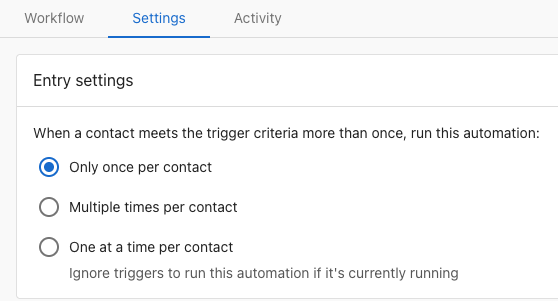
Entry settings control how frequently an automation can run for the same contact or company. Many trigger events and conditions can be met multiple times. For example, A customer makes a payment trigger with the trigger options set to Succeeds or fails will fire each time a customer attempts to pay for an invoice or shopping cart purchase. The entry settings allow you to specify whether you want the automation workflow to start only the first time the trigger criterion is met or every time.
| Setting | What It Does | When to Use | Example |
|---|---|---|---|
| Only once per contact | Runs a single time for each contact, ever | One-time steps that should never repeat | Send welcome email when contact is created |
| Multiple times per contact | Runs every time the trigger conditions are met | Recurring notifications or event responses | Log activity when email is opened |
| One at a time per contact | Ensures a new run starts only after the previous one finishes | Workflows that update the same fields or have dependencies | Update lead score based on multiple criteria |
If your automation updates the same record (for example, applies tags or updates fields), prefer "One at a time per contact" to avoid overlapping runs and duplicate changes.
Error handling
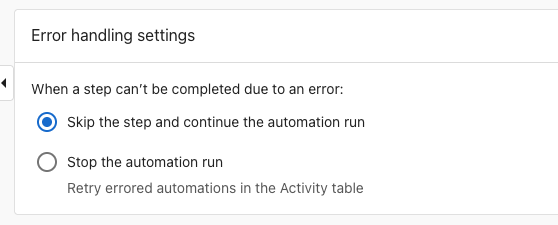
Error handling settings determine what happens when a step in your automation fails (for example, if a required field is missing or an API call times out). If at any point a step fails to complete, you can choose to have your automation ignore the error and continue with the following steps, or stop that specific automation run.
| Setting | What It Does | When to Use | Example |
|---|---|---|---|
| Skip the step and continue (Recommended) | Automation continues to next step even if one fails. Failed steps are logged in Activity tab | Non-critical steps that don't depend on each other | Send notification + update CRM field (if notification fails, field still updates) |
| Stop the automation run | Entire automation stops if any step fails. No further steps execute | When later steps depend on earlier ones completing successfully | Create opportunity → Add note → Assign to rep (can't add note if opportunity creation failed) |
Use "Skip and continue" for non-critical steps like logging or tagging. Use "Stop on error" when steps must complete in sequence (for example, create opportunity → add note → assign to rep).
Timezone Configuration
Set your preferred timezone for time-based automation steps and scheduling. Timezones in the list are sorted by UTC offset. Your browser-detected timezone appears at the top of the list for quick selection, in addition to its place in the full list.
Notification Settings
Subscribe to error notifications to be alerted when automations encounter issues.
Frequently asked questions
What happens if I change entry settings after the automation is running?
The new settings apply to future runs only. Past runs are not affected. For example, if you switch from "Only once" to "Multiple times," contacts who already received the automation can receive it again on the next qualifying trigger.
Can I see which setting caused an automation to skip?
Yes. Check the Activity tab for the automation. If a run was skipped due to entry settings, you'll see a note indicating the contact already entered the automation (for "Only once" setting) or that another run is in progress (for "One at a time" setting).
How do I reset "Only once per contact" for testing?
You can't reset the entry history directly. Instead, create a new test contact or clone the automation for testing purposes. Once testing is complete, delete the test automation and use the original.
What counts as an "error" for error handling purposes?
Errors include: missing required fields (phone for SMS, email for email steps), API timeouts, invalid data formats, permission issues, or external service failures. Conditions not being met is not an error—the automation simply won't run.
Can different steps have different error handling?
No. Error handling is set at the automation level and applies to all steps. If you need different error handling for different steps, consider splitting them into separate automations.
Related resources
- Automation activity - Monitor and troubleshoot automation runs
- Messaging steps - Configure SMS and email steps
- Automations overview - Learn the basics of creating automations