Messaging steps
Use messaging steps to send automated SMS or plain-text email from your workflows. Each step runs when the workflow is triggered so you can notify the contact who triggered it or alert your team.
How to add a messaging step
- Go to Business App > Administration > Automations
- Open the Automation Builder (create a new automation or edit an existing one)
- Add a trigger (e.g. When a contact is created, Form submitted, WebChat captures a lead)
- Click the + symbol to add a step and select the messaging step you want
- Configure the step (recipient, message content, dynamic fields as needed)
- Save and turn the automation On
Send SMS
Send an SMS to the contact who triggered the automation or to any phone number you specify (e.g. team members, numbers not in your CRM).
Sending SMS via automations requires Conversations AI | Pro.
To the contact who triggered the automation: After adding the step (see How to add a messaging step), choose Send SMS, write your message, and add dynamic fields as needed.
To any phone number: After adding a step, select Send an SMS message to a phone number. Configure the Phone Number field with one or more destination numbers, enter the message content, and use the dynamic field inserter for variables if needed.
Example use cases:
| Trigger | Step | Benefit |
|---|---|---|
| New visitor chats without booking | You receive SMS with visitor's name and message | Restart outreach quickly |
| "Request a Quote" form submitted | Sales manager receives SMS with project details | Faster response for high-intent leads |
| Contact tagged as VIP | Business owner receives SMS alert | Timely personal follow-up |
Tips:
- Keep messages short and actionable; include your business name the first time you text a contact
- Respect consent and opt-out rules; use Conditions to limit when the step runs (e.g. only for new leads)
Example
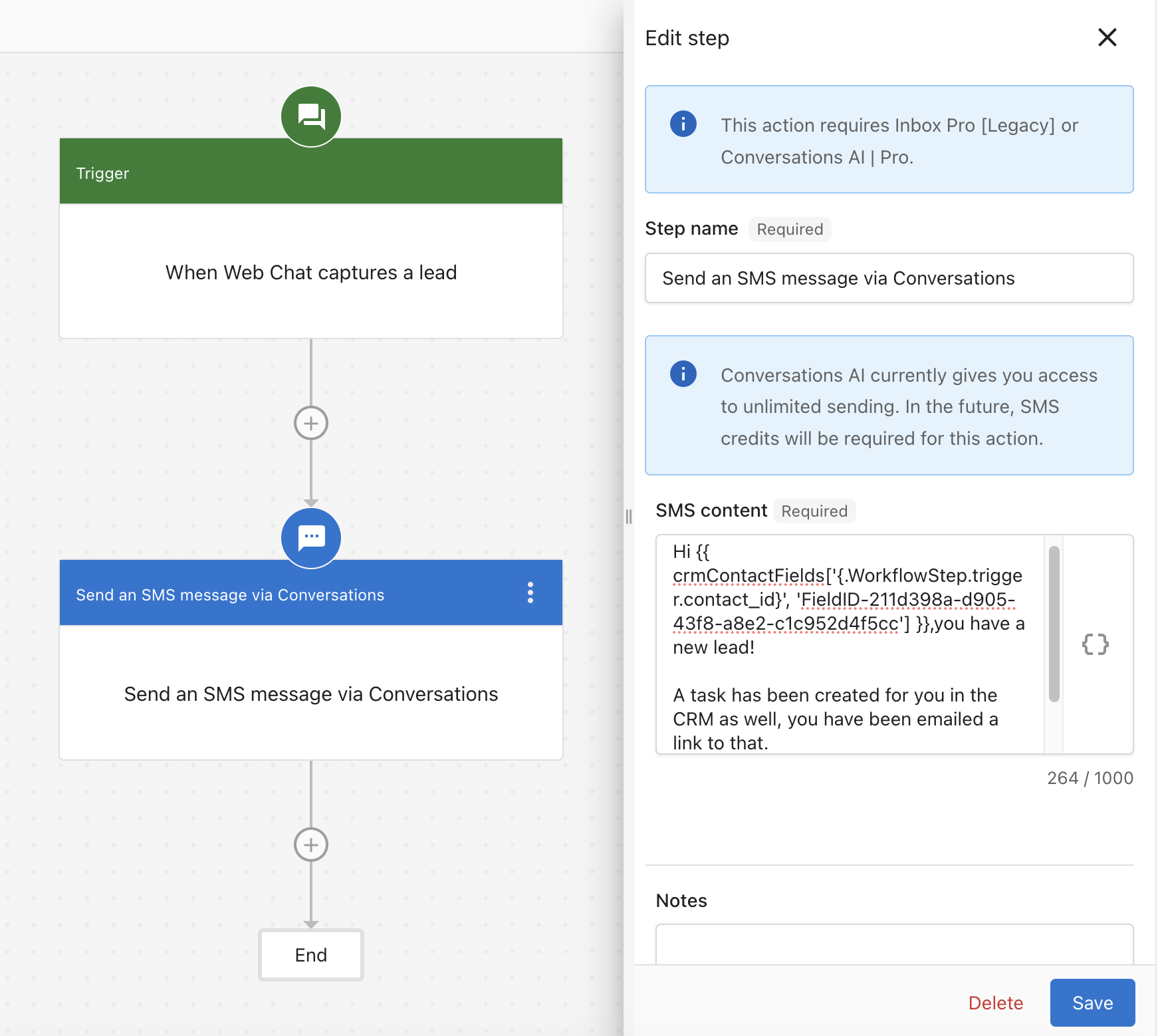
Scenario: When Web Chat captures a lead, the person in charge of handling that lead (e.g. a sales rep or owner) gets an SMS right away. The message greets them by name, notifies them about the new lead, and mentions that a task was created in the CRM and a link was emailed.
Trigger: When Web Chat captures a lead
Step: Send an SMS message via Conversations to the phone number of the person handling the lead. In the step, add SMS content that greets the recipient by name using the dynamic field inserter (e.g. the assigned rep's or owner's name from the CRM). Include that they have a new lead and that a task was created in the CRM and a link was emailed.
How it works: When Web Chat captures a lead, the automation runs and sends the SMS to the number you configured (e.g. the sales person's or owner's). The dynamic field pulls the recipient's name so the message is personalized—for example, "Hi Sarah, you have a new lead!"—and they're reminded about the CRM task and email.
Use case: Ensures the right person is notified immediately when a lead comes from chat, with a personalized greeting and a reminder about the CRM task and email.
Send plain-text email
Requires Conversations Pro.
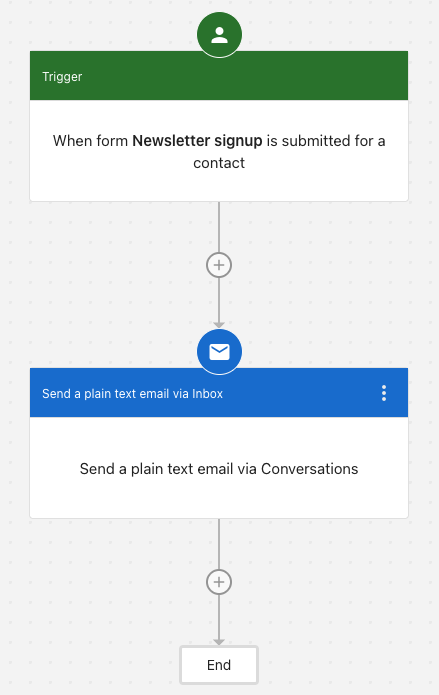
Setup: After adding the step, choose Send a plain text email (via Inbox or Conversations), then set the Subject and Body and add dynamic fields if needed.
Tips:
- Use clear subjects and one primary call-to-action; personalize with the contact's name and relevant details
- Combine with Conditions to target the right audience
Frequently asked questions
What if messages fail to send?
Check the Activity tab for the run. Make sure required fields (e.g. phone for SMS, email for plain-text email) are present. If you see frequent failures, consider setting Error handling to "Skip the step and continue" in the automation Settings so other steps can still complete.
Can I include dynamic information in messages?
Yes. Use the dynamic field inserter when writing the message to include contact details, form responses, or other automation data. For the syntax and examples (e.g. task IDs, trigger data), see Dynamic content in automations.