Automation activity
Use Automation Activity to see what ran, when it ran, and whether it succeeded. This helps you verify outcomes and troubleshoot issues.
Where to find it
- Go to
Business App→Automations - Open an automation
- Select the
Activitytab to review recent runs
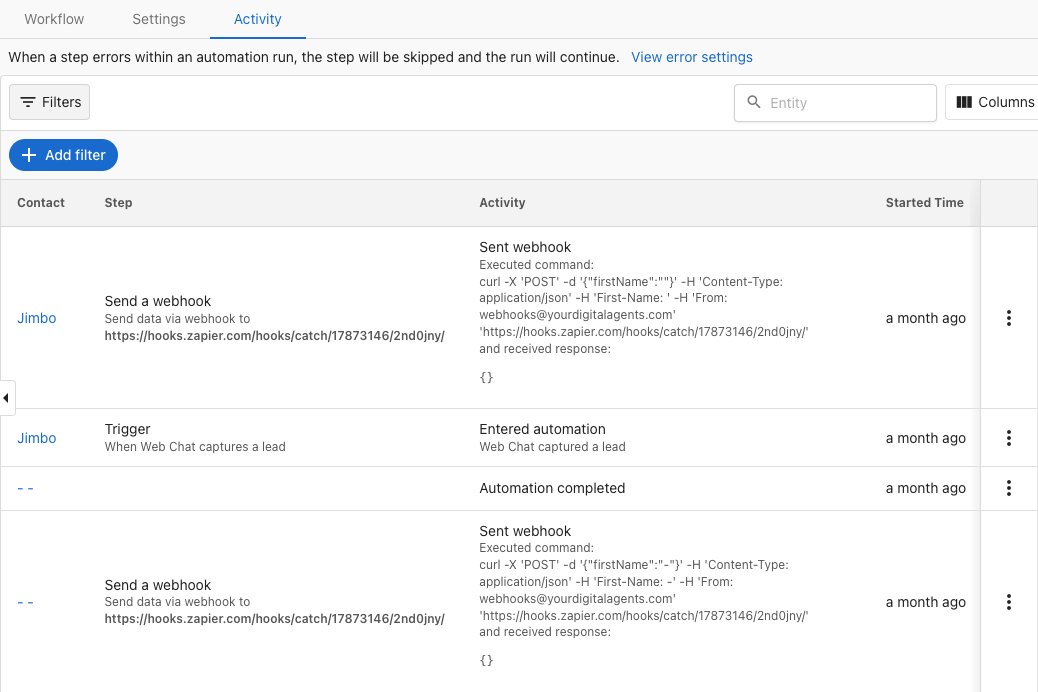
Understanding the Activity log
The Activity tab displays a log of every time your automation runs. Each row represents a step in the workflow and shows:
-
Contact - The person or company record that triggered this automation run
-
Step - Which part of the workflow executed. Common examples include:
- "Trigger" (the event that started the automation)
- "Send a webhook"
- "Create an opportunity"
- "Send SMS"
-
Activity - The outcome of that step. This tells you what actually happened and whether it succeeded. Common activity statuses include:
- Automation completed - The run finished successfully
- Running - The workflow is in progress and steps update in real time
- Entered automation - The automation was triggered and started
- Sent webhook / Created opportunity - Specific steps that completed successfully
-
Started Time - When this step began executing
Troubleshooting
"My automation didn't fire"
Check these in order:
- Is the automation running? In the automation list, the state must be Running, not Stopped or Paused. Turn it on if needed.
- Did the trigger event actually occur? Confirm the event happened (for example, the contact was created, or the form was submitted) at the time you expected.
- Do your conditions match? Review the filter conditions on your trigger. The contact or company data might not meet the criteria (for example, a tag or field value doesn’t match).
- Is the trigger configured correctly? Ensure you chose the right event type and that any required fields are mapped.
- Was there an error? Open the Activity tab for this automation. Use the Entity search or Filters to narrow to the right time or contact if needed, then look in the Activity column for steps that errored or were skipped around the time the automation should have run.
"Automation ran but step failed"
- Check the Activity tab for the automation. Use the Entity search or Filters to find the run if needed. Find the run that failed and look at each step’s Activity.
- Identify the step that errored or was skipped. Read the Activity details for that step; they usually explain what went wrong.
- Common causes:
- Missing required data: A field the step needs (for example, phone for SMS or email for email) was empty or missing.
- Permission or sign-in: The connection or account used by the step may need to be re-authenticated (for example, reconnect the integration).
- External service issue: The external app or service was unavailable or timed out; try again later.
- Invalid data format: The value passed to the step was in the wrong format (for example, a number where text was expected). Check your field mappings.
"Automation is stuck"
An automation may stay in Running for a while when:
- It’s waiting for a
Wait Forcondition: The workflow is paused until something happens (for example, a meeting is booked or a field changes). Check whether that condition can still be met. - A delay step is still counting down: If you added a
Waitor delay, the run will continue after the delay ends. - Rate limiting: The system may temporarily pause runs when there’s heavy use; it will usually resume automatically.
If it stays stuck for an unusually long time, use the Entity search or Filters to find the run if needed, then check the Activity tab and look for steps in the Activity column that might be timing out or waiting on an external system. If the problem continues, note when it happened and what you see in Activity when you ask for help.
General tips
- Check data requirements: Make sure required fields (for example, phone for SMS) exist on the record.
- Review error handling: In Settings, choose whether to continue on step error or stop the run.
- Reduce noise: Add Conditions so the automation runs only when needed.
- Avoid duplicates: Use the Entry settings (Only once / Multiple / One at a time) appropriately.
Pro tips
- Test first: Trigger the automation with a test record before enabling broadly
- Monitor early: Review Activity after enabling to confirm expected behavior
- Log context: Use tags or fields so you can filter runs and outcomes later
Frequently asked questions
Why is my automation stuck in "Running"?
A Running status usually means the workflow is waiting for something, for example, a delay step, a Wait For condition, or an external service. See Automation is stuck above for causes and what to check.
What should I have ready when I contact support?
When asking for help with an automation, have ready: the automation name, when the issue happened (date and time), and what you see in the Activity tab (a screenshot of the run or failed step helps). If the problem involves a specific contact or record, note the state of that record at the time the automation ran, not just how it looks now.