Time-based triggers
Run automations on a recurring schedule without waiting for an event to trigger them. The On a schedule trigger is useful for routine tasks like sending team reminders, weekly notifications, or monthly check-ins.
How time-based triggers work
Unlike event-based triggers that run when something happens (like a company or contact creation), time-based triggers run at times you define. You set the frequency, time of day, and date range, and the automation runs automatically.
Alongside your automation's description, the On a schedule trigger also displays when the automation will run next, so you can confirm the schedule at a glance without opening the configuration panel.
Key benefits:
- Automate recurring tasks without manual intervention
- Run automations at optimal times for your audience
- Set start and end dates to control when the schedule is active
Set up the On a schedule trigger
Step 1: Go to Business App → Automations.
Step 2: Click Create automation or open an existing automation.
Step 3: In the trigger selection, find Time-based and select On a schedule.
Step 4: Configure the schedule options (see below).
Step 5: Add your automation steps and save.
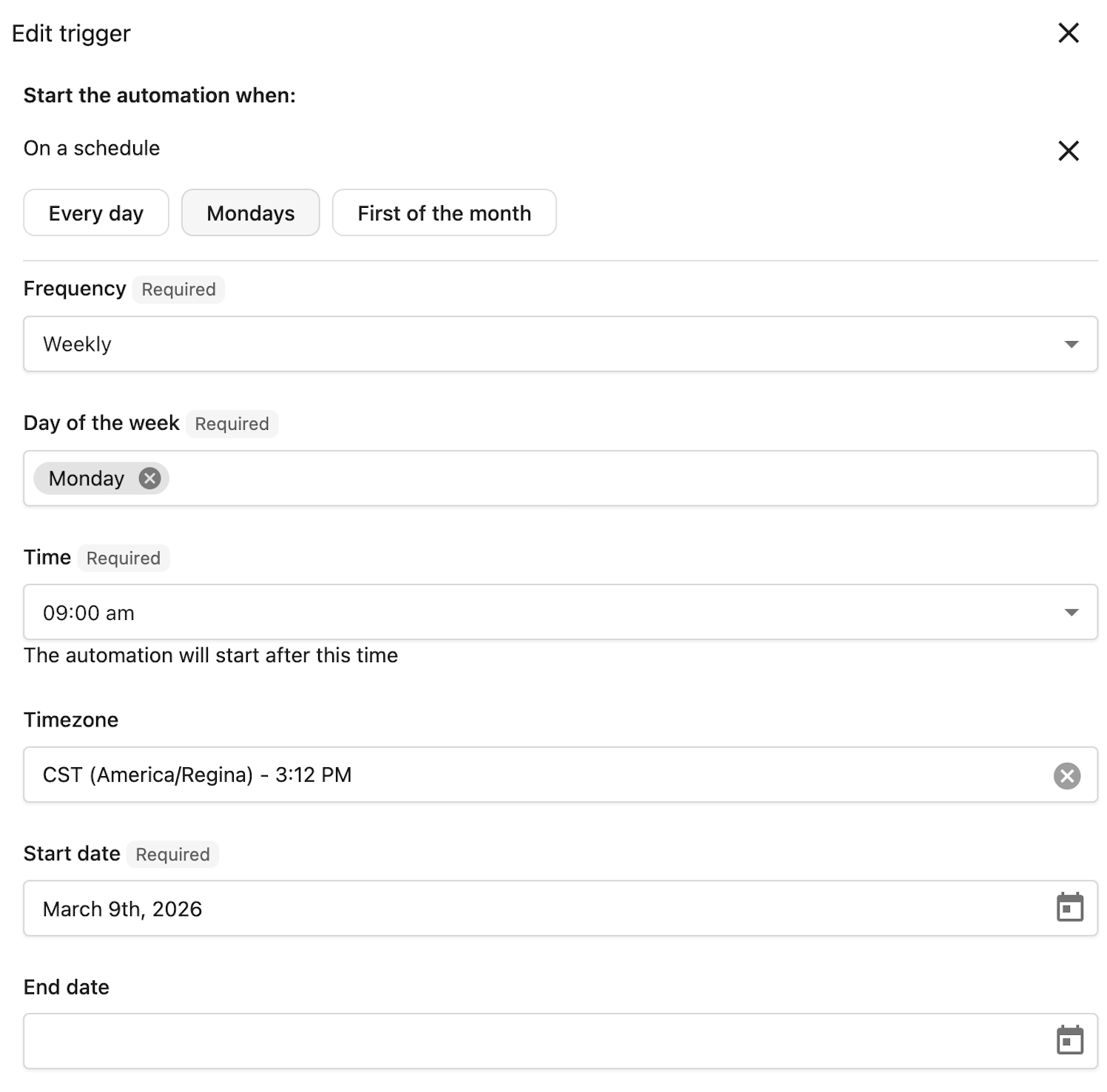
Schedule options
Daily
Run the automation at the same time every day.
| Setting | Description |
|---|---|
| Time | The time of day to run (in your configured timezone) |
Weekly
Run the automation on specific days of the week.
| Setting | Description |
|---|---|
| Time | The time of day to run |
| Days of week | Select one or more days (Sunday through Saturday) |
Monthly
Run the automation on specific days of the month.
| Setting | Description |
|---|---|
| Time | The time of day to run |
| Days of month | Select one or more days (1-31) |
| End of month | Run on the last day of the month, regardless of how many days it has |
Use the End of month option for consistent month-end notifications. This ensures the automation runs on the 28th, 30th, or 31st depending on the month.
Date boundaries
Control when your time-based automation is active.
| Setting | Description |
|---|---|
| Start date | The earliest date the automation can run. The schedule becomes active on this date. |
| End date | (Optional) The latest date the automation can run. After this date, the schedule stops. |
Timezone
The schedule runs based on your automation's timezone setting. All times you enter are interpreted in this timezone.
Example use cases
Weekly sales task for client check-ins
Create a recurring task to reach out to a key client:
- Frequency: Weekly
- Day: Wednesday
- Time: 10:00 AM
- Steps:
- Find the contact
- Create a sales task to check in with the client
Invoke an AI employee on a schedule
Invoke an AI employee to generate insights and share them with your team:
- Frequency: Daily
- Time: 8:00 AM
- Steps:
- Send a request to an AI employee with your prompt
- Send the AI response to Slack or Google Chat
Troubleshooting
Automation did not run at the scheduled time
- Verify the automation is turned on (running state)
- Check that the current date is within the Start date and End date range
- Confirm the timezone is set correctly in automation settings
Schedule options not appearing correctly
- Ensure you have selected at least one day for weekly or monthly frequencies
- For monthly schedules, remember that selecting day 31 only runs in months with 31 days
Automation runs at unexpected times
- Double-check your timezone configuration
- Remember that daylight saving time changes may affect the actual run time in your local time