Send automated notifications with SMS and email
When a new lead comes in from chat, a quote request lands, or a VIP contact is tagged, the faster you respond, the better your chances of closing the deal. You can build automations that send SMS or email notifications the moment these events happen — no manual follow-up needed.
SMS notifications require Conversations AI | Pro. Plain-text email notifications require Conversations Pro.
When to use this
| Trigger | Notification | Benefit |
|---|---|---|
| Web Chat captures a lead | SMS to the assigned sales rep | Immediate follow-up on hot leads |
| "Request a Quote" form submitted | SMS to the sales manager with project details | Faster response for high-intent leads |
| Contact tagged as VIP | SMS alert to the business owner | Timely personal outreach |
| Newsletter signup form submitted | Welcome email to the new subscriber | Instant engagement while interest is high |
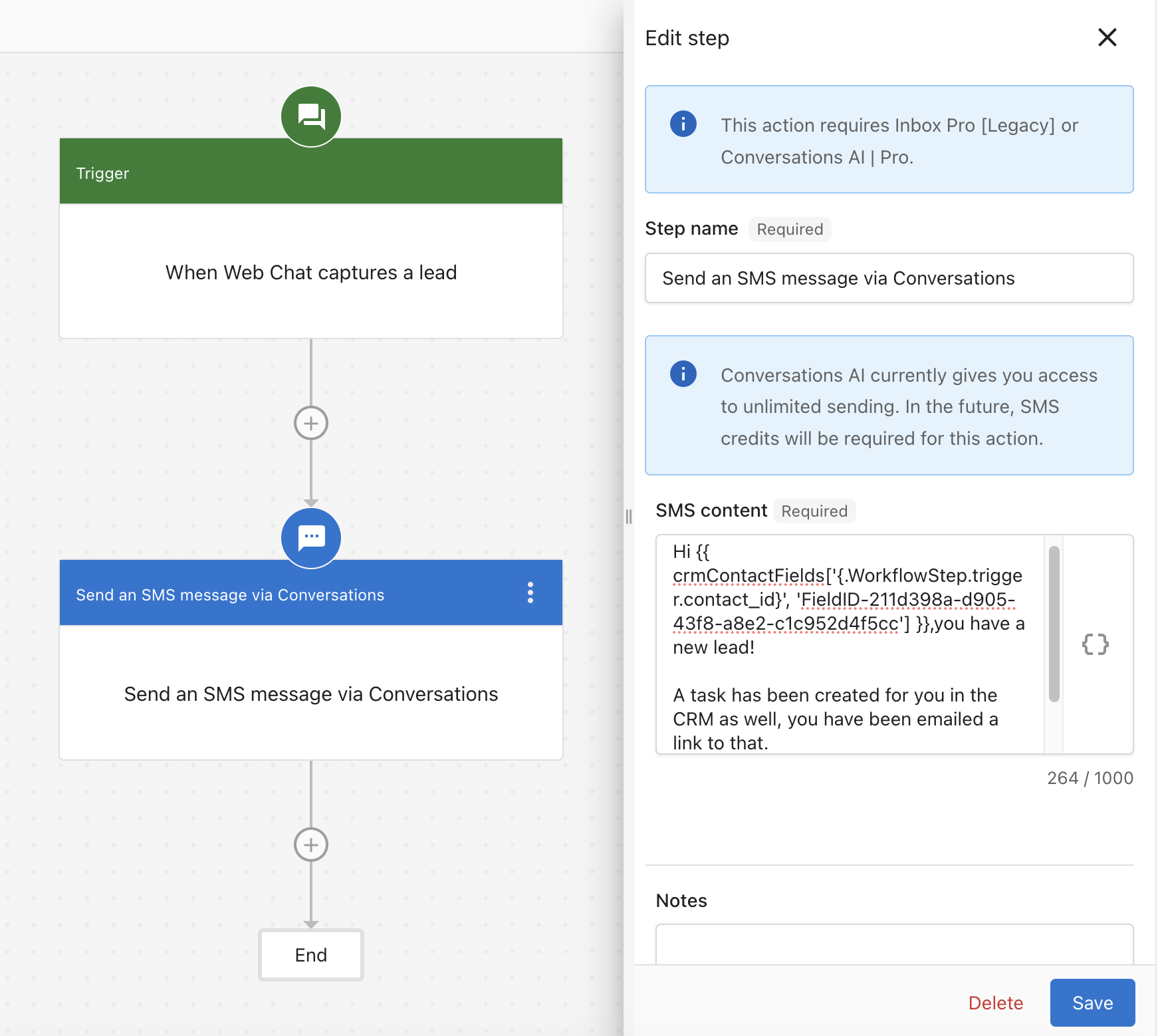
Example: Alert your team when Web Chat captures a lead
When Web Chat captures a lead, the person handling that lead gets an SMS right away with a personalized greeting and details about the new lead.
- Trigger: Set the trigger to When Web Chat captures a lead.
- Action: Add the Send an SMS message to a phone number step. Enter the phone number of the person handling leads (e.g. sales rep or owner).
- Message: Use the dynamic field inserter to greet the recipient by name and include lead details — for example, "Hi Sarah, you have a new lead! A task was created in the CRM and a link was emailed."
When the automation runs, the SMS is sent immediately to the configured number with personalized content pulled from the CRM.
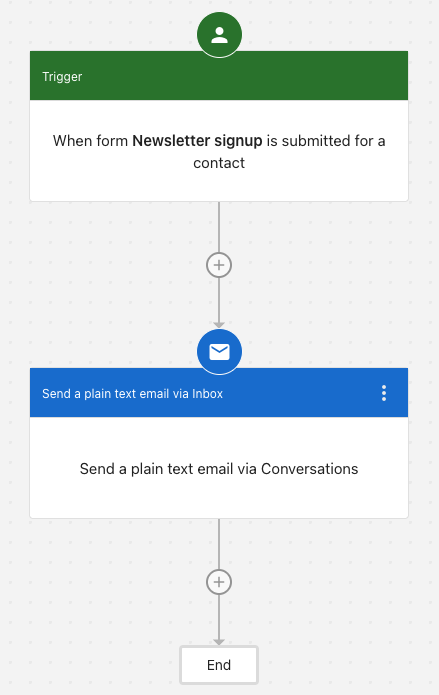
Example: Send a welcome email on form submission
When a contact submits a signup form, send them a plain-text email to acknowledge their submission and set expectations.
- Trigger: Set the trigger to When a form is submitted.
- Action: Add the Send a plain text email step (via Conversations AI).
- Message: Set the subject line and body. Use dynamic fields to personalize with the contact's name and relevant form details.
SMS options: contact vs. phone number
| Step | Sends to | When to use |
|---|---|---|
| Send SMS | The contact who triggered the automation | Notifying the lead or customer directly |
| Send an SMS message to a phone number | Any phone number you specify | Alerting team members or numbers not in your CRM |
Tips
- Keep SMS messages short and actionable — include your business name the first time you text a contact
- Use clear email subjects with one primary call-to-action
- Add Conditions to limit when notifications fire (e.g. only for new leads, only during business hours)
- Personalize messages with the contact's name and relevant details using dynamic content
- If messages fail to send, check the Activity tab — make sure required fields (phone for SMS, email for plain-text email) are present on the contact