Business App → Zapier
When something happens in Business App, like a contact being created or an activity being logged, you can push that data out to Zapier automatically using the Send a webhook step. From Zapier, that data can trigger actions in other external apps.
Prerequisites
- An active Zapier account
- A Business App automation with a
Send a webhookstep - The automation must be turned on
Example
Company created in Business App → create customer in QuickBooks Online
When a new company is added in Business App, an automation fires and sends the company's details to Zapier via webhook. Zapier receives the data and creates a matching customer record in QuickBooks Online, so your CRM and accounting software stay in sync without any manual re-entry.
How to set up
There are three parts: setting up the receiving end in Zapier, connecting it to your Business App automation, then returning to Zapier to complete the Zap.
Part 1: Set up the webhook in Zapier
Step 1: Log in to Zapier and click Create Zap.
Step 2: The Zap editor opens with a blank canvas showing a Trigger block and an Action block.
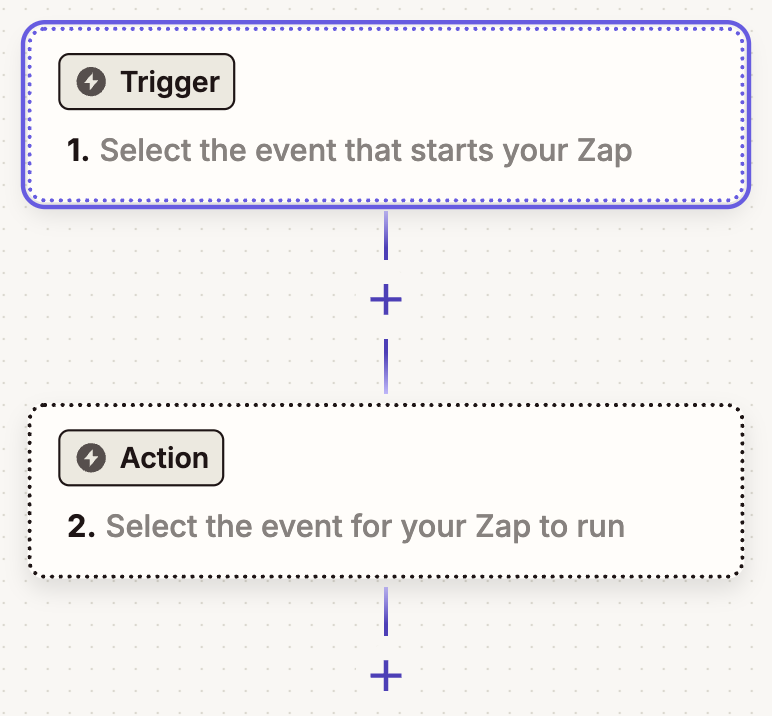
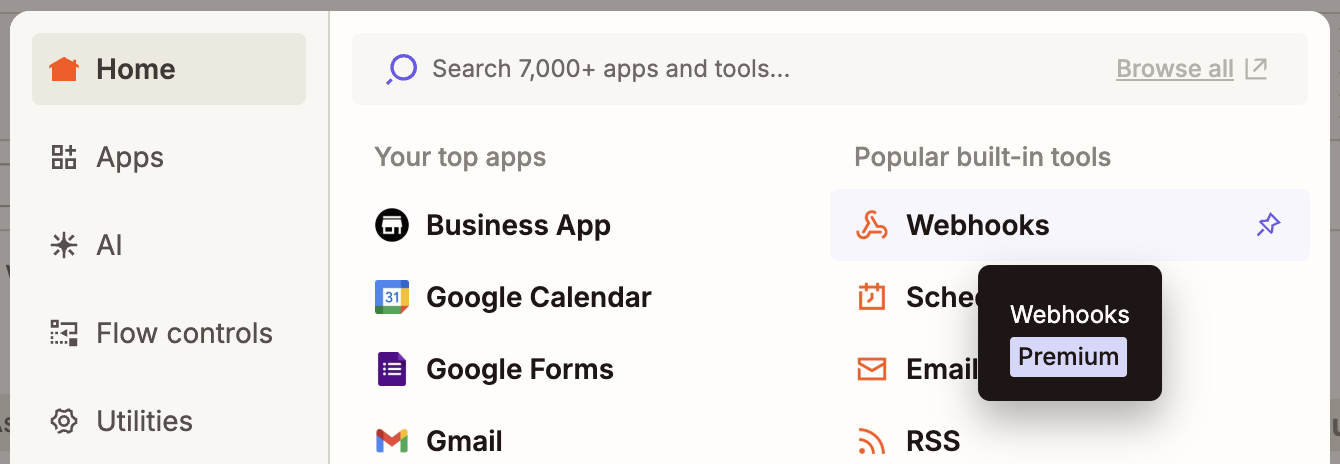
Step 3: Search for and select Webhooks by Zapier as the trigger app.
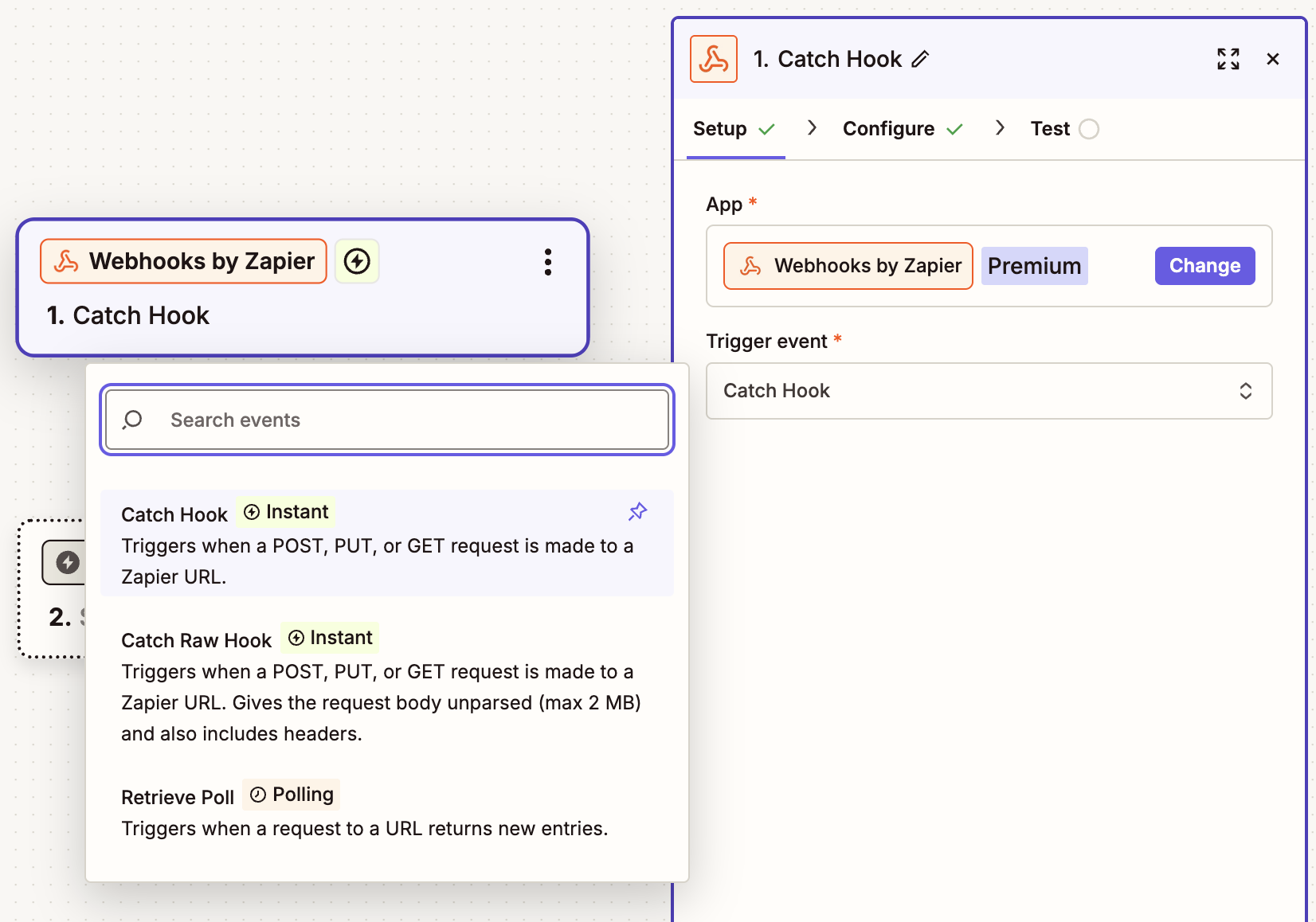
Step 4: Select Catch Hook as the trigger event, then click Continue.
Step 5: In the Pick Off A Child Key field, enter the specific key you want Zapier to extract from the webhook request. This is useful if you only need a subset of the data sent to the webhook. You can also leave this blank to receive the full payload. Click Continue.
Step 6: Copy the webhook URL that Zapier generates. You will paste this into your Business App automation in the next part.
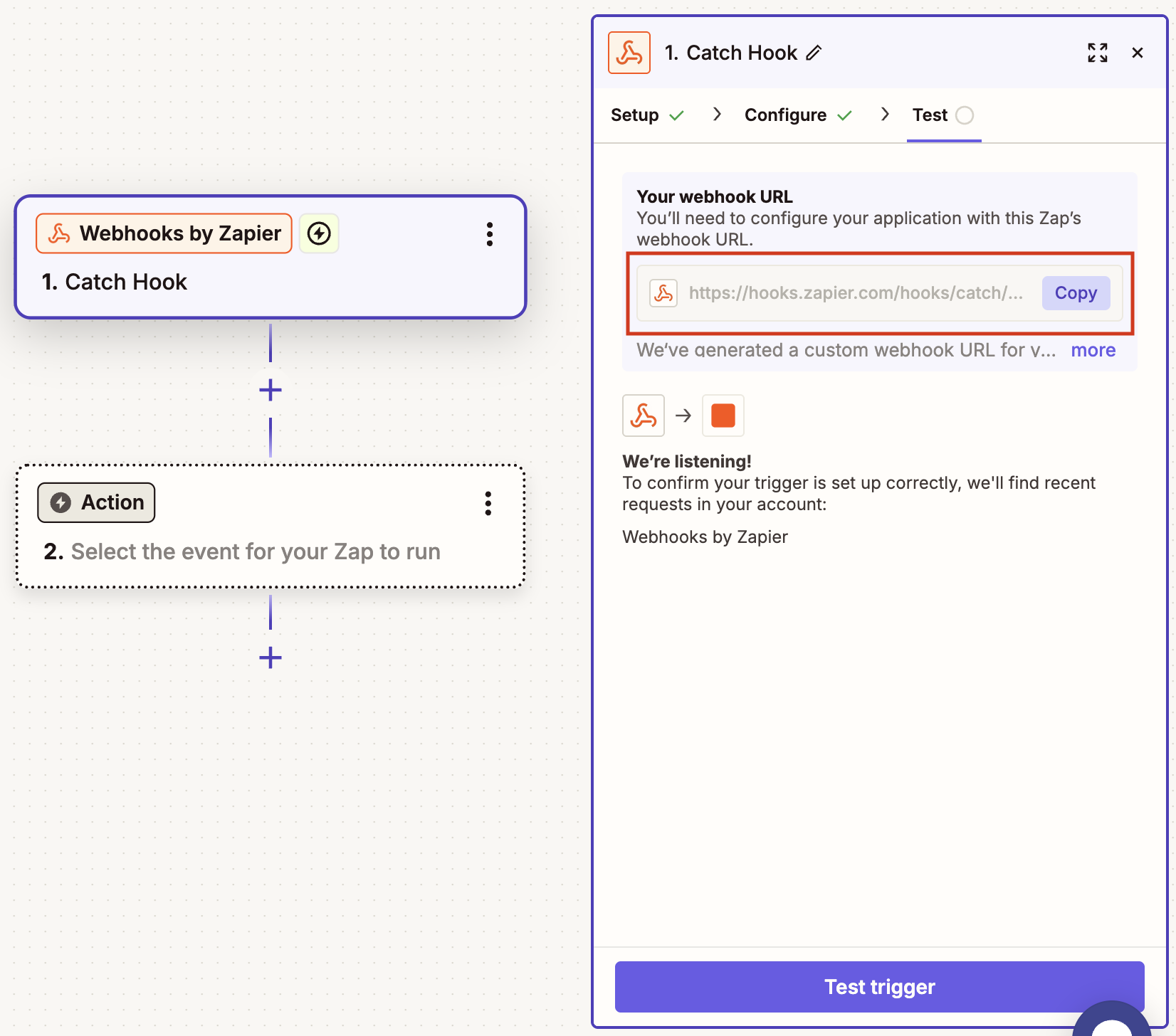
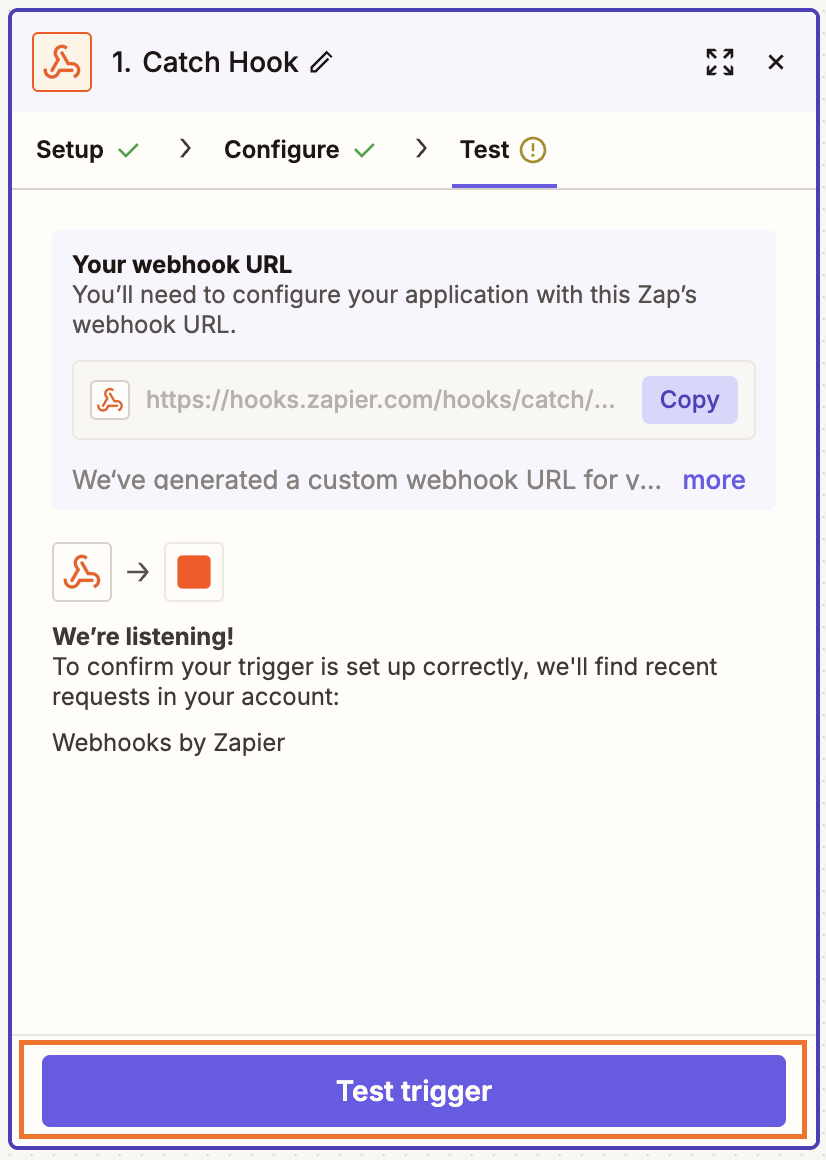
If you click Test trigger now, it will fail: that's expected. Zapier is listening for incoming data, but your Business App automation hasn't been connected yet and hasn't sent anything to this URL. The test will succeed after you complete Part 2 and your automation fires for the first time.
Part 2: Connect the webhook in Business App
Step 7: Go to Business App > Automations and open the automation you want to use, or create a new one. Make sure it includes a Send a webhook step: that's what pushes data out to Zapier.
Step 8: Set a trigger for your automation. For example, use A company is created or modified to fire whenever a new company is added.
Step 9: Add a Send a webhook step to your automation. You'll find it under Advanced in the step picker.

Step 10: Paste the Zapier webhook URL from step 6 into the URL field of the Send a webhook step.
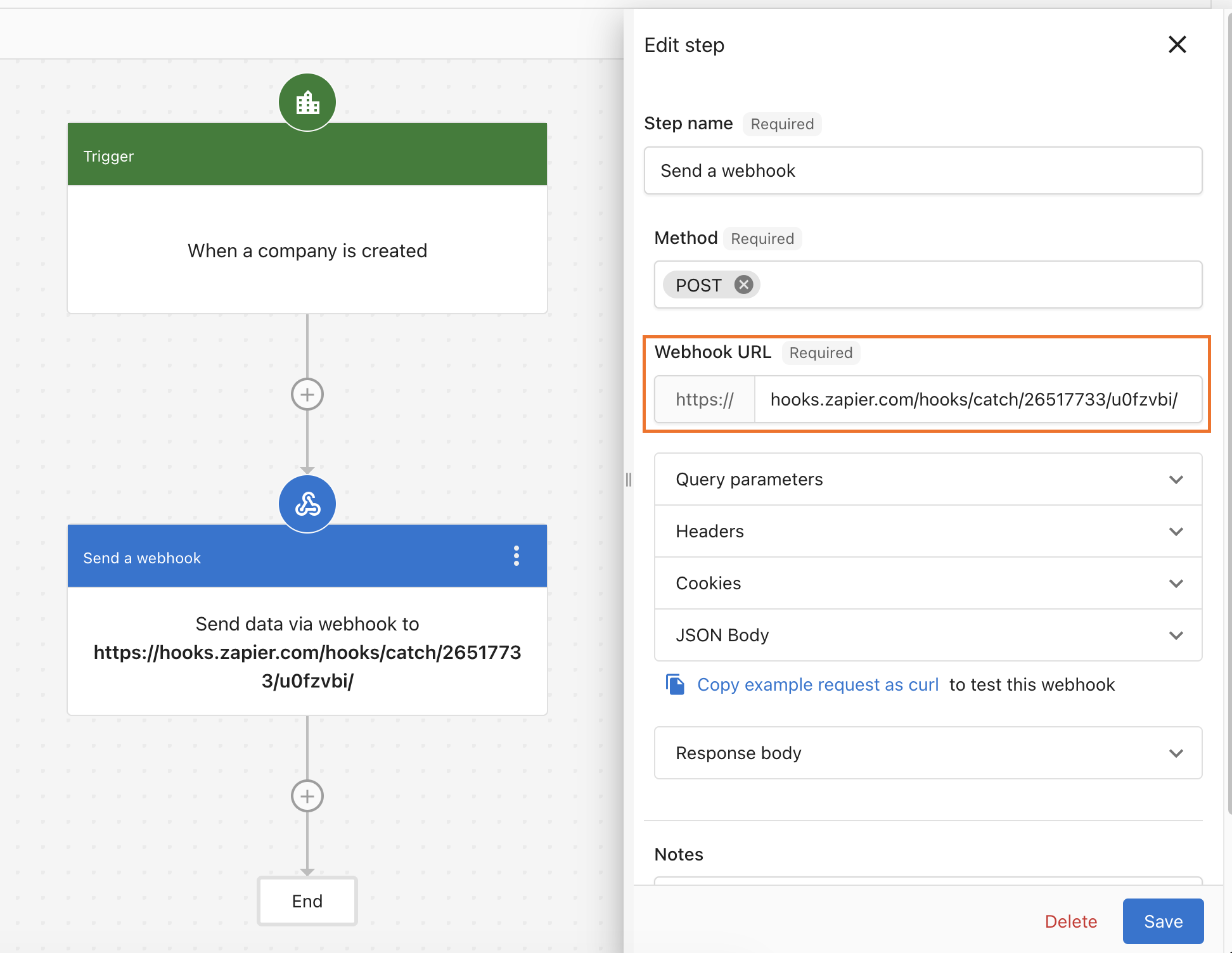
Step 11: Expand the JSON Body section and add the keys you want to send to Zapier. For each entry:
- Key: Enter a name that describes the data, for example
Company NameorCountry. This is the key that Zapier will receive and can map to fields in the external app (QuickBooks Online in this scenario). - Value: Use dynamic content to insert the actual data from Business App, for example the company's name or country pulled from the trigger.
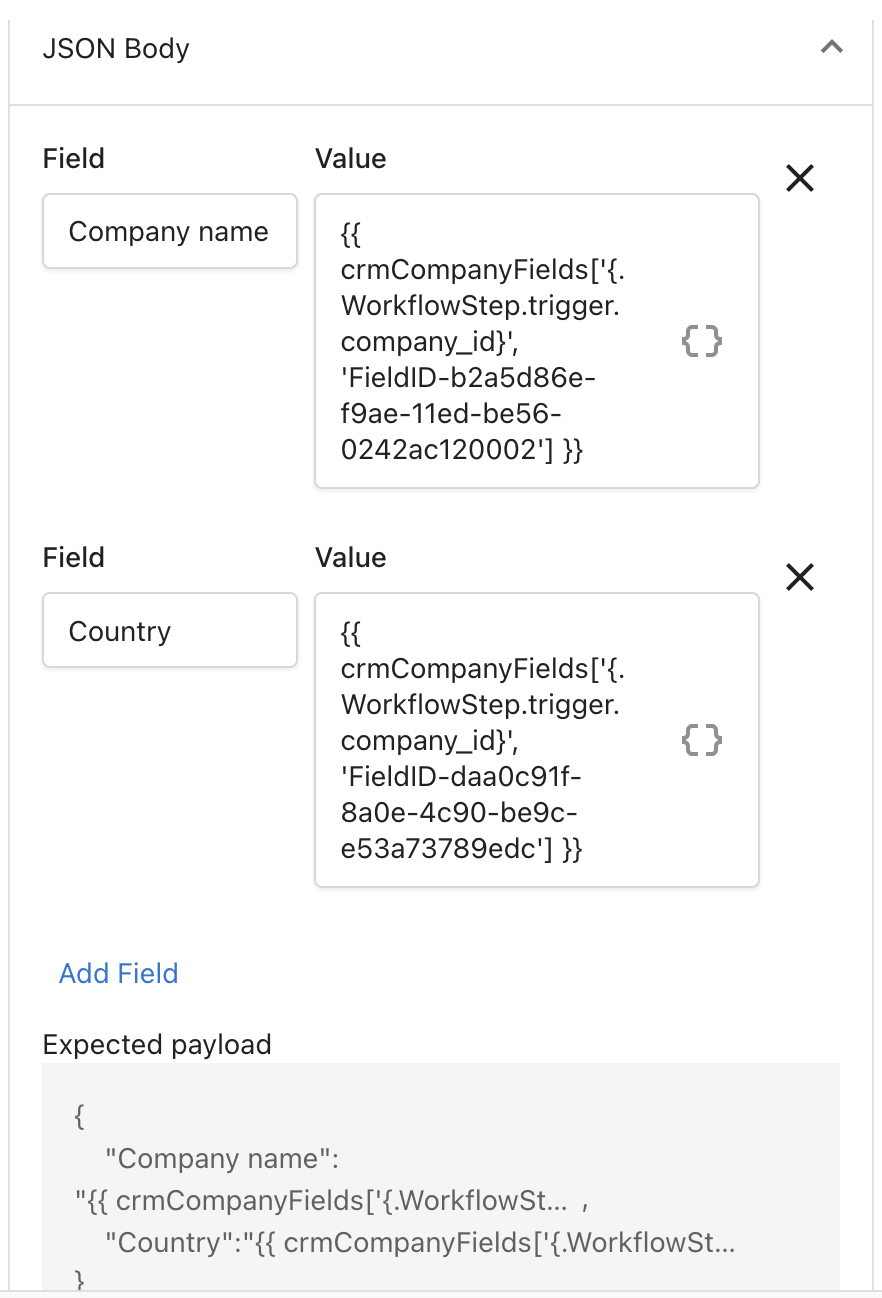
Step 12: Save and turn on your automation.
Step 13: Trigger your automation in Business App. For example, create a test company so Zapier receives a sample payload.
Part 3: Complete the Zap in Zapier
Step 14: Return to Zapier and click Test trigger. Each time your Business App automation fires, a new request appears here. Select the most recent one and click Continue with selected record.
 →
→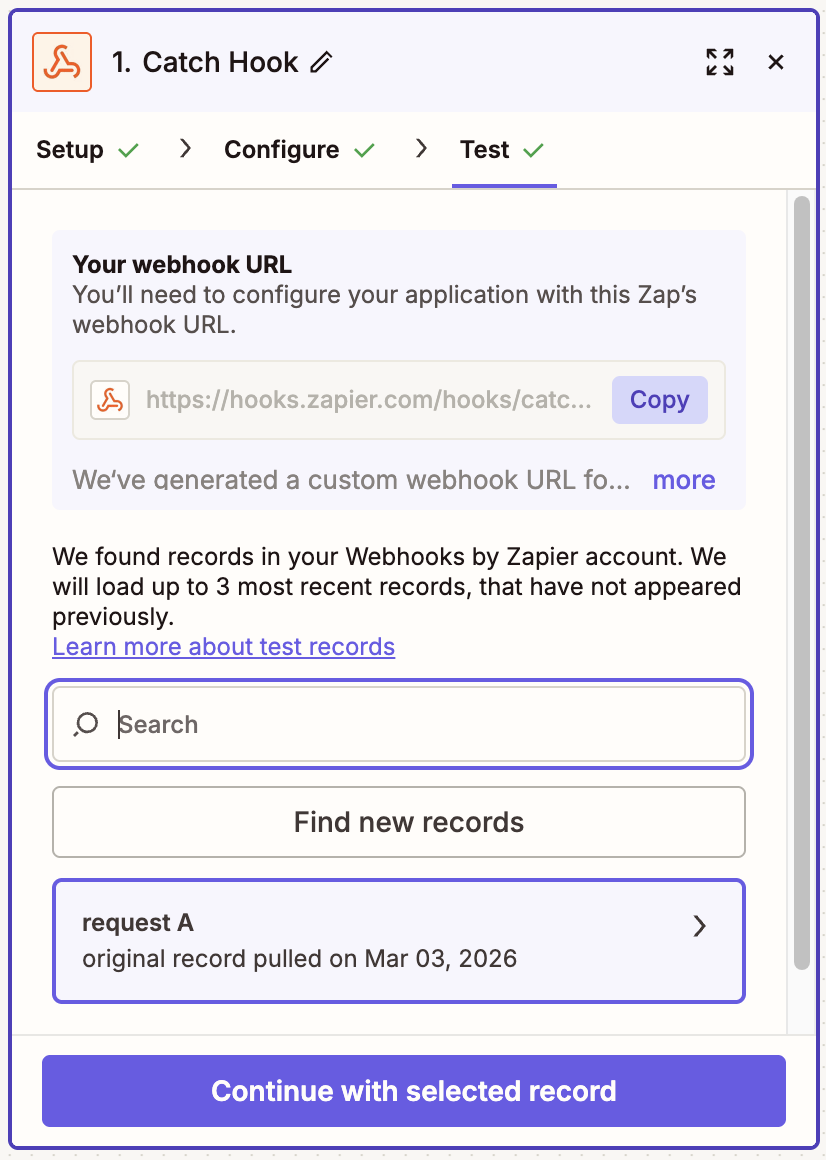
Zapier will show the data it captured, including the keys you defined in the JSON Body with their real values, such as the company name and country.
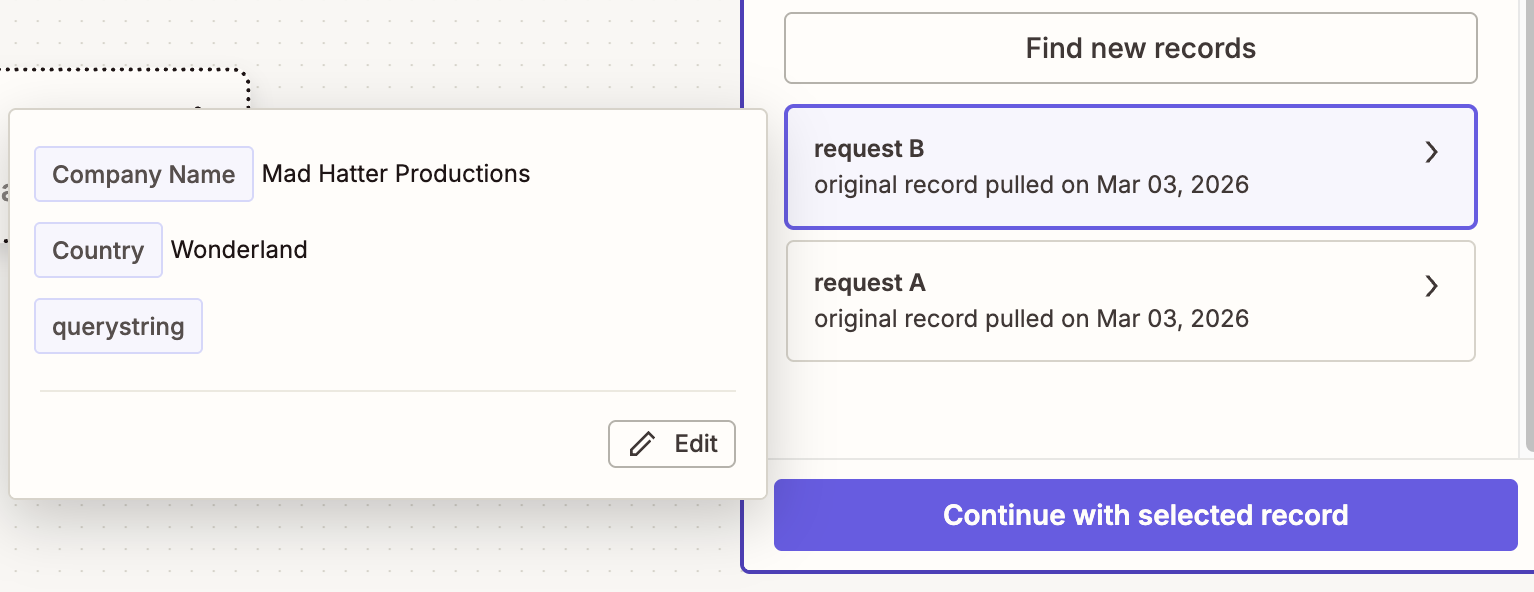
Step 15: Add the action steps you want Zapier to perform, for example Create a Customer in QuickBooks Online.
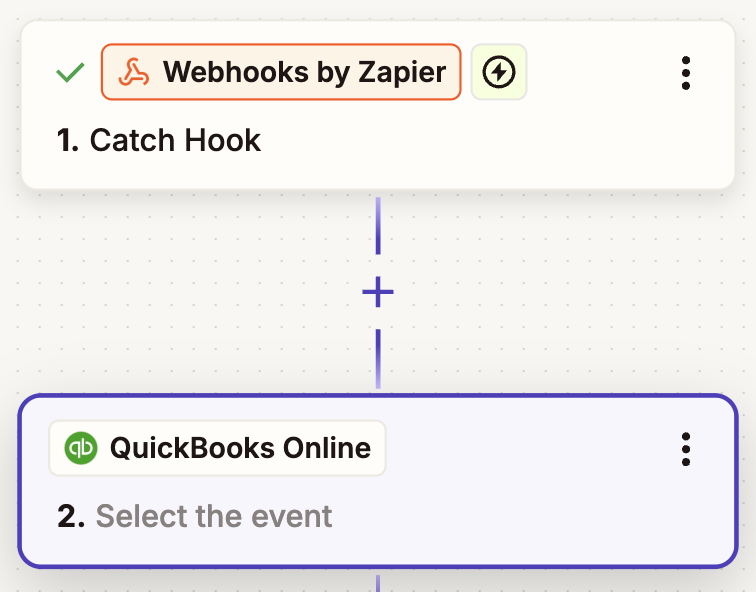
Step 16: Name your Zap, test it end to end, and turn it on.
Frequently Asked Questions
What data can I send to Zapier?
You can send any data available in your automation using dynamic content: contact name, email, phone number, company name, and any other CRM fields your automation has access to. The data is sent as a JSON body to the Zapier webhook URL.
Where does the webhook URL come from?
The URL is generated by Zapier and unique to each Zap. You copy it from the Zapier trigger setup (Step 6) and paste it into the Send a webhook step in Business App.
Can one automation send data to multiple Zaps?
Yes. You can add multiple Send a webhook steps to a single automation, each pointing to a different Zapier webhook URL. Each step fires in sequence when the automation runs.
What happens if the webhook request fails?
If the webhook step fails (for example, due to a network error or an invalid URL), the automation run logs an error. You can review run history in the Activity tab. On the Zapier side, failed webhook events also appear in Zap History.
Can I use this to sync contacts to my external CRM automatically?
Yes. This is one of the most common use cases. Set your automation to trigger when a contact is created or modified, use the Send a webhook step to push the contact data to Zapier, then configure Zapier to create or update a record in your external app (such as QuickBooks Online, Salesforce, or Zoho).
Can I send data to any app that's available in Zapier?
Yes. The Send a webhook step posts data to a Zapier webhook URL, and from there you can trigger actions in any of the 8,000+ apps available in Zapier: CRMs, spreadsheets, email platforms, accounting tools, and more.