Dynamic content in automations
Dynamic content refers to placeholders you add to message content, such as email body or SMS text, that are replaced with real data when the automation runs. For example, you can insert the contact's name, a task ID from the trigger, or a form response. That way your messages stay personalized and accurate without typing each value manually.
How to use it
You can use dynamic content in any step that sends or displays text, such as Send an SMS message via Conversations, Send a plain text email via Conversations, and other messaging steps in the Automation Builder.
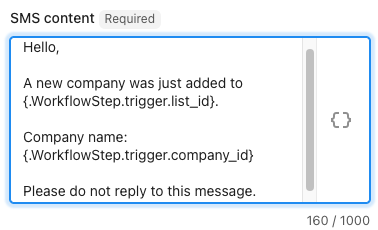
When you're editing the message content (for example, the SMS content field, or an email's body or subject line), click the Insert dynamic content button  to browse available values, pick one, or type the syntax directly. You can also type
/ in the field and search for the value you want, for example /name finds your business name. The value you pick is inserted as a chip, and this works in every step field.
What type of content can you add?
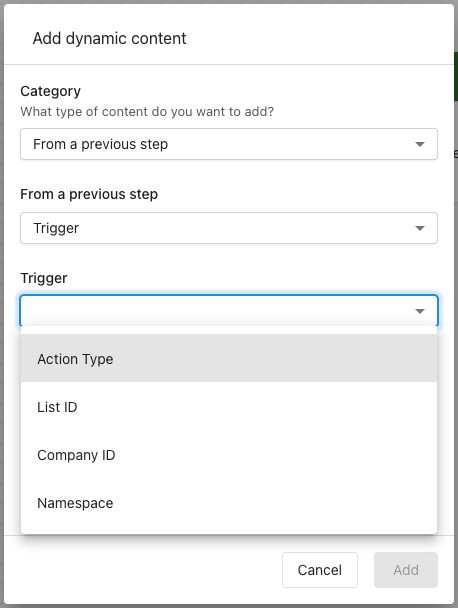
Click Insert dynamic content to open the Add dynamic content dialog. Under "What type of content do you want to add?", choose a Category:
Automation details: Details about the automation run, such as the date and time the automation ran.From a previous step: Information from the trigger (the event that started the automation) or from an earlier step. Choose the step, such asTrigger, and then the field you want.
For example, if the trigger is "When a company is added to a list," you can insert the company ID or the list ID into your message. Click Add to insert the value, or Cancel to close the dialog without adding anything.
Dynamic content chips
The value you insert appears in the field as a chip labeled with the field name, such as Business name, instead of the raw syntax. Values from Automation details, such as the automation name, appear as chips too. When the automation runs, each chip is replaced with the real value.
- See where a value comes from: Hover over a chip to see its full path, for example
Trigger › Account › Business name. - Change a value: Click a chip to reopen the dialog with that value selected. Choose a different value and click
Updateto replace the chip, or clickCancelto keep it. - Move or delete a chip: The cursor moves past a chip in one step, and pressing Backspace next to a chip deletes the whole chip.
Unavailable chips
If the step or field a chip refers to can't be found, the chip is marked as unavailable. Hover over it to see Unavailable: followed by the step name (or Missing step) and the field. Click the chip to open the dialog and choose a replacement value.
How the syntax works
Dynamic content uses dot notation to locate the right piece of information. Every value follows the format {.WorkflowStep.<step ID>.<field>}. Think of it like an address with three parts:
| Part | What it means | Example |
|---|---|---|
| Workflow step | The value comes from a step in this automation | .WorkflowStep |
| Step ID | Which step? The trigger is trigger. Other steps use an ID. | .trigger |
| Field | Which specific detail from that step? | .task_id |
Example: {.WorkflowStep.trigger.task_id}
.WorkflowStep: Look at the workflow step..trigger: Look at the trigger, the event that started the automation..task_id: Grab the task ID from that event.
When the automation runs, this placeholder is replaced with the actual task ID (for example, "TSK-4821") in the email or SMS.
You can type dynamic content directly into the message field or use the Insert dynamic content button in the step to browse and insert available values for your workflow.
When you pull a value from an earlier step rather than the trigger, the step is identified by an ID instead of its name, for example {.WorkflowStep.773dcc25-db4c-4d5d-882d-d3c8482e9770.response}. To see which step a value comes from, hover over its chip. To see these connections across the whole automation, turn on step references in the Automation Builder.
The automation must be turned on for dynamic content to be filled when the message is sent. If a value isn't available (for example, the trigger didn't provide it), the placeholder may be blank or show a fallback depending on the field.