Connect an MCP server
What is an MCP server connection?
Model Context Protocol (MCP) is an open standard that lets AI connect to other software. Many tools, such as CRMs, booking systems, and help desks, offer an MCP server. When you connect one to Business App, your AI Employees can look things up and take actions in that system, like finding a customer record or creating a booking.
You can connect any tool that has a public MCP server yourself, even if Business App doesn't have a built-in integration for it. Each server you connect appears as its own row in the MCP servers section of the Integrations page.
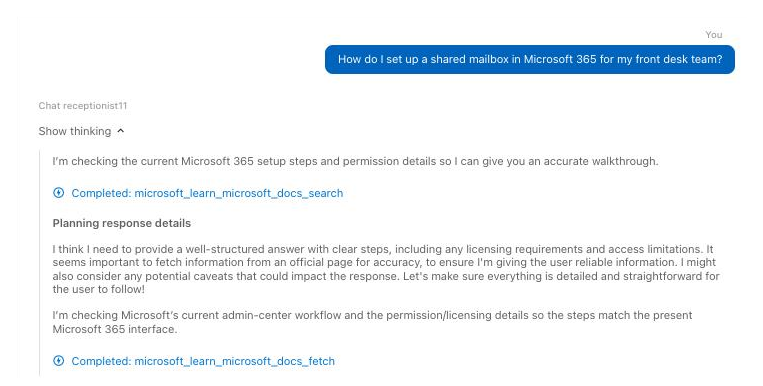
In this example, an AI Employee answers a question by searching and reading documentation through a connected MCP server. Each Completed line under Show thinking is a call to one of the server's tools.
Why connect an MCP server?
- Use the tools you already rely on: Give your AI Employees access to the systems you run your business on, including specialized software for your industry.
- Let AI Employees take action: Your AI Employees can read and update records in your other systems, not just answer questions.
- Connect it yourself: Add the server's URL and sign in. You don't need a built-in integration for that tool.
What's included?
- Any public MCP server: Connect a server by entering its URL.
- Flexible sign-in: Connect with OAuth, OAuth with your own app, an API key, or no authentication, depending on what the server supports.
- A ready-made capability: Connecting a server creates a capability that holds the server's tools, named after the server.
- Works with any AI Employee: Add the capability to as many AI Employees as you like.
Before you start
You need:
- The tool's public MCP server URL. The tool's support team or documentation has it.
- A way to sign in to the server: an account to sign in with (for OAuth), or an API key.
Only public MCP server URLs work. Private or locally hosted servers aren't supported.
Connect an MCP server
-
Go to
Administration→Integrations. -
In the
MCP serverssection, selectAdd servernext toModel Context Protocol (MCP).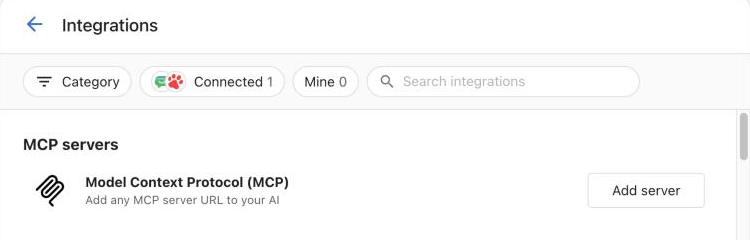
-
On the integration's page, click
Add Connection. -
In the
Connect an MCP serverform, enter the server's address in theMCP Server URLfield (for example,https://mcp.example.com/mcp). -
Enter a
Namefor the server, such asacme_crm. Your AI uses this name to tell this system's tools apart:acme_crmgives you tools likeacme_crm_create_contact. -
Choose an
Authenticationoption. See Authentication options for what each one needs.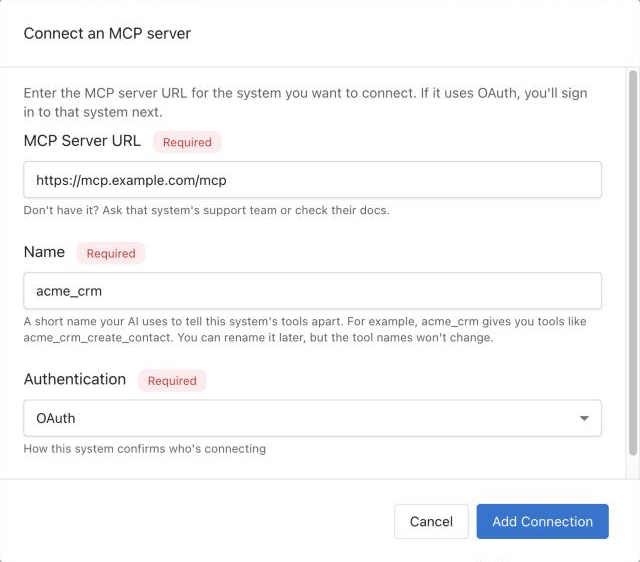
-
Click
Add Connection. -
If you chose
OAuthorOAuth with your own app, sign in to the other system and approve access. -
If the page shows
Connection pending, clickResume connectionto finish connecting.
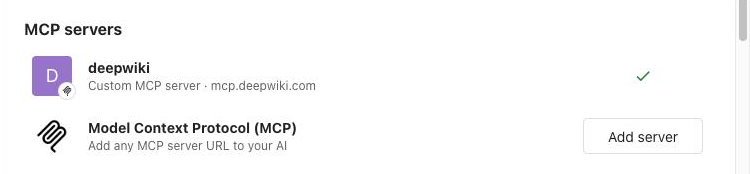
The page shows Connected. Back on the Integrations page, the server appears in the MCP servers section under the name you chose, labeled Custom MCP server with the server's web address and a check mark.
Give the server's tools to an AI Employee
Connecting a server creates a capability with the same name you entered in the Name field. Add that capability to each AI Employee that should use the server:
- Go to
AI→AI Workforceand clickConfigurenext to the AI Employee. - In the
Capabilitiessection, clickAdd a capability. - Check the box next to the capability named after your MCP server, then click
Add. - Click
Save.
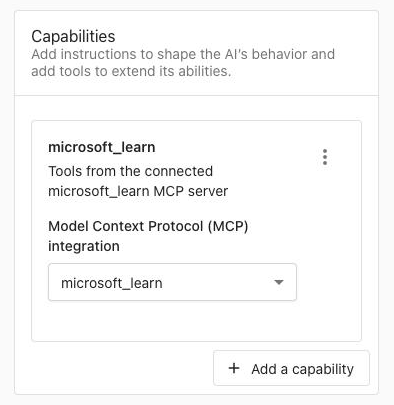
The AI Employee can now use the server's tools in conversations. To try it, click Chat and ask a question the other system can answer. For more on adding and customizing capabilities, see How to configure AI capabilities.
Authentication options
| Option | When to use it | What you enter |
|---|---|---|
OAuth | The server lets you sign in with your account for that system. This is the default. | Nothing in the form. You sign in to the other system after you click Add Connection. |
OAuth with your own app | The server doesn't let apps register themselves. | The Client ID of an app you registered with the server, and its Client secret. Leave the secret blank if the app has none. |
API key | The server gives you an API key. | The API key, and how to send it in Send the key as. |
No authentication | The server doesn't require sign-in. | Nothing. |
Sending an API key
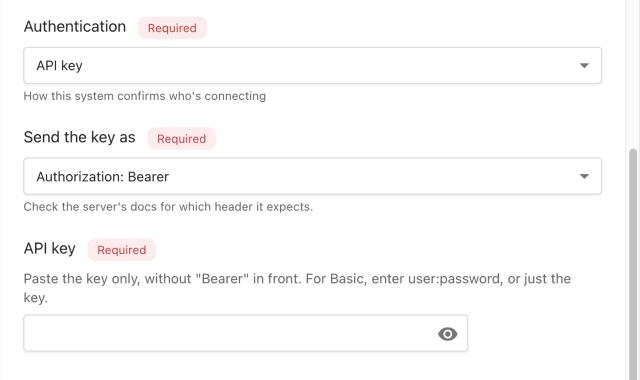
When you choose API key, check the server's documentation for which header it expects, then pick one of these in Send the key as:
Authorization: Bearer(the default)Authorization: BasicX-API-KeyCustom header: enter theHeader namethe server expects. Use dashes, not underscores, because many servers drop headers with underscores.
In the API key field, paste the key only, without "Bearer" in front. For Authorization: Basic, enter user:password, or just the key.
Frequently asked questions
Which MCP servers can I connect?
Any MCP server with a public URL. Private or locally hosted servers aren't supported.
Where do I find a tool's MCP server URL?
Check the tool's documentation or ask its support team.
Can I rename an MCP server after connecting it?
Yes, but the tool names don't change. They keep the name you entered when you connected the server, so choose a short, clear name up front.
Why does Business App say my name is taken or invalid?
The name needs at least one letter or number, and each server needs its own name. Names that differ only in capitalization, like Acme CRM and acme crm, count as the same name.
My new MCP server shows as disconnected. What do I do?
Business App couldn't load the server's tools. Check the URL and sign-in details, then remove the server and add it again.
Can I use one MCP server with several AI Employees?
Yes. Add the server's capability to any AI Employee that should use it.
Who do I contact if a connected tool doesn't work as expected?
Contact the tool's vendor. How well a capability works depends on the third-party MCP server, which Business App doesn't control or support.
Do I still need built-in integrations?
Built-in integrations stay available. An MCP server lets you connect tools that don't have a built-in integration.