Create and use messaging templates
What are messaging templates?
Messaging templates are saved text messages that you can insert into a reply in Conversations instead of typing the same message each time. Messaging templates are for text messages (SMS) only.
You manage your templates from Administration → Conversations settings, and you insert them from the message composer in Conversations.
Why are messaging templates important?
- Save time: Insert a message you send often instead of typing it again.
- Stay consistent: Send the same wording each time you answer a common request.
What's included with messaging templates?
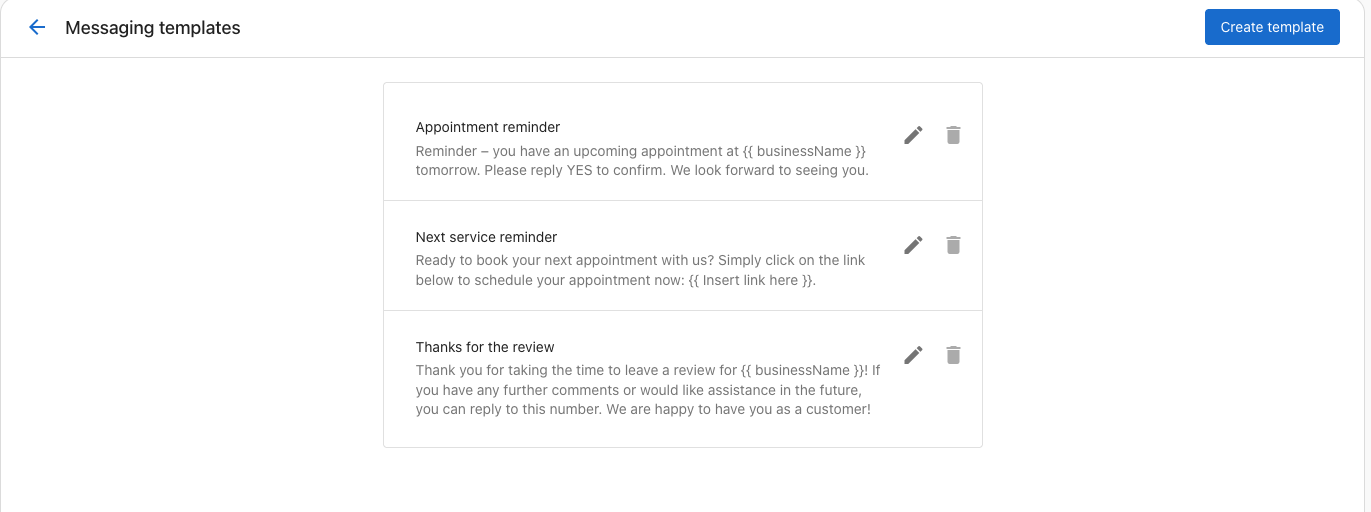
- Example templates: Your list includes example templates, such as
Appointment reminder,Next service reminder, andThanks for the review, that you can edit or delete. - Variables: Templates can include variables, such as
{{ businessName }}. - Preview: The
Create templatescreen has aPreviewpanel for your message. - Insert from Conversations: The
Insert templated messageoption in the message composer lists your templates.
Open your messaging templates
- Go to
Administration→Conversations settings. - In the
Messaging templatessection, clickCustomize templates.
The Messaging templates page lists your templates. Each template has an edit icon and a delete icon.
Create a messaging template
- On the
Messaging templatespage, clickCreate template. - In the
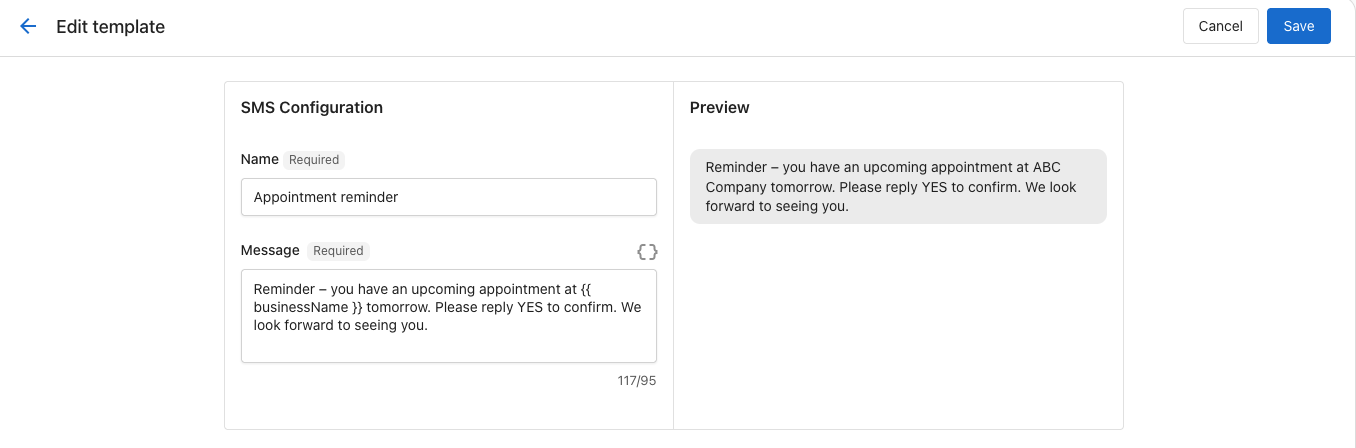
SMS Configurationsection, enter a name for the template in theNamefield. - Enter your text in the
Messagefield. A character counter appears below the field. - (Optional) To add a variable, such as
{{ businessName }}, use the variable icon next to theMessagefield. - Check the
Previewpanel to review your message. - Click
Save.
Both Name and Message are required. To leave without saving, click Cancel.
Edit or delete a messaging template
- Go to
Administration→Conversations settings, and clickCustomize templatesin theMessaging templatessection. - Find the template you want to change:
- To change it, click its edit icon, make your changes, and click
Save. - To remove it, click its delete icon.
- To change it, click its edit icon, make your changes, and click
Insert a template into a message
- Open a conversation in
Conversations. - In the message composer, click the
+button (More actions). - Select
Insert templated message. - Select a template from the list.
Related
Frequently asked questions
Can I use messaging templates for email or social media messages?
No. Messaging templates are for text messages (SMS) only.
Where do I find my templates when I reply to a customer?
In the message composer, click the + button (More actions) and select Insert templated message. A list of your templates opens, and you select the one you want.
Can I change the example templates?
Yes. On the Messaging templates page, click the edit icon beside a template to change it, or the delete icon to remove it.
How do I add a variable to a template?
On the Create template screen, use the variable icon next to the Message field. Variables appear in double curly braces, such as {{ businessName }}.
Which fields do I need to fill in to save a template?
You need to fill in both the Name and Message fields before you click Save.