Connectors
Connectors let your Vibe-built app do real work, not just look like it could. Each connector is a thin layer over a Business App service: instead of mocking a contact form or hardcoding a fake login button, the generated UI hooks into the live platform feature behind it. You ask for the behavior in plain English; the supervisor agent activates the connectors that are turned on for your project.
There are three connectors today:
- Single sign-on — let your customers sign in with their existing account.
- Forms — capture form submissions from your app.
- Analytics — surface in-app metrics for signed-in users.
Enabling a connector
Connectors are managed per project, in Project Settings. Open a project, click the settings icon in the toolbar, and scroll to Shared connectors. Toggle a connector on to make it available to every prompt in the project; toggle it off to remove it from the supervisor agent's options.
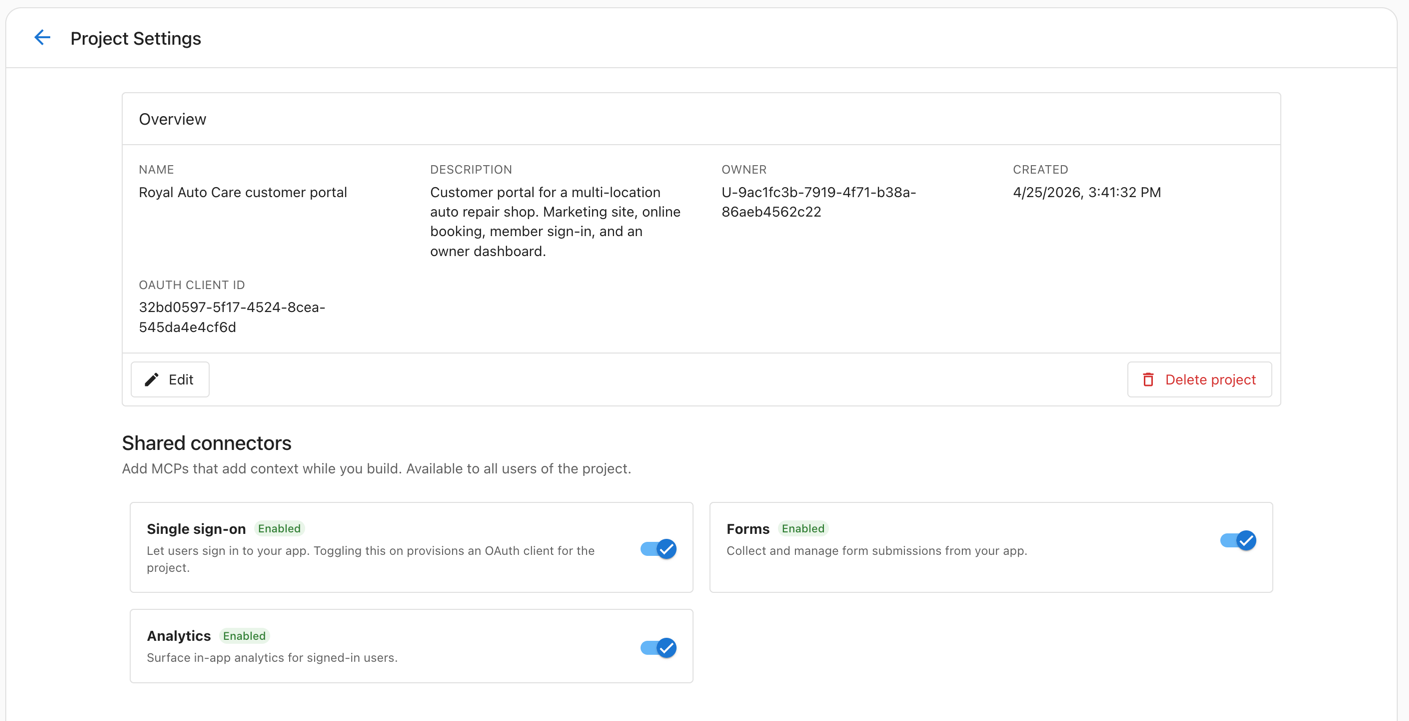
When a connector is enabled, the supervisor agent can wire your generated UI into the underlying service automatically. When a connector is disabled, prompts that would normally activate it fall back to mocked or static behavior — useful when you want to design without committing to live integrations yet.
Some connectors do extra setup the first time you turn them on. Single sign-on, for example, provisions an OAuth client for the project the moment you enable it. The connector page calls this out for each one.
Combining connectors
Most realistic apps use more than one connector. You don't need to declare them separately — describe the full app and Vibe activates whichever ones are turned on:
Build a customer portal for a multi-location HVAC business. Marketing landing page, contact form on the landing, members area with sign-in showing service history, and an owner dashboard with bookings per location and weekly revenue. Use a clean professional theme.
That single prompt activates Forms (contact), Single sign-on (members area), and Analytics (owner dashboard). The supervisor agent identifies which connector each part of the request needs and wires the UI accordingly.
Next Steps
- Forms — Capture contact form and lead submissions from your app
- Single sign-on — Gate a members area with existing customer accounts
- Analytics — Surface multi-location metrics for signed-in users
- Prompting Library — Ready-made prompts for each connector