Introduction to Vibe
Vibe is an AI-powered app builder built into Business App. Describe what you want in plain English, and Vibe builds a working web application with live preview and connections to your Business App tools. Apps include real design and connect to tools like your CRM, forms, and analytics.
You don't need to know how to code. You describe what you want; Vibe handles everything else.
Who is Vibe for?
Service business owners — Build customer-facing tools that do real work: a quote estimator where visitors enter their details and get an instant price range, a booking request page, or a seasonal promotion landing page with a lead capture form that routes submissions directly to your CRM.
Multi-location owners and managers — Build a custom dashboard that shows performance across all your locations in exactly the layout your team needs — leads, bookings, revenue, and review ratings in one place, gated behind a sign-in screen.
Any business running a campaign or promotion — Build a polished landing page for a seasonal sale, a new service launch, or a limited-time offer. Start from a prompt, get a fully designed page with a working lead capture form in one generation.
Anyone with an idea and no developer — If you have something in mind — a client portal, a pricing calculator, a company presentation — Vibe is where you start. No technical setup, no waiting on anyone else.
What can I build with Vibe?
Here are examples of real builds to give you a sense of what Vibe produces:
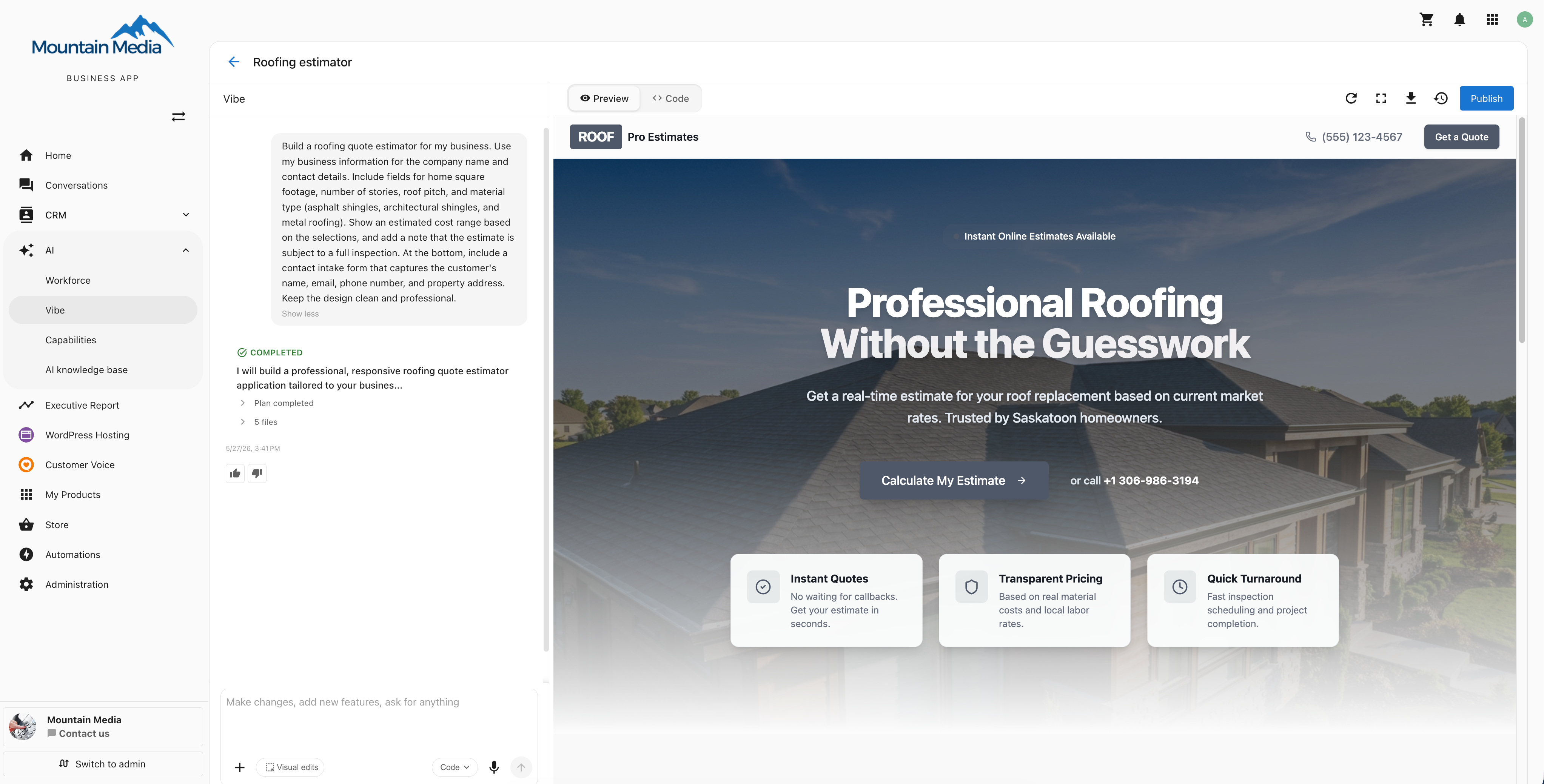
- A service quote estimator — Visitors enter their details and get an instant price range. A contact intake form at the bottom routes leads directly to your CRM.
- A campaign landing page — A hero, a highlights section, and a lead capture form, built from a single prompt using your real business name, hours, and contact details.
- A multi-location performance dashboard — Leads, bookings, revenue, and review ratings across all your locations. Gated behind a sign-in screen so only your team can access it.
- A business website — A multi-page marketing site with navigation, service descriptions, team bios, and a contact form, refined through follow-up prompts.
- A slide deck — A web-based presentation for a pitch or internal meeting, navigable with arrow keys and shareable as a link.
See Use Cases for step-by-step walkthroughs of these and more.
What are Vibe's key features?
Chat-Based Development
Describe what you want in the chat panel. Vibe interprets the request and generates or modifies the application. Send follow-up messages to refine the result. Vibe's chat supports multiple languages, including French, Spanish, German, Italian, Czech, Chinese, Japanese, and Korean. On projects with multiple collaborators, each prompt shows the sender's avatar, name, and a timestamp.
Business Knowledge
Every project has a built-in knowledge base pre-loaded with the location's Business Profile — name, services, hours, contact info, brand voice, and FAQs. When you ask Vibe to build a Contact page or add an About section, it fills in real details about the business instead of placeholder text. You can extend the knowledge base from the project settings page by adding URLs, files, or notes. See Business Knowledge.
Connectors
Vibe wires your generated app into the Business App tools you already use — so what you build isn't a standalone tool, it's connected to your business. Forms captures submissions and routes them directly to your CRM. Analytics pulls live performance data into custom dashboards. Single sign-on gates a members area behind your customers' existing Business App accounts. CRM surfaces your contacts and opportunities, Webchat embeds live chat, Reviews showcases your real customer reviews, and Supabase connects your app to a database. See Connectors.
Tags
Add free-form tags to a project from its Project Settings page to categorize it. Tags are stored in lowercase, with spaces converted to hyphens. The search box on the projects list matches against tags as well as name and description, so tagged projects are easy to find again. See Tags.
Planning
Every generation produces a structured plan that drives the run. The plan, the architecture, and the file list are captured in the COMPLETED block at the end of each run so you can verify what was built. See Planning.
Cloning a reference site
Paste a URL and Vibe captures the screenshot, branding, layout, and content of that page, then scaffolds a faithful clone you can refine. The captured colors become a custom theme automatically. See Cloning a reference site.
Visual Editor
Toggle Visual edits in the chat composer to flip design mode on and off. When on, click any element in the live preview to select it — Vibe gets exact source context (file, line, JSX tag, classes), so any change you ask for lands precisely on the element you selected. Toggle it off to return to regular prompting. See Visual Editor.
Device Preview
Preview your app at phone, tablet, and desktop sizes without leaving the editor, or pop the preview out to a full window to see it on its own.
Clarifying Questions
When your request is ambiguous, Vibe pauses and asks before going further. Questions arrive as structured prompts — pick a chip, confirm yes or no, or type a one-line answer. The conversation resumes the moment you respond.
Multi-Modal Input
Attach images to your prompts to show Vibe what you want. Use the microphone button to dictate your changes using voice — Vibe transcribes your speech into a prompt.
Images
Vibe gives you two ways to add images to your app: generate them from a text description, or import your own. Generated images are hosted and embedded automatically — no setup required. See Images.
SEO & LLM Indexing
Apps are served as fully rendered HTML that search engines and AI assistants can read. Every publish generates robots.txt, sitemap.xml, and llms.txt automatically, and the SEO section in project settings puts indexing under your control. See SEO & LLM Indexing.
Code Editor (Pro)
On the Pro plan, switch to Code mode to view and edit the generated source code directly. Browse the file tree, open files in tabs, and make manual edits that sync with the preview.
Checkpoints
Vibe automatically creates checkpoints as you iterate — each checkpoint is a git commit. You can view diffs between versions and restore previous states if needed.
Credits
Vibe uses credits to measure AI activity. Your subscription includes a credit allowance, and you can purchase additional credit packs when you need more. See Credits.
Custom Domains (Standard and Pro)
On the Standard and Pro plans, you can publish your app to a domain you own. Vibe automatically provisions an SSL certificate after DNS verification is complete. See Custom Domains.
How does Vibe build an app?
When you send a prompt, Vibe's orchestrator coordinates multiple AI agents:
- You describe what you want in the chat panel.
- Clarification — If the request is ambiguous, Vibe asks structured questions before continuing.
- Planning — A planning agent produces a structured plan describing the architecture, navigation, and which files will be touched. The plan also commits to a named design system — palette, fonts, and UI primitives — before any code is written.
- Generation — A generation agent writes the code file by file, applying the theme, generating images, and editing components in real time. Type-check and build verification run continuously to catch and fix issues. You can stop the run at any time by clicking Stop — the last working preview stays on screen and your prompt returns to the input.
- Validation — Vibe takes a screenshot of the rendered preview and runs a build check. Before declaring the task complete, Vibe runs a final type check and self-corrects any remaining issues — up to three rounds. If they can't be resolved, the run finishes with a "verified with issues" status instead of a silent claim of success.
- Preview — The live preview updates as soon as the build is clean.
- Iteration — You review the result and send follow-up prompts to refine it. If a runtime error appears in the preview, or a build fails, click Fix it for me to send the error to chat. See Error Handling & Troubleshooting.
All of this happens through a streaming interface — status updates, file changes, screenshots, and the live preview update in real time.
Frequently Asked Questions
Do I need coding experience to use Vibe?
No. You describe what you want in plain English and Vibe handles the code. If you want to make manual edits, Code mode gives you direct access to the source files.
Can I start from an existing website?
Yes. Paste any URL into the chat input and Vibe captures the page's screenshot, branding, layout, and content, then scaffolds a clone you can refine. See Cloning a reference site.
What if Vibe misunderstands my request?
When a prompt is ambiguous, Vibe pauses and asks clarifying questions before generating. If the result isn't what you wanted, send a follow-up prompt to correct it or restore a previous checkpoint.
How do I undo a change I don't like?
Vibe creates checkpoints (git commits) automatically as you iterate. Open the Checkpoints panel from the toolbar to view diffs and restore any previous version.
What languages can I use in the chat?
Vibe's chat supports multiple languages, including French, Spanish, German, Italian, Czech, Chinese, Japanese, and Korean.
Are Vibe sites SEO-friendly?
Yes. Vibe apps are served as fully rendered HTML that search engines and AI assistants can read directly. Every publish generates robots.txt, sitemap.xml, and llms.txt automatically, and you control indexing from the SEO section in project settings. See SEO & LLM Indexing.
Can I download my project and host it somewhere else?
Yes, on the Pro plan. Click Download in the toolbar to get the project's source code and its full checkpoint history. Images Vibe generated for you stay on their hosted URLs rather than travelling in the archive, and the guide below covers how to bring them along. Projects are built on open frameworks — React, TanStack Start, Vite, and Tailwind CSS — so they run on any host that supports Node.js. See Download & Host Your Project Elsewhere.
Can Vibe notify me when a generation finishes?
Yes. Turn on notifications for the current run from the chat composer and allow notifications when your browser asks for permission. Your browser then sends a notification as soon as the generation completes, so you can switch to another tab without missing it.
Can Vibe build a WordPress site?
No. Vibe apps are built on React, TanStack Start, Vite, and Tailwind CSS rather than WordPress. On the Pro plan, you can download the source code and host it on any host that supports Node.js.
How do Vibe credits work?
Vibe uses credits to measure AI activity. Your subscription includes a credit allowance, and you can purchase additional credit packs when you need more. See Credits.
Can I publish a Vibe app to my own domain?
Yes, on the Standard and Pro plans. Vibe provisions an SSL certificate automatically after DNS verification is complete. See Custom Domains.
Is Code mode or direct code editing available on every Vibe plan?
No. Direct code editing (Code mode) is available on Professional only. You can still ask Vibe in chat to change code on any edition. Viewing source is available on all editions; import and export are limited to higher editions.
Does Vibe process customer payments with Stripe or PayPal built in?
No. Vibe has no built-in payment processing for customer checkouts. Choose a payment provider and ask Vibe to build the integration for you.
Does Vibe hosting support 301 redirects when I migrate URLs?
Yes. Tell Vibe the old and new paths so it can implement those redirects in the project.
Next Steps
- Getting Started — Create your first app and learn the basics
- Business Knowledge — Use real business details in your generated apps
- Prompting Guide — Write prompts that get better results
- Cloning a Reference Site — Scaffold an app from any URL
- Visual Editor — Edit elements visually without prompts
- Planning — Understand how Vibe plans before it builds
- Images — Generate images from a prompt or import your own
- Connectors — Wire your app into forms, analytics, and sign-on
- SEO & LLM Indexing — Understand how your app stays visible to search engines and AI assistants
- Prompting Library — Ready-made prompts for common use cases
- Troubleshooting — Fix common errors and unexpected behavior
- Use Cases — See real examples of what you can build with Vibe
- Download & Host Your Project Elsewhere — Get the full source code on the Pro plan and run it on any Node.js host
- Credits — Understand how credits work and how to purchase more
- Custom Domains — Publish your app to a domain you own (Standard and Pro)