WhatsApp Coexistence
This document provides a comprehensive overview of WhatsApp Coexistence, a feature that allows your business to use the traditional WhatsApp Business App alongside professional automation tools.
What is WhatsApp Coexistence?
WhatsApp Coexistence is a Meta-supported feature that allows you to link your existing WhatsApp Business number to a professional CRM or automation platform without losing access to the app on your phone. You can use the WhatsApp Business App on a single phone for personal 1:1 chats while also utilizing the WhatsApp Business Platform (API) for automation.
Why use it?
Coexistence lets you manage both personal 1:1 chats and professional, team-based messaging from the same WhatsApp number.
- Zero Disruption: You don't have to change your number or delete your app. Everything stays exactly where it is.
- Keep Your History: You can import up to 6 months of existing chat history and all your contacts directly into the CRM.
- Dual-Platform Flexibility:
- On your phone: Keep using the app for quick 1:1 replies, voice notes, and posting to WhatsApp Status.
- In the platform: Access advanced features that the platform offers and allow your entire team to manage WhatsApp conversations collaboratively.
- Real-Time Sync: Messages, history and contacts stay synced. If you reply from your phone, the message appears in the platform. If a team member or AI bot replies from the platform, it shows up on your phone.
How to set it up (step-by-step)
Setting up Coexistence takes a few minutes via a QR code scan.
1. Prerequisites
- An active WhatsApp Business App account on your phone.
- Access to your Meta Business Account (Facebook login).
- Ensure your WhatsApp app is updated to the latest version.
2. The connection process
-
Navigate to Settings: In your Business App dashboard, go to
Administration→Conversations Settings→WhatsApp→Sign in with Facebook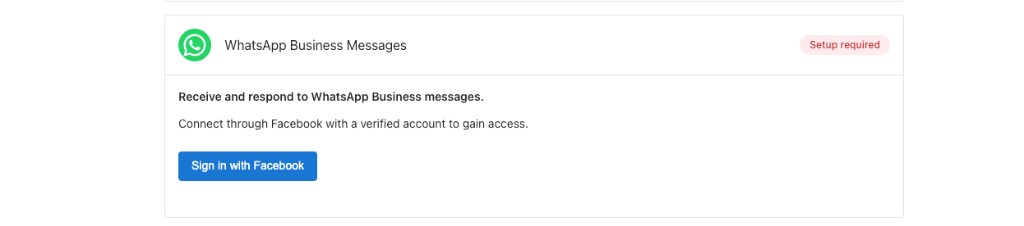
-
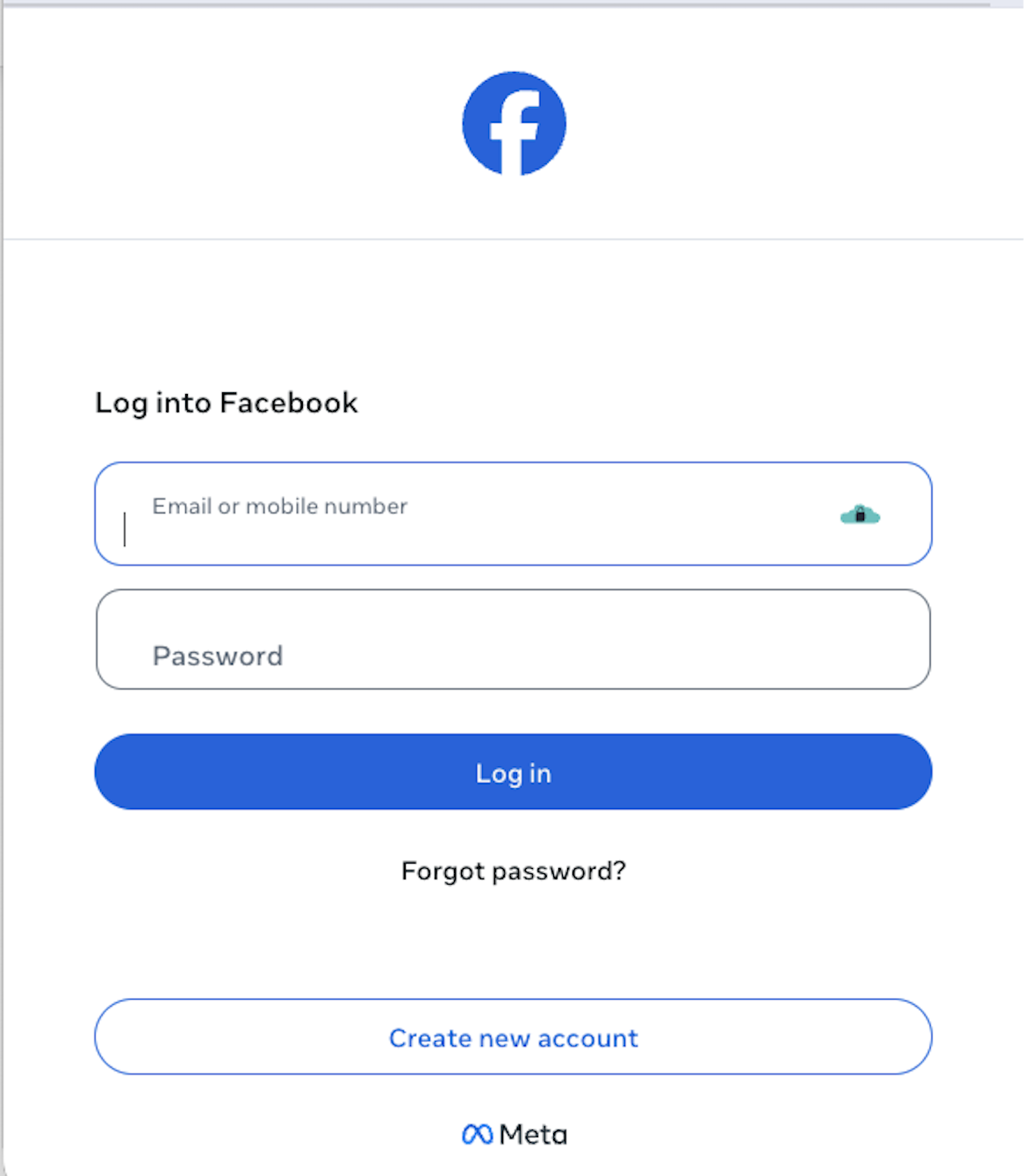
Log in flow: A popup will appear. Log in to your Facebook account to authorize the connection.
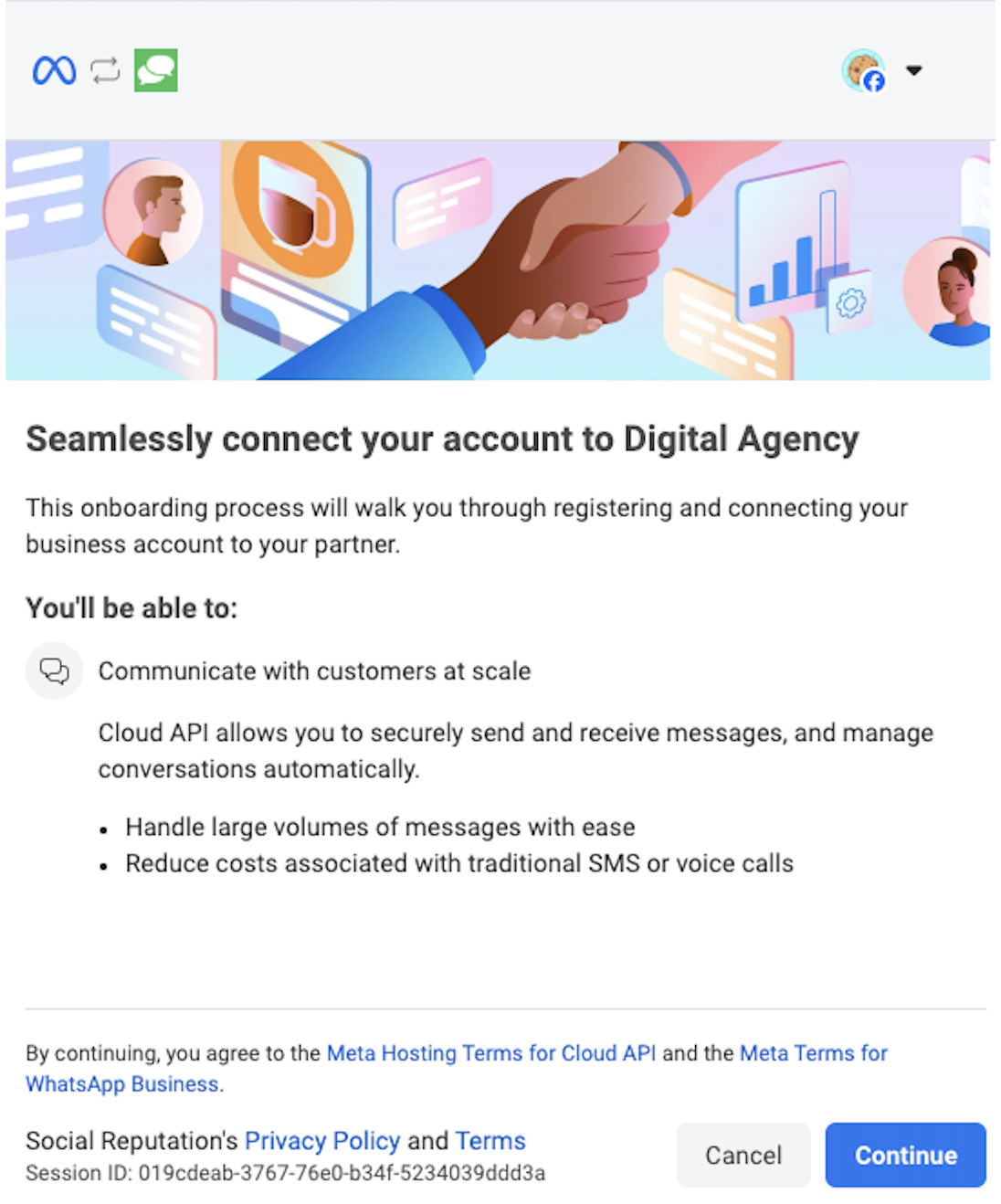
- Authorize Access: Review the permissions and click
Continueto allow Business App to connect to your WhatsApp Business account.
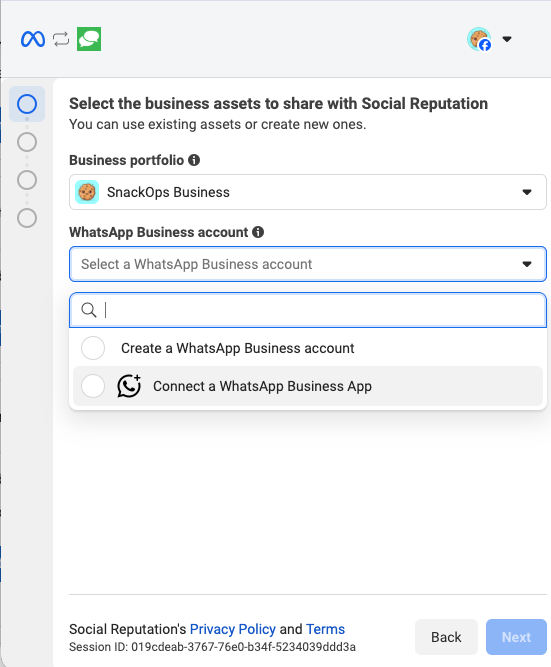
- Select business assets and connection type: Choose your
Business Portfoliofrom the dropdown menu, then underWhatsApp Business account, selectConnect a WhatsApp Business Appto link your existing account.
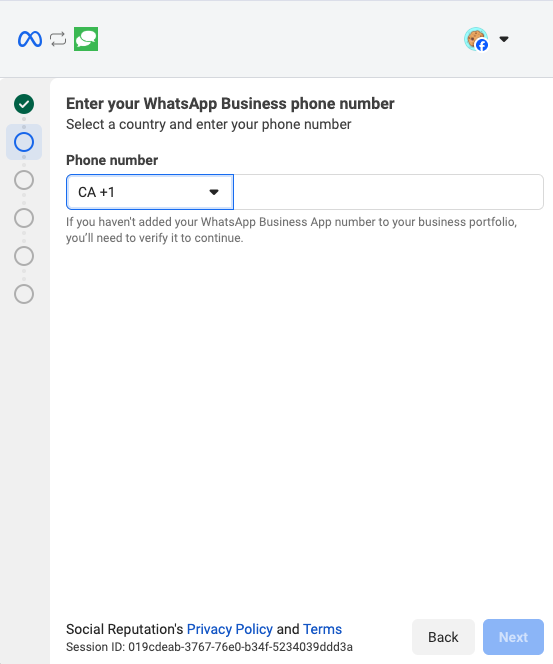
- Enter phone number: Select your country code and enter the phone number associated with your WhatsApp Business App.
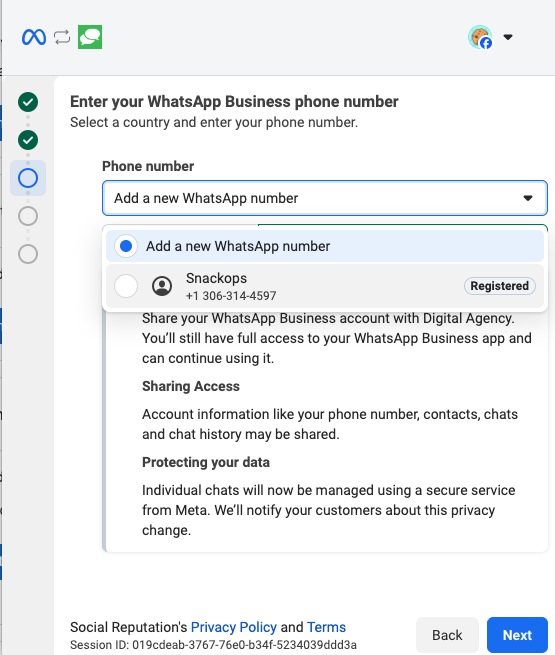
- Select your registered business: From the dropdown, choose your existing WhatsApp Business account that shows as
Registered. Review the sharing access details and clickNextto continue.
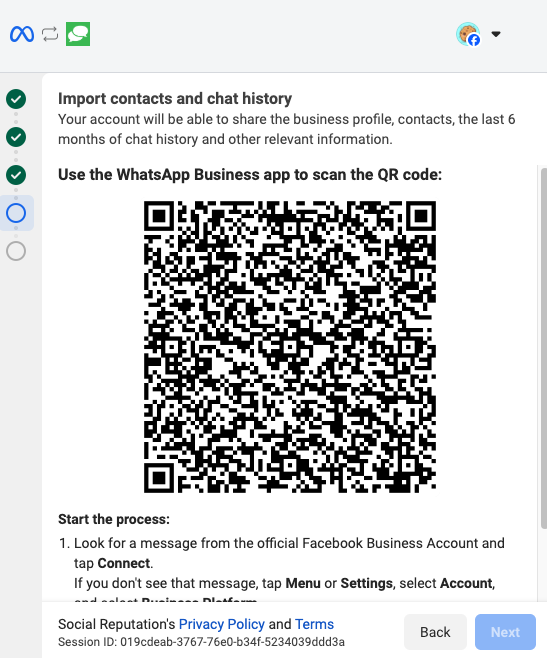
- Scan the QR code:
-
A QR code will appear on the platform.
-
On your phone, open the WhatsApp Business App.
-
Check for a notification from Facebook Business. Tap the
Connectbutton to begin the connection process.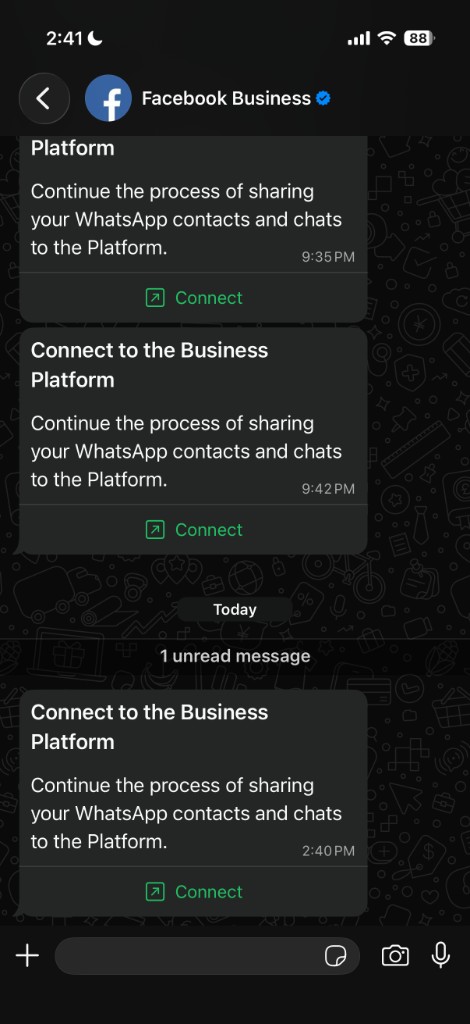
-
Click
Connect to the Business Platformto continue the connection flow.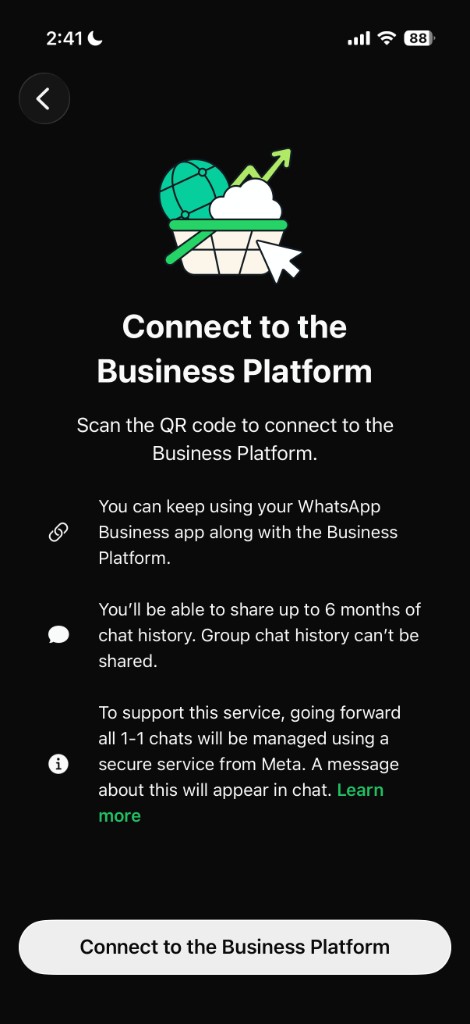
-
Choose your chat history preference:
Share all chats(imports up to 6 months of history) orDon't share chats.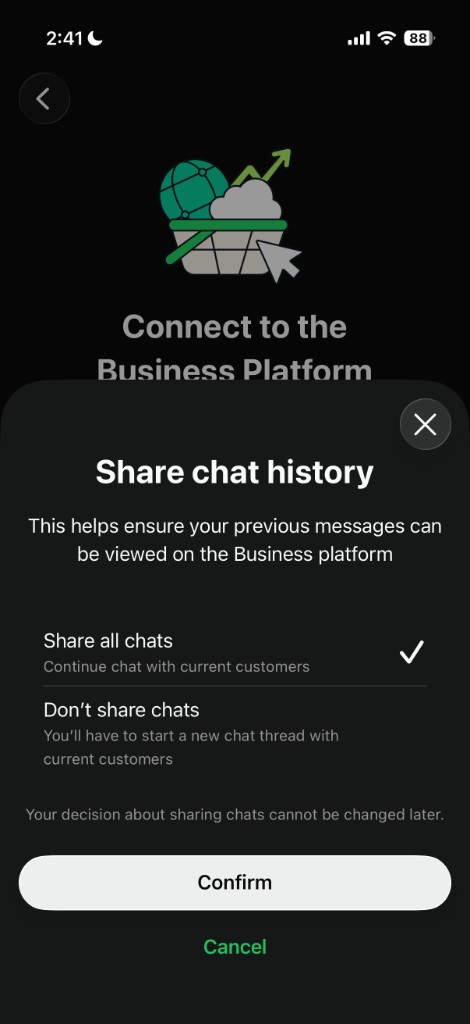
-
Scan the QR code to link your app to the platform. This can take up to 45 seconds.
-
Complete any remaining on-screen steps. If prompted, you can optionally add a payment method or finish the connection process.
-
- Authorize Access: Review the permissions and click
3. Verification
Once connected (this can take a few seconds for the connection to complete), you will see a Connected status in Business App. Your phone will continue to function normally, but you will now see all that conversation history (if available) appearing in the Conversations tab in Business App.
How to disconnect
If you no longer want to use WhatsApp with the platform, you can remove the connection. Disconnection is a two-part process: you disconnect in the WhatsApp Business app on your phone first, then remove the connection in Business App.
-
Open the WhatsApp connection card: In Business App, go to
Administration→Conversations Settings. Locate theWhatsApp Business Messagescard. When connected, it shows aConnectedstatus and your linked phone number. ClickDisconnecton the card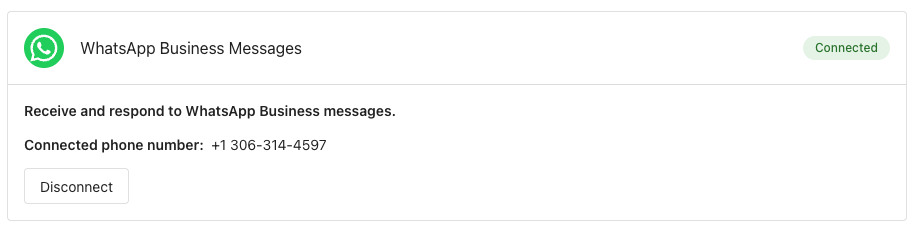
-
Disconnect on your phone: A modal appears with instructions. On your phone, open the WhatsApp Business app, then go to
Settings→Account→Business Platform. Tap your business app name, thenDisconnect, and confirm.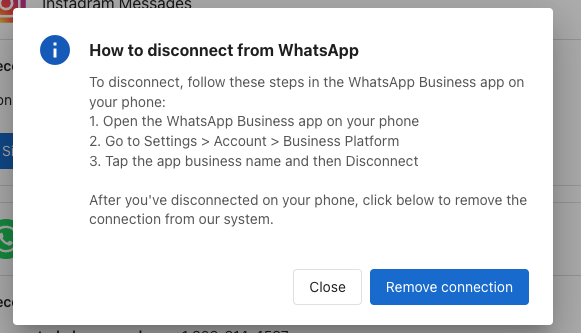
-
Remove the connection in Business App: After you have disconnected in the WhatsApp Business app on your phone, click
Remove connectionin the modal to remove the connection from the platform.