WhatsApp for Conversations in Business App
What is WhatsApp for Conversations?
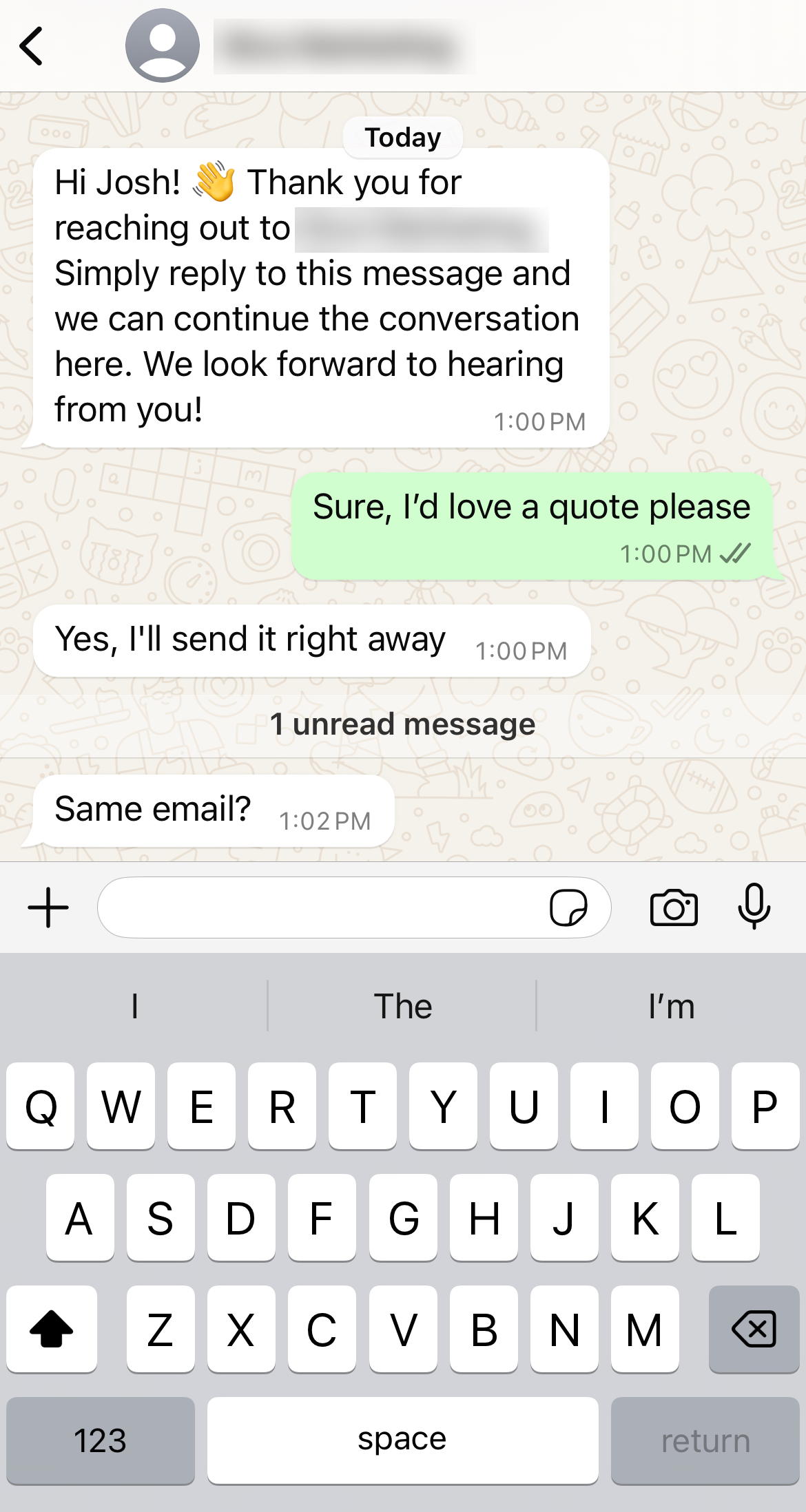
You can connect your WhatsApp Business account to Conversations, giving you international communication capabilities. With this feature, you can send WhatsApp messages to new leads and existing customers, all while managing customer interactions in one centralized location.
Why this matters
For businesses outside the U.S. and Canada, WhatsApp is a preferred communication channel for customers. With this integration, you can respond to leads on your customers' favorite platform, enhancing responsiveness and improving customer satisfaction.
Availability
WhatsApp messaging channel is available in Conversations in Business App, for any accounts with either Conversations AI Pro or AI-assisted Web Chat products active on your account, internationally.
What's included
- Direct integration with Conversations (send and receive WhatsApp messages directly from Conversations)
- WhatsApp message templates for outbound messaging (billed per message by Meta and subject to Meta's daily messaging limits)
- Unlimited incoming messages
Setting up the WhatsApp integration
Follow these steps to connect your WhatsApp Business account to Conversations:
-
Navigate to Conversations Settings:
- In Business App, go to
Administration→Conversations Settings. - Find the card labeled
WhatsApp Business Messages. - Click
Sign in with Facebook.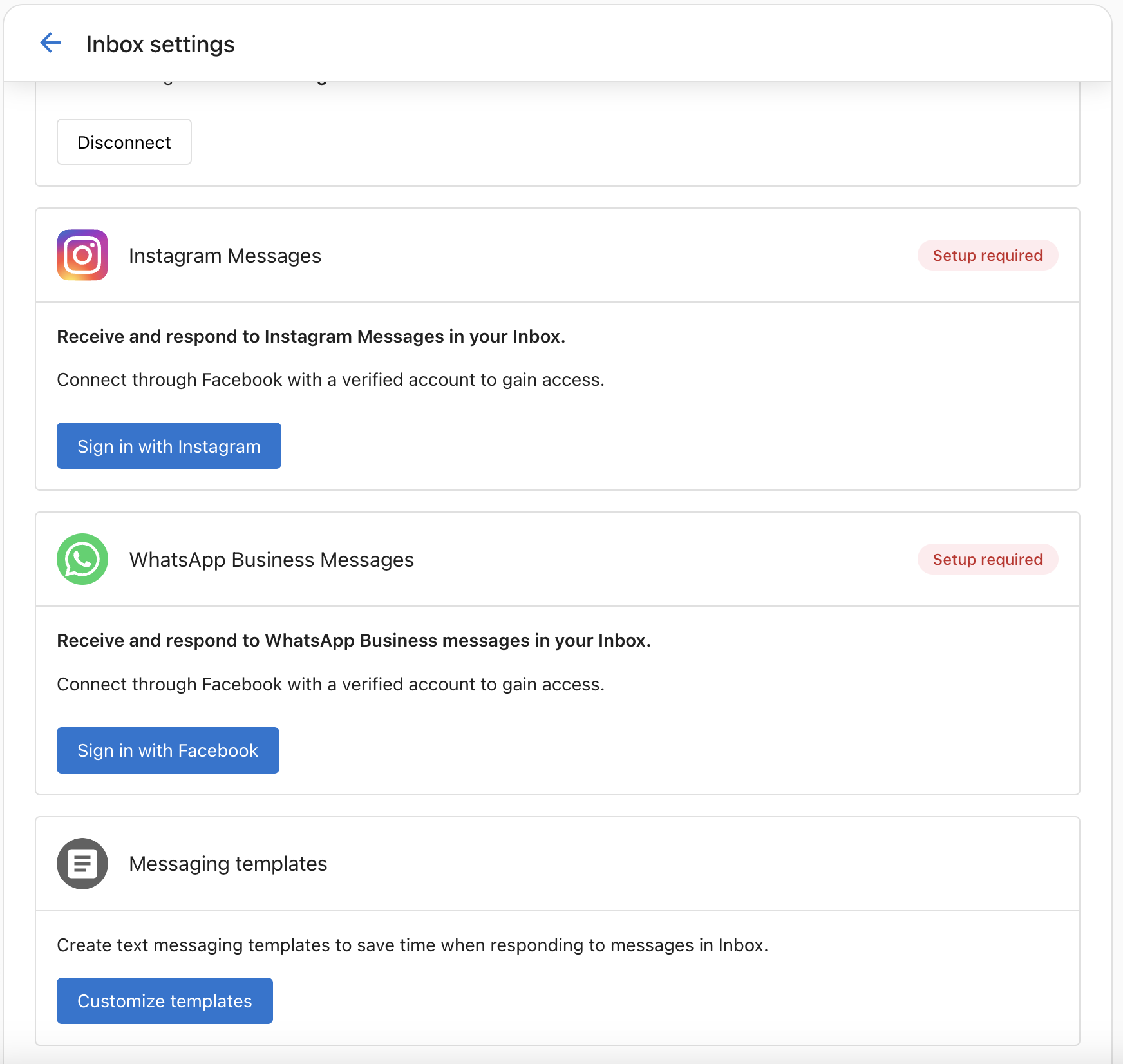
- In Business App, go to
-
Log in to Facebook:
- A modal will appear prompting you to sign in with your Facebook account.
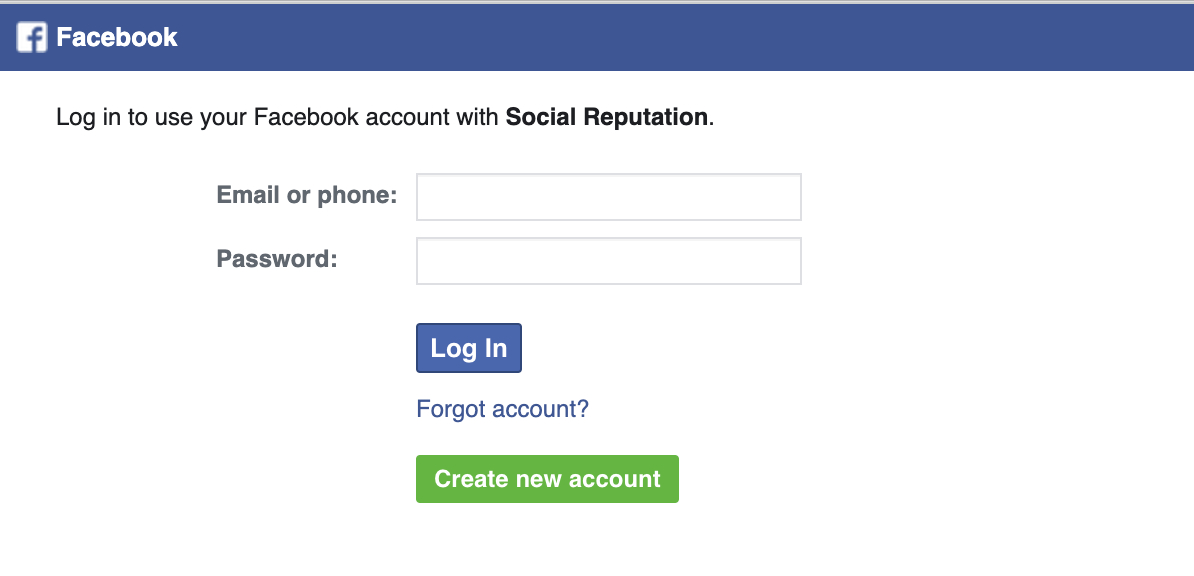
- Allow Business App to connect by clicking
Continue as [Your Name].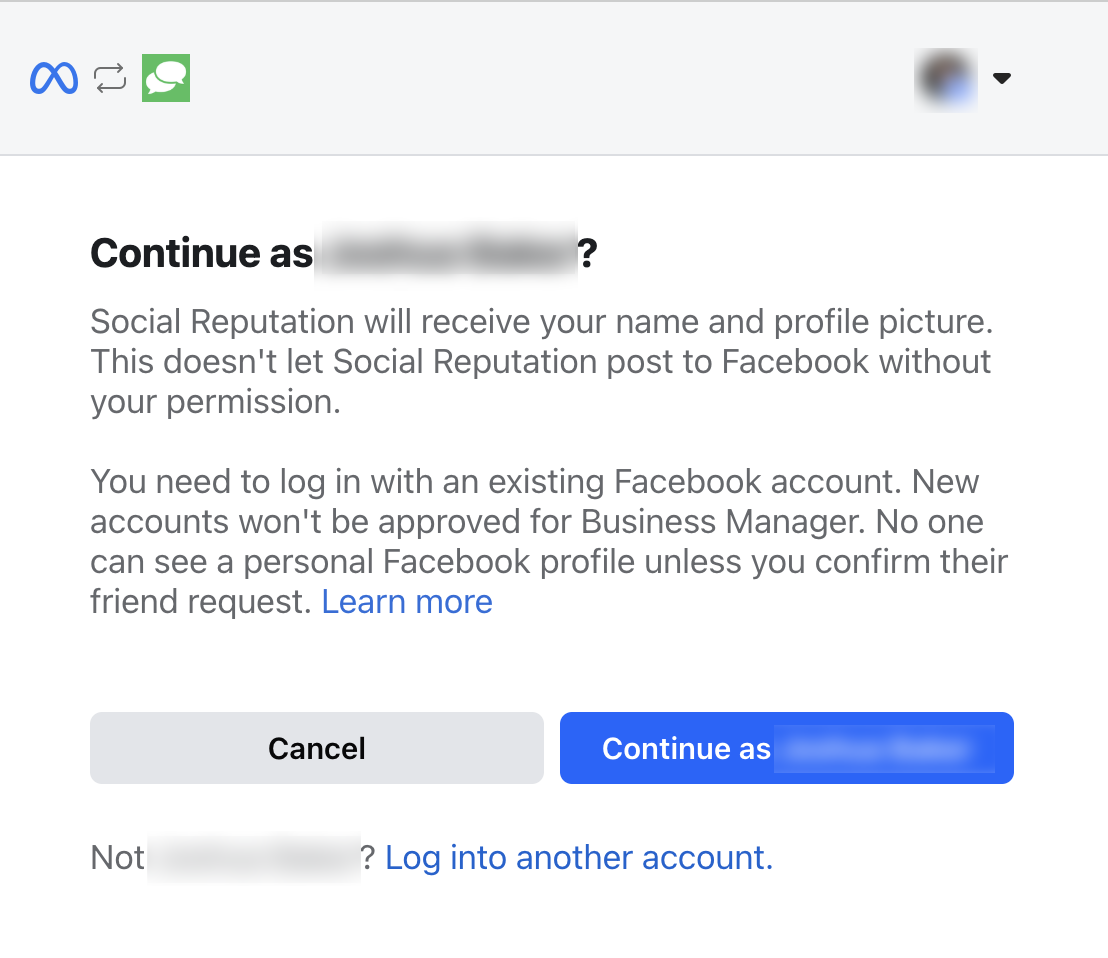
- A modal will appear prompting you to sign in with your Facebook account.
-
Connect your business account:
- Next, you'll be asked to connect your account. Click
Get Started.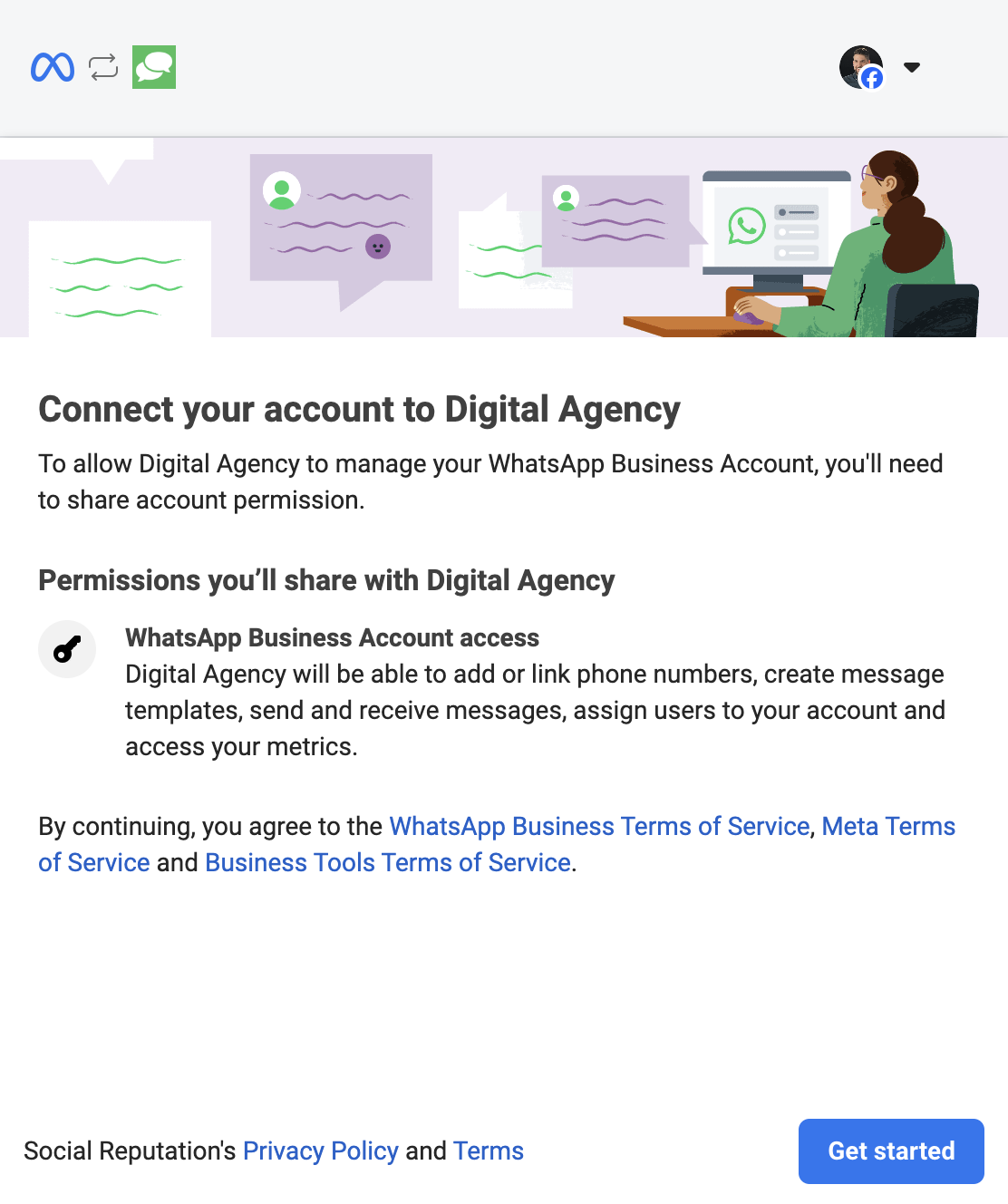
- Next, you'll be asked to connect your account. Click
-
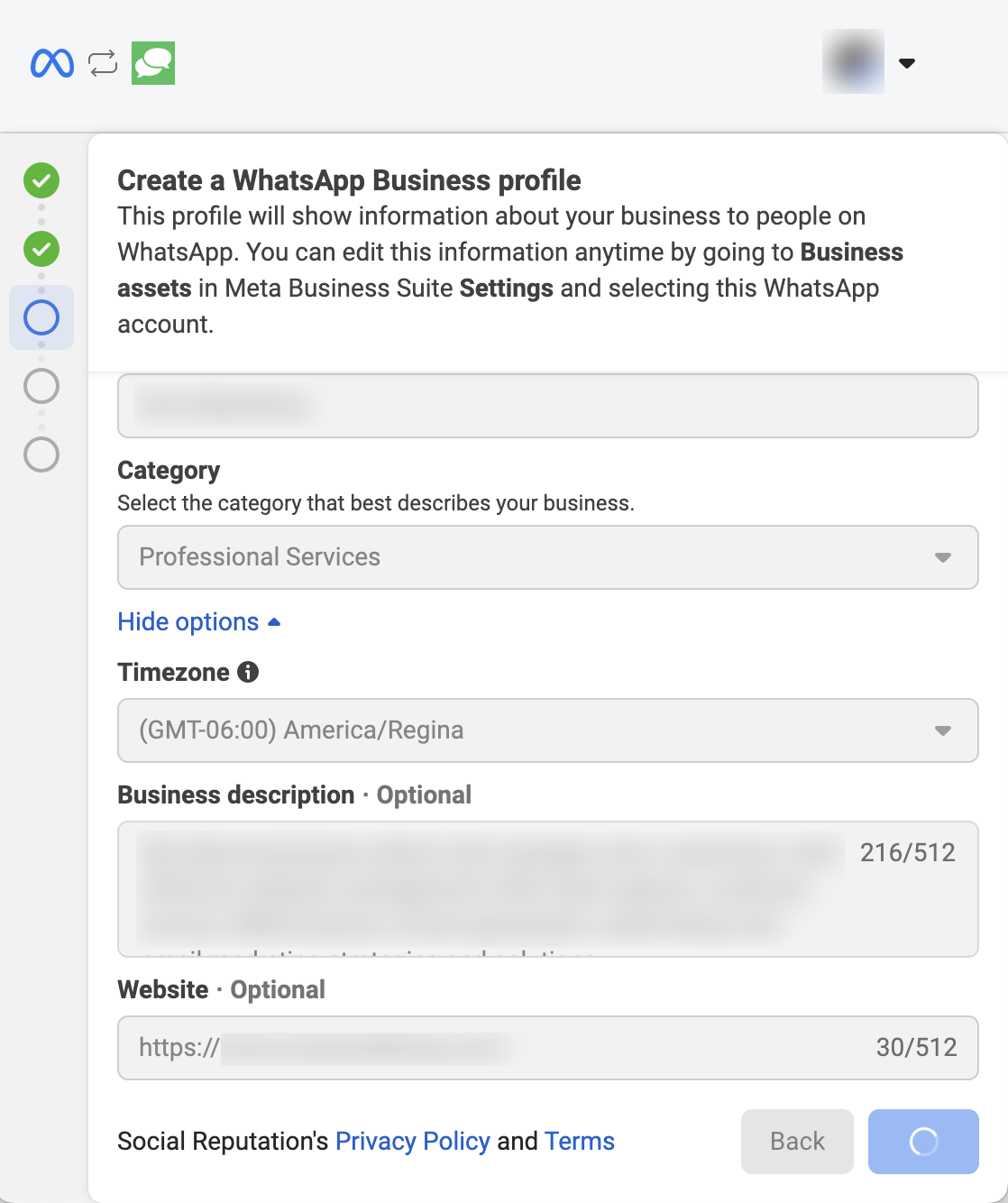
Get your SMS/Phone number from Conversations:
- In Business App, go to
Settings→Conversations Settings→Phone & SMS→Configure. - Take note of your number, as you'll need it to set up WhatsApp.
- In Business App, go to
You can use the assigned Conversations number if you're in a country where SMS is supported and your account has been assigned a number (USA/Canada).
-
Temporarily enable call forwarding:
- Go to
Conversations Settings→Your SMS/Phone Number→Settings. - Enable Forward the call temporarily to receive the verification call.
- Go to
-
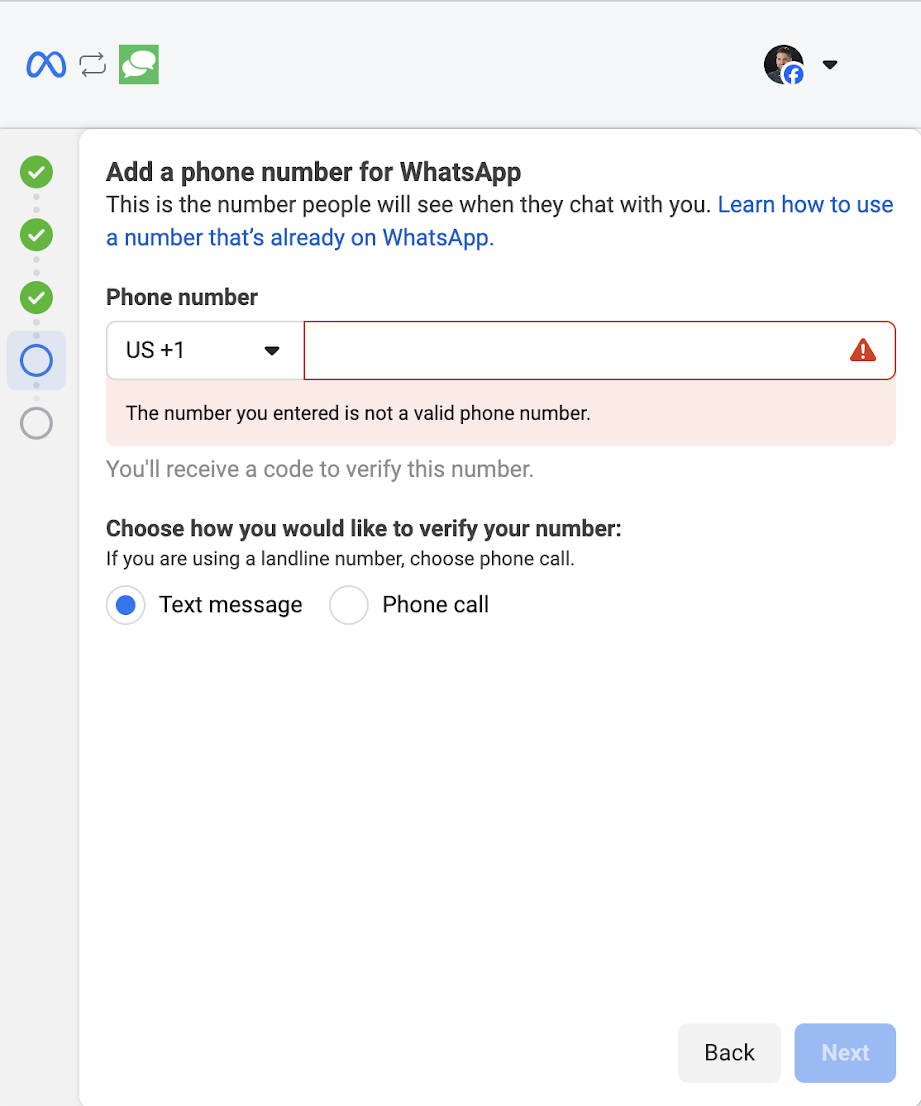
Verify ownership via phone call:
- Return to the WhatsApp setup screen.
- Enter your Conversations number and select
Phone Callas the verification method. - You will receive a verification call with a code.
-
Restore call forwarding settings:
- After verification, disable call forwarding or return it to your original settings.
-
Complete the setup:
- Confirm the app's ability to connect to WhatsApp on the final confirmation screen.
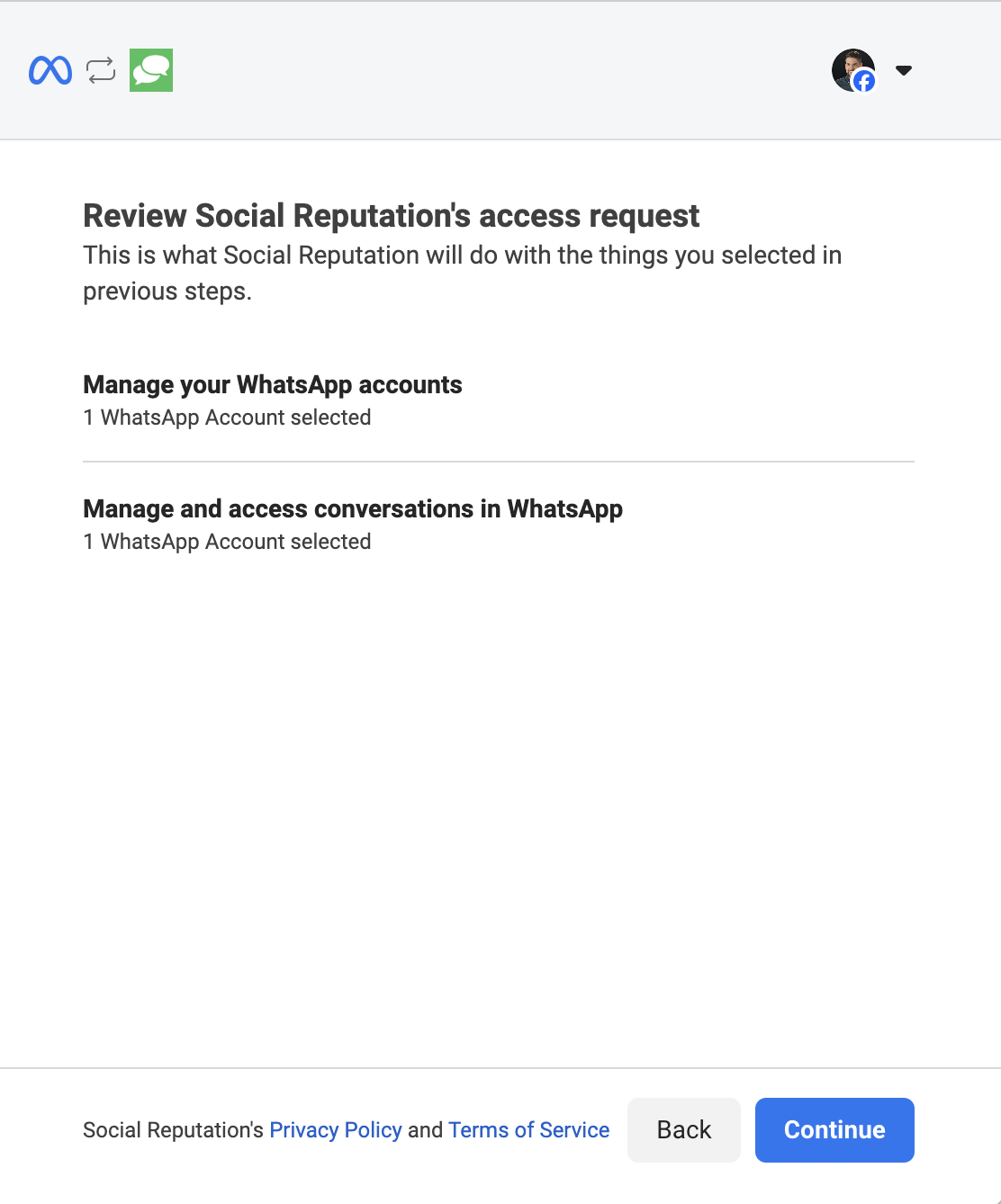
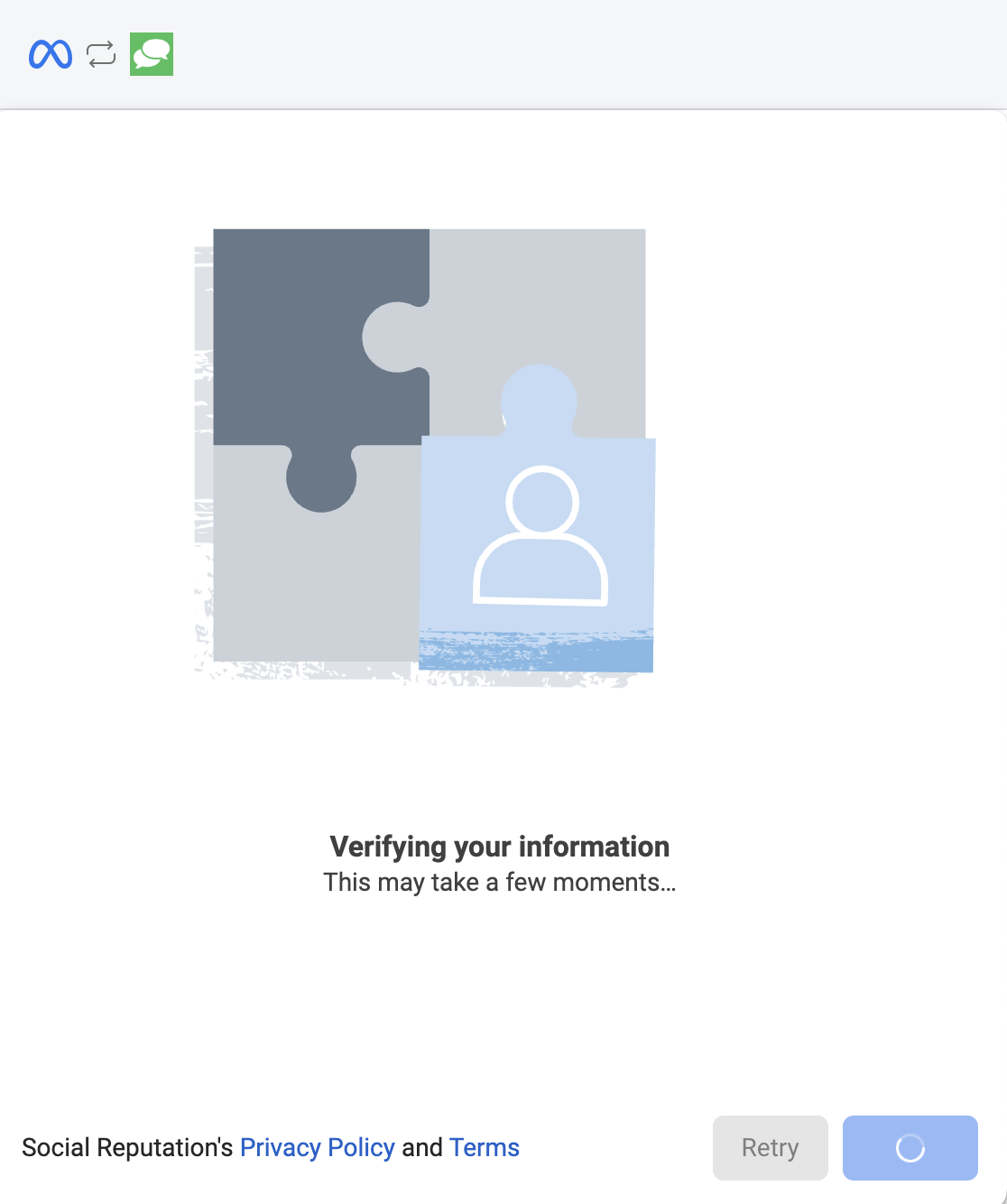
- Wait for verification to complete.
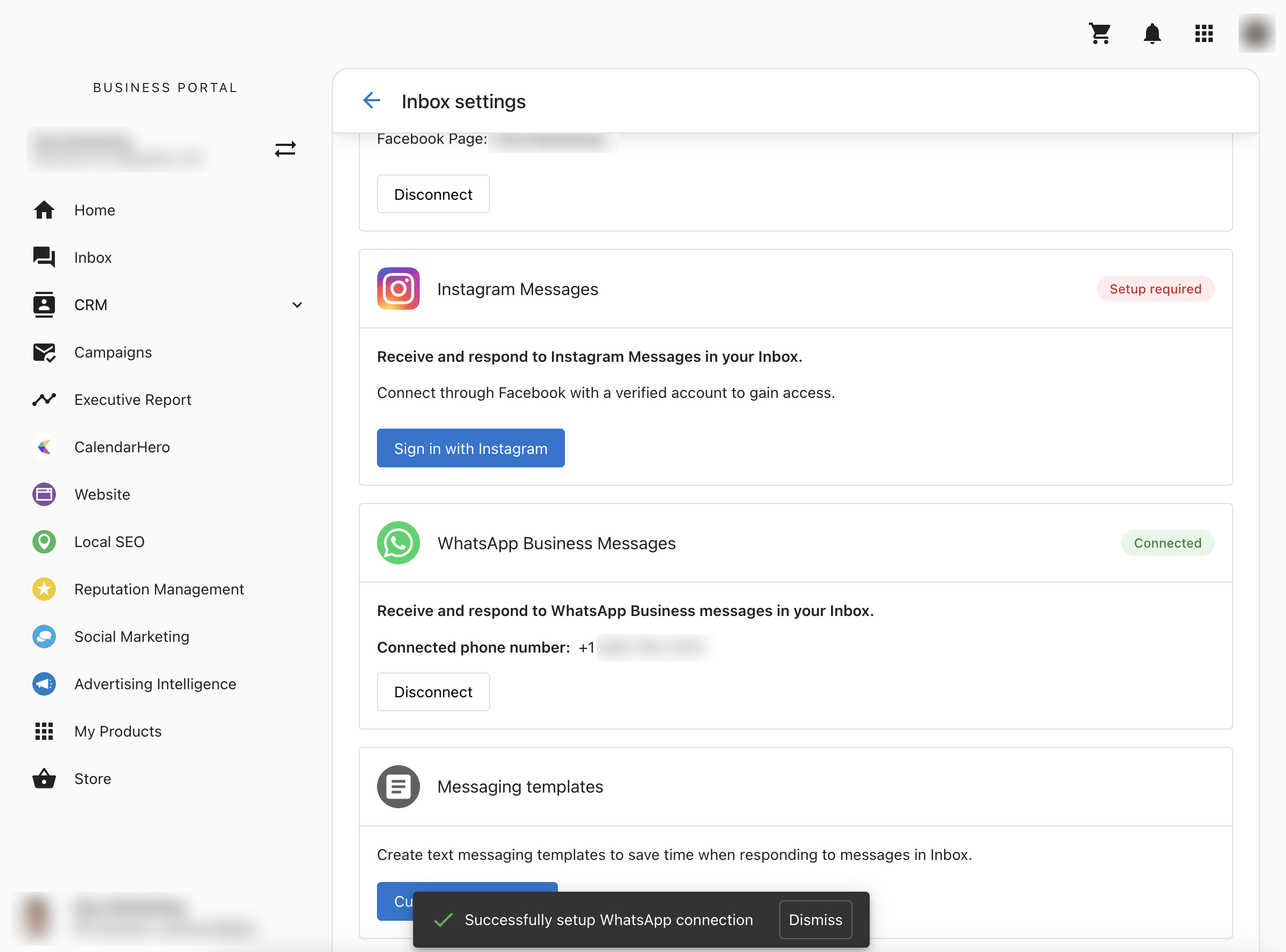
- Once successful, the Conversations AI settings will show a green 'connected' badge.
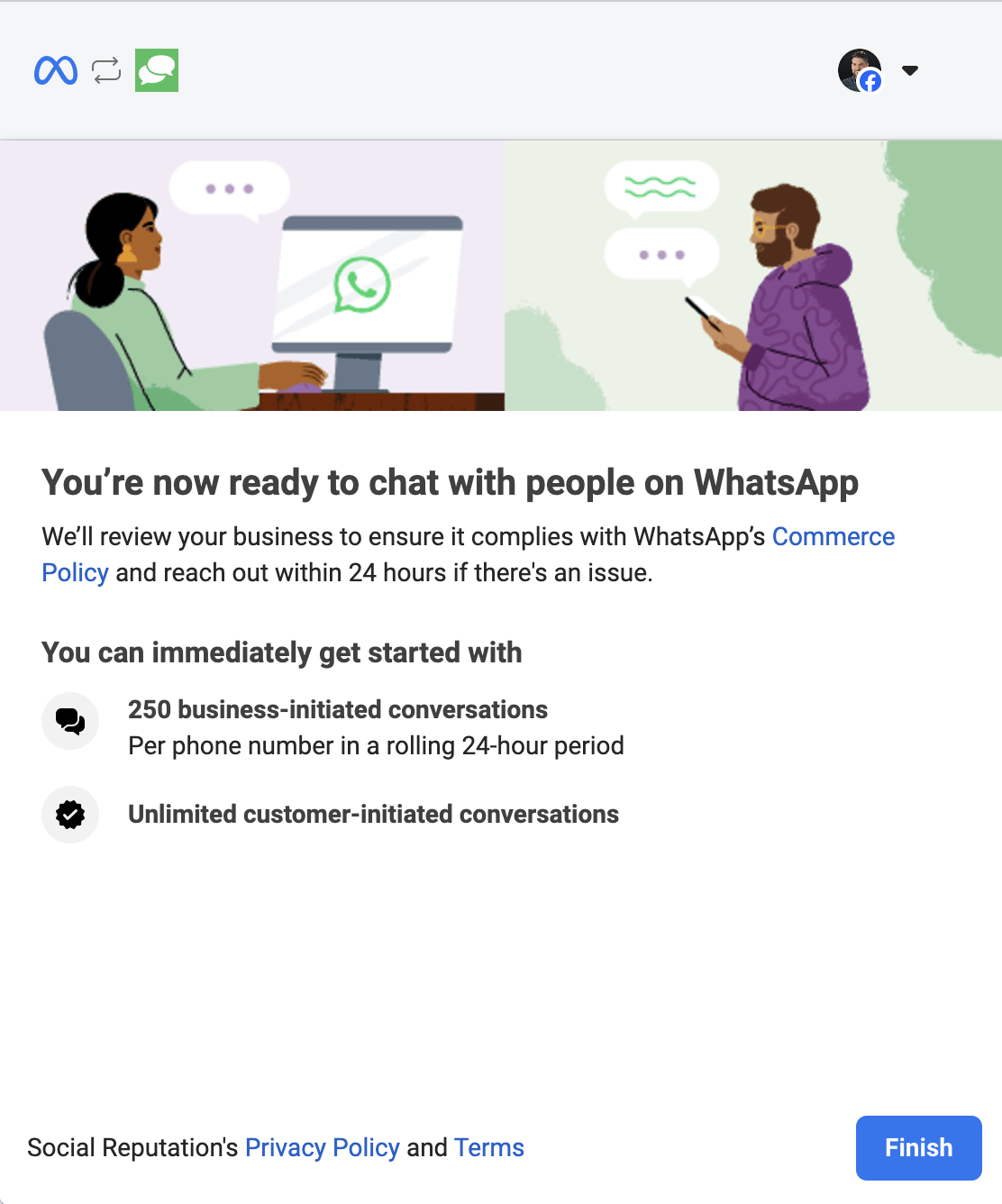
- Confirm the app's ability to connect to WhatsApp on the final confirmation screen.
Sending messages through WhatsApp
Your options for sending a WhatsApp message are different based on your conversation history with your customer:
- If you are sending a WhatsApp message to someone who has contacted you first, you are free to write any message that meets WhatsApp guidelines.
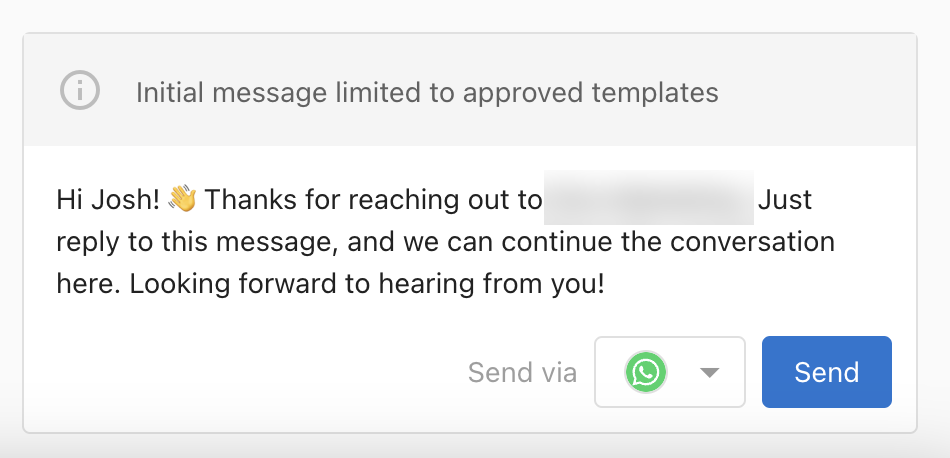
- If you are sending a message to someone who has not contacted you first, you must reply using a WhatsApp template.
If your account is new and does not yet have any templates, the system will automatically submit a template for approval on your behalf. You can also create and submit additional templates anytime through the Meta Business Help Center.
Only approved templated messages can be sent as outbound cold messages. Once a customer initiates contact, you can reply with custom messages within a 24-hour window.
Key Notes:
- Outbound messages are billed by Meta, not Business App.
Enhancing your presence on WhatsApp
Some advanced features and upgrades are controlled directly by Meta (WhatsApp's parent company). We provide this information to help you understand these options and how to access them.
Verified WhatsApp Business Accounts
Verified businesses get benefits such as:
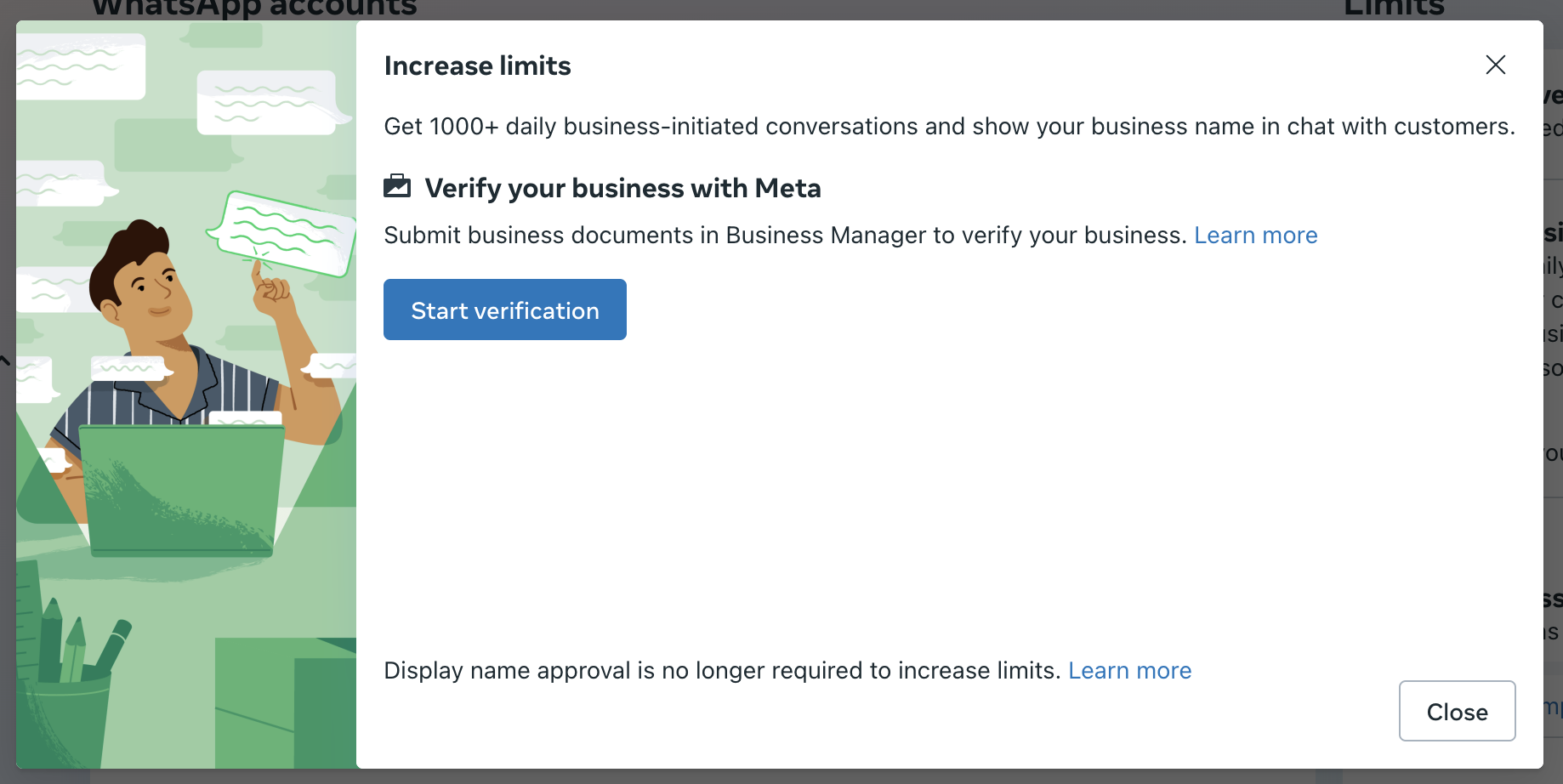
- Increased messaging limits (from 250 to 1,000 daily business-initiated conversations)
- Business name displayed in customer chats
- Higher trust and visibility within WhatsApp
To apply for verification, visit Meta's WhatsApp Manager.
Getting WhatsApp replies
- Customer replies to your WhatsApp Business account automatically appear in the same Conversations thread
- Business App retains all WhatsApp history alongside other channels like email, SMS, and web chat
- Any team member can view and respond to WhatsApp conversations from the shared workspace
Messaging limits
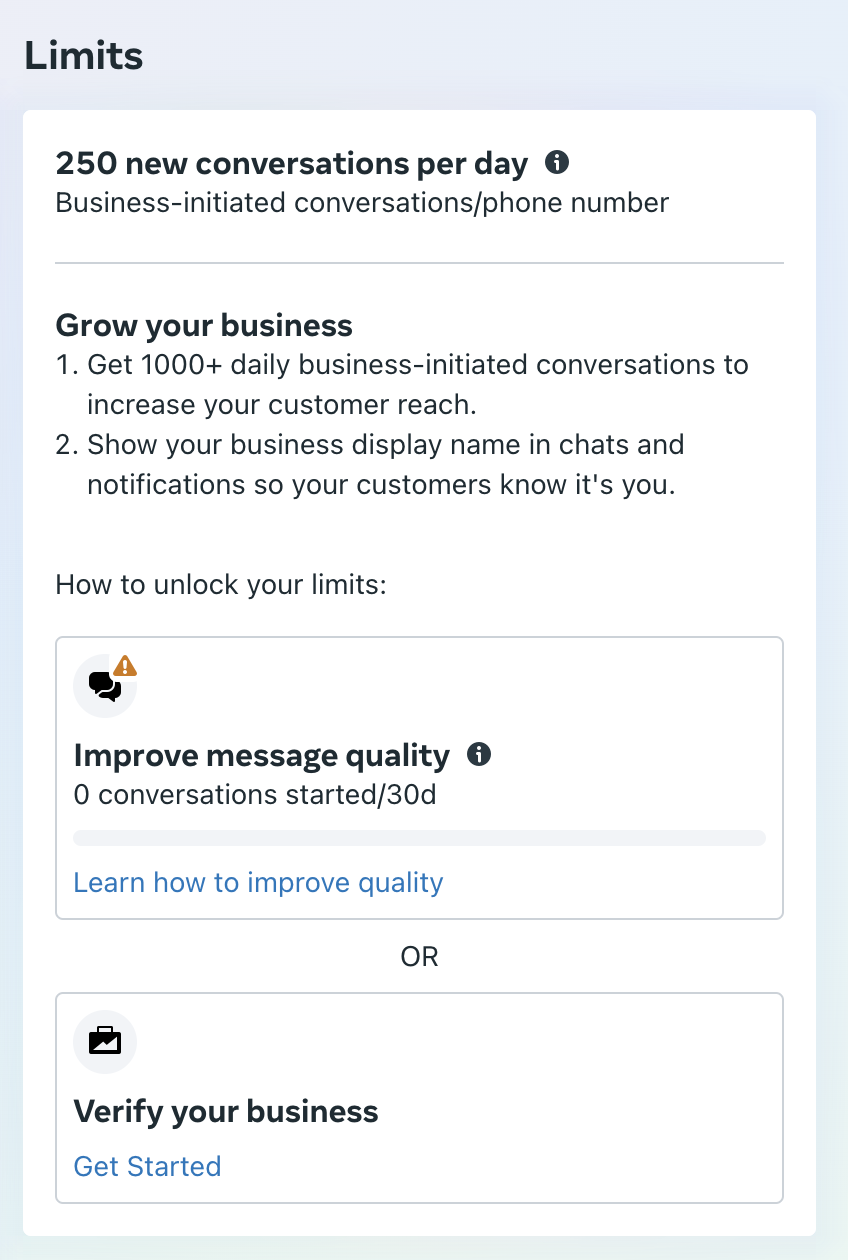
- Unverified Businesses: Limited to 250 business-initiated conversations per day.
- Verified Businesses: Can initiate up to 1,000 conversations daily and access additional features.
- High-quality messaging practices can lead to increased limits over time.
Billing information
Access to WhatsApp through Conversations AI is included with Conversations AI Pro and AI-Assisted Web Chat and allows:
- Unlimited incoming messages.
- Unlimited replies to a customer within the 24-hour customer service window, at no additional charge.
Business App does not charge for your outbound WhatsApp messages. Meta bills outbound messaging directly.
How outbound messaging is charged
Meta charges for each business-initiated template message you send (for example, marketing, utility, and authentication messages). The cost depends on the message category and the recipient's country. Messages you send inside an open 24-hour customer service window—that is, after a customer messages you first—are free.
The 250 and 1,000 figures are daily messaging limits—the maximum number of business-initiated conversations you can start per day (see Messaging limits above). Template messages are billed by Meta starting with the first message you send.
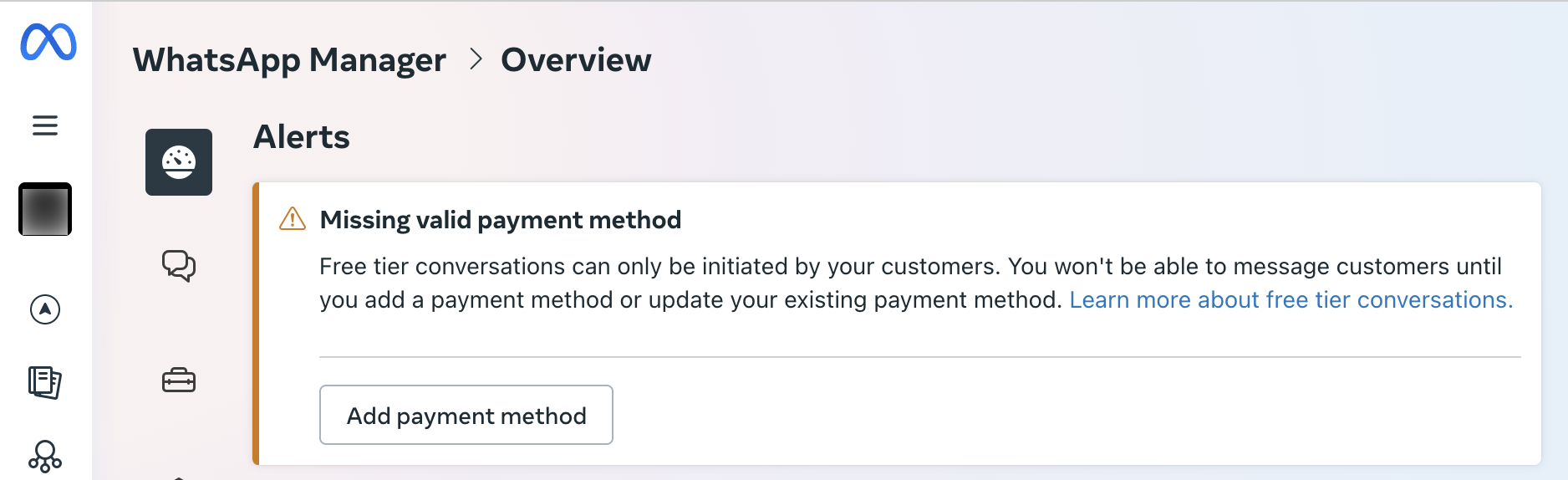
Outbound message charges are billed directly by Meta and require a valid payment method in your Meta Business account.
Learn more and see the rate card.
Related documentation
For more details, visit the Meta Business Help Center.
FAQs
Can I connect an existing WhatsApp business account to Conversations AI, and still use the mobile app?
Yes. You can use WhatsApp Coexistence to link your existing WhatsApp Business App (on your phone) to Conversations while keeping the app on your phone. See WhatsApp Coexistence for setup steps. If you prefer not to use coexistence, you can register a separate WhatsApp Business account for use with Conversations.
Why can't I write an outgoing message?
Only approved templated messages can be sent as outbound cold messages. Once a customer initiates contact, you can reply with custom messages within a 24-hour window.
Why did my message fail to send?
Your template may not be approved. You can check the status of approved templates in WhatsApp Manager.
What will WhatsApp messaging cost me?
Replies you send to a customer within the 24-hour customer service window (after they message you first) are free. Business-initiated template messages are billed by Meta starting with the first message you send, based on the message category and the recipient's country. A valid payment method must be added to your Meta account. See Meta's rate card for current pricing.
Can WhatsApp send group messages?
No. WhatsApp messages go to individual contacts only, the same as your other messaging channels.