List View — All Meetings
The All Meetings list view lets you see every scheduled meeting across your entire team from one place in My Meetings. Use it to monitor team bookings, reschedule on someone's behalf, or review past meetings from staff members who have since left.
This feature shows meetings booked through the platform only. Private calendar events that exist in a team member's personal calendar but were not booked through My Meetings are not shown.
Accessing the list view
-
Navigate to
CRM>My Meetings. -
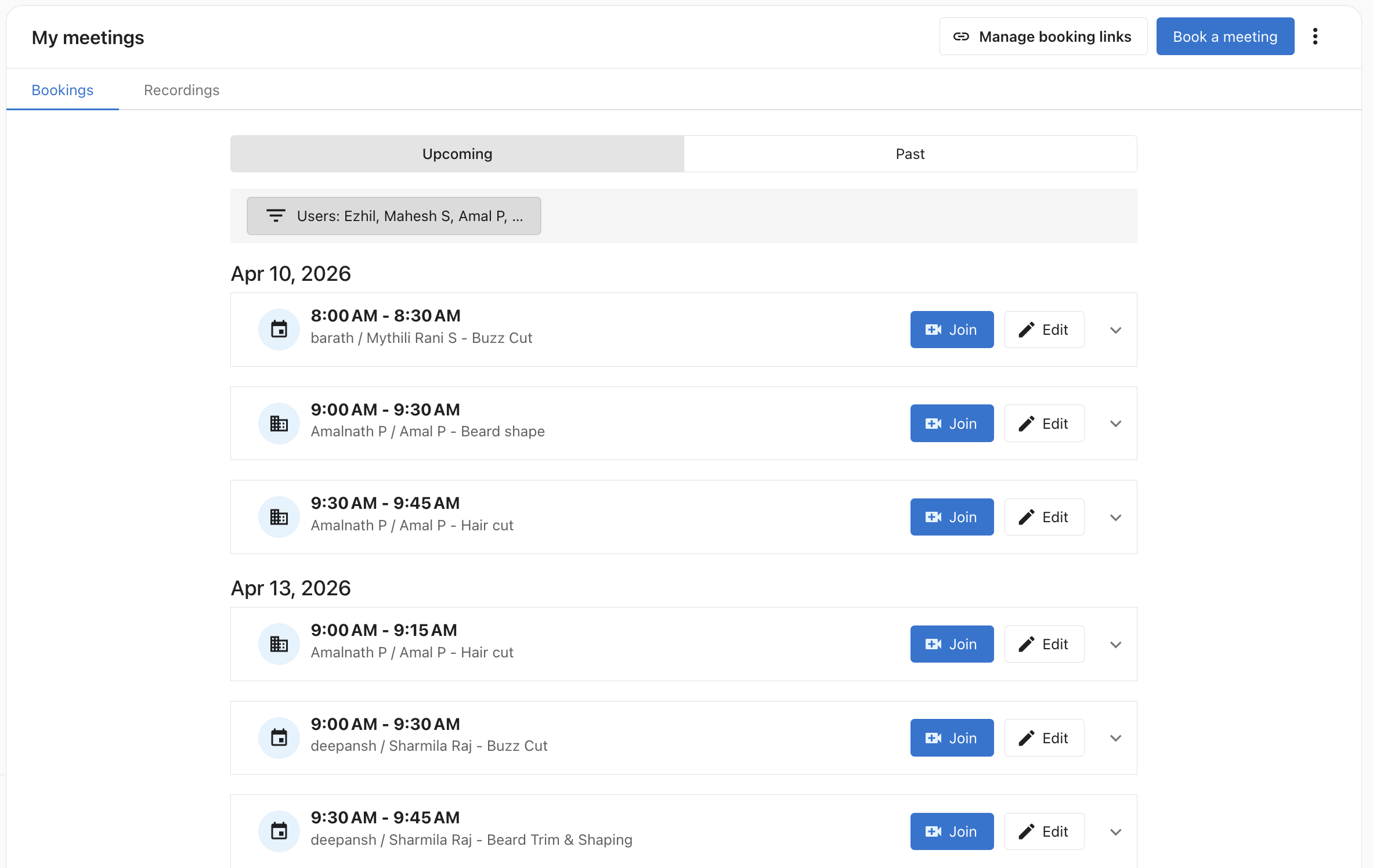
The Bookings tab shows all upcoming and past meetings.
-
Use the Upcoming / Past toggle to switch between future and historical meetings.
Filtering by team member
By default, the list shows meetings for all team members. Use the Users filter to narrow the view:
- Click the Users filter above the meeting list.
- Select one or more team members from the dropdown.
- The list updates immediately to show only meetings for the selected users.
Filter selections are saved automatically — the next time you open My Meetings, your filter is preserved.
Managing a team member's meetings
From the list view, you can act on any meeting regardless of who it belongs to:
- Reschedule — Click Edit next to a meeting to reschedule it to a new date and time.
- Cancel — Click Edit to open the meeting, then use the cancel option.
- View details — Click the dropdown arrow next to Edit to expand the full meeting details without opening the edit form.
Past meetings from former staff
Meetings booked by team members who have since left the business remain visible in the list view. You can use the Past toggle and the Users filter to look up historical appointments for any former staff member.