Lists
Use Lists to organize contacts and companies into meaningful segments for outreach, automation, and reporting. There are two types:
- Static Lists: You add or remove members manually, ideal for fixed groups such as event attendees.
- Smart Lists: You define rules, and the list updates automatically as data changes (attributes and behaviors).
Why use Lists?
Lists make it easy to target the right audience, kick off automations, and keep teams aligned on who to engage.
- Centralize segmentation for contacts and companies
- Reduce manual work with automatically updating smart lists
- Trigger automations when membership changes
What's included with Lists?
- Static Lists for manual curation
- Smart Lists for rule-based segmentation
- Start Automation actions from a list
- Membership Triggers to automate when contacts/companies are added or removed
How to use Lists
Create a List
- Go to
CRM>Lists. - Click
Create, then chooseStaticorSmart.

Create a static list
- Specify filters to select initial members and click
Save. - Add or remove members any time from the
ContactsorCompaniestables.
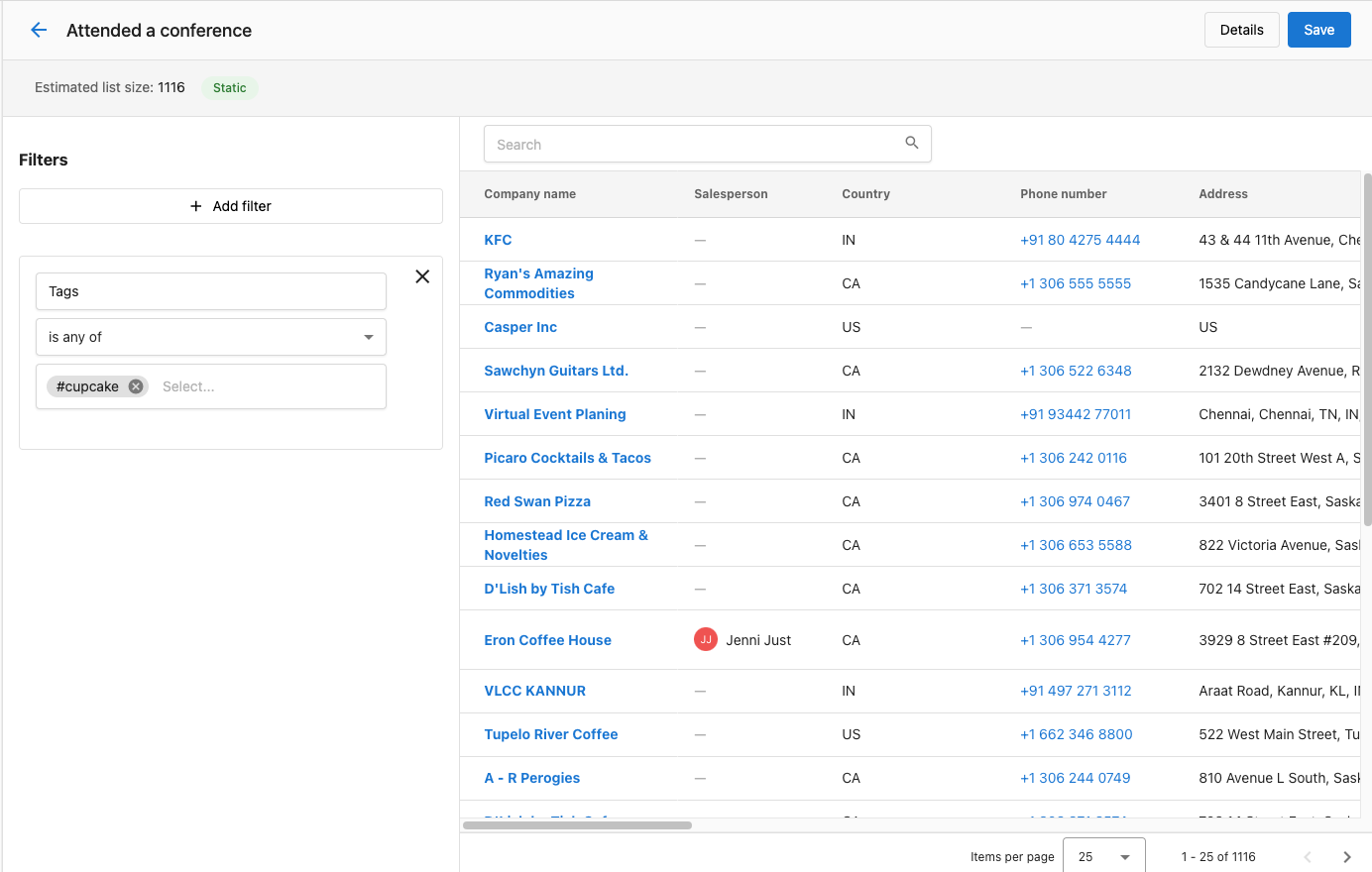
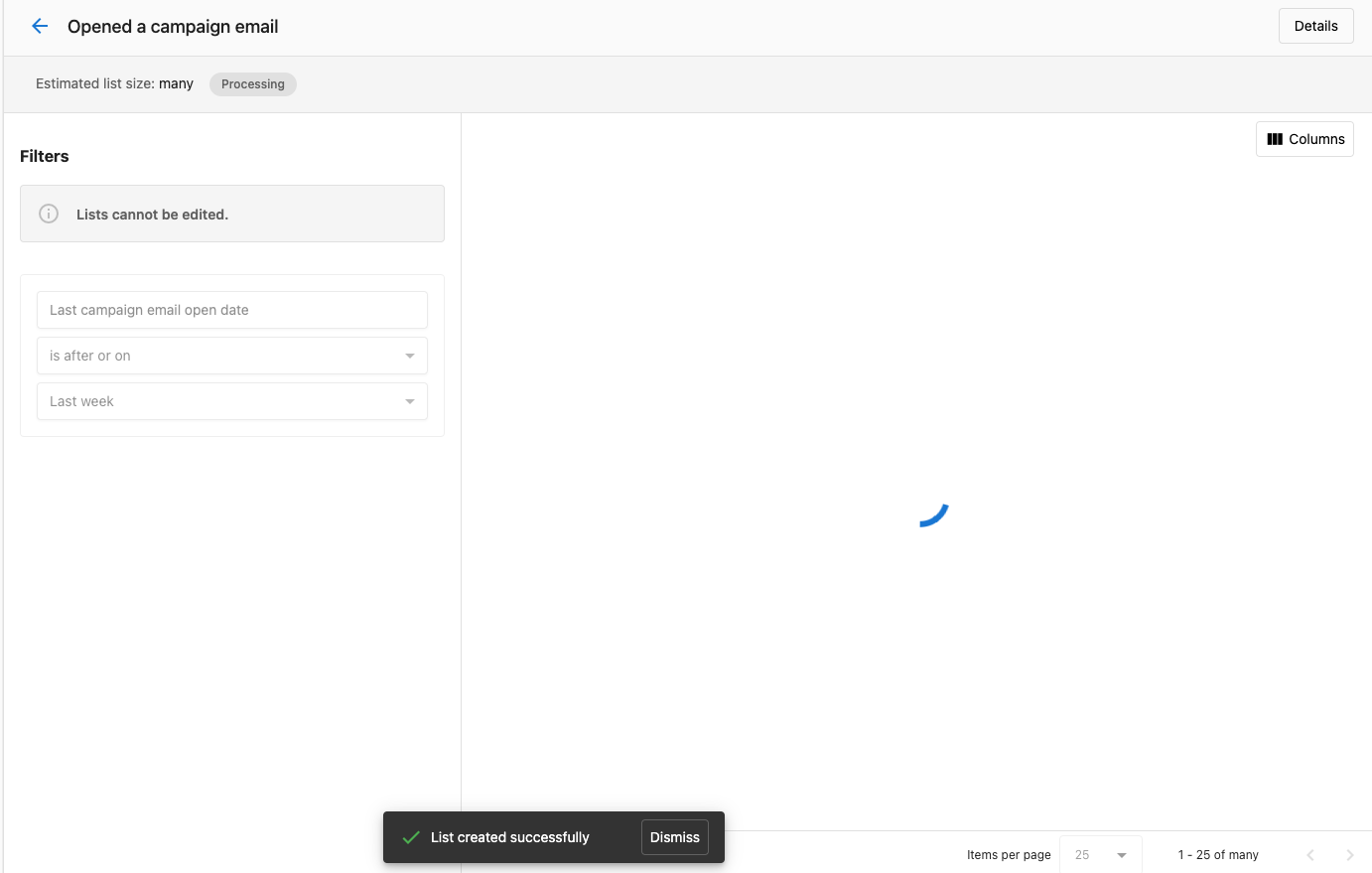
Keep static lists small and intentional, use them for one-time actions or short-term targeting.
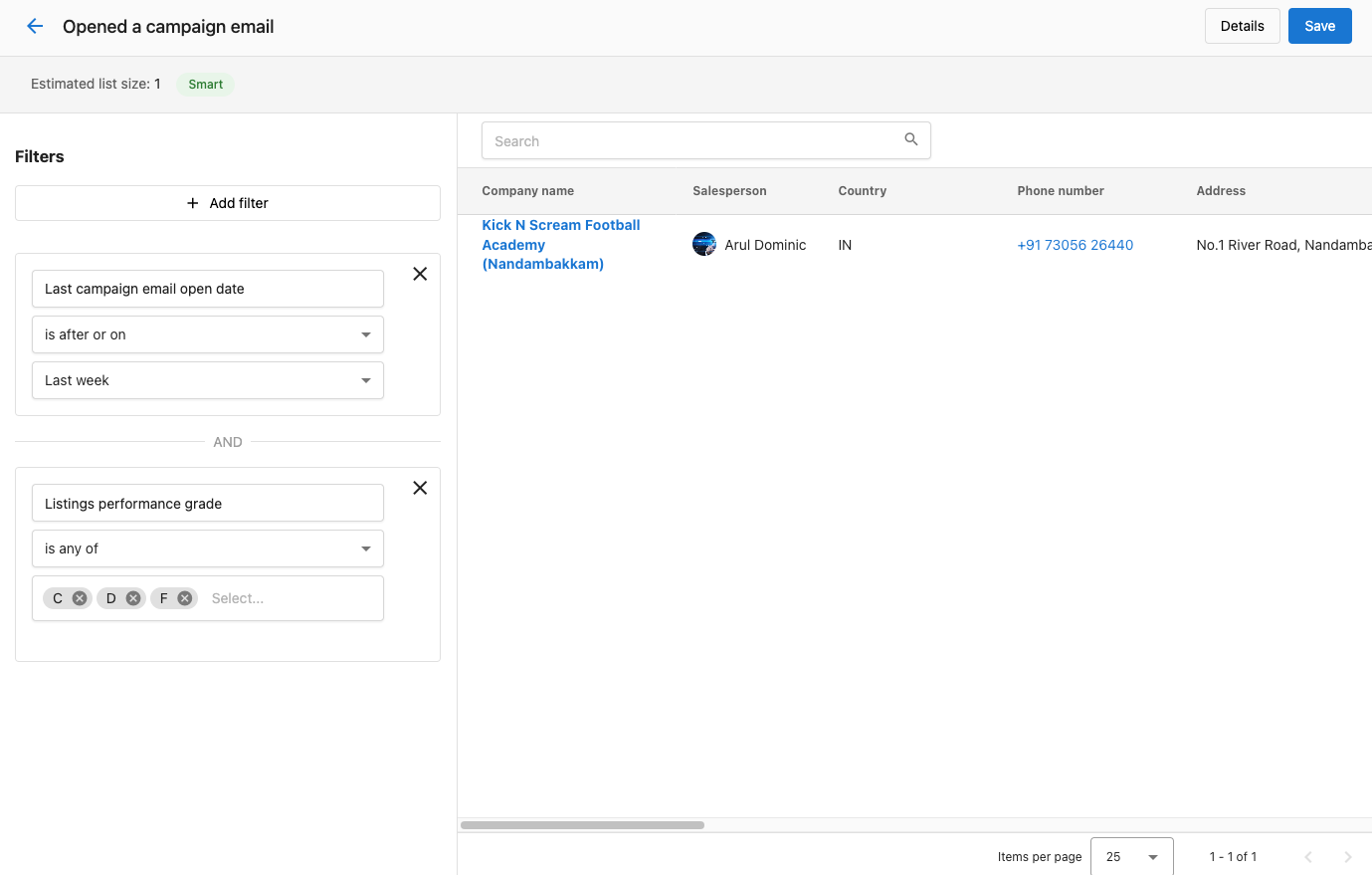
Create a smart list
- Define rules (for example, "Companies with a contact who opened a marketing email in the last 2 weeks" or "Companies with listing grade C/D/F").
- Click
Save. Membership updates automatically as data changes.
Start an automation from a list
- Go to
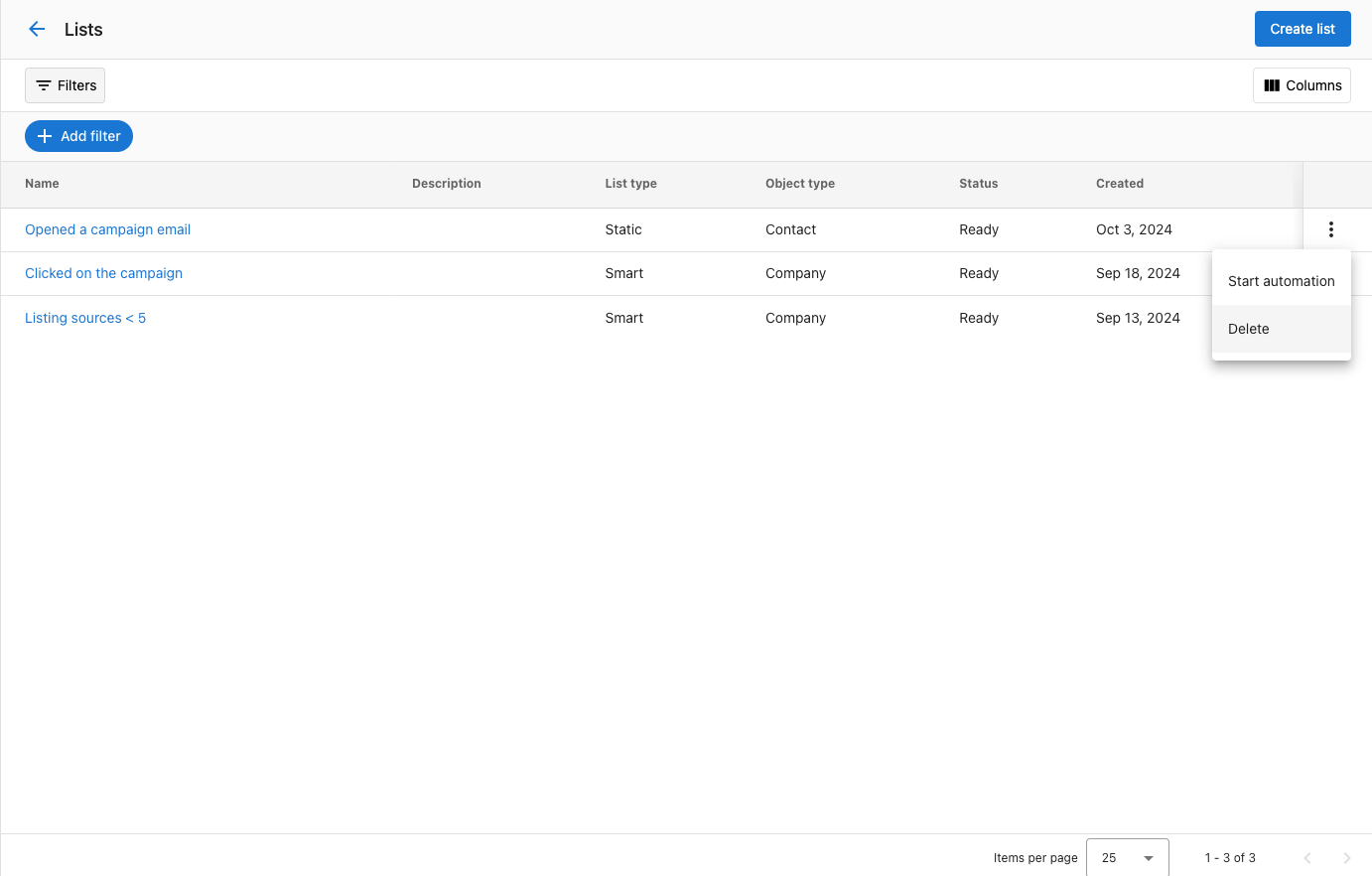
CRM>Listsand locate your list. - Open the action menu (three dots) and select
Start Automation. - Choose an automation for contacts or companies (based on the list type) and run it.
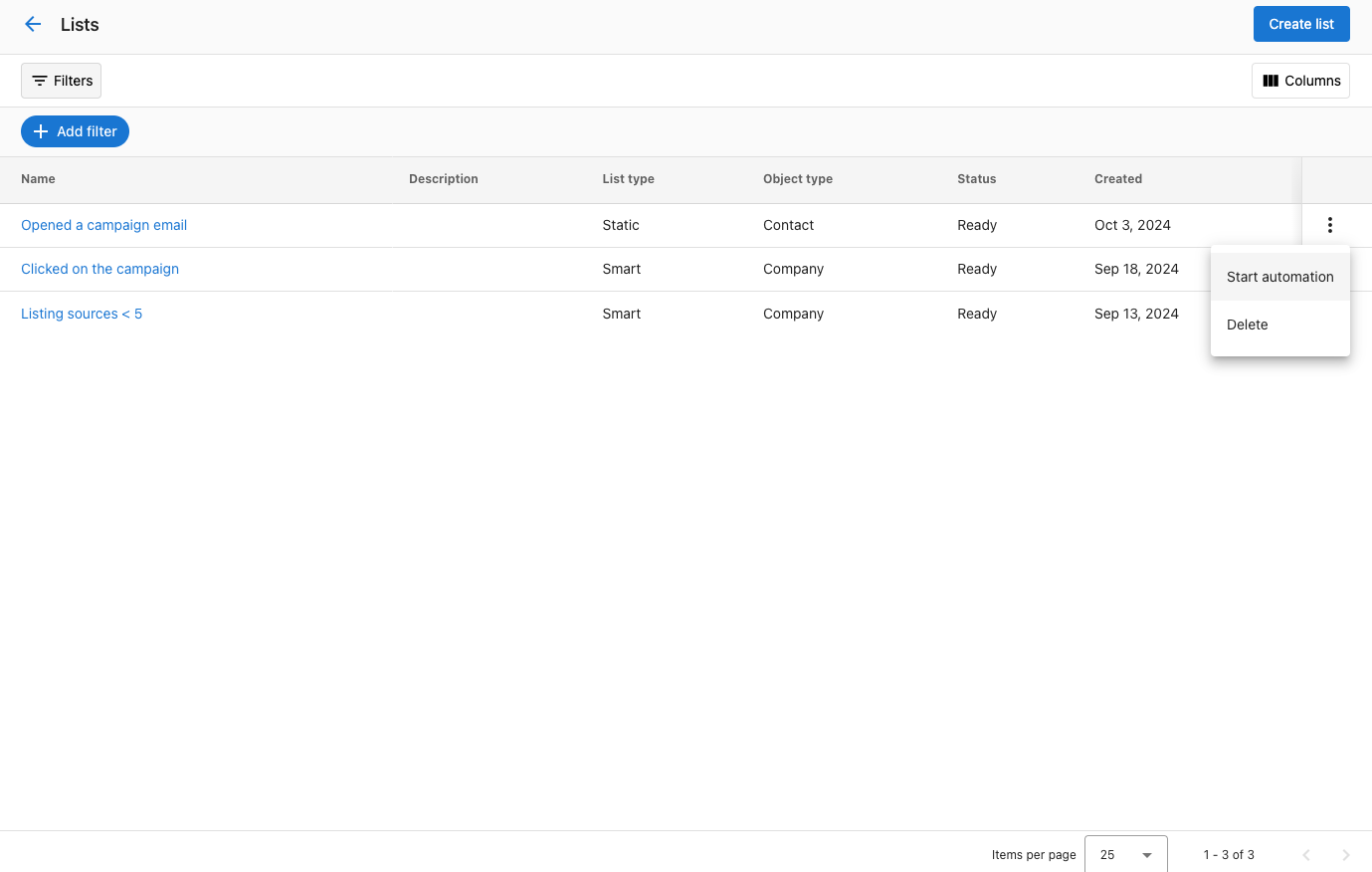
Automations run immediately for the list's current members. Use membership triggers to handle future additions or removals.
Automate when membership changes
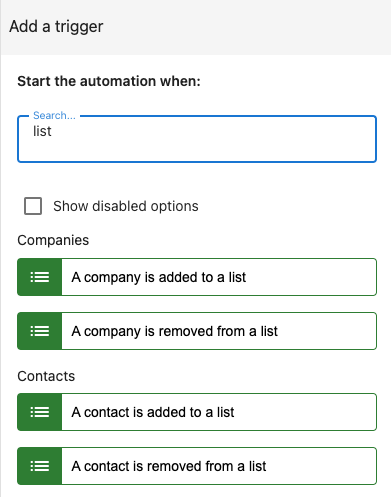
Available triggers:
- When a contact is added to a list
- When a contact is removed from a list
- When a company is added to a list
- When a company is removed from a list
Use these to send follow-ups, notify sales, or update CRM stages automatically.
Delete a List
- Go to
CRM>Lists, find the list. - Open the action menu (three dots) and select
Delete. - In the confirmation modal, type
Deleteand confirm.
Frequently asked questions (FAQs)
Can I share lists with my team?
Yes. Lists are shared so your team works from the same up-to-date data.
What's the difference between static and smart lists?
Static lists are manually managed. Smart lists update automatically based on rules you define.
Is there a limit to the number of lists?
There is no enforced limit. Create as many lists as needed to support your workflows.