Companies
Use Companies to manage the organizations you sell to and serve. Keep company data accurate, track engagement, and associate contacts, opportunities, tasks, and lists.
Why use Companies?
- Central reference for organization data and relationships
- Track engagement across emails, tasks, and meetings
- Associate contacts and opportunities to see full context
- Enrich with custom fields and segment for targeting
What's Included with Companies?
- Companies table and profile for searching, filtering, and editing records
- Default fields (name, website, address, lifecycle, UTM, source, social URLs, etc.) and support for custom fields
- Engagement fields (last activity, campaign interactions, last contact)
- Associations to contacts, opportunities, and tasks
- Activity logging for notes, emails, calls, meetings, and tasks
- Find Accounts to discover and add local businesses in bulk
How to Use Companies
View and manage companies
- Go to
CRM>Companies. - Search, sort, and filter the table to find the right records.
- Click a company to open the profile and edit details, review engagement, and manage associations.
Log activity on a company
- Open a company profile.
- In the activity area, choose the activity type: note, email, call, meeting, task, or more.
- Add details, outcomes, and follow-up tasks as needed.
Associate contacts and opportunities
- From a company profile, associate related contacts and opportunities.
- Use associations to get full context when communicating and forecasting.
Discover companies with Find Accounts
- Go to
CRM>Companiesand clickFind Accounts. - Search by business type and location, select new businesses, and click
Create companies. - Open
View companiesto work your new list.
Set or change the Owner
The Owner field controls which team member is responsible for a company. This is the field to use when you want to assign a salesperson or team member to a company.
- Open a company profile.
- Find the Owner field in the company details panel.
- Click the field and select a team member from the dropdown.
Looking for a "Salesperson" or "Assign salesperson" field? The field is called Owner. Set this field to assign a team member to the company.
Take bulk actions on companies
Select one or more companies from the table, then click the Actions button to act on them without leaving the page.

Available actions include:
- Delete companies — remove the selected companies from your CRM. Type
Deletein the confirmation modal to proceed. - Add to static list — add selected companies to a static list
- Start automation — run an automation on the selected companies immediately
To start an automation in bulk:
- Go to
CRM>Companies. - Select the companies you want to include (use filters and search to narrow the list first, if needed).
- Click
Actions>Start automation. - Choose the automation you want to run from the list.
- Confirm to start the automation for all selected companies.
Bulk actions are a fast way to run automations on demand — for example, sending a campaign to a segment of companies or assigning owners across a batch of new accounts. You don't need to build a new automation; just pick an existing one.
Optional: Lead Scoring
If enabled, configure scoring criteria in Administration > Score and use the score to prioritize outreach in the company table.
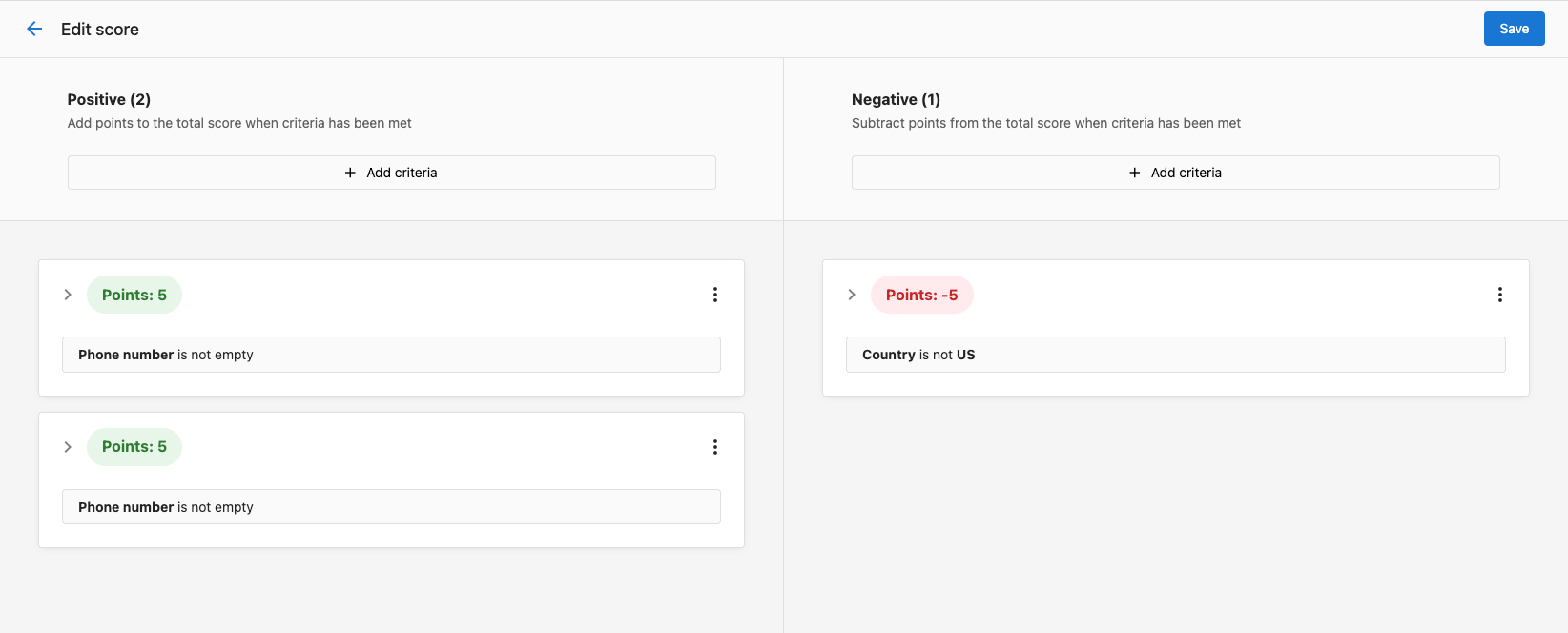
Start with a simple score combining profile fit and engagement. Iterate after you review early results.
Frequently Asked Questions (FAQs)
What default fields are available for companies?
Company records include identifiers, name, website, address, contact details, lifecycle stage, UTM/source, social URLs, engagement dates, owner, parent company, and more. You can also create custom fields.
How do I assign a salesperson to a company?
Use the Owner field. There is no separate "Salesperson" or "Assign salesperson" field. Open the company profile, find the Owner field, and select the team member from the dropdown.
Can I log activities automatically?
Yes. Platform actions like company creation, owner changes, and opportunity wins/losses are logged automatically. You can also enable email auto-capture and use automations for additional activity logging.
Can I bulk add companies from local search?
Yes. Use Find Accounts to search for local businesses and add them in bulk without duplicates.