How to send Yesware email campaigns to Business App CRM contacts
Use this guide to start a Yesware email campaign (also known as an email sequence or drip campaign) directly from the CRM > Contacts table in your Business App. You can select contacts, add them to an existing Yesware campaign, and optionally trigger additional actions using Business App Automations.
While you can add contacts to Yesware campaigns and see key activities in the contact timeline from the Business App CRM, you must create and manage those campaigns in the Yesware platform.
Prerequisites and setup for Yesware and Business App CRM integration
Before you can send contacts a Yesware campaign, make sure that:
- Your Business App includes access to Yesware (available in select packages)
- The Yesware Chrome (Gmail) or Outlook add-in is installed and connected to your mailbox
- A Yesware Campaign already exists in Yesware
How to launch Yesware campaigns from the Business App CRM contacts table
- Go to
CRM→Contactsin your Business App. - Select one or more contacts in the table.
- Click
Actions→Add to Yesware Campaign. - Choose the desired Yesware campaign from the dropdown (campaigns previously created in Yesware).
- Confirm to add the selected contacts to the campaign.
You can add up to 100 contacts at a time from the Contacts table. The action does not apply to Select all beyond the first 100.
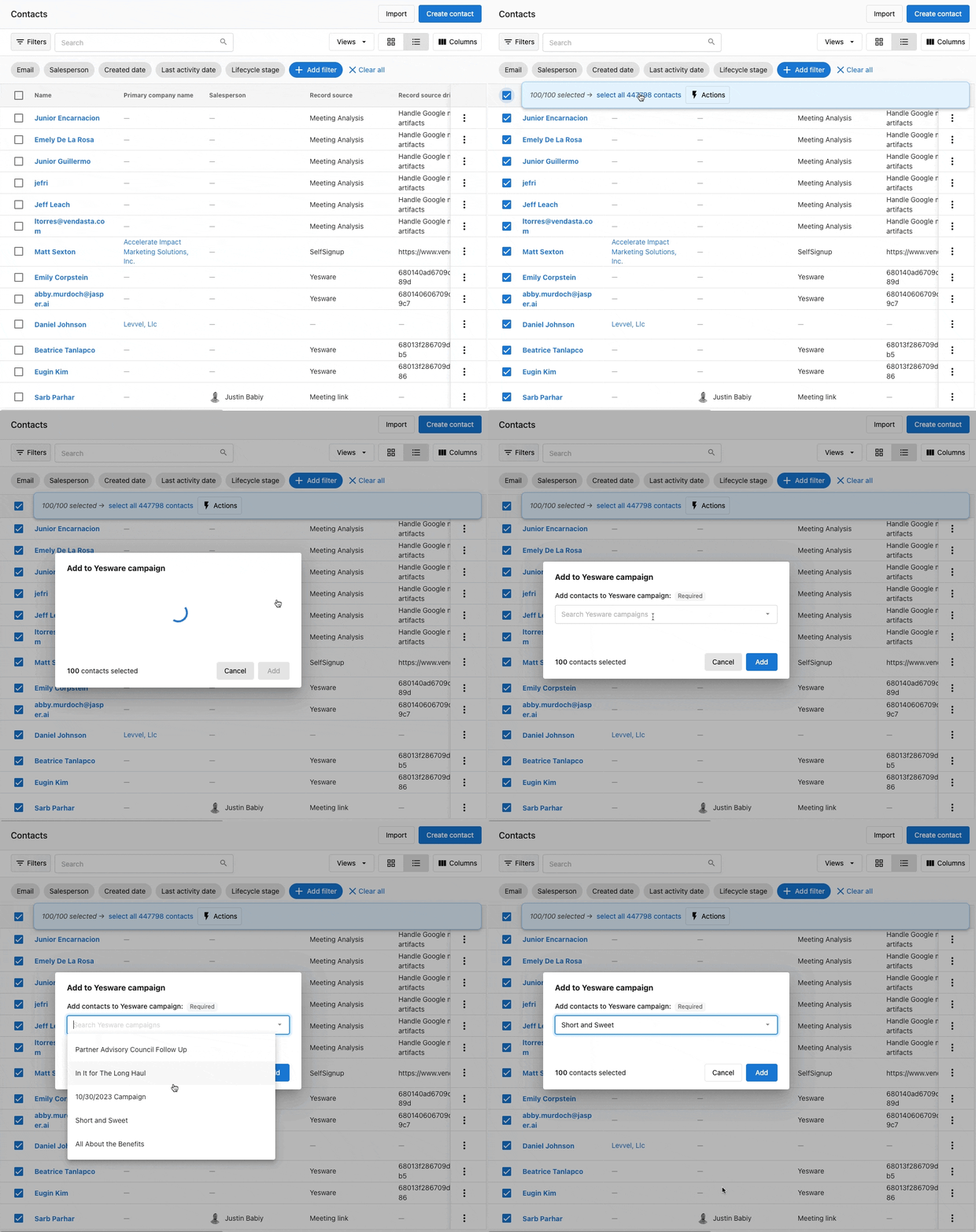
You can also use the row action menu (three dots) for an individual contact and choose Add to Yesware Campaign.
If a selected contact is already active in a different Yesware campaign, you'll see an error and must remove them from the other campaign first.
Email deliverability best practices for Yesware campaigns
- Verify your email domain and review sending reputation in your email provider
- Keep daily volumes within Gmail/Outlook limits to avoid deferrals
- Use clear subject lines and relevant content; avoid spam trigger phrases like "free", "limited time", "exclusive", etc.
Yesware campaigns are sent out directly via your Gmail or Outlook inbox. While this can help with opens and clicks, it also means that they are subject to the daily send limits of email providers and any other restrictions that may apply.
How to launch Yesware campaigns using Business App Automations
Automations give you another way to launch Yesware campaigns beyond the Contacts table. Any existing Yesware campaign can be triggered by an automation using the Send a Yesware campaign for the contact step.
Example triggers include:
- When a contact is added to a specific list
- When a contact fills out a specific form
- When a contact opens a specific email
- When a contact replies to a specific email
Only existing Yesware campaigns can be selected in Automations. Campaign creation and sharing must still be managed directly within Yesware.
Related automation guides:
- Business App Automations overview - Learn how to create your first automation workflow
- Automations - Create workflows and use pre-built templates to trigger Yesware campaigns
Frequently asked questions
Where do I create and manage Yesware email campaigns?
Campaigns are created in Yesware (Gmail/Outlook). Once created, they appear in the Add to Yesware Campaign dropdown and in Automations within your Business App.
How do I remove a contact from an active Yesware campaign?
Remove the recipient in the Yesware campaign's Recipients tab, then add them to a new campaign from your Business App.
Can I track Yesware campaign results and analytics in Business App CRM?
Reply activities from Yesware are logged on the contact timeline in the Business App CRM. Campaign completion without a reply may not create an activity.
What's the difference between Yesware campaigns and Business App email automations?
Yesware campaigns send from your personal Gmail/Outlook inbox with higher open rates but lower volume limits. Business App email automations send from marketing servers with higher volume capacity but may have lower personal connection. Yesware is better for sales outreach, while Business App automations work better for marketing newsletters and bulk communications.
How many contacts can I add to a Yesware campaign from Business App?
You can add up to 100 contacts at a time from the Contacts table. For larger lists, you'll need to select contacts in batches of 100 or use Business App Automations to add contacts over time based on triggers.
Does Yesware integration work with Outlook and Gmail equally?
Yes, Yesware campaigns launched from Business App work with both Gmail and Outlook. However, each email provider has different daily sending limits (Gmail: 500/day for Google Workspace, Outlook: varies by plan). The Yesware add-in must be installed and connected to your mailbox first.
Can I schedule Yesware campaigns to send later from Business App?
Scheduling is handled within Yesware campaigns themselves, not from Business App. You can add contacts to a campaign from Business App, but timing and scheduling controls are managed in the Yesware platform where you create the campaign sequence.
Why can't I see my Yesware campaign in the Business App dropdown?
Make sure: 1) The campaign exists in Yesware, 2) You're logged into the same email account in both platforms, 3) The Yesware integration is properly connected. Newly created campaigns may take a few minutes to appear in Business App dropdowns.
What happens if I add the same contact to multiple Yesware campaigns?
A contact can only be "Active" in one Yesware campaign at a time. If you try to add someone who's already active in another campaign, you'll get an error. You must either remove them from the current campaign or wait until they complete it before adding them to a new one.
Can I use custom fields from Business App CRM in Yesware campaigns?
Yesware campaigns pull contact information from your email provider's contacts, not directly from Business App CRM fields. To use Business App data in Yesware, you'll need to sync or export contact information to your Gmail/Outlook contacts first.
See also
CRM contact management:
- CRM contacts overview - Learn about importing contacts, campaign management, and contact field customization
- Contact lists for targeted outreach - Segment contacts before adding to Yesware campaigns
- CRM forms for lead capture - Capture new leads that can be added to Yesware campaigns
Business App automation options:
- Automations overview - Compare Yesware with native Business App automation options
- Automations - Pre-built templates and workflows for lead nurturing and follow-up
Advanced workflows:
- CRM opportunities - Track deals that result from Yesware campaigns
- Activity feed - Monitor Yesware campaign responses and engagement