Track form submissions with Google Analytics 4 and Google Tag Manager
What is form submission tracking?
Form submission tracking records each completed form on your website as an event in Google Analytics 4 (GA4). You set up your Business App form to send visitors to a thank-you page on your website after they submit it. Then you use Google Tag Manager (GTM) to send an event to GA4 every time someone views that thank-you page.
Because a visitor reaches the thank-you page only after submitting the form, each thank-you page view in GA4 represents one form submission.
Why is form submission tracking important?
- See which channels bring in leads: Compare form submissions by traffic source, campaign, and landing page in GA4.
- Measure your marketing: Use form submissions as a key event to judge how well your ads, emails, and social media posts perform.
- Keep your reporting in one place: View form submissions next to the rest of your website traffic data in GA4.
What's included with form submission tracking?
- Redirect to URL setting: Your Business App form sends visitors to the thank-you page you choose after they submit it.
- Page View trigger: A GTM trigger that fires when a visitor loads your thank-you page.
- GA4 Event tag: A GTM tag that sends a
form_submissionevent to your GA4 property when the trigger fires. - Verification tools: GTM
Previewmode and the GA4Realtimereport confirm that each submission is recorded.
Before you start
You need:
- A GA4 property and its Measurement ID (it starts with
G-). See Measurement ID in the Google Analytics Help Center. - A GTM container installed on every page of your website, including the thank-you page. See Create an account and container in the Tag Manager Help Center.
- A dedicated thank-you page on your website, for example
https://www.example.com/thank-you. Use this page only as the destination after a form submission. - Your Business App form embedded on your website.
To get the embed code for your form, go to CRM → Forms, click the three-dot menu (⋮) on the form's row, and click Embed. In the Embed form window, click Copy code and paste the code into the page on your website where you want the form to appear. For more detail, see Build and publish a form.
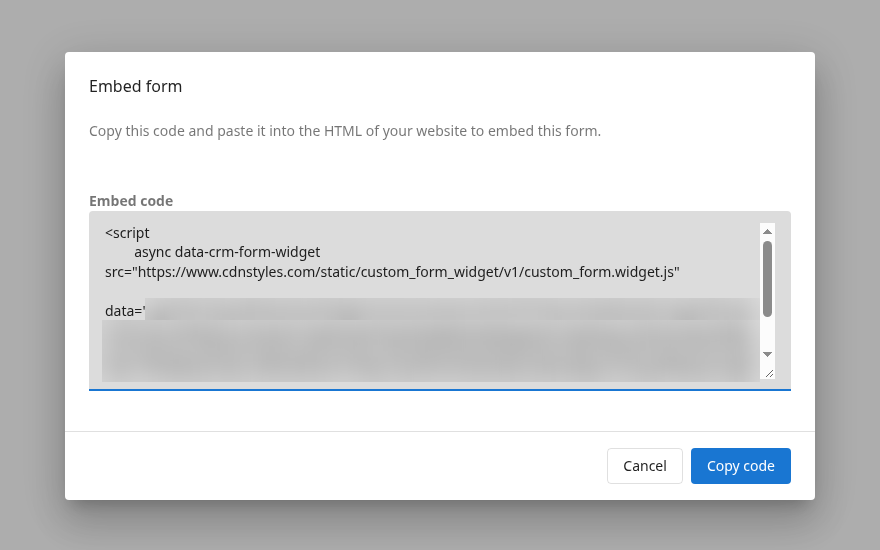
Business App forms don't have a built-in field for a GA4 Measurement ID or a GTM container. You set up tracking in GTM, using the thank-you page as the signal that a form was submitted.
Track form submissions in GA4
Step 1: Send visitors to your thank-you page
- In Business App, go to
CRM→Forms. - Open the form you want to track:
- To change an existing form, click the three-dot menu (
⋮) on the form's row and clickEdit. - To start a new form, click
Create form.
- To change an existing form, click the three-dot menu (
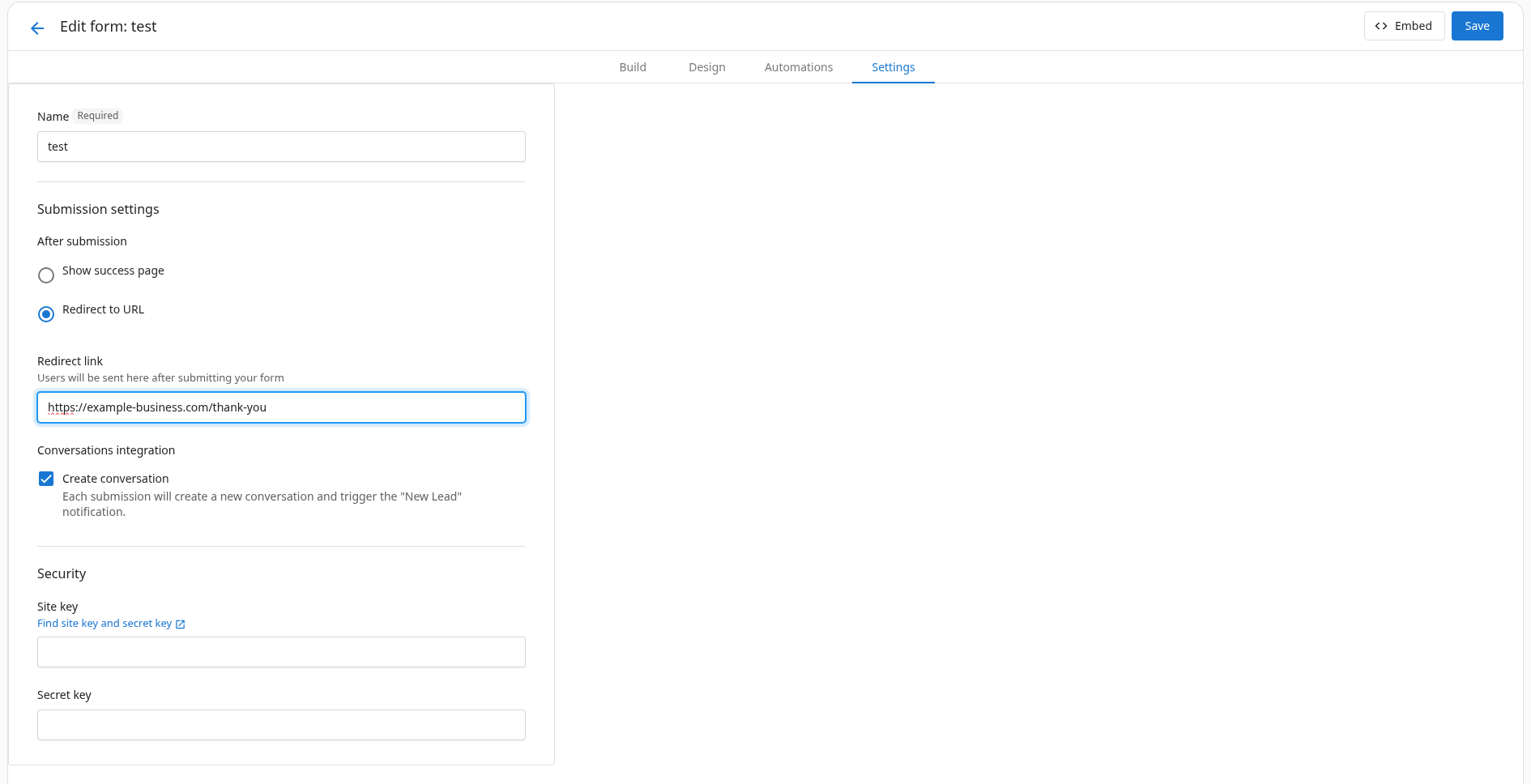
- Click the
Settingstab. - Under
Submission settings→After submission, selectRedirect to URL. - In the
Redirect linkfield, enter the full URL of your thank-you page, for examplehttps://www.example.com/thank-you. - Click
Save.
After a visitor submits the form, they go to your thank-you page instead of the form's success page.
Step 2: Create a Page View trigger in Google Tag Manager
- Sign in to Google Tag Manager and open the container installed on your website.
- Click
Triggers→New. - Name the trigger, for example
Thank-you page view. - Click
Trigger Configurationand selectPage View. - Under
This trigger fires on, selectSome Page Views. - Set the condition to
Page Pathcontains/thank-you. Replace/thank-youwith the path of your own thank-you page. - Click
Save.
For more detail, see Triggers in the Tag Manager Help Center.
Step 3: Create a GA4 Event tag
- In Google Tag Manager, click
Tags→New. - Name the tag, for example
GA4 event: form submission. - Click
Tag Configurationand selectGoogle Analytics→Google Analytics: GA4 Event. - Enter your GA4 Measurement ID in the
Measurement IDfield. - Enter
form_submissionin theEvent Namefield. - Click
Triggeringand select theThank-you page viewtrigger you created in step 2. - Click
Save. - Click
Submit, add a version name, and clickPublish.
For more detail, see Set up Google Analytics events in Tag Manager in the Tag Manager Help Center.
Use a short, lowercase event name with underscores, such as form_submission. If you track more than one form, give each form its own thank-you page and event name (for example, quote_request and newsletter_signup) so you can tell them apart in GA4.
Step 4: Check that tracking works
- In Google Tag Manager, click
Preview. Tag Assistant opens in a new tab. - Enter the URL of the page on your website that has your form, and click
Connect. - In the window that opens, fill out and submit the form.
- When your thank-you page loads, go back to the Tag Assistant tab and check that your GA4 Event tag appears under
Tags Fired. - In GA4, go to
Reports→Realtimeand check thatform_submissionappears in theEvent count by Event namecard.
For more detail, see Preview and debug containers and Realtime report.
View form submissions in GA4
The Realtime report shows events from the last 30 minutes. Standard GA4 reports can take 24 to 48 hours to show new events.
To build a report of form submissions over time:
- In GA4, click
Exploreand open aFree formexploration. - Add
Event nameas a dimension andEvent countas a metric. - Add a filter where
Event nameexactly matchesform_submission. - Add other dimensions, such as
Session source / mediumorLanding page, to see where your submissions come from.
To count form submissions as conversions in GA4, mark form_submission as a key event. See Mark events as key events in the Google Analytics Help Center.
Troubleshoot form submission tracking
If form_submission doesn't appear in GA4, check the following:
- The redirect isn't set: Open the form in Business App, click the
Settingstab, and check thatRedirect to URLis selected underAfter submissionand that the URL is correct. ClickSaveafter any change. - The trigger doesn't match: Check that the
Page Pathcondition in your trigger matches the path of your thank-you page exactly as it appears in your browser's address bar. - The GTM container isn't on the thank-you page: Open your thank-you page with Tag Assistant connected and check that your container loads.
- The container isn't published: Changes in GTM take effect on your website only after you click
SubmitandPublish. - The Measurement ID is wrong: Check that the
Measurement IDin your GA4 Event tag matches the ID of the GA4 property you're viewing.
Frequently asked questions
Is there a place in Business App forms to enter my GA4 Measurement ID?
No. Business App forms don't have a built-in field for a GA4 Measurement ID, a GTM container, or an analytics setting. You set up tracking in GTM using the thank-you page method in this article.
Does the Google Analytics (GA4) integration in Business App track my form submissions?
No. The Google Analytics (GA4) card in Administration → Integrations connects your GA4 property so your website analytics appear in Business App reports. It doesn't send form submission events to GA4. See Google Analytics (GA4).
Why use a thank-you page instead of tracking the form directly?
A visitor reaches your thank-you page only after they submit the form, so each page view is a reliable signal of one submission. The thank-you page method works with a standard GTM Page View trigger and doesn't depend on how the form displays on your page.
Can I track more than one form?
Yes. Give each form its own thank-you page, then create a separate trigger and GA4 Event tag for each page with its own event name.
Why are my GA4 numbers higher than the submissions in Business App?
GA4 counts every view of your thank-you page, including visitors who open it directly or refresh it. Keep the thank-you page out of your website's menus and don't link to it from other pages.
Why are my GA4 numbers lower than the submissions in Business App?
Visitors who block cookies or tracking scripts, or who close the browser before the thank-you page loads, aren't counted in GA4. Business App records every submission, so use your CRM as the full count of leads.
Where do I see which campaign a lead came from?
In GA4, add a dimension such as Session source / medium or Session campaign to your form submission report. To save campaign details on the contact record in Business App, add UTM fields to your form. See Forms.
How long does it take for form submissions to appear in GA4?
Events appear in the Realtime report within a few seconds. Standard GA4 reports can take 24 to 48 hours to show new events.