CRM lifecycle stages
What are lifecycle stages?
The Lifecycle stage field shows where a contact or company is in its relationship with your business, from first visit to past customer. Every contact and company record has a Lifecycle stage field that you can set, filter on, and use in forms and automations.
Business App includes eight stages by default. You can rename, reorder, remove, or add stages so they match how your business sells.
Why are lifecycle stages important?
- See your sales funnel at a glance: Filter your contacts or companies by stage to see how many are leads, prospects, or customers.
- Focus your follow-up: Work on the records that are closest to becoming customers first.
- Keep your team consistent: Everyone uses the same stage names, so records are easy to compare.
- Automate the next step: Start automations when a contact reaches a specific stage.
What's included with lifecycle stages?
- Default stages: Eight stages that cover the path from first visit to former customer.
- Custom stage options: Rename, reorder, delete, or add stages for contacts and companies.
- Read-only setting: Lock the field so it can't be edited on records.
- Columns and filters: Show the
Lifecycle stagecolumn and filter theContactsandCompaniestables by stage. - Profile editing: Change the stage from the sidebar of any contact or company profile.
- Forms: Collect or set the lifecycle stage when someone submits a form.
- Automations: Start an automation based on a contact's lifecycle stage, or update a company's lifecycle stage as an automation step.
Default lifecycle stages
The Lifecycle stage field includes these stages, in this order:
| Stage | How you can use it |
|---|---|
Visitor | Someone who has interacted with your business, such as visiting your website |
Lead | Someone who has shared their contact information |
Marketing qualified lead | A lead who has engaged with your marketing and is worth a closer look |
Sales accepted lead | A lead your sales team agrees to follow up with |
Sales qualified lead | A lead your sales team has confirmed is a good fit |
Prospect | A contact or company you're actively working with toward a sale |
Customer | A contact or company that has bought from you |
Former customer | A contact or company that has stopped buying from you |
Update the lifecycle stage on a record
Contacts
- Go to
CRM→Contacts. - Click a contact's name to open the profile.
- In the left sidebar, under
About contact, click theLifecycle stagedropdown. - Select a stage.
Companies
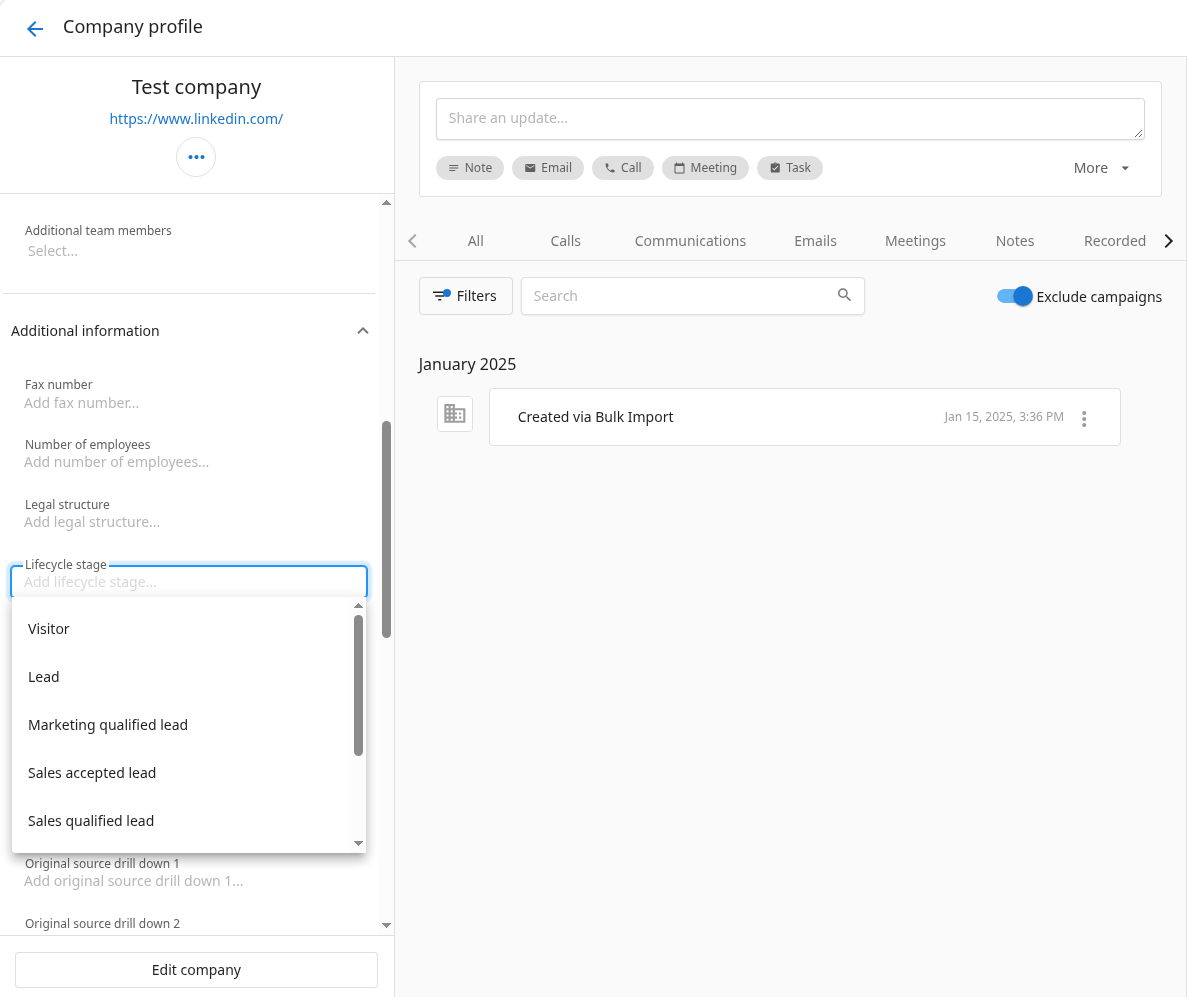
- Go to
CRM→Companies. - Click a company's name to open the profile.
- In the left sidebar, under
Additional information, click theLifecycle stagedropdown. If no stage is set, the field showsAdd lifecycle stage…. - Select a stage.
View and filter records by lifecycle stage
Show the lifecycle stage column
The Lifecycle stage column isn't shown in the Contacts or Companies table by default. To add it:
- Go to
CRM→ContactsorCRM→Companies. - Click
Columns→Manage columns. - Select
Lifecycle stage. On theContactstable, it's underBasic information.
Filter by lifecycle stage
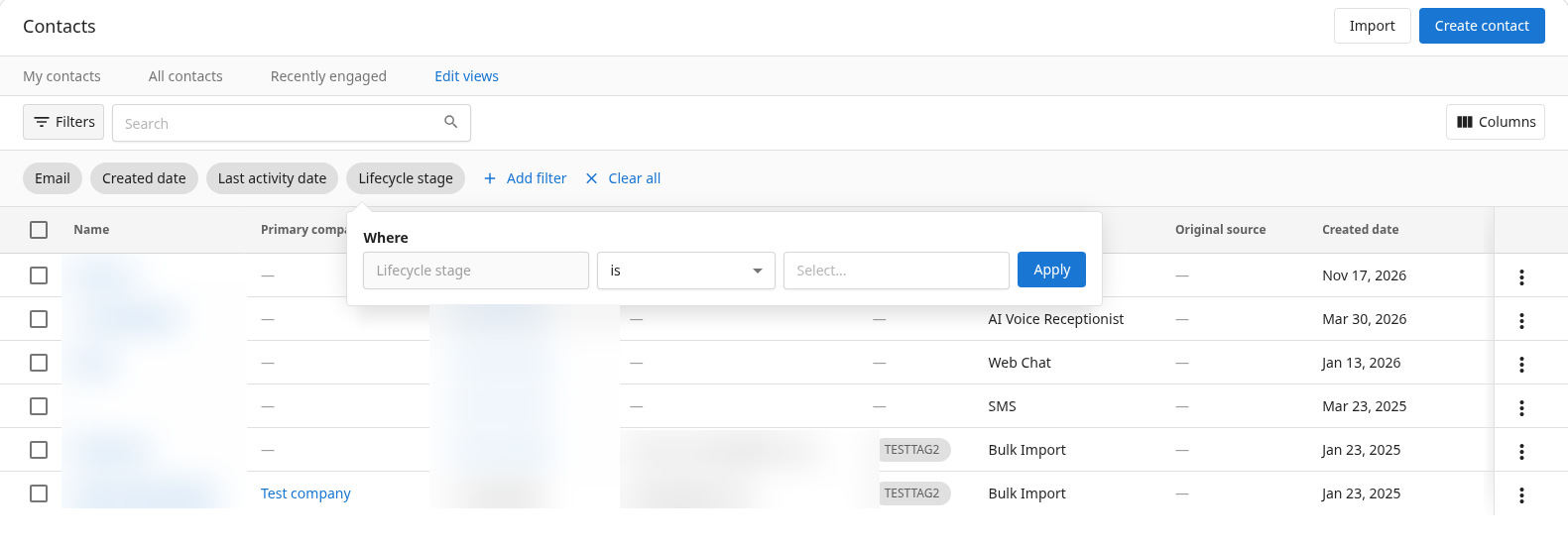
- Go to
CRM→ContactsorCRM→Companies. - Click the
Lifecycle stagequick filter chip. You can also clickAdd filterand chooseLifecycle stage. - Under
Where Lifecycle stage is, select the stage you want to see. - Click
Apply.
The table shows only the records in that stage.
Customize your lifecycle stages
Lifecycle stage is a system field, so you can't change its name, type, or description, and you can't delete it. You can change its stage options and its read-only setting. Contacts and companies each have their own Lifecycle stage field, so customize each one separately.
Edit the stage options
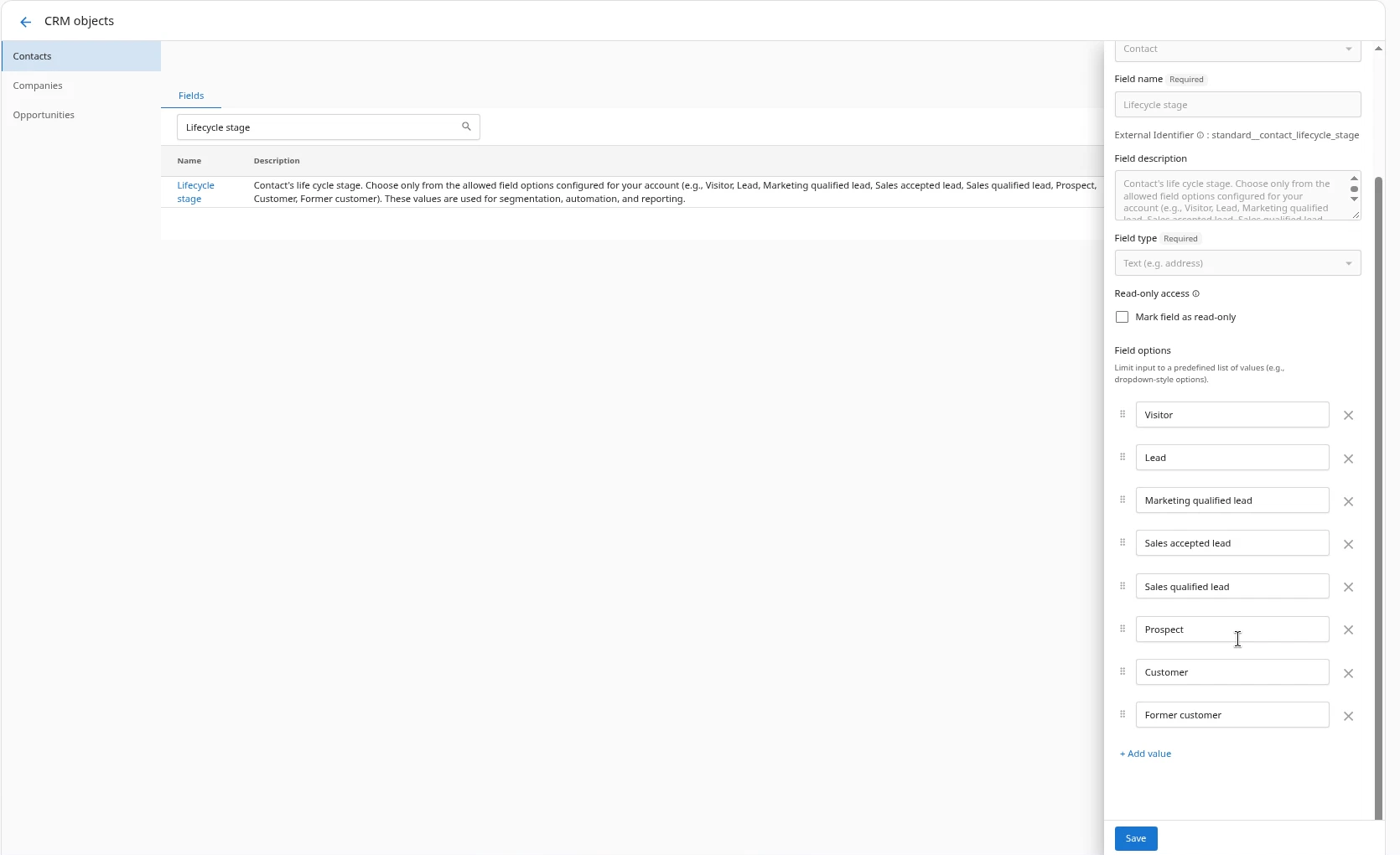
- Go to
Administration→CRM objects. - Select
ContactsorCompanies. - Open the
Fieldstab and clickLifecycle stage. The panel shows "This is a system field. Only field options can be modified." - Under
Field options, change the stage list:- To rename a stage, edit its text.
- To reorder stages, drag a stage by its handle.
- To remove a stage, click
✕next to it. - To add a stage, click
+ Add valueand enter a name.
- Click
Save.
You can't remove a stage while records still use it. Update those records first, as described in Remove field options that are still in use.
Make the field read-only
- Go to
Administration→CRM objects. - Select
ContactsorCompanies. - Open the
Fieldstab and clickLifecycle stage. - Under
Read-only access, selectMark field as read-only. - Click
Save.
A read-only field displays on records but can't be edited there. To make the field editable, clear Mark field as read-only and click Save.
Use lifecycle stages in forms and automations
Forms
Lifecycle stage is a supported field for both contacts and companies, so you can add it to a form. See Supported fields.
Automations
- Start an automation: The
A contact is created or modifiedtrigger can start whenLifecycle stagechanges: select it in theContact fieldspicker. You can also limit the trigger to specific stages underAdd conditions for starting this automation→Condition type→Contact data. See Automation triggers. - Change a company's stage: The
Update companystep can set a company'sLifecycle stage. See Automation steps.
Frequently asked questions
What are the default lifecycle stages?
The default stages are Visitor, Lead, Marketing qualified lead, Sales accepted lead, Sales qualified lead, Prospect, Customer, and Former customer.
Can I rename or add lifecycle stages?
Yes. Go to Administration → CRM objects → Contacts or Companies → Fields → Lifecycle stage, edit the list under Field options, and click Save.
Do contacts and companies share the same lifecycle stages?
No. Contacts and companies each have their own Lifecycle stage field. Changes you make to the stage options for contacts don't change the options for companies.
Why can't I change the lifecycle stage on a record?
The field is marked as read-only. Go to Administration → CRM objects, open the Lifecycle stage field for contacts or companies, clear Mark field as read-only, and click Save.
Can I delete the Lifecycle stage field?
No. Lifecycle stage is a system field, so you can edit its stage options but not delete the field itself.
Why don't I see the Lifecycle stage column in my Contacts table?
The column is hidden by default. Click Columns → Manage columns and select Lifecycle stage to show it.
How do I see all of my customers?
Go to CRM → Contacts or CRM → Companies, click the Lifecycle stage quick filter chip, select Customer, and click Apply.