Remove field options that are still in use
What does "These options are still in use" mean?
Some CRM fields have a fixed list of choices, called field options. For example, an Interests field can offer "Hiking", "Camping", and "Scuba".
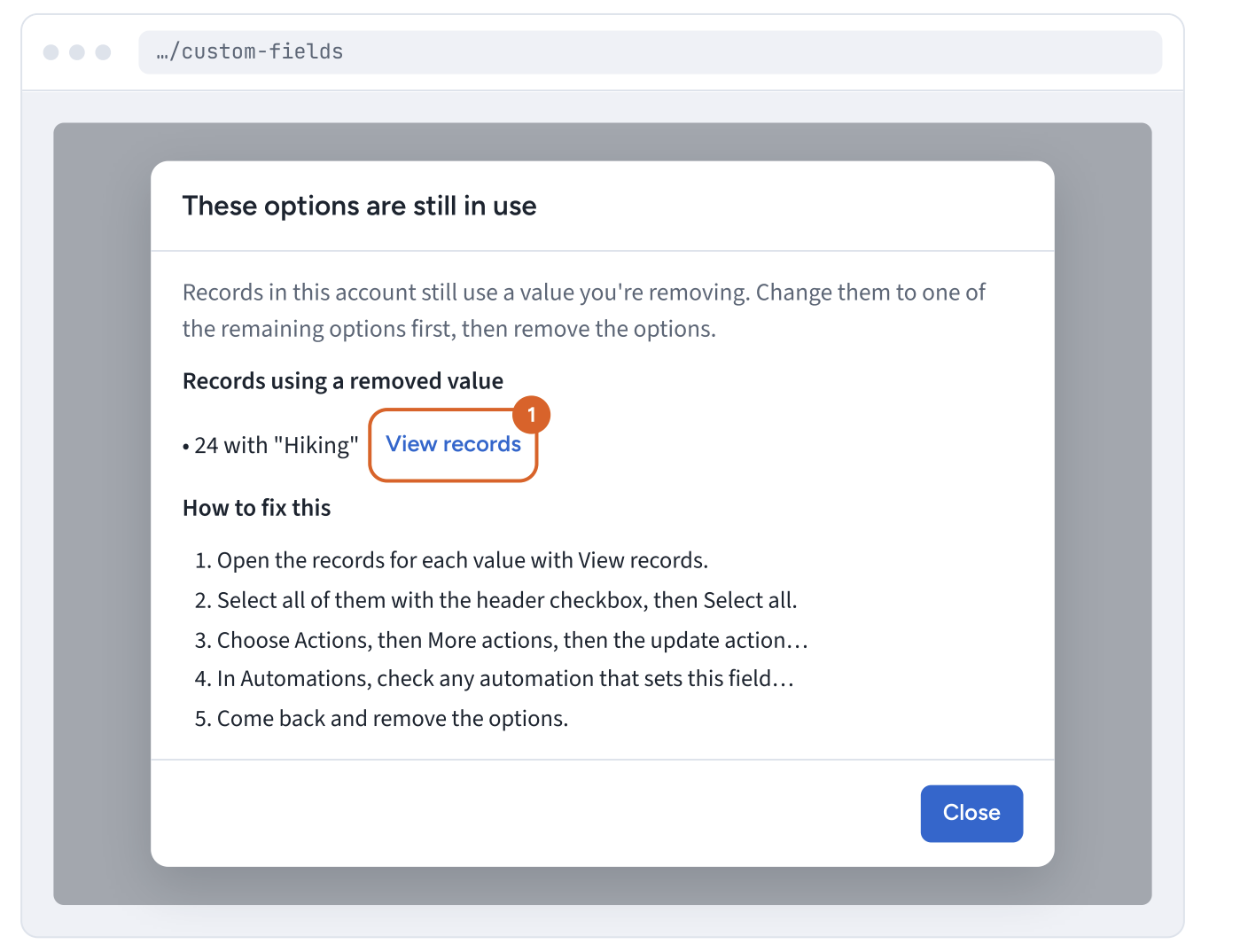
When you try to delete one of those choices, Business App first checks whether any of your records still have it. If some do, you see the message These options are still in use, and the change isn't saved yet. This keeps your records from ending up with a choice that no longer exists.
To finish removing the option, change those records first. This page shows you how, using "Hiking" as the option you want to remove.
Why is this check important?
- Keeps your records tidy: every record keeps a value that's still on the list.
- Prevents errors later: a record with a deleted choice could cause errors the next time it's edited or imported.
- Shows exactly what to fix: the message tells you how many records still use each choice and takes you straight to them.
What you need before you start
- Access to
Administration→CRM objects, where you manage your CRM fields. - A few minutes. Larger updates can take a little longer to finish in the background.
How to remove an option that's still in use
Step 1: Open the records that use the option
The message lists each choice that's still in use and how many records have it, for example 24 with "Hiking".
- Click
View recordsnext to the choice. - Your contact list opens, showing only the records that have that choice.
If you closed the message, go to CRM → Contacts and filter the list by the field and choice instead.
If several choices are listed, repeat steps 1 to 4 for each one.
Step 2: Select all of those records
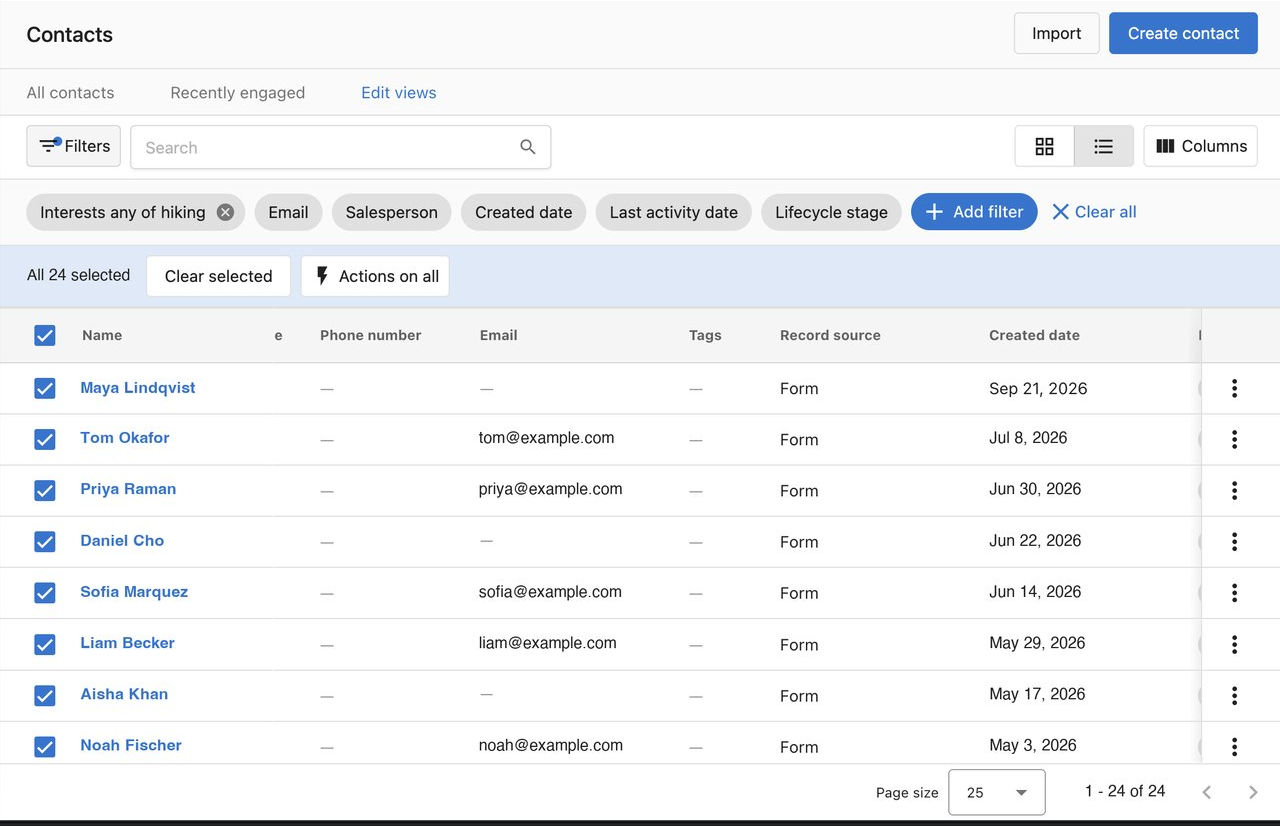
- Check that the filter above the list says
Interests any of hiking. - Select the checkbox at the top of the list to select every record.
- If a banner shows how many contacts on this page are selected, click
Select allso contacts on the next pages are included too. - Make sure the bar above the list says
All 24 selected, with the same number shown in the message.
Any record you don't select keeps the old choice, and the message appears again when you try to save.
Step 3: Open the update tool
- In the bar above the list, click
Actions on all. - Click
More actions. - In the
Choose an actionpanel, search for "update" and clickUpdate contact. For companies, chooseUpdate company.
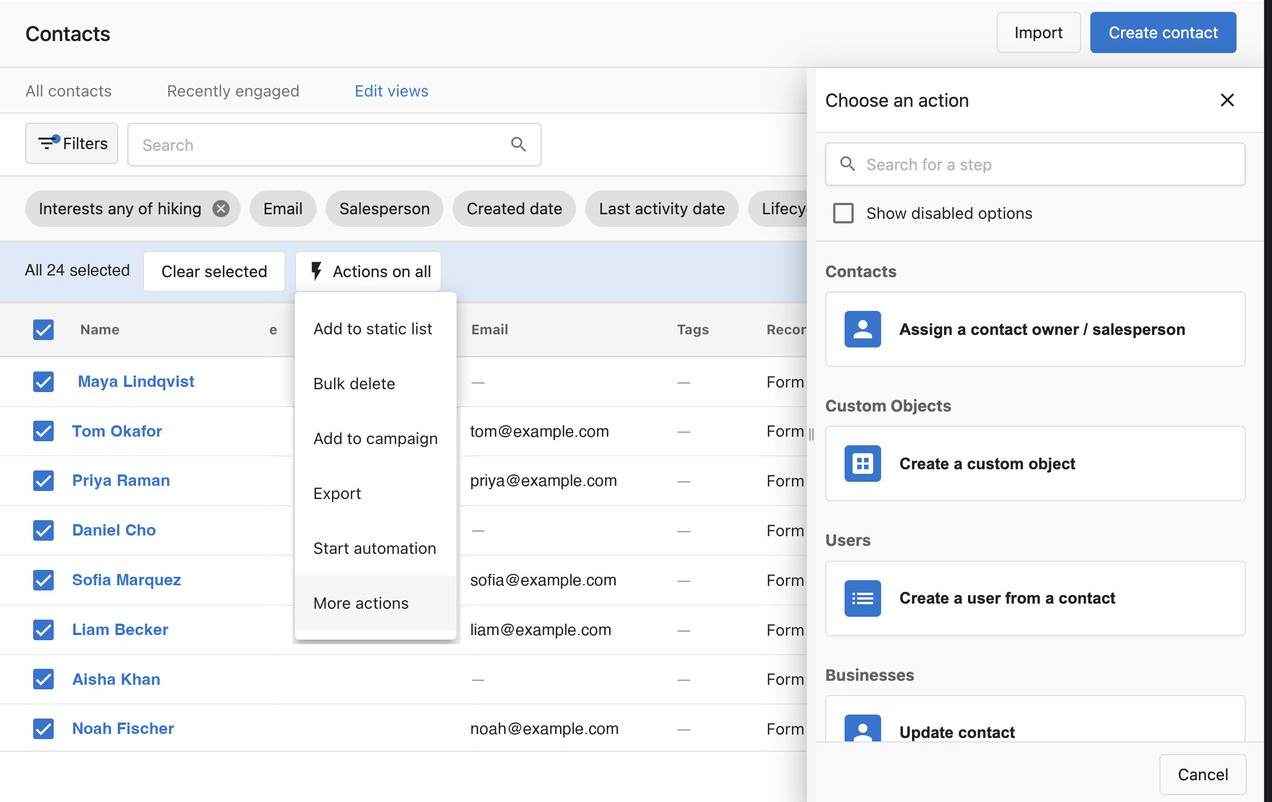
The Update contact panel opens.
Step 4: Choose how to change the records
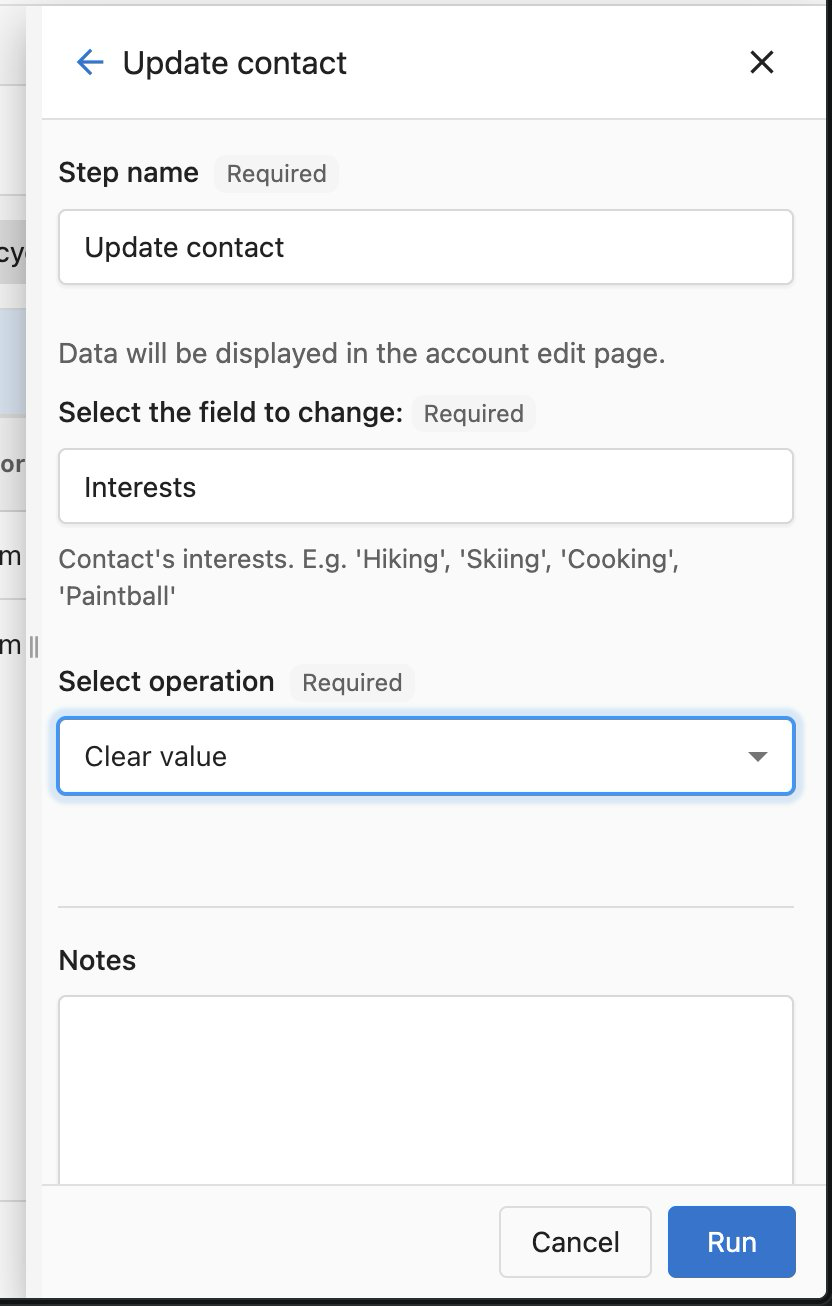
- In
Select the field to change, choose the field from the message, such asInterests. - Open
Select operationand pick the option that fits what you want to happen:
| Choose this | When you want to | A record with "Hiking, Scuba" becomes |
|---|---|---|
Remove from value | Take out only the choice you're deleting and keep everything else | Scuba |
Set value | Replace what's there with a different choice | Camping |
Clear value | Empty the field completely | Empty |
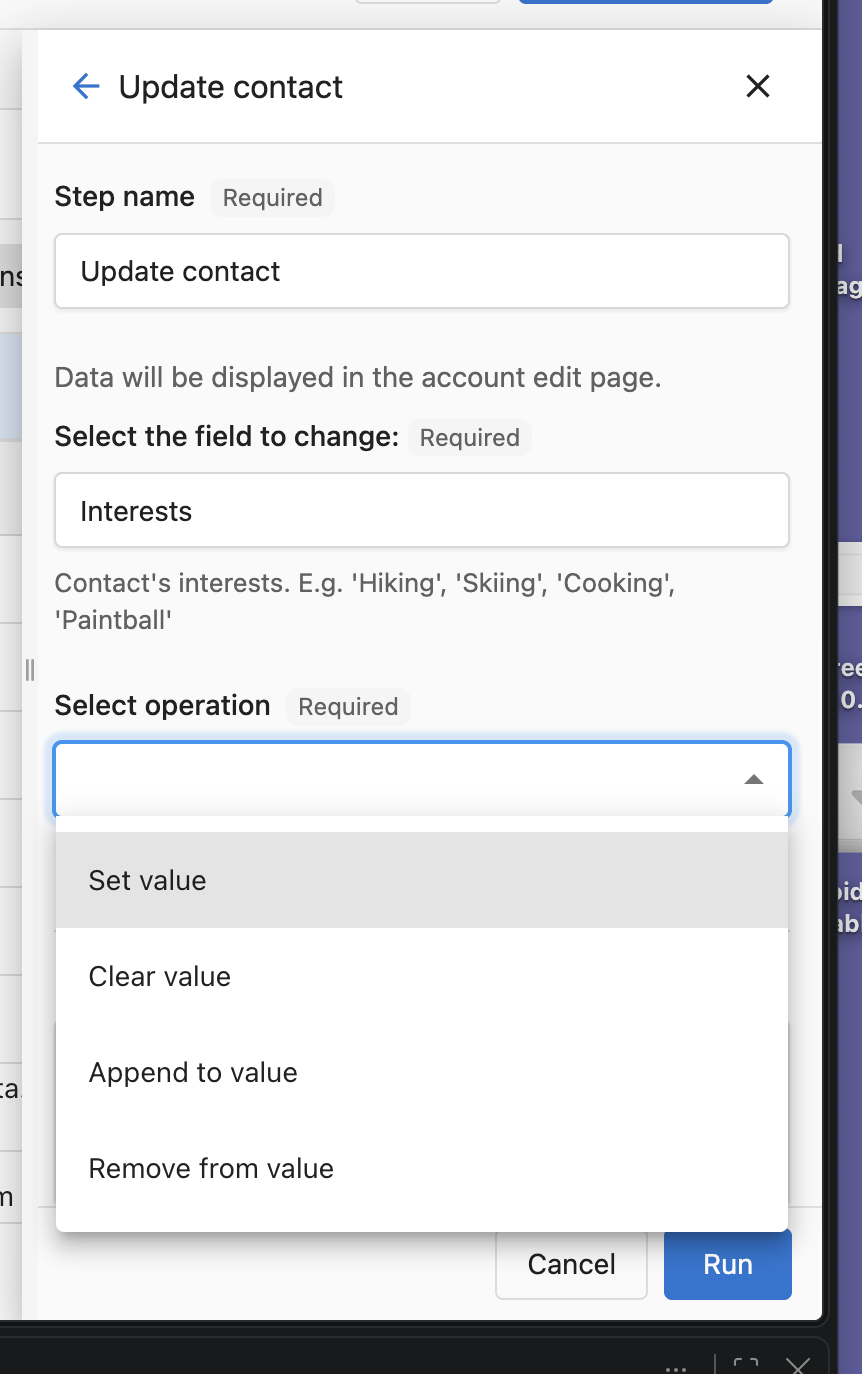
If you're not sure which to pick, choose Remove from value. It only takes out the choice you're deleting, so nothing else on your records changes.
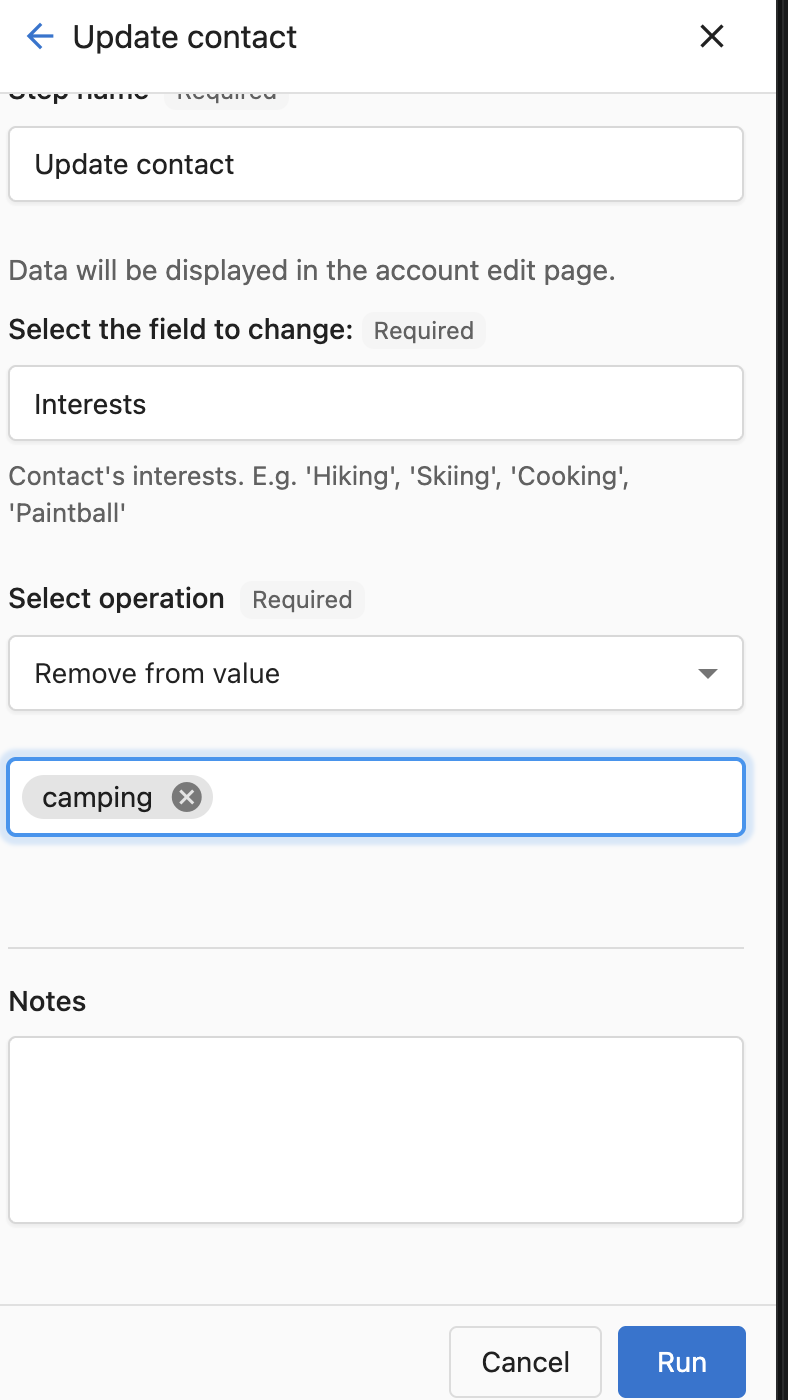
Take out only that choice
- In
Select operation, chooseRemove from value. - In the box below, type the choice you're deleting, such as "Hiking".
- Click
Run.
A record with "Hiking, Scuba" keeps "Scuba". A record that only had "Hiking" ends up empty. Uppercase and lowercase letters don't matter.
Replace it with a different choice
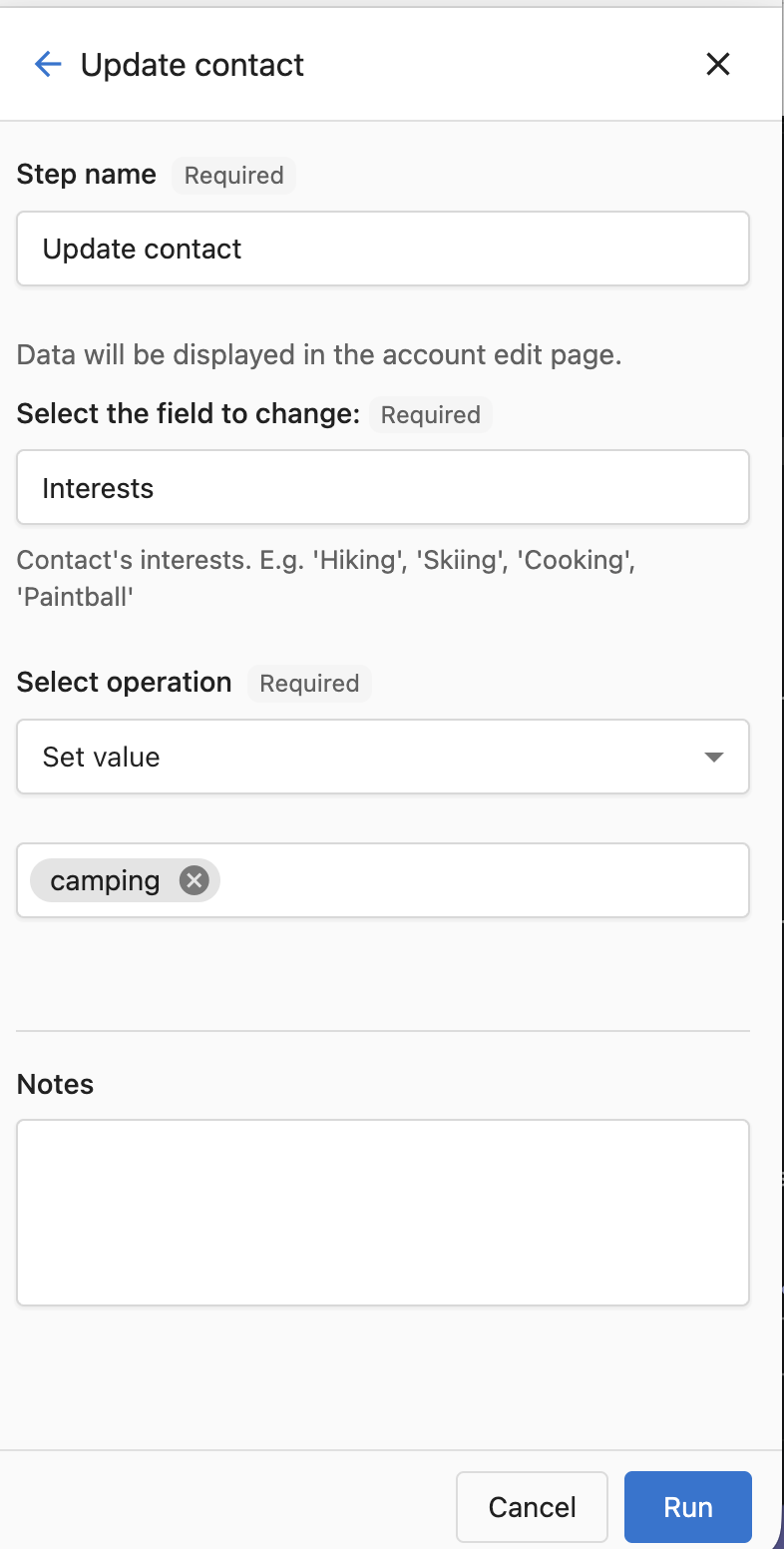
- In
Select operation, chooseSet value. - In the box below, pick a choice you're keeping, such as "Camping".
- Click
Run.
Set value replaces everything in the field. A record with "Hiking, Scuba" ends up with only "Camping". To keep "Scuba", add it in the box too.
Empty the field
- In
Select operation, chooseClear value. - Click
Run.
Clear value empties the whole field, not just "Hiking". A record with "Hiking, Scuba" loses both. To keep your other choices, use Remove from value instead.
Check that it worked
Refresh your filtered contact list. When the update finishes, the list is empty.
Larger updates can take a few minutes. If you still see records, wait a moment and refresh again.
Step 5: Check your automations
Automations can add a choice back to your records on their own. The message only counts records, so check your automations too.
- Go to
Automations. - Open each automation that's turned on and look for steps like
Update contactorUpdate company. - If a step sets this field to the choice you're deleting, change it to a choice you're keeping, or remove the step.
- Save the automation.
Step 6: Remove the option
- Go to
Administration→CRM objectsand open the field. - Under
Field options, click theXnext to the choice you're deleting. - Click
Save. You see a short loading spinner while Business App checks your records.
When no records have the choice anymore, the change saves and the panel closes. If the message appears again, some records were missed or an automation added the choice back. The message shows the new count, so repeat the steps for the records that are left.