CRM Fields
What are CRM fields?
CRM Fields allow you to add personalized data fields to your contact and company records in your app. These fields can store extra information that isn't included in the default setup, such as birthdays, service preferences, or internal tracking notes. You can create and organize fields based on your business needs and the types of information you collect.
This feature is useful for businesses that want to go beyond standard fields like phone number or address. It helps centralize key contact or company details directly in your app, so you don’t have to manage separate spreadsheets or systems.
Why are CRM fields important?
Default contact and company records often don’t include everything your business needs to track. For example, you may want to log whether someone has set an appointment, track dietary preferences, or store internal status flags. Without custom fields, this data may be lost or siloed outside your app.
Custom fields let you tailor your system so it works for your business, keeping all important contact information accessible and organized in one place.
What's included with CRM fields?
- Custom field creation for Contacts, Companies, and Opportunities
- Multiple field types:
Text,Date,True or false,Phone number,Text list, and more - Searchable and editable fields in the Contacts, Companies, and Opportunities sections
- Required or optional descriptions for internal clarity
- Full visibility and editing from the CRM objects manager
System fields cannot be edited or deleted. For certain standard fields—including Email, Phone number, First name, and Last name (Contacts only), as well as Record source, Record source drill down 1, and Record source drill down 2—the Customize Options control is disabled. These fields use values required by system features or integrations.
How to create a CRM field
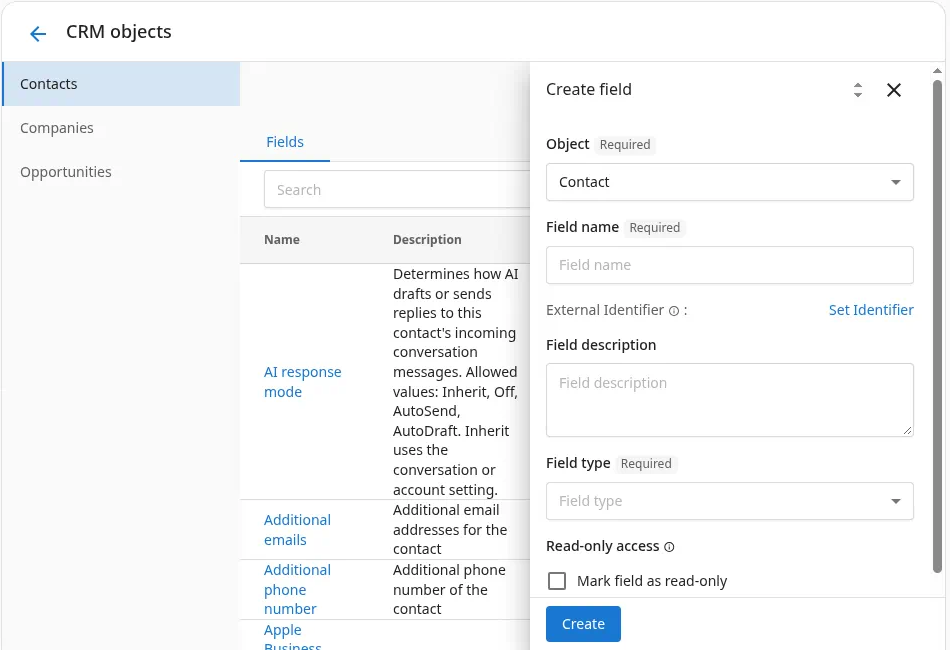
- In your app, go to
Administrationfrom the main menu. - Select
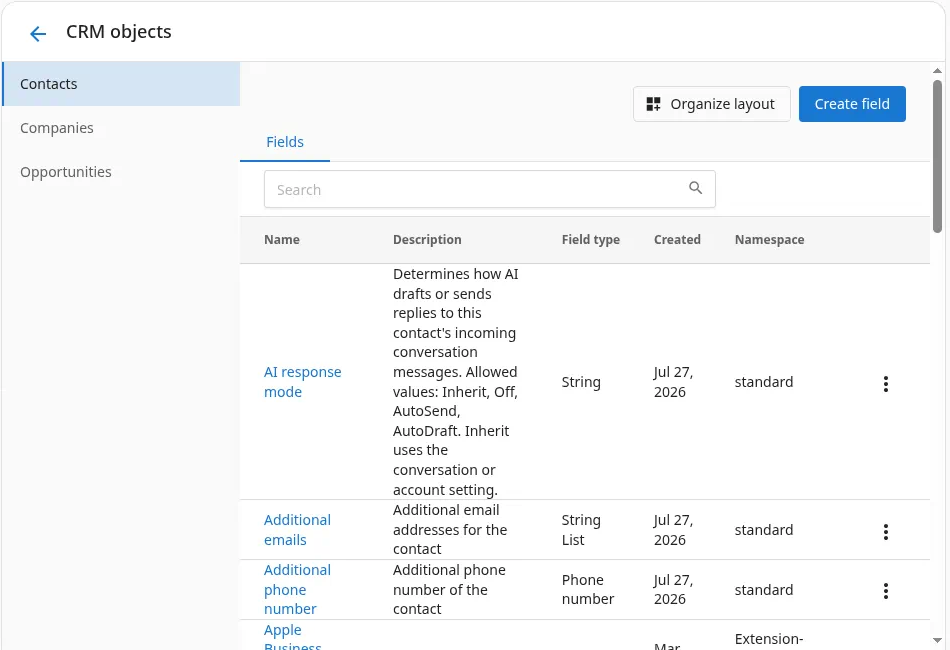
CRM objectsunder the administration settings. - This takes you to the CRM objects page, where you can manage fields for contacts, companies, and opportunities.
- Click
Create fieldto open the new field form. - Choose the
Object(Contact,Company, orOpportunity) the field applies to. - Enter a
Field name(e.g., "Birthday" or "Preferred contact method"). - (Optional) Add a
Field descriptionto provide internal clarity. - Select the
Field typefrom the available options. - Click
Createto save your custom field.
Field types and options
The field type has a significant effect on the type of data that can be stored in the custom field and how the data can be filtered and sorted.
When creating a custom field, you can choose from the following field types:
- Text – For general text entries (e.g., address)
- Number – Whole numbers only (e.g., number of employees)
- Decimal number – Supports decimal values (e.g., review score)
- Email – Validated email address input
- Phone number – Formatted phone number input
- Date – Calendar date only (e.g., birthday)
- Date and time – Combined date and time (e.g., next meeting)
- True or false – Boolean yes/no field
Use Text list when you want to associate multiple values with a single field (e.g., preferred services).
Managing and editing CRM fields
- All fields appear in the CRM objects manager under
Contacts,Companies, orOpportunities. - Click any field name to open and edit it.
- You can update the field name and description, but the object and field type are locked after creation.
- Fields that were added manually can be deleted when no longer needed.
System fields (created by default) cannot be modified or deleted. For the following standard fields, the Customize Options control is disabled because their values are required by system features or integrations:
- Email, Phone number, First name, Last name (Contact records only)
- Record source, Record source drill down 1, Record source drill down 2
Only custom fields allow full editing control.
Field change history
Every update made to a CRM field is automatically logged in Field Change History. Whether a field was updated by a form submission, the AI Sales Assistant, a teammate, or the system, you can see what the value changed to and who or what made the update.
Field Change History may only be available on certain subscriptions.
How to view field change history
- Go to
Business App→CRM. - Open any contact, company, or opportunity record.
- Click the
Historybutton in the top right corner of the record. - Review the list of field changes, including the new value and who or what made the update.
How you can use CRM fields
Some ways you can use custom fields in your app include:
- Segmenting email lists by number of visits, for example, sending a "new customer" campaign to contacts with fewer than 3 visits, and a loyalty offer to those with 3+ visits.
- Tracking birthdays for contacts so you can automatically send a birthday greeting or coupon.
- Logging service preferences, such as favorite haircut style or dietary restrictions for event bookings.
- Flagging high-value contacts with a VIP true/false field to prioritize outreach or provide special offers.
- Storing secondary contact information, like an emergency contact name or backup phone number, especially useful in childcare or health-related services.
Frequently asked questions (FAQs)
What is Field Change History?
Field Change History logs every update made to a CRM field. You can see the new value and who or what made the change: whether that's a form submission, the AI Sales Assistant, a teammate, or the system. This feature may only be available on certain subscriptions. To view it, open any contact, company, or opportunity record and click History in the top right corner.
Can I create fields for both contacts and companies?
Yes. Use the Object dropdown during setup to choose where the field should appear.
Are there any limits on the number of custom fields?
There is no strict limit, but adding too many fields may make records harder to manage.
Can I search or filter by custom fields?
Not all views support filtering by custom fields. Check your record view or export options.
What's the difference between Text and Text list?
Text stores a single line of text. Text list allows multiple values.
Can I edit system fields?
No. System fields are locked and cannot be edited or removed.
For certain standard fields—Email, Phone number, First name, Last name (Contacts only), Record source, Record source drill down 1, and Record source drill down 2—the Customize Options control is also disabled. When you open one of these fields, a message explains that its values are required by system features or integrations and cannot be changed.
What happens if I delete a custom field?
Deleting a field will also delete its data from all records.
Can I use these fields in automation or integrations?
Some integrations may support reading custom field data, but this depends on the system. Use common formats when possible.
Why can't I change the field type after creating it?
Field types affect how data is stored. To change a type, you may need to create a new field.
Is the field identifier editable?
No, it's auto-generated and used for internal system referencing.