How to Find PHP Logs
If you're troubleshooting an issue or debugging your website, accessing PHP logs is crucial. WordPress Hosting makes it easy to view these logs through the Advanced Tools section. Follow the steps below to locate your PHP logs:
Steps to access PHP logs
-
Log in to WordPress Hosting Start by logging into your WordPress Hosting dashboard.
-
Select your website From the list of websites, click on the one for which you want to access PHP logs.
-
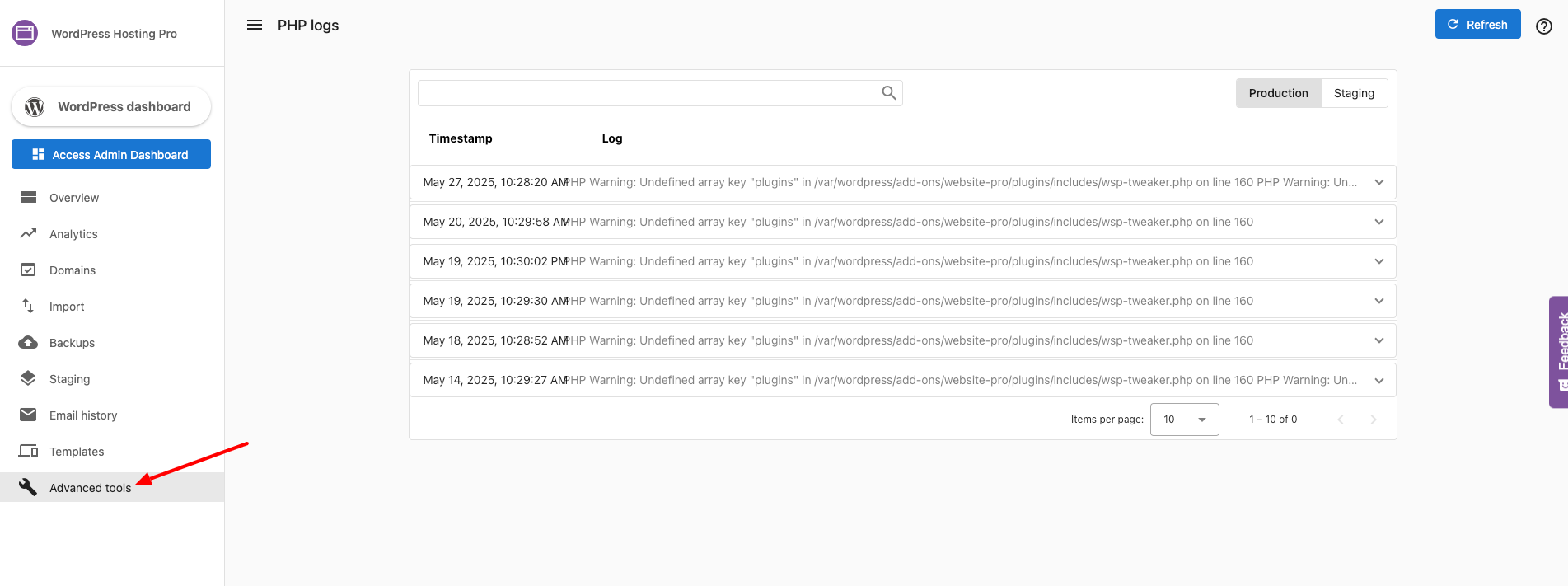
Navigate to Advanced Tools In the website's dashboard, locate and click on the
Advanced Toolssection. -
Open PHP Logs Under
Advanced Tools, find and click thePHP Logsoption. This displays the latest PHP error logs for your site. -
Analyze the logs Review the logs to identify errors or warnings related to your PHP scripts, such as syntax errors, deprecated functions, or unhandled exceptions.
Use the logs to pinpoint the root cause of issues like white screens, 500 errors, or slow loading times.
By following these steps, you can efficiently access and review PHP logs to maintain and troubleshoot your website.
Related articles
For detailed information on how to use PHP logs for debugging WordPress issues, see WordPress Debugging Basics.