Custom Template Workflow
You can create and manage custom templates through the Templates tab in WordPress Hosting Standard/Pro/Premium.
Custom templates allow you to save themes, plugins, and site content for use when creating a new site. If you have admin access, you can use this tab, and the templates you create will be visible when creating new sites. Create and edit up to 12 of your own templates.
Creating and managing your templates is straightforward.
When creating websites, you often need to install the same set of plugins, themes, and sometimes even content repeatedly. With templates, you can save time by setting up templates as starting points for each website you create, skipping repetitive manual work and focusing on creating quality website content.
How do custom templates work?
Duplicate Template
This feature lets you duplicate your existing templates, or create new ones using any of the pre-built templates as a starting point.
You can only duplicate a template that has been published. To publish a template, click Edit Template → Template Management → Publish as Template.
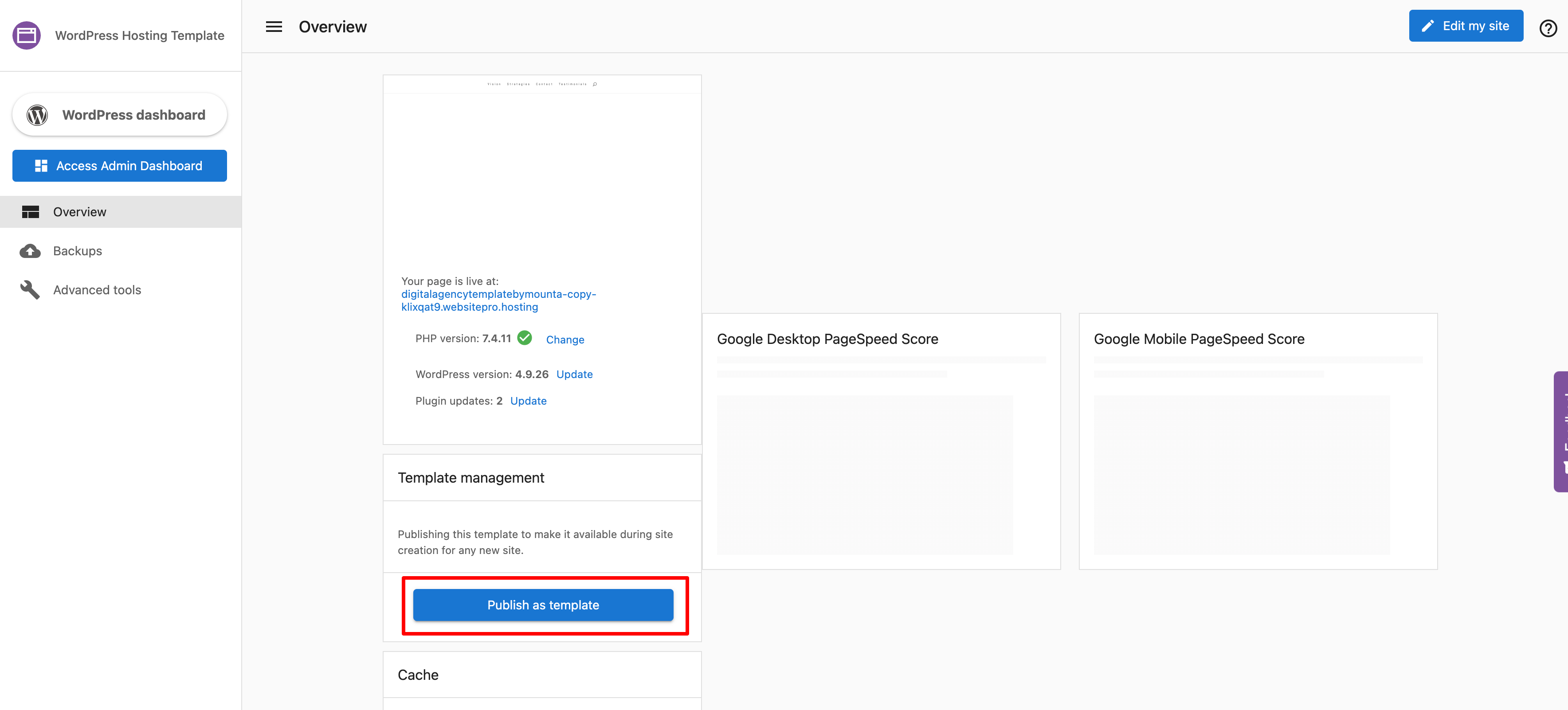
- Go to
WordPress Hosting→Templatesand hover over a template. You will now see aDuplicateoption.
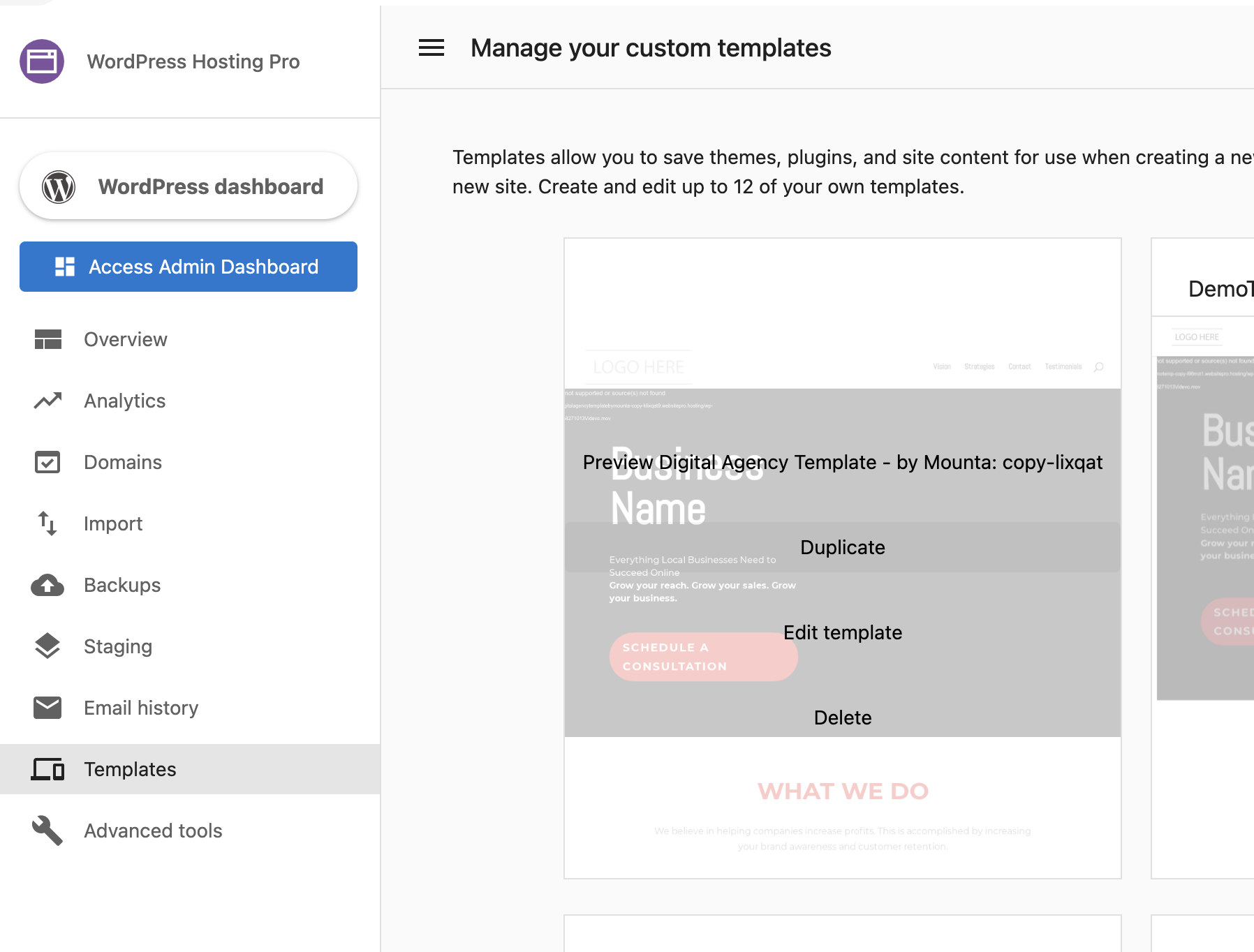
- Clicking
Duplicatewill prompt you to define a new template name. Simply type in your new template name and clickCreate Template. - To edit the template, click
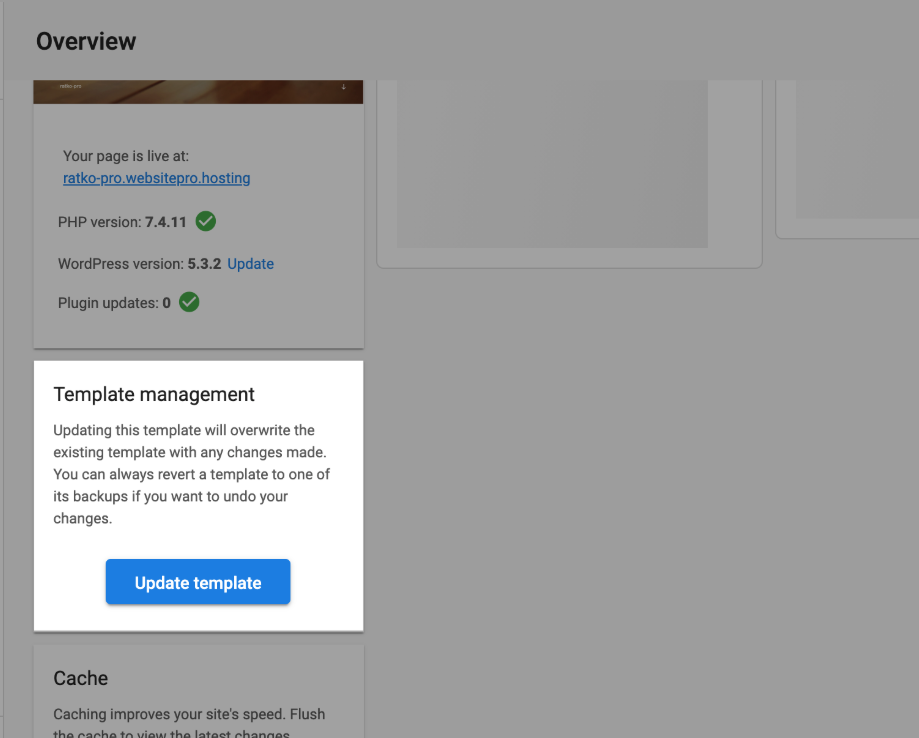
Edit Template. You will be taken to the WordPress Dashboard where you can edit your site. - To save the changes made to your new custom template, click
Update TemplateunderTemplate Management.
Frequently asked questions (FAQs)
Can I import my own custom templates to WordPress Hosting Standard or WordPress Hosting Pro?
Yes. You can create custom templates by importing an existing WordPress site and saving it as a new template in WordPress Hosting Pro or Standard.
Steps to create and import a custom template:
-
Export your existing WordPress site:
- In the WordPress dashboard of the site you want to use as a template, install the All-in-One WP Migration plugin.
- Go to
All-in-One WP Migration→Exportand download your site file.
-
Create a new template in WordPress Hosting Pro/Standard:
- Navigate to
WordPress Hosting→Templatesin the dashboard. - Create or duplicate a template.
- Enter the WordPress dashboard for that template and install the All-in-One WP Migration plugin again.
- Navigate to
-
Import the site into the template:
- Go to
All-in-One WP Migration→Importand upload the exported file from Step 1. - Once imported, return to the
Template Overviewpage and clickPublish as TemplateorUpdate Template.
- Go to
Best practices for template performance:
- Keep your templates simple.
- Avoid bundling more than 30 plugins.
- Minimize large media uploads inside the template.
- Treat templates as a starting point; additional customizations can be made on a per-site basis after launch.