How to authenticate a Google Business Profile listing
There are three places where you can connect a Google Business Profile account in the platform. Once you've connected a Google Business Profile account in one of these three areas, it will be connected in all of them.
To authenticate a Google Business Profile account in Reputation AI
- Go to the
Listingstab of Reputation AI. - Click the Google listing. In the dropdown, click
View Possible Matches. - Click
Connect Google Business Profile.
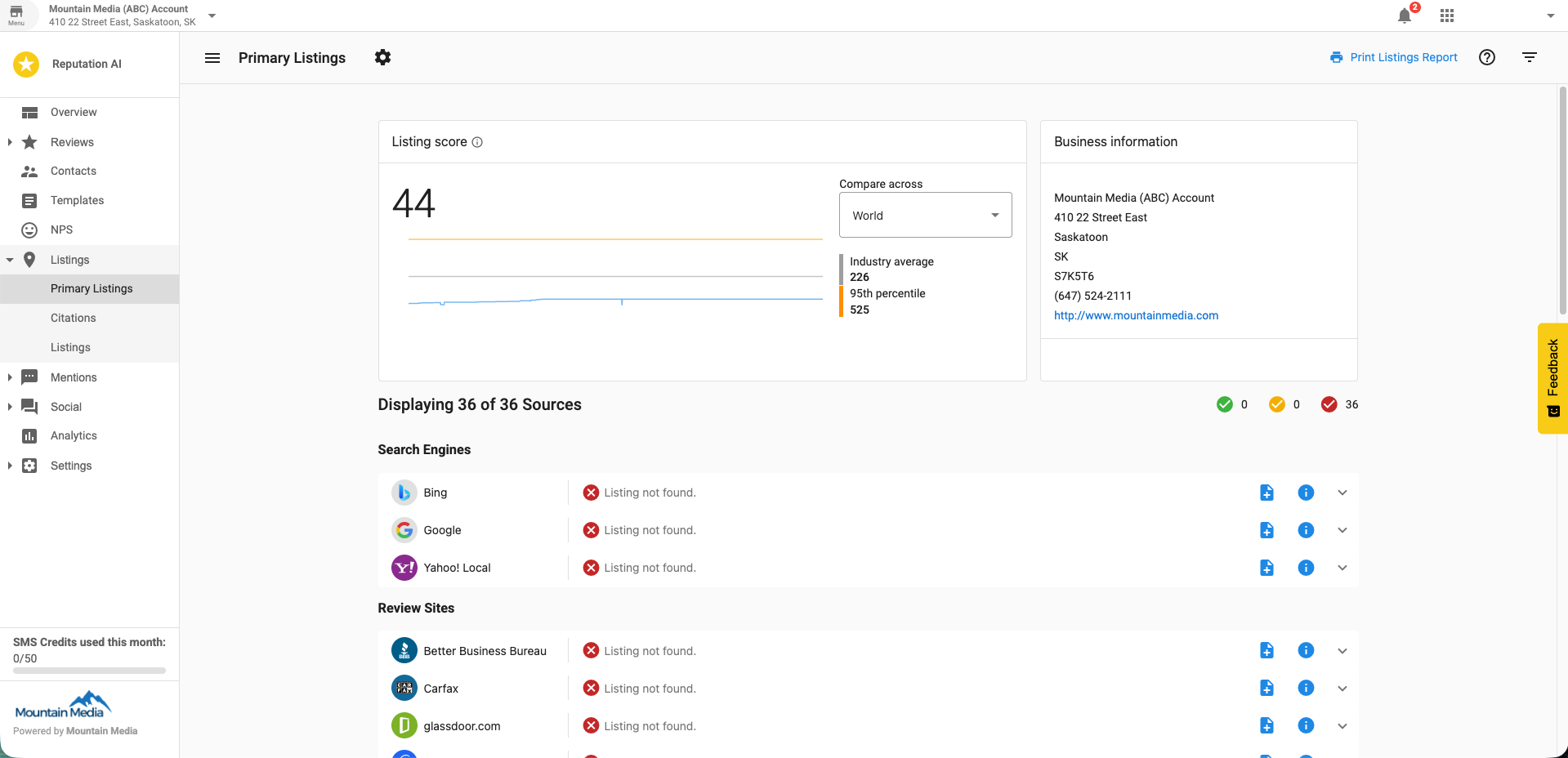
- Log into your Google account and select a location (this location must be verified on Google).
To authenticate a Google Business Profile account in Reputation AI Settings
Connect a Google Business Profile account in Reputation AI → Settings → Connect Accounts
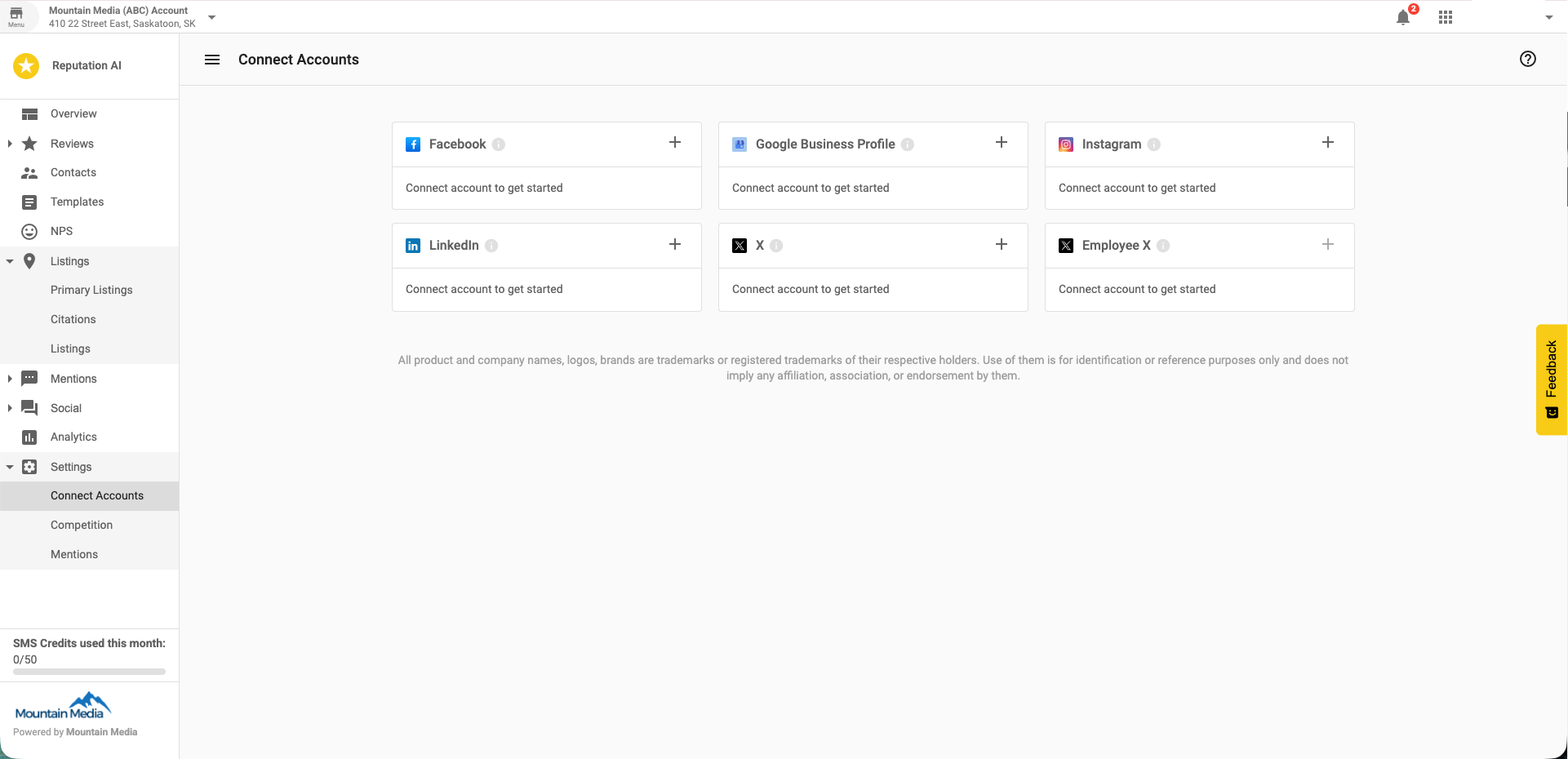
To authenticate a Google Business Profile account in Local SEO → Listing Sync
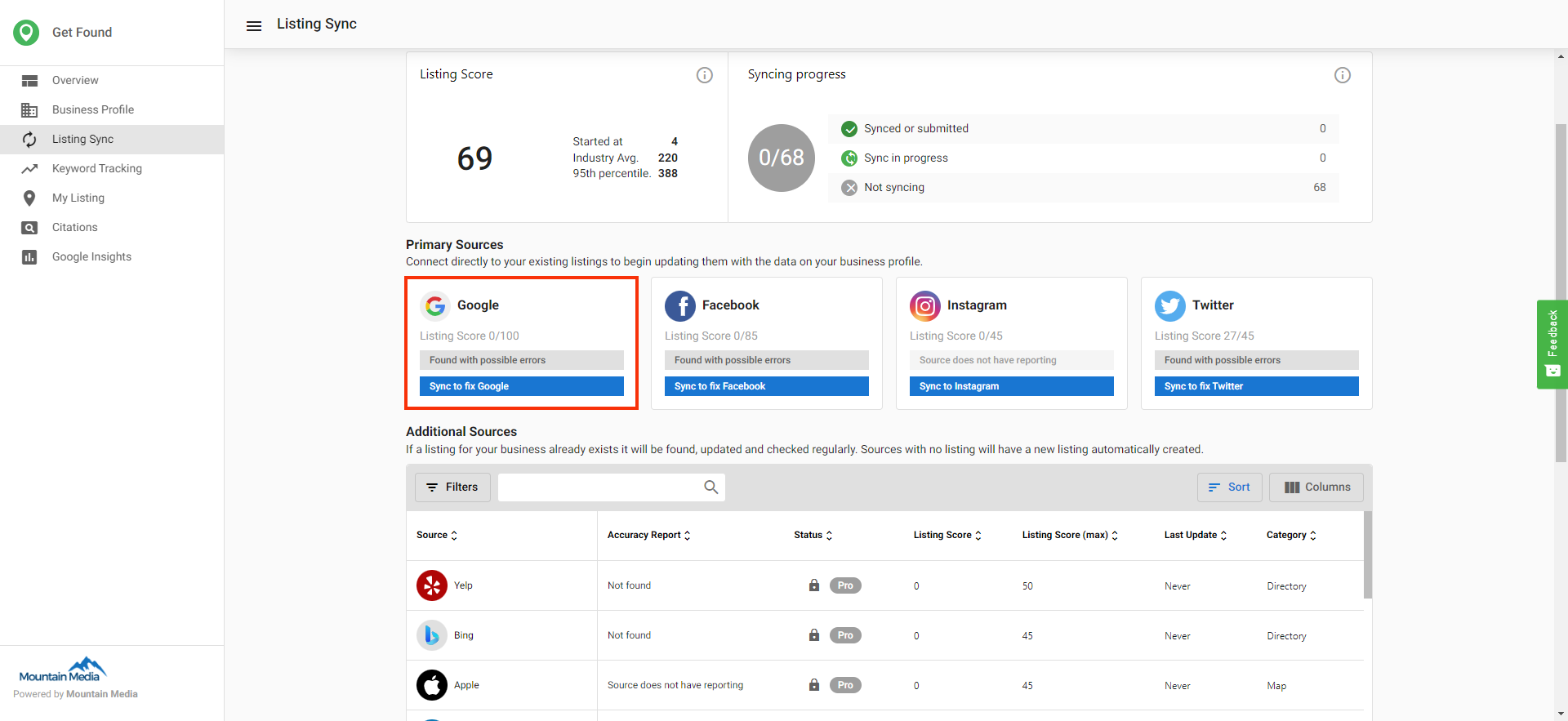
- Go to the
Listing Synctab inLocal SEO. - Click
Sync to fix Googleon theGooglelisting source. - Authenticate a Google account.
- Select a Google business listing. The Google account must already have access to this listing.
- Click
Turn on Syncingto sync to the Google Business Profile within seconds. - You must verify the listing in the Google Business Profile dashboard for changes to display on Maps, Search, and other Google services. Follow these instructions.
- Changes to location info in Business App automatically syndicate to Google Business Profile.