Using Images in Social AI
Creating visually engaging posts is key to improving social media performance. This guide explains how to use royalty-free images, AI-generated graphics, carousels, Instagram Stories, and more — all within Social AI.
Options for Adding Images
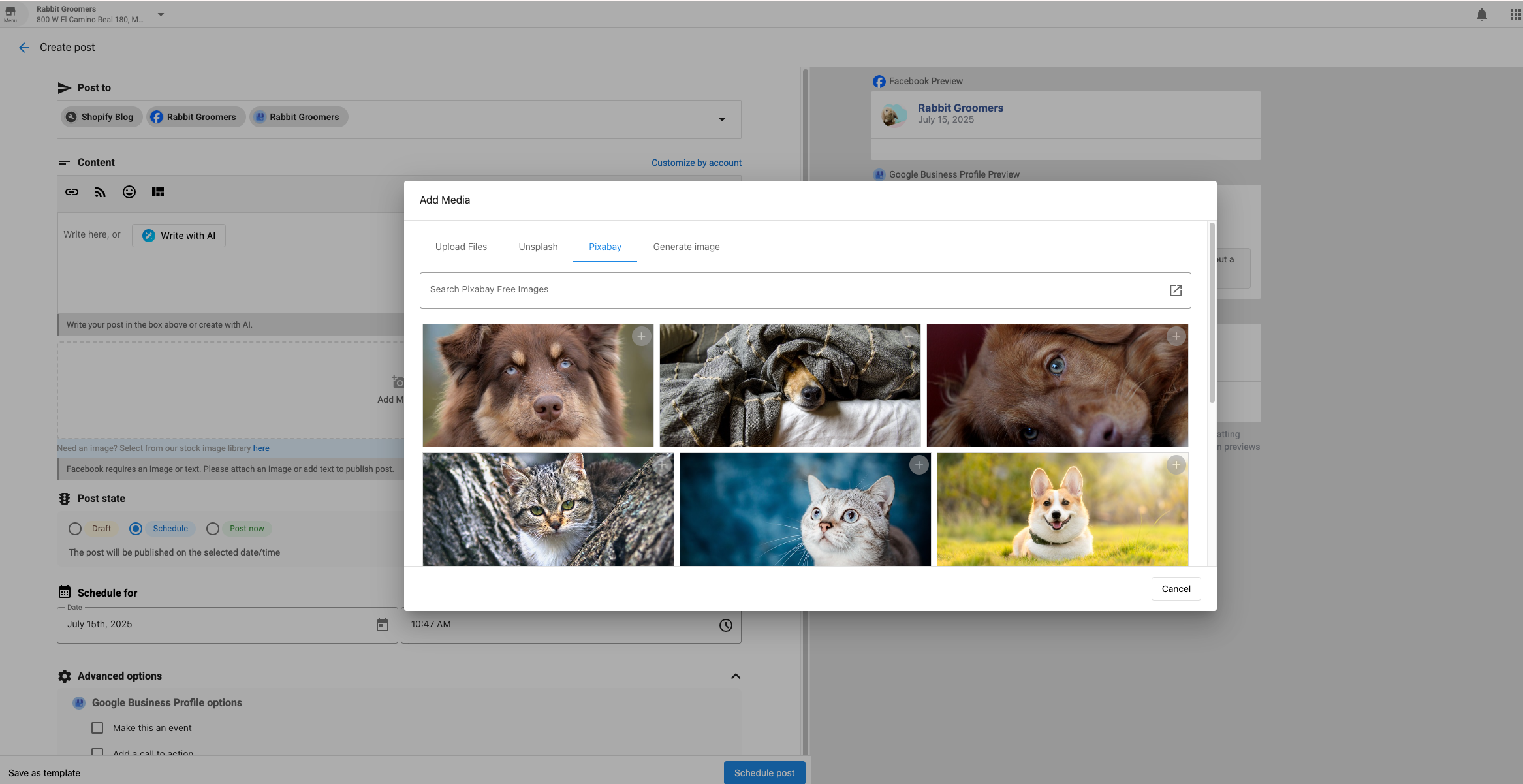
1. Royalty-Free Images via Pixabay
Easily search and add royalty-free images directly in the composer.
Steps:
- Navigate to Social AI > Create
- Scroll to the Media section and click Add Media
- Select Pixabay
- Search using keywords
- Choose and insert an image into your post
2. AI-Generated Images
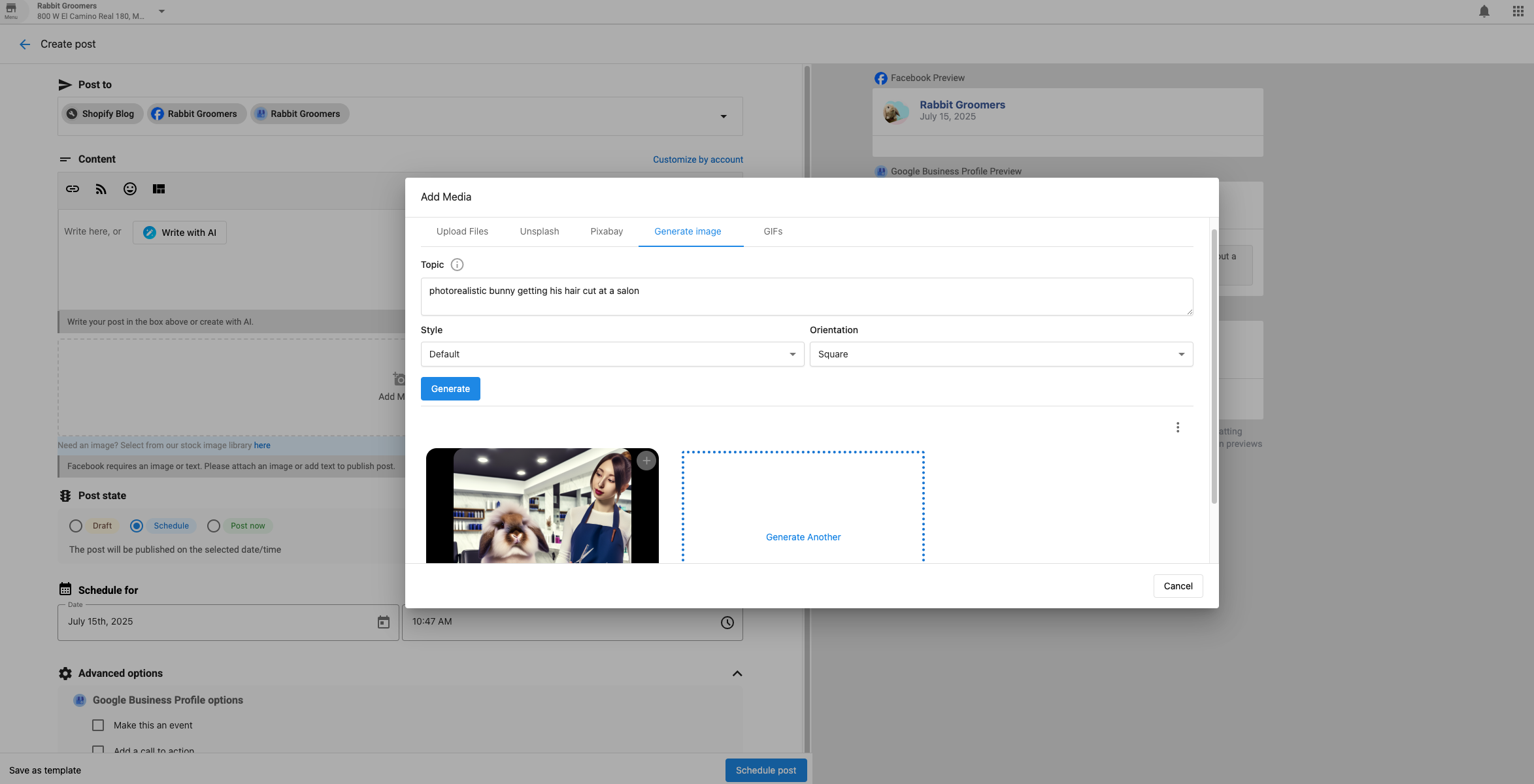
Generate professional images using AI.
Image generation limits:
- You can generate up to 50 images per day.
- Per-minute generation is managed dynamically based on API capacity.
- These limits apply in Social AI on both web and mobile.
How to Generate:
- Click the AI icon in the post composer
- Select Image Generation
- Enter a detailed description
- Choose your preferred style
- Review and insert the result
Features:
- Custom prompts and style options
- Brand-consistent output
- Multiple variations
- Fast and professional results
Best Practices:
- Be specific with descriptions
- Align output with brand aesthetics
- Experiment with multiple prompts
3. Upload Your Own Media
Drag and drop files or select from your device to upload images or videos.
Supported Image Formats: PNG, JPEG, GIF
4. Instagram Carousel Posts
Create multi-image or multi-video posts for Instagram.
Steps:
- Go to Posts > Create > Post
- Choose Instagram as a platform
- Upload up to 10 images/videos
- Rearrange items with drag & drop
- Add a caption and schedule or publish
Best Practices:
- Use a strong first image
- Maintain consistent style
- Tell a visual story
5. Instagram Stories
Create short-lived vertical content for Instagram.
Steps:
- Click Create > Story
- Select Instagram accounts
- Upload a vertical 9:16 image or video
- Choose Publish Now, Schedule, or Save as Draft
Requirements:
- Images: JPG, PNG (max 4MB)
- Videos: MP4, MOV (max 30MB, 15 sec max)
Tips:
- Keep content engaging and vertical
- Include a CTA
- Showcase behind-the-scenes or authentic moments
Cropping & Optimization
When uploading, ensure your media meets aspect ratio requirements. If not, you’ll be prompted to crop using:
- Freeform
- Square (1:1)
- Vertical (4:5)
- Horizontal (1.91:1)
This ensures your images appear correctly across platforms.
FAQs
Can I add GIFs to social media posts?
Yes! You can upload .gif files directly or embed from Giphy using HTML iframe code.
-
On giphy.com, click on the selected GIF.
-
Once you click on the selected GIF, you will be directed to the GIF detail page.
-
Click "< > Embed" located on the right-hand side of the GIF.
-
From there, you will be presented with two embed options via the GIPHY Embed Player:
-
Select the "Responsive Off" switch for the iframe embed version. Select the "Responsive On" switch for the HTML5 embed version
-
Paste the code into your post and publish!
To post the Giphy:
At the beginning, <html> <body>. Include the "embed code" of the giphy you want to add to the post. Add /html> and /body> at the end.
Here's an example:
<html>
<body>

<div style="width:100%;height:0;padding-bottom:100%;position:relative;"><iframe src="https://giphy.com/embed/p2J2OMrBI6ErC" width="100%" height="100%" style="position:absolute" frameBorder="0" class="giphy-embed" allowFullScreen></iframe></div><p><a href="https://giphy.com/gifs/zootopia-p2J2OMrBI6ErC">via GIPHY</a></p>

</html>
</body>
Can I post multiple images to Instagram?
Yes. Use the carousel feature to upload up to 10 images or videos in a single Instagram post.
Why does Facebook reduce image quality?
Facebook compresses all uploaded images. To preserve image quality:
- Save your image as a JPEG using the sRGB color profile
- Keep the image width 2048px or less
Can I post photos to multiple platforms at once?
Yes. You can select multiple platforms in the composer to post simultaneously. Supported platforms include:
- X
- Google Business Profile
What image formats are supported?
- PNG
- JPEG
- GIF
What's the best image ratio for all platforms?
Square (1:1) images offer the most compatibility and consistency across all social networks.
Should I review AI-generated images?
Yes. Always review and adjust AI-generated images to:
- Match your brand voice and visual identity
- Ensure the image aligns with your message
- Maintain professional quality
Which AI model generates images?
Social AI uses GPT Image 1 to generate images.