Share a direct report's campaign as a Team Leader
What is Team Leader campaign sharing?
If you are a Team Leader, you can share a campaign owned by one of your direct reports with the teams you lead. You don't need to recreate the campaign, ask the direct report to share it, or make the direct report a Team Leader.
The campaign is shared, not copied. Your direct report stays the owner, and the original campaign and its history are left untouched.
Why is Team Leader campaign sharing important?
- Spread what works: put a direct report's proven campaign in front of your whole team as soon as you spot it.
- Keep permissions tight: share one campaign without giving a direct report Team Leader access.
- Protect the original: the campaign stays intact and owned by the person who built it.
- Stay in control: you can only share to the teams you lead.
What's included with Team Leader campaign sharing?
- Two ways to share: from the
Share Member Campaignsbutton on the Campaigns dashboard, or from theCampaigns by Campaignreport. - Author line: the
Share Campaignwindow names the campaign's owner and confirms that they keep ownership. - Team picker limited to your teams: the
Add Teamslist shows only the teams you lead. - Sharing status: the
Team Member Campaignspage shows whether each campaign is shared.
This feature relies on the Teams feature, which is available on the Premium and Enterprise plans. Only Team Leaders see the option, and only for campaigns owned by their direct reports.
Share a direct report's campaign from the Campaigns dashboard
- Go to the Yesware AppSite and select
Campaignsin the left navigation panel. - Click
Share Member Campaigns.
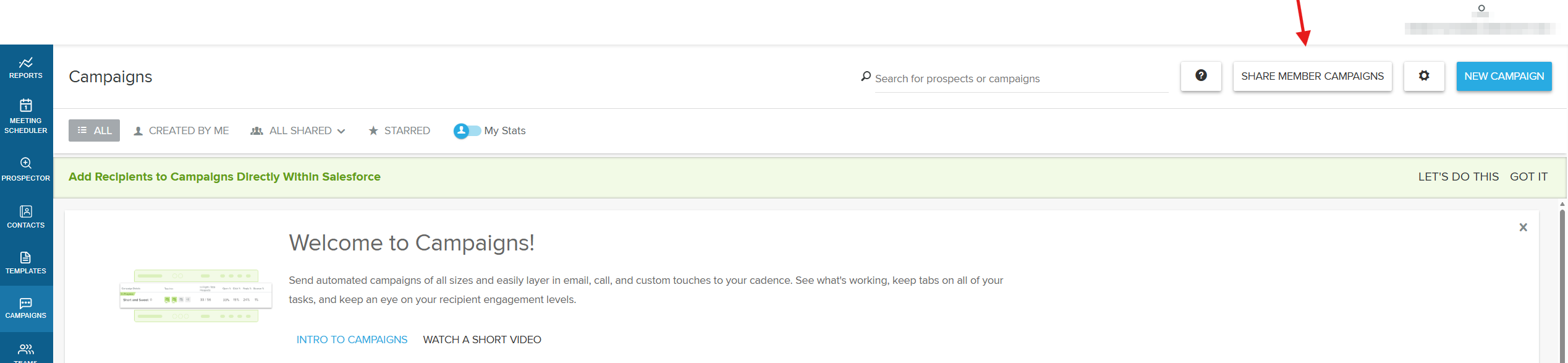
- On the
Team Member Campaignspage, expand a team and then a direct report to see their campaigns. You can also search by teammate or campaign name. - Click
Sharenext to the campaign. You can also select the campaign to review it in read-only view, then clickSharein the top right.
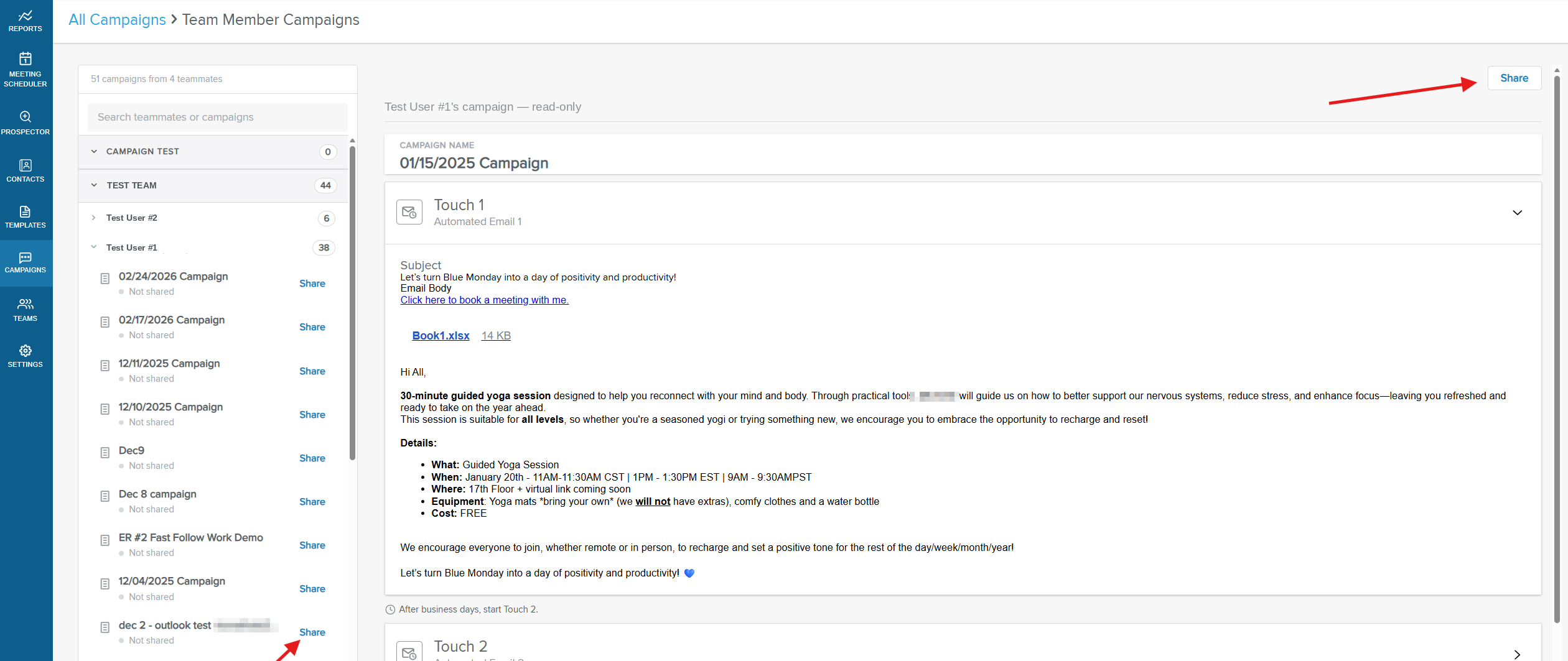
- In the
Share Campaignwindow, clickAdd Teamsand select a team you lead.
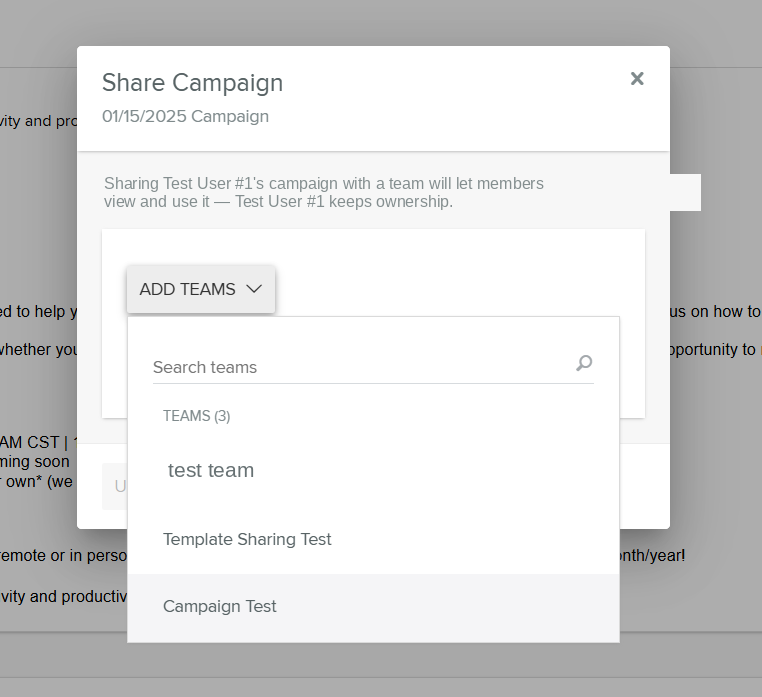
- Check that the team appears under
To be added, then clickUpdate.
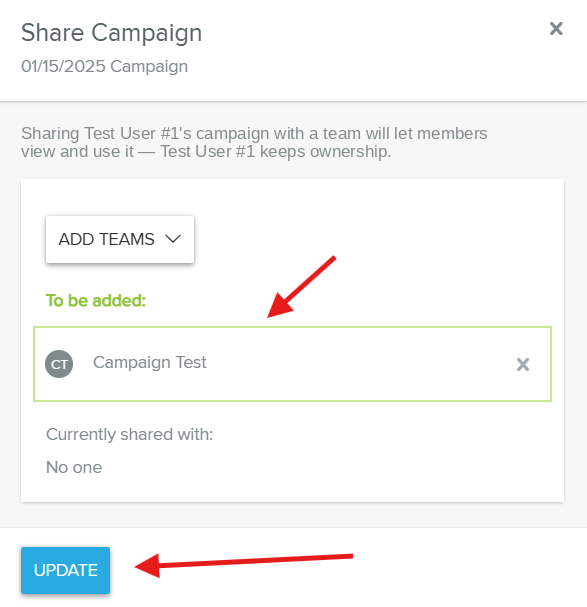
The campaign is available to the selected team, and your direct report remains the owner.
Share a direct report's campaign from the Campaigns by Campaign report
- Go to the Yesware AppSite and select
Reportsin the left navigation panel. - Under
Campaigns, clickCampaigns by Campaign. - Select the campaign owned by your direct report from the campaign list.
- Click
Share With Your Team.
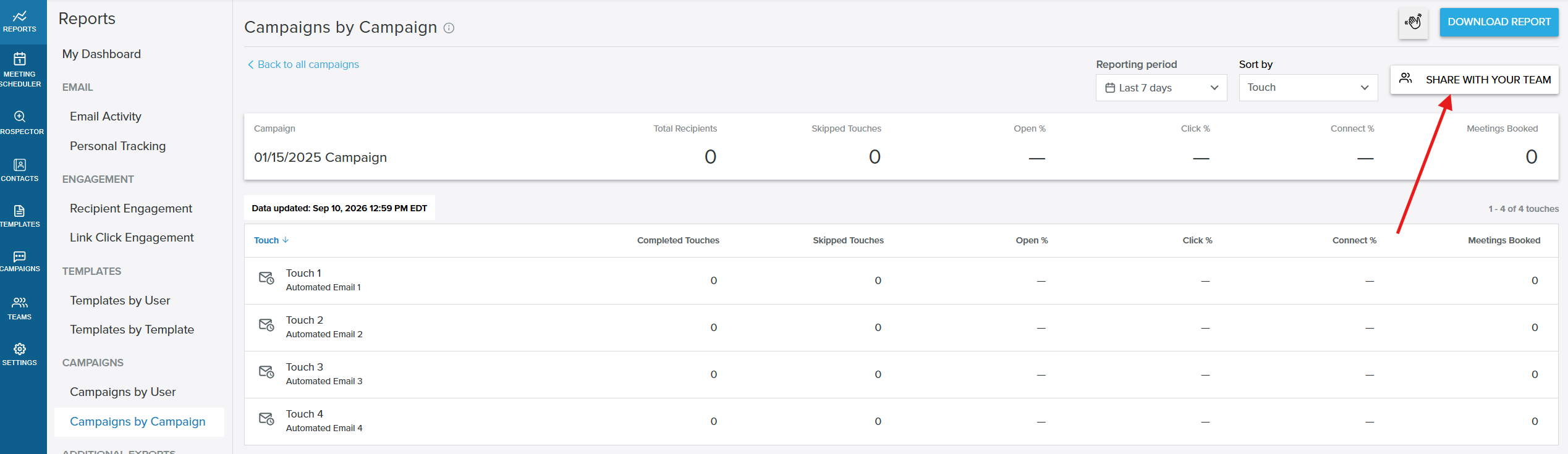
- In the
Share Campaignwindow, clickAdd Teams, select a team you lead, and clickUpdate.
How team members use the shared campaign
Once shared, the campaign appears in the Campaigns dashboard for members of the selected team, the same way as any other shared campaign. Each team member adds and manages their own recipients. See Sharing Campaigns for how shared campaigns work and how to track team-wide performance.
Frequently asked questions
Who can share a direct report's campaign?
Only Team Leaders, and only for campaigns owned by direct reports on the teams they lead. This feature relies on the Teams feature, which is available on the Premium and Enterprise plans.
Does sharing the campaign change who owns it?
No. The campaign is shared, not copied, so your direct report remains the owner and the campaign and its history are left untouched.
Which teams can I share a campaign with?
Only the teams you lead. The Add Teams list in the Share Campaign window shows only those teams.
Can I share a campaign owned by someone I don't manage?
No. You can only share campaigns owned by direct reports on the teams you lead.
Does my direct report need to be a Team Leader?
No. You can share your direct report's campaign without making them a Team Leader.
Is the campaign owner notified when I share their campaign?
No. The campaign owner doesn't receive a notification.
Who can unshare a campaign that a Team Leader shared?
Only the Team Leader who shared it can remove that share.