Bulk add and remove users
What is bulk add and remove?
Bulk add and remove lets Account Managers add or remove many users on a Yesware account in one step by uploading a CSV file. Each row in the file is one user's email address followed by the teams that user should belong to, so a single upload can place different people on different teams.
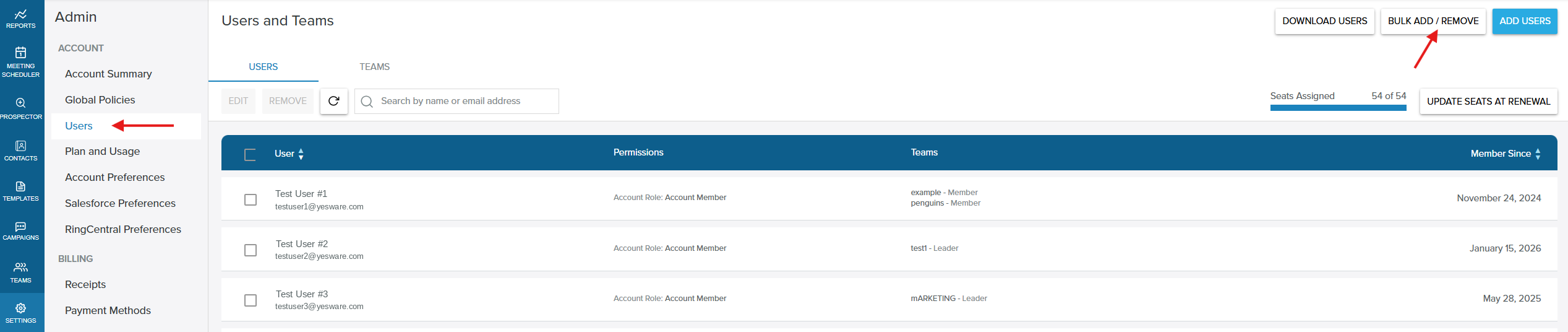
You'll find it on the Users and Teams page in Settings → Users. The Bulk Add / Remove button opens an upload window where you choose whether you're adding or removing users, upload or enter your list, and preview every change before anything is saved.
The Bulk Add / Remove button is only visible to Account Managers, and only on paid-plan accounts with a verified company email domain. Accounts on the Free plan and accounts that use free email providers (such as @gmail.com) don't see this option.
Why is bulk add and remove important?
- Make large user changes yourself: add or remove high volumes of users without waiting on Support
- Assign different teams in one upload: give each user their own team set instead of repeating the add users wizard once per team
- Catch problems before they're saved: the preview flags issues such as seat limits so you can fix them first
- Retry with confidence: clear per-row results and safe re-uploads make it easy to correct and resubmit
What's included with bulk add and remove?
- Add or remove operations: choose
Add usersto add members and assign teams, orRemove usersto take members off the account, then confirm withConfirm AddsorConfirm Removes - Simple CSV format: one user per row, with the email first and each team name as its own comma-separated value
- Built-in format guide: a
See CSV formatlink in the upload window shows an example file and all the rules - Manual entry: use
Add Rowto enter users directly in the table instead of uploading a file - Preview and re-check: every row is checked and given a status before you confirm
- Automatic provisioning: email addresses not yet on the account are invited and use a seat
- Per-row results: a results table shows each user's team changes and status, plus a summary and seat count
- Error export:
Download failed rows as CSVexports any failed rows so you can correct them and upload again
How to bulk add or remove users
Step 1: Go to Settings → Users to open the Users and Teams page.
Step 2: Click Bulk Add / Remove in the top right of the page.
Step 3: Under 1. Choose Operation, select Add users or Remove users.
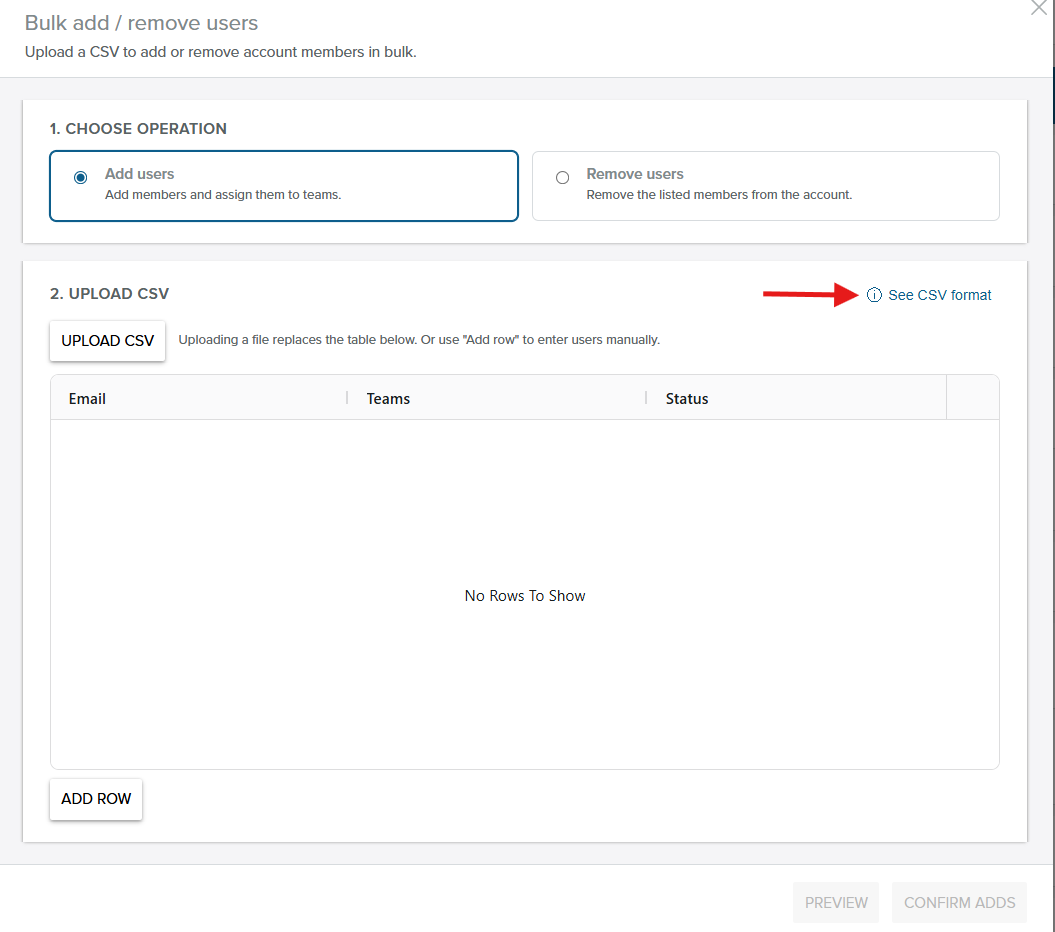
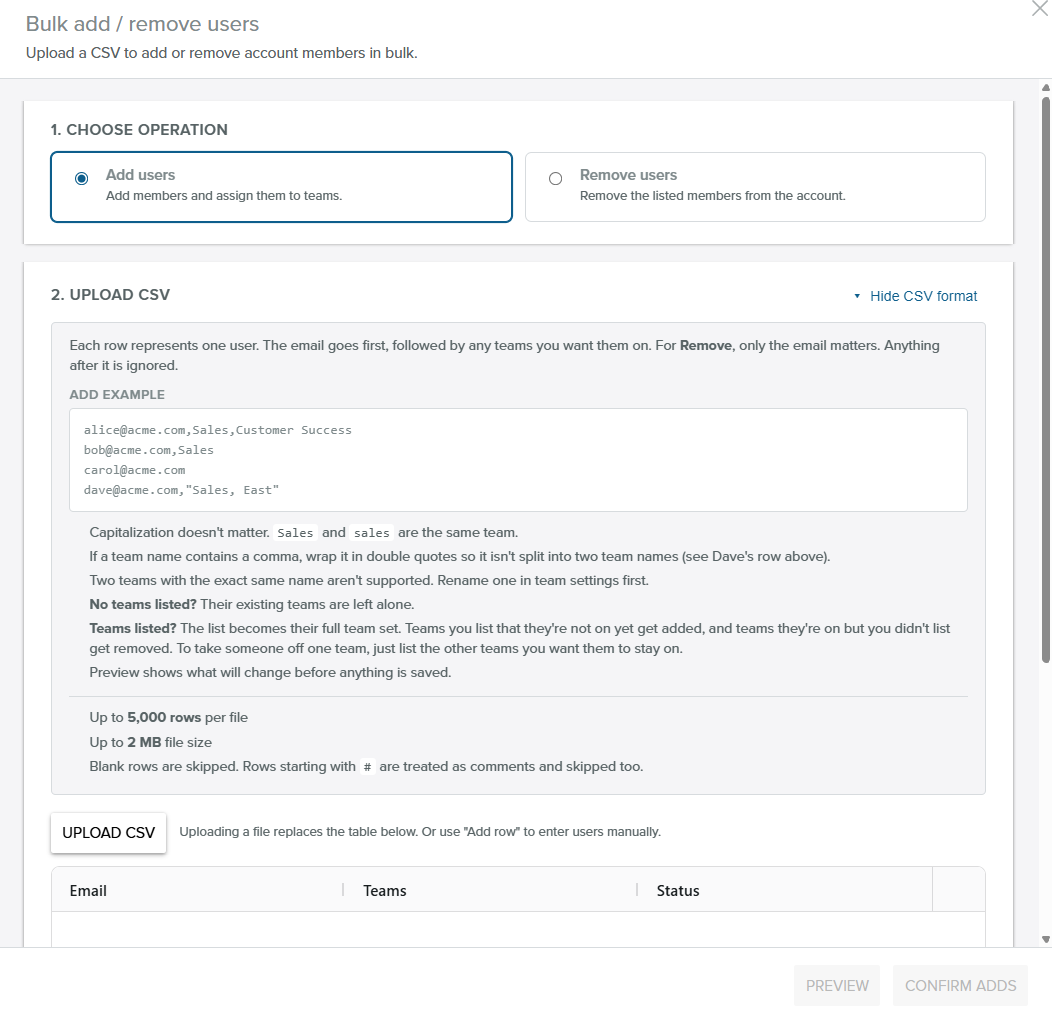
Step 4: Prepare your CSV file. Click See CSV format to view an example file and the full set of rules.
Step 5: Click Upload CSV to choose your file, or click Add Row to enter users manually. Then click Preview.
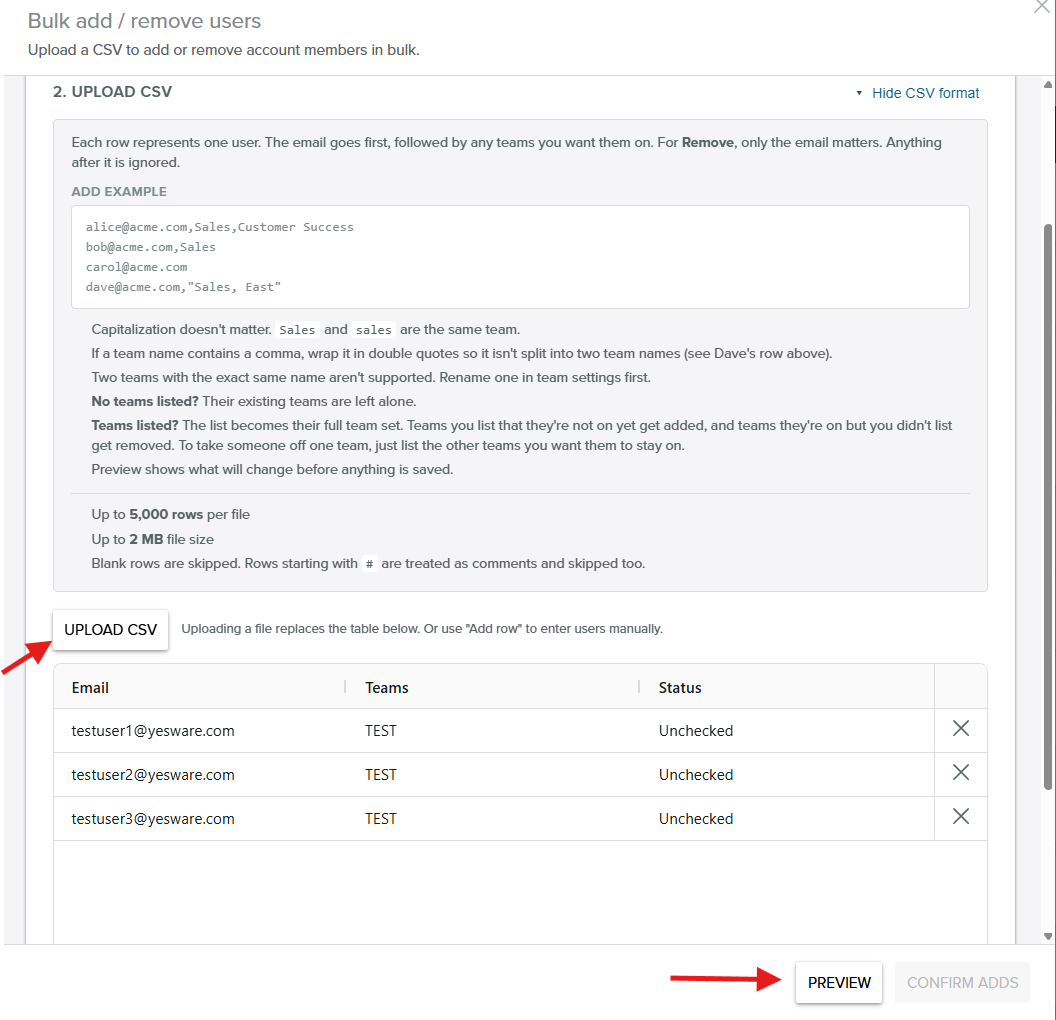
Step 6: Review the Status column. If any rows are flagged, such as No seats available, correct them and click Re-check.
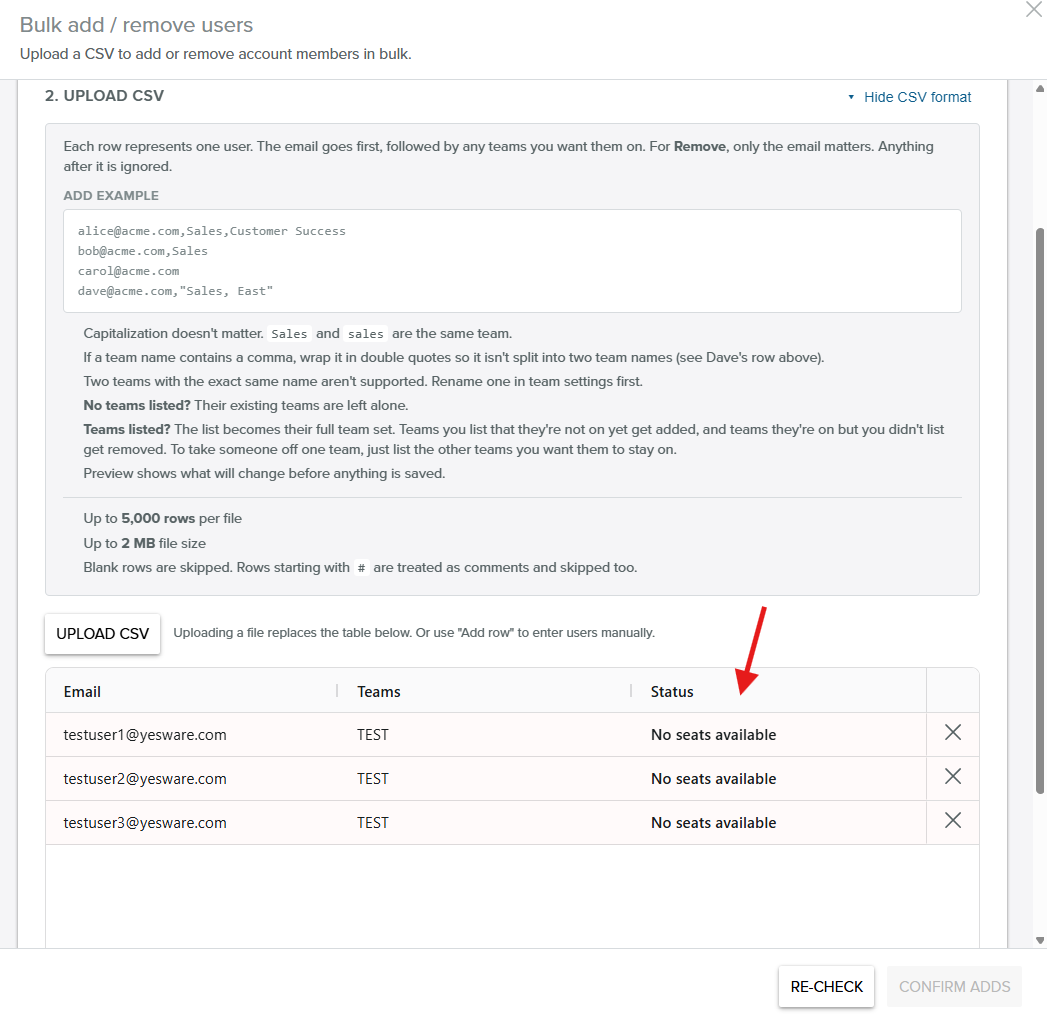
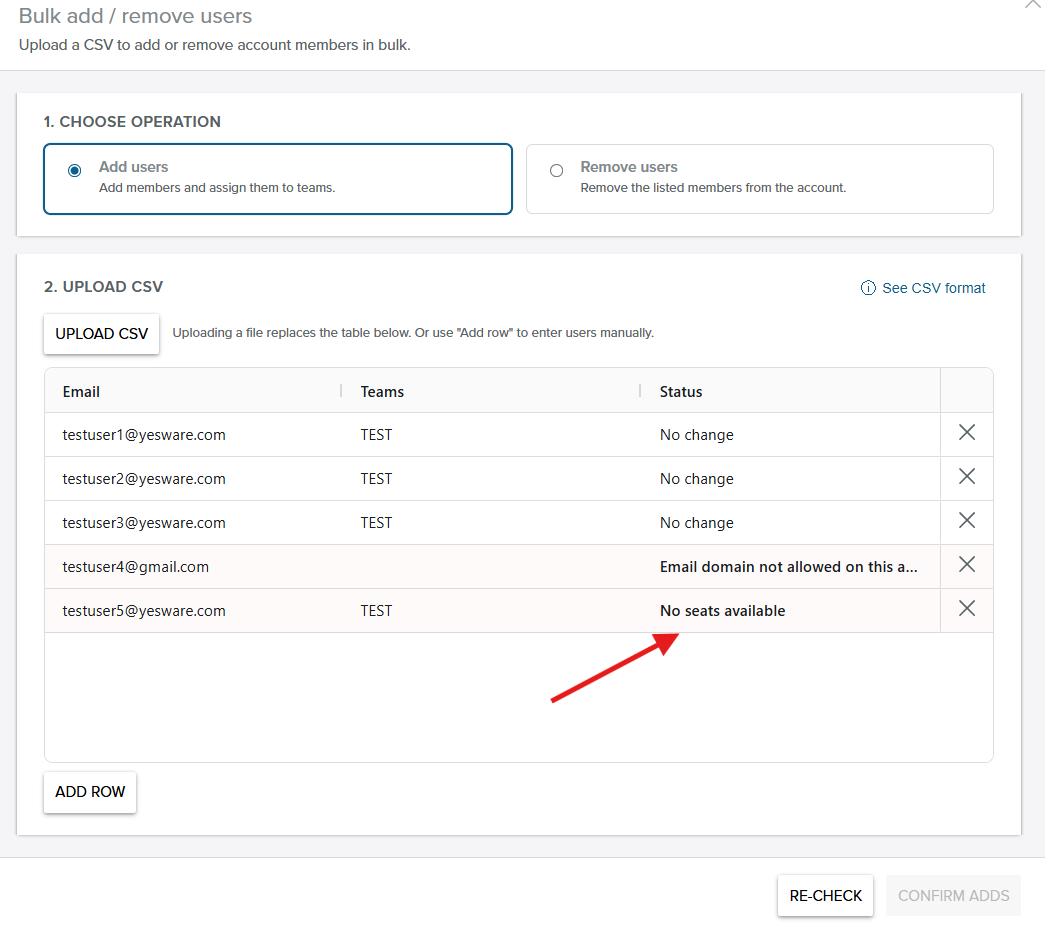
A single preview can show several statuses at once. For example, rows already in the desired state show No change, an email outside your account's domains shows Email domain not allowed on this account, and rows over your seat limit show No seats available.
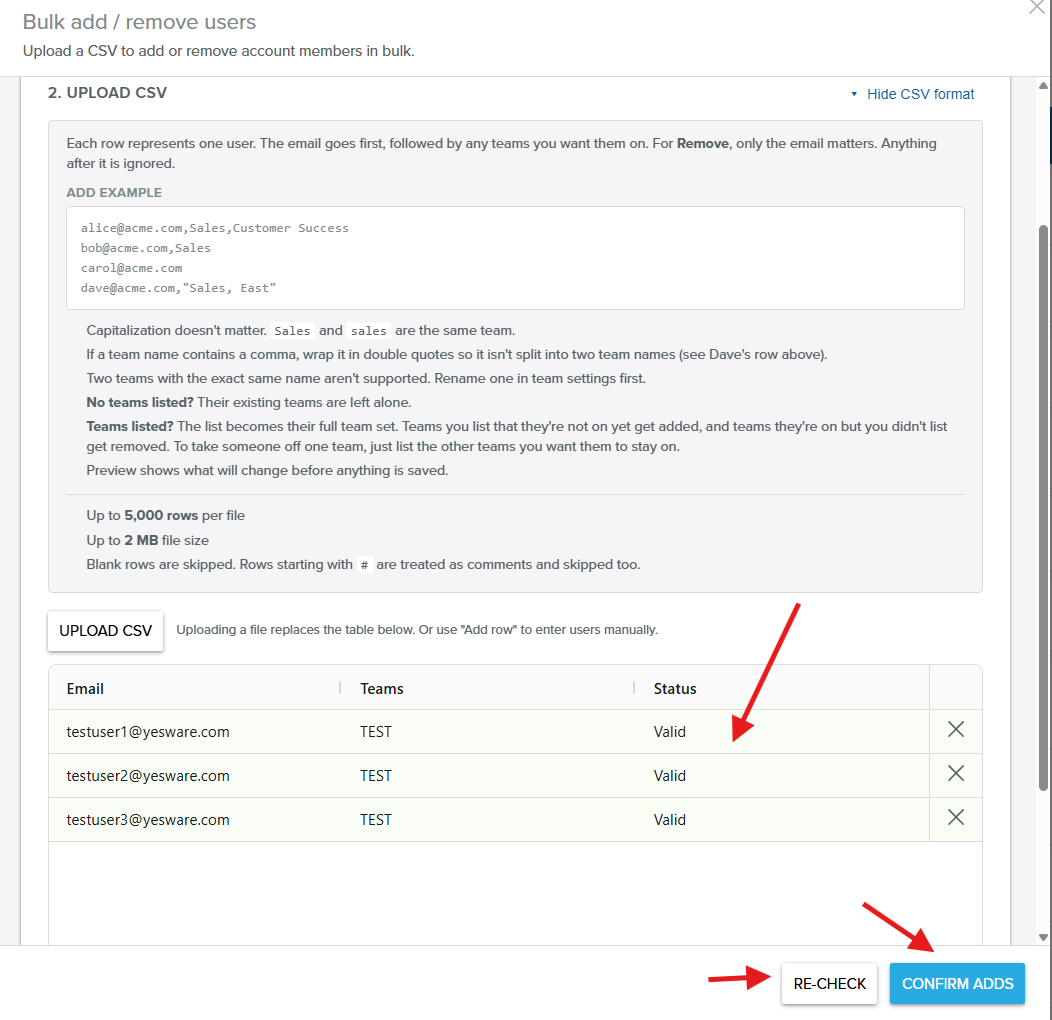
Step 7: When every row shows Valid, click Confirm Adds (or Confirm Removes if you selected Remove users).
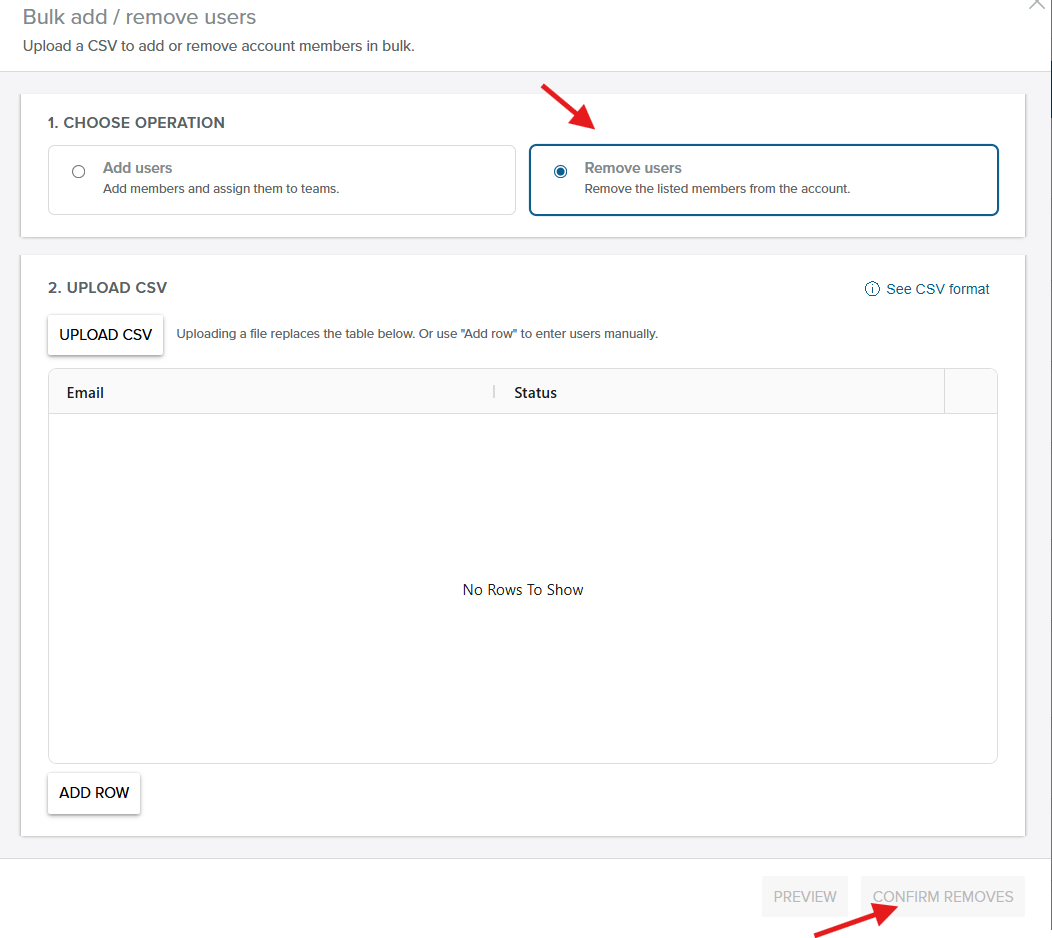
When you select Remove users, the table shows only the Email and Status columns, because only the email address is used on a remove.
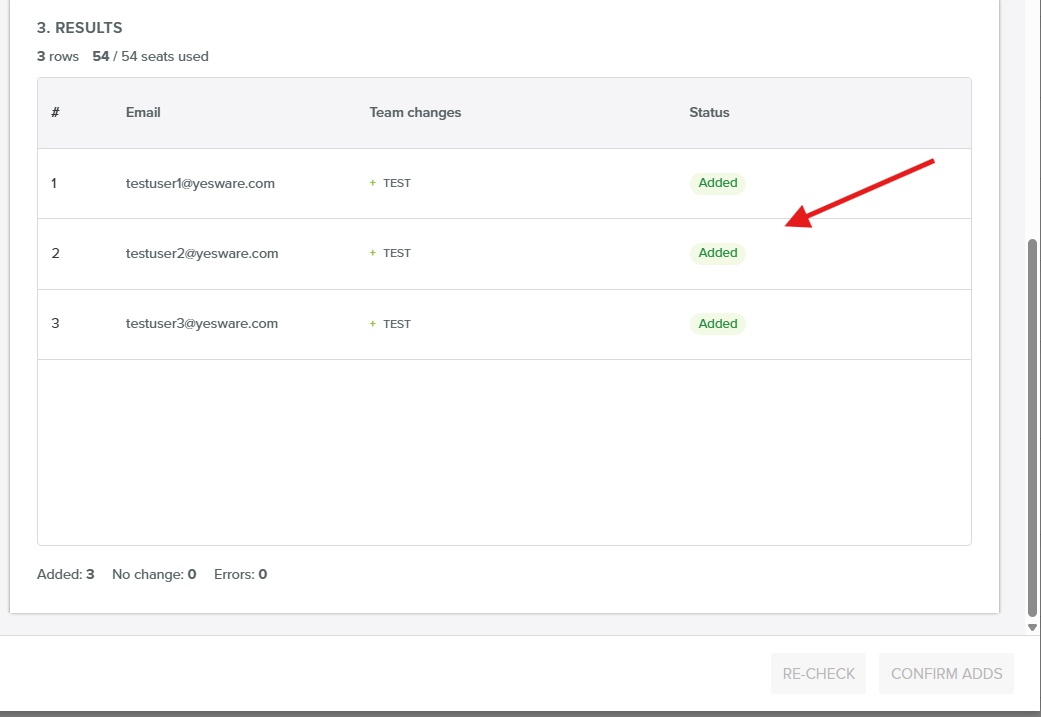
Step 8: Review the Results section to see each user's team changes and status, the Added, No change, and Errors summary, and how many seats are now in use. If any rows failed, click Download failed rows as CSV, correct those rows, and upload the file again.
CSV format and rules
Each row represents one user. The email address goes first, followed by each team name as its own comma-separated value:
alice@acme.com,Sales,Customer Success
bob@acme.com,Sales
carol@acme.com
dave@acme.com,"Sales, East"
- Team names, not IDs: use the team's name. Team IDs are not supported.
- Capitalization doesn't matter:
Salesandsalesare treated as the same team. - Team names with commas: wrap the name in double quotes (for example,
"Sales, East") so it isn't split into two teams. - Duplicate team names: two teams with the exact same name aren't supported. Rename one in team settings before uploading.
- File limits: up to 5,000 rows and 2 MB per file.
- Skipped rows: blank rows and rows starting with
#are skipped.
How adds and removes work
Team assignment on an add. If a row lists no teams, the user's existing teams are left alone. If a row lists teams, that list becomes the user's full team set on this account: listed teams they aren't on yet are added, and teams they're on but aren't listed are removed. To take someone off one team, list only the teams you want them to stay on. If the user is moving over from another Yesware account, Yesware also attempts to remove them from that other account's teams. If that removal doesn't succeed, the row shows an error or note in the results.
New users are provisioned automatically. An email address that isn't on the account yet is invited and uses a seat. New users receive the standard Yesware account invitation.
Only verified domains can be added. You can only add email addresses on the domains currently listed on your Yesware account. Emails outside those domains show Email domain not allowed on this account in the preview and are rejected. Account Managers can't edit the listed domains, so to add or change a domain, contact support@yesware.com.
A remove takes users off the account entirely. A remove upload removes each listed user from the account, which also removes them from all of that account's teams. Only the email address matters on a remove, and anything after it on the row is ignored.
Teams are never left without a leader. If removing a user would leave a team without a Team Leader, that row is blocked and reported as an error.
Seat limits are checked up front. Rows that would go over your seat limit are flagged as No seats available in the preview. If you confirm anyway, users are added up to your available seats and the remaining rows are reported under Errors in the results.
Re-uploading is safe. Rows that are already in the desired state are reported as No change.
Frequently asked questions
Who can use bulk add and remove?
Only Account Managers can see and use the Bulk Add / Remove option, and only on accounts with a verified company email domain. It isn't available on accounts that use free email providers such as @gmail.com. It's available on all paid Yesware plans, but not on the Free plan.
Do I have to upload a CSV file?
No. Click Add Row to enter users directly in the table instead of uploading a file.
Can I add any email address?
No. You can only add email addresses on the domains currently listed on your Yesware account. Emails outside those domains are rejected. Account Managers can't edit the listed domains, so to add or change a domain, contact support@yesware.com. This prevents one account from taking over Yesware users who belong to another account.
On an add, what happens to teams a user already belongs to?
If the row lists no teams, their existing teams are left alone. If the row lists teams, that list becomes their full team set on this account, so teams they're on but that aren't listed are removed. If the user is moving over from another Yesware account, Yesware also attempts to remove them from that other account's teams, and shows an error or note on the row if it can't.
Does a remove only take users off the listed teams?
No. A remove takes each listed user off the account entirely, which removes them from all of that account's teams. Only the email address matters on a remove, and anything after it is ignored.
What if a user I'm removing is the last leader of a team?
That row is blocked and reported as an error so the team isn't left without a Team Leader. Assign another leader to that team first, then upload again.
What happens if my file has more users than I have seats?
The preview flags those rows as No seats available before anything is saved. If you confirm, users are added up to your available seats and the remaining rows are reported under Errors in the results. Add seats and upload again to finish the rest.
Is it safe to upload the same file more than once?
Yes. Rows that are already in the desired state are reported as No change.
Are new users notified when they're added?
Yes. New users receive the standard Yesware account invitation.