AI Website Knowledge Training
Train your AI Assistant using content from your website so it can answer questions from leads and customers accurately and automatically.
Learn more about Conversations here.
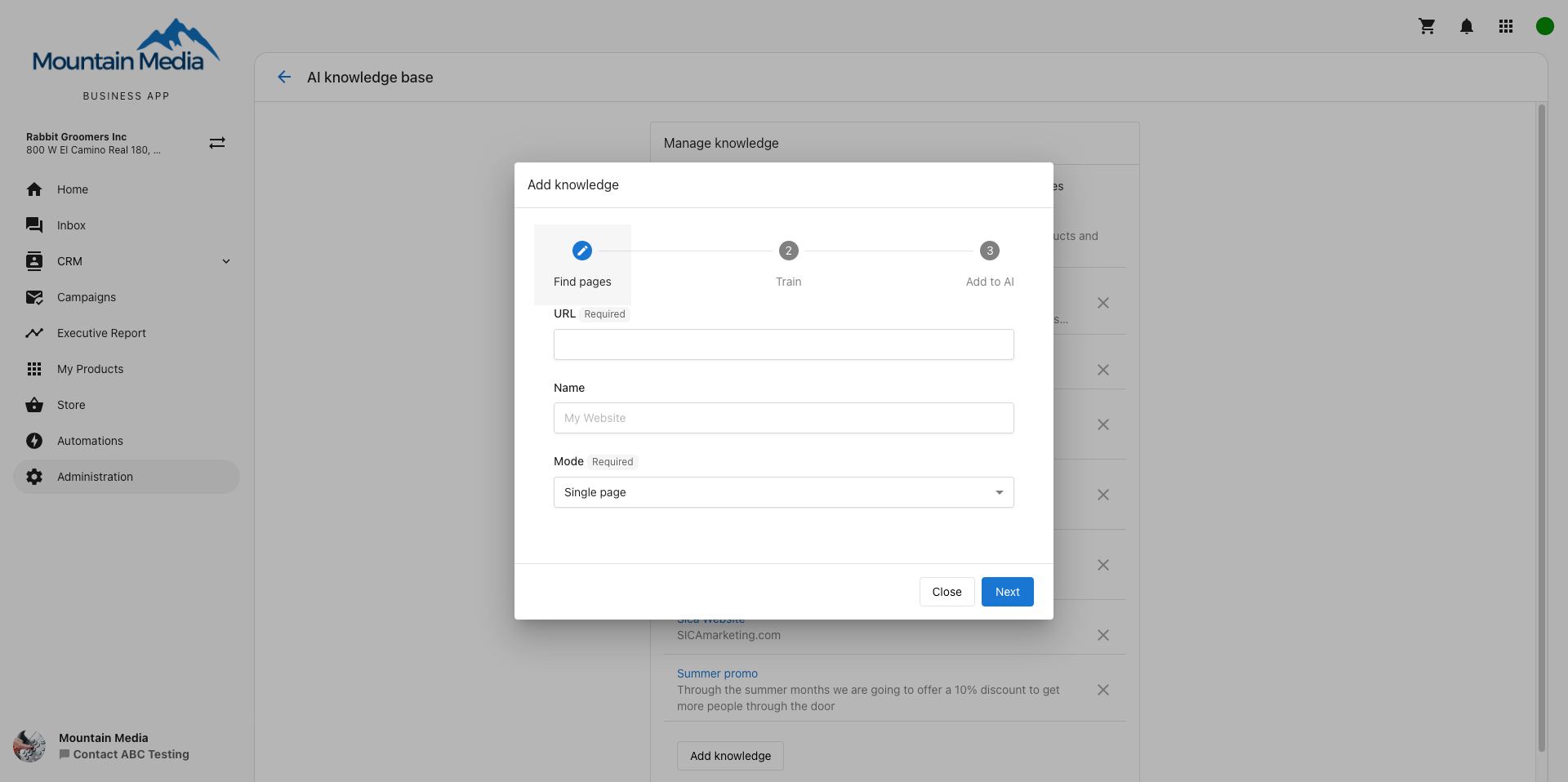
How to train your AI assistant on your website
Requirements
- Access to Conversations AI in Business App
- A website with content you'd like the AI to learn from
- Conversations AI Pro to install the chat widget on your website and make it customer-facing
Steps
- Navigate to
Conversations AI→Conversations AI Settings→Web Chat Widgetand selectConfigure Web Chat.- If you don't see
Configure Web Chat, first clickTry it out todayto initialize a test Web Chat demo. Reload theConversations AI Settingspage to see the button.
- If you don't see
- Go to the
AI Assistantsettings card and selectAdd Knowledge, then chooseWebsite. - Follow the wizard to train the AI assistant on your website. Make sure to select all the pages you'd like to train your AI on, and save.
- To install the web chat widget on your website, make sure Conversations AI Pro is active, then follow the installation instructions.
FAQs
Why did my AI provide a certain answer?
The AI uses facts and knowledge that it's been trained on. If an answer was incorrect, it's likely that the source training data was incorrect. The most common culprit is old or incorrect information found on the website.
How long does training take?
Depending on the size of your website and how many pages the AI is trained on, it may take 1-5 minutes for the AI to begin using the new knowledge in its answers. Be patient after training a large website when testing.
Can the AI be trained on all the pages on my website?
By default, only the home page of your website will be scraped. The AI can then be trained on up to 100 pages from your website. Choose "follow links" or "sitemap" mode for finding pages to give the AI as much content as possible to answer questions for your leads and customers.
Why am I having issues with AI scraping my site?
This may be blocked in your WordPress settings. To check, navigate to WordPress Dashboard → Settings → General → Privacy and ensure that Prevent third-party sharing for is unchecked.
What file types are supported for uploads in the AI Knowledge Base?
The AI Knowledge Base supports a wide range of file formats (up to 100MB each). You can upload:
- DOCX
- HTML
- Images: JPG, PNG
- TXT
- CSV
- Markdown
- JSON
- PowerPoint (PPTX)
- Excel (XLS, XLSX)
How should I upload image-based files?
If your document consists of images (e.g., scanned pages or brochures), upload each page as an image file (JPG or PNG). These formats allow the AI to extract and process text more reliably than image-based PDFs.