Send a meeting request from CRM Contacts
Instead of copying a booking link and emailing it manually, you can send a meeting request directly from a contact's profile in the CRM. The contact receives an email with your booking link and picks a date and time that works for them.
This feature sends the contact an email so they can choose their own time slot. If you want to book the meeting yourself on a contact's behalf, use the Book a meeting button on the My Meetings page instead. See My Meetings.
How to send a meeting request
-
Navigate to
CRM>Contacts. -
Open the contact's profile.
-
Click the calendar icon near the top of the contact profile (or the
Book a meetingbutton).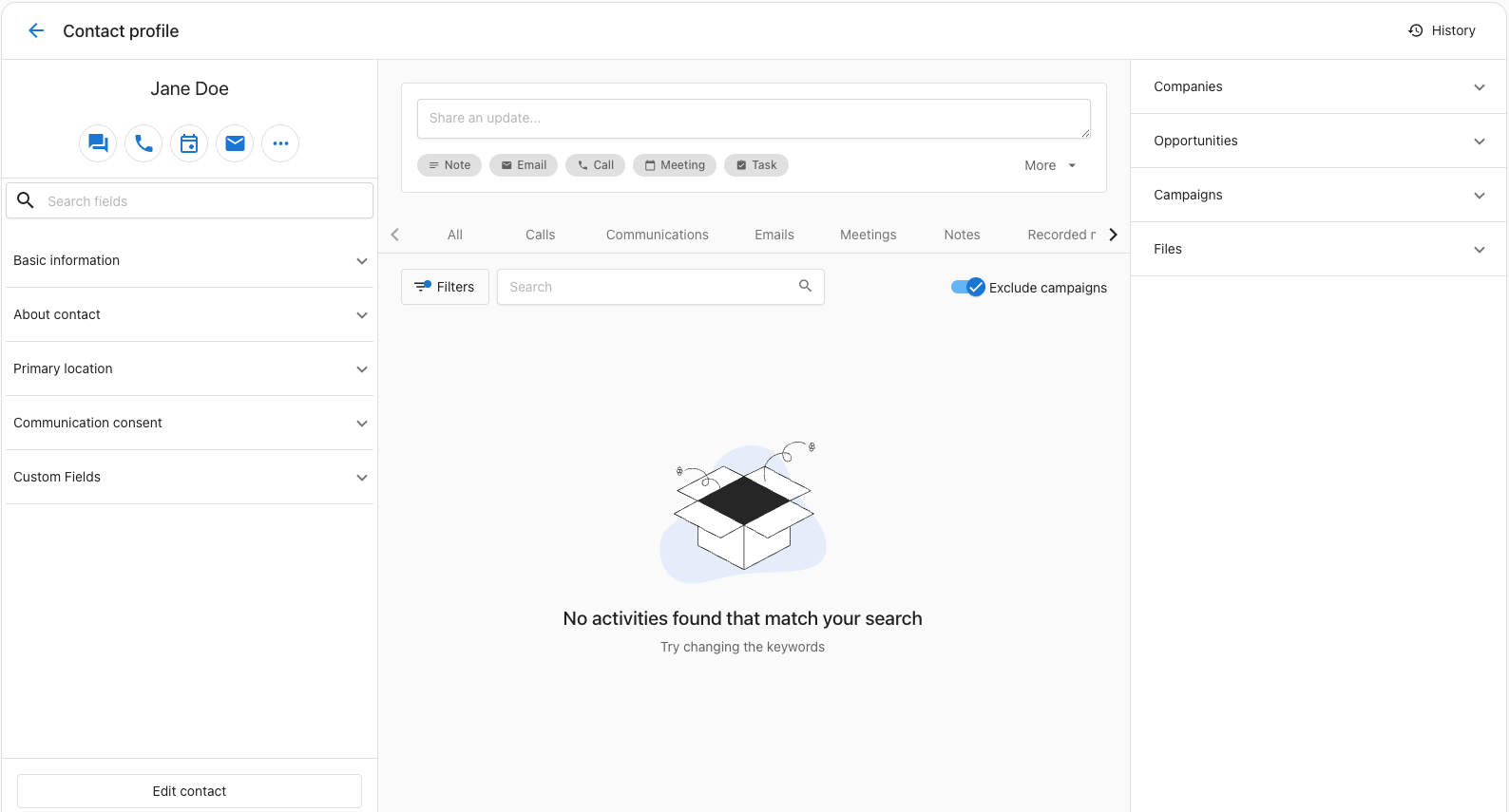
-
In the dialog, select the event type you want to use. The event type determines the booking link sent and the email subject and description.
-
Click
Send.
The contact receives an email with your booking link. They click the link, choose an available date and time, and confirm. The meeting is then added to your calendar automatically.
Because the link is generated from the contact's profile, the booking form automatically fills in their known name, email, and phone number, so they don't have to re-enter details you already have. These fields stay fully editable, so the contact can update or clear any value before confirming, and any detail that isn't on file is simply left blank for them to fill in.
Customizing the invitation email
The subject and description of the meeting request email come from the Customize invitation email settings on each event type. To personalize it:
- Go to
CRM>My Meetings. - Click
Manage booking links. - Open the kebab menu (⋮) next to the event type and click
Settings. - Expand the
Customize invitation emailsection. - Update the
SubjectandDescriptionfields. - Click
Update event typeto save.
The next meeting request sent using that event type will use your updated subject and body.