SEO (Google Search Console & MarketGoo)
What is the SEO section?
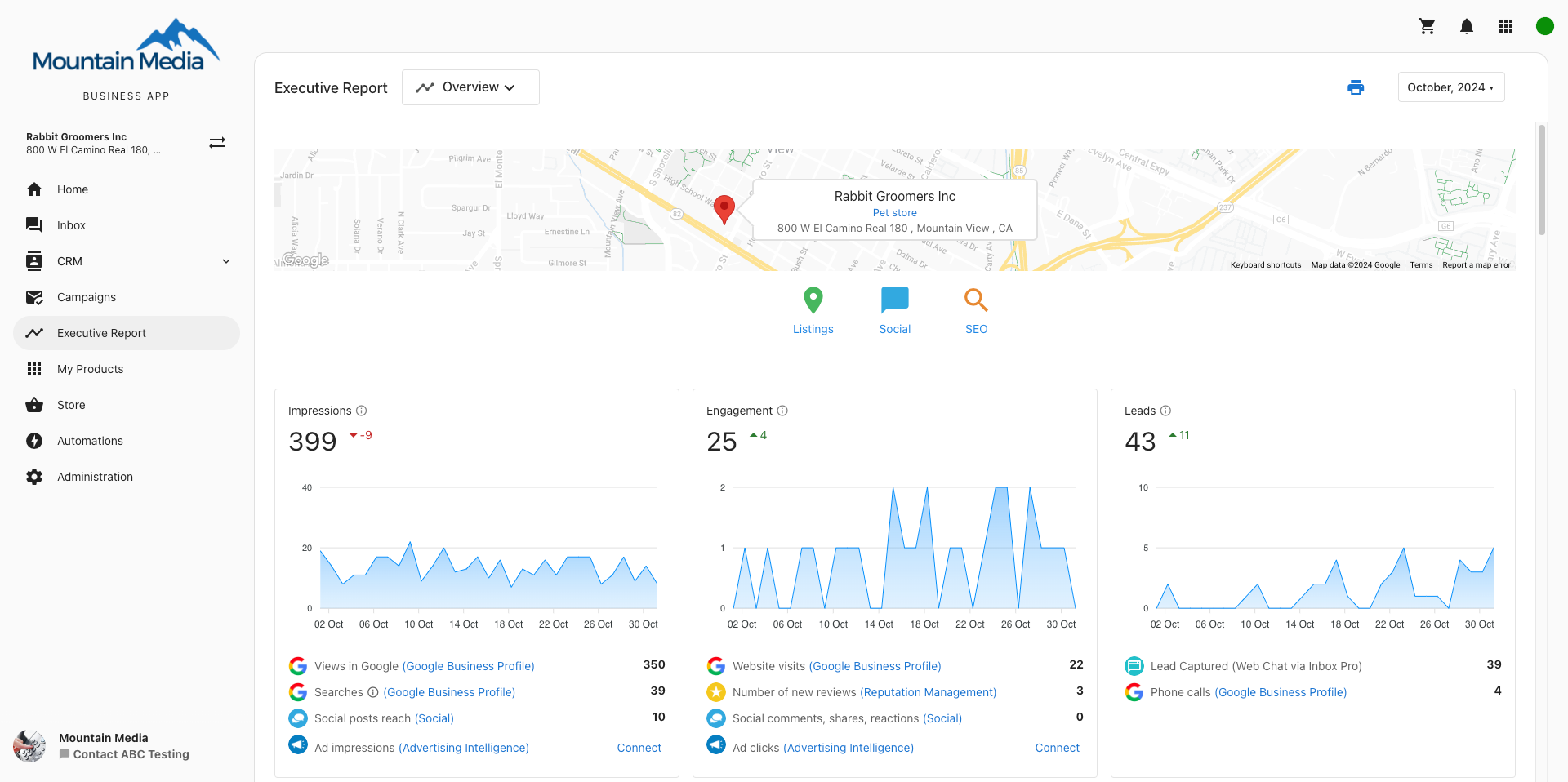
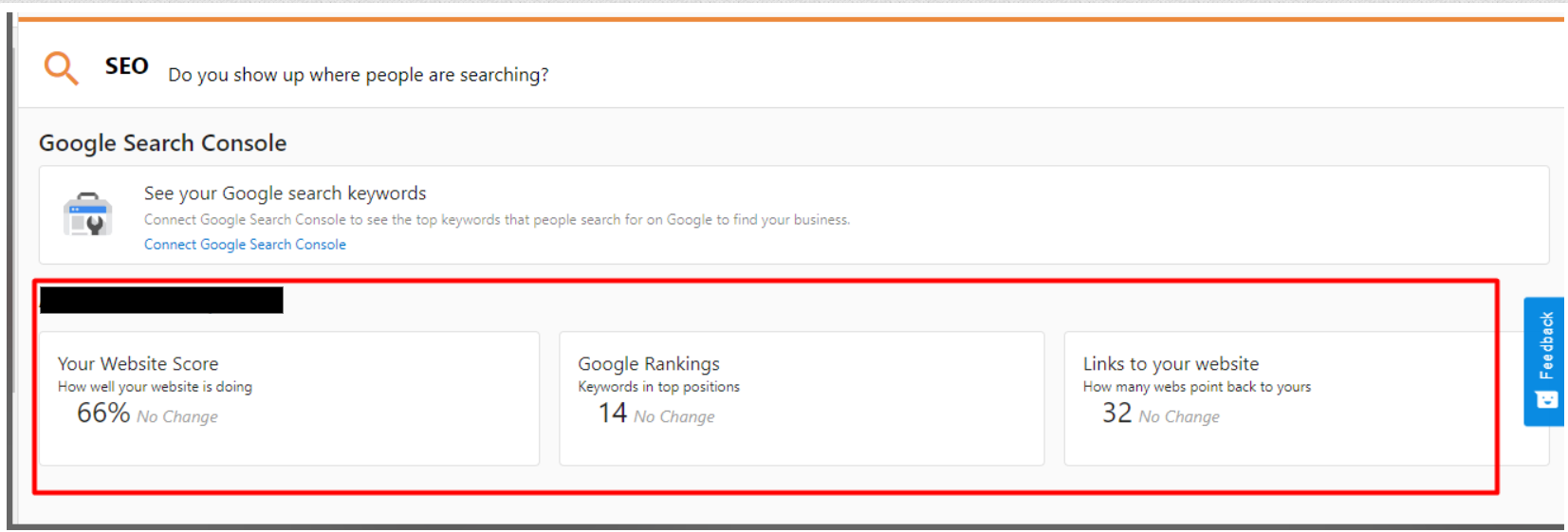
The SEO section of the Executive Report shows how your website is performing in Google search. When you connect Google Search Console (and, if you use it, MarketGoo), the report automatically shows proof of how your site is ranking and getting traffic from search.
Google Search Console
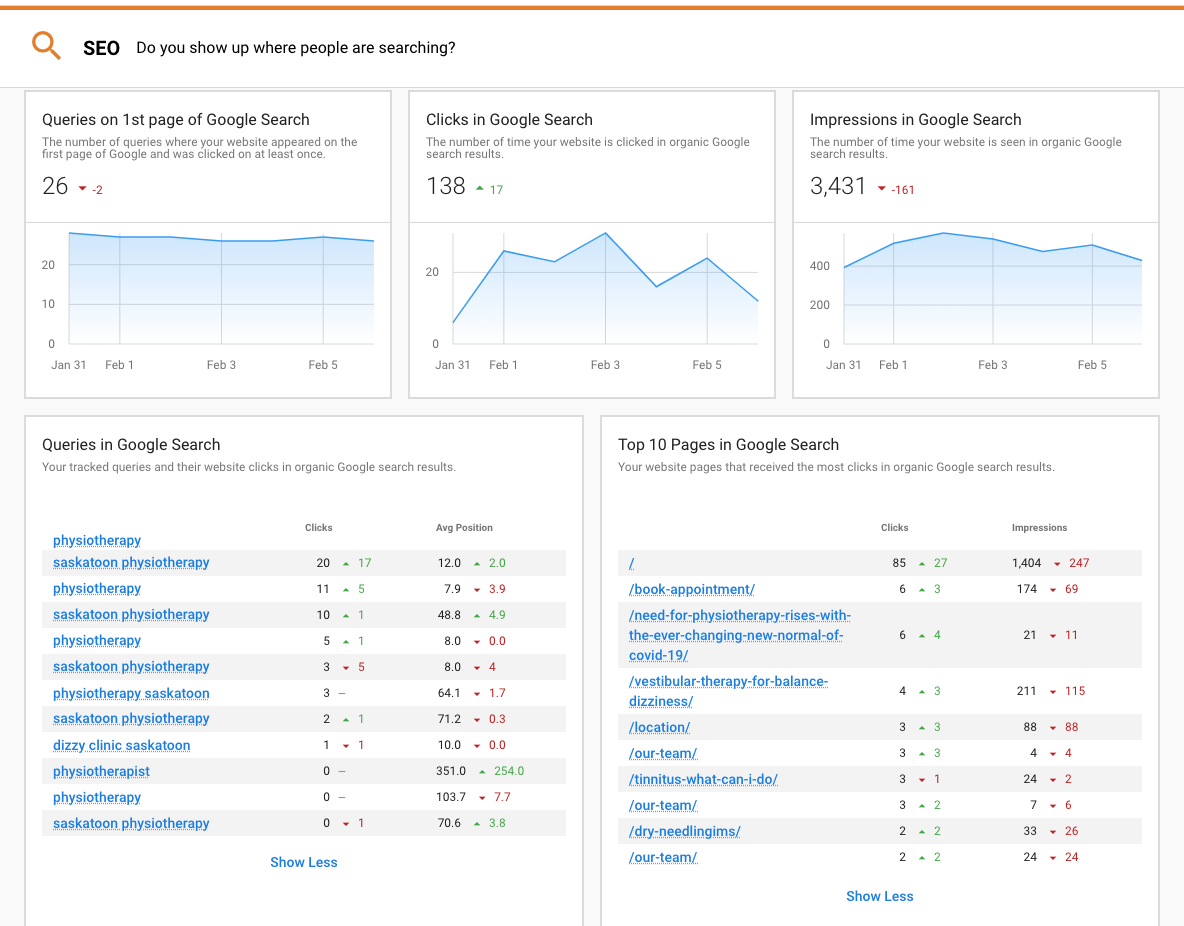
When Google Search Console is connected to your Business App, the Executive Report can show:
- How many queries your website appears on page one of Google for
- Clicks — How many people clicked to your site from search
- Impressions — How often your site appeared in search results
- Top queries — Which search terms get the most clicks and their average position
- Top pages — Which pages get the most clicks and impressions
That gives you a clear view of how your marketing (website, content, listings, reviews, social, etc.) is improving your visibility in Google.
What is Google Search Console?
Google Search Console is a free Google tool that lets you see your site’s search traffic and performance and fix issues so your site can perform better in Google Search. The Business App integration brings key Search Console data into your Executive Report so you don’t have to log in separately. Learn more about Google Search Console.
Why connect it?
The Executive Report includes a metric that Search Console doesn’t show on its own: “Queries on 1st page of Google Search.” That number is updated daily and shows how many search terms your site is ranking on the first page for (and getting at least one click in the last 30 days). It’s a simple way to see if you’re making progress. Once connected, this reporting is automatic.
How to set up Google Search Console
1. Set up Google Search Console
You (or whoever manages your site) need a Google Search Console account with your website added and verified. If you don’t have one yet, you can create it here.
Note: It can take 24–48 hours after a new property is added for data to start appearing in Search Console.
2. Connect Search Console to Business App
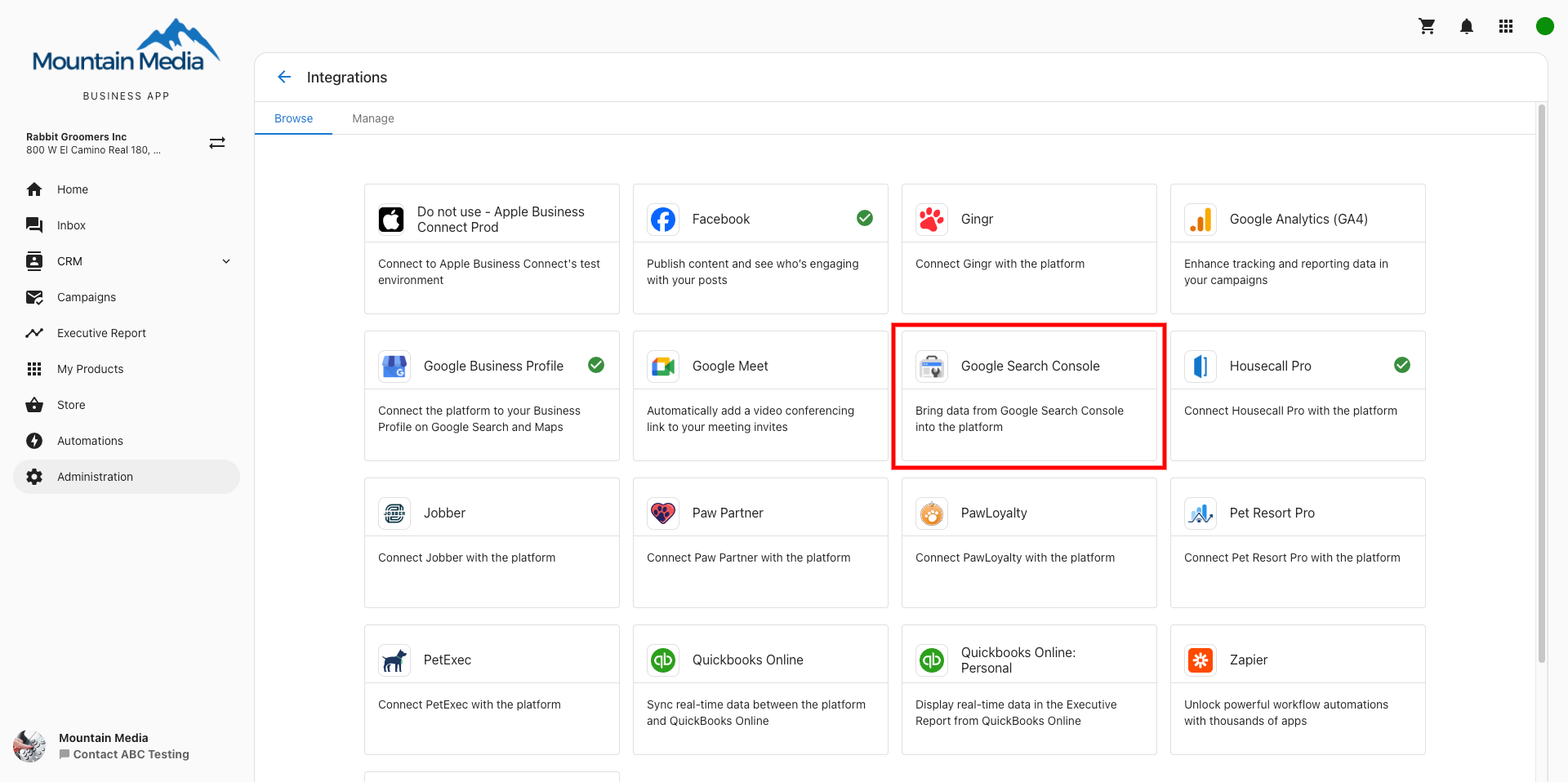
- Go to
Business App→Administration→Integrations→Browse Integrations - Find the Google Search Console card and click it to add an account (one connection per account)
- Sign in with a Google account that has access to the Search Console property
- Choose the property you want to connect
- After connecting, it usually takes a few minutes for existing data to show in the Executive Report (about 30 days of history is pulled at first)
Note: If the property you want doesn’t appear, make sure it’s fully verified and that the Google account you use has permission to view it.
3. Customize which queries are tracked
You can choose which search terms (keywords) appear in the Executive Report.
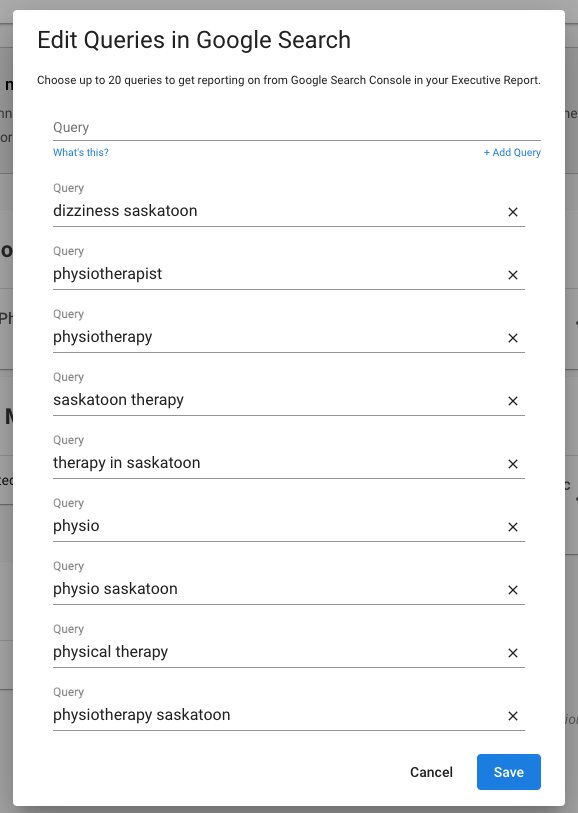
- When you first connect, the report automatically pulls in the top 10 queries by clicks
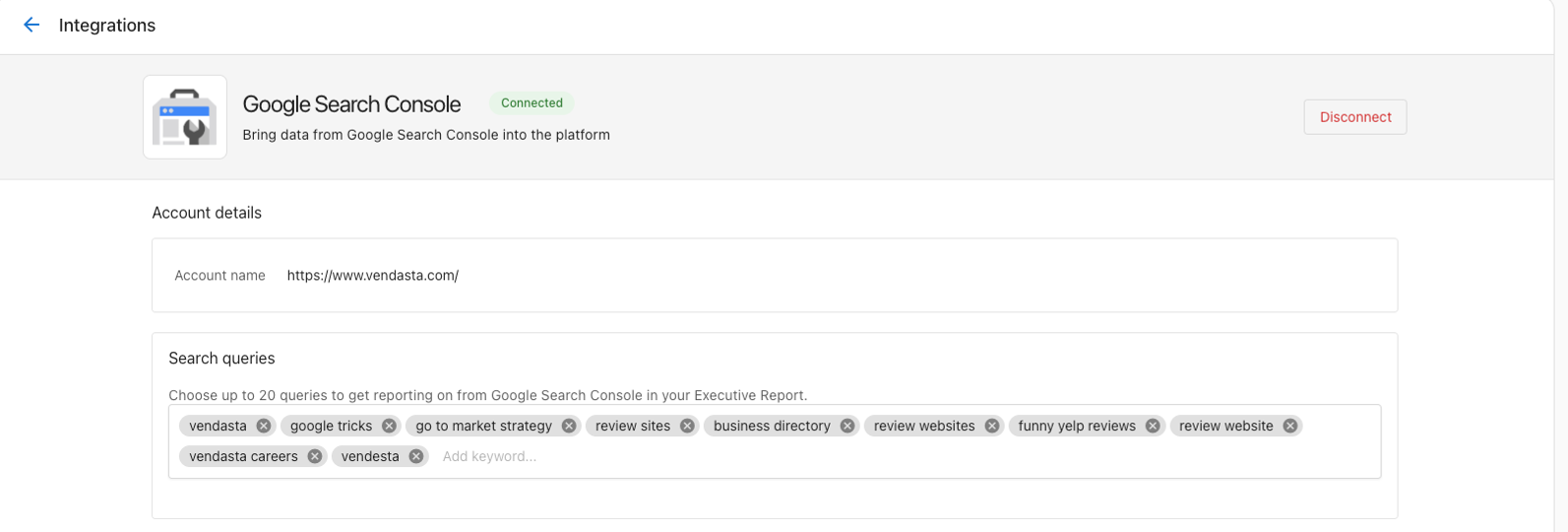
- You can edit this list: add or remove keywords, up to 20 total
- Go to
Business App→Administration→Integrationsand click the Google Search Console card to edit queries
MarketGoo
If you use MarketGoo, its data appears in the SEO section of the Executive Report. MarketGoo Lite accounts do not appear in the report. MarketGoo data is sent on a monthly schedule, so you’ll only see it when you select the Monthly date range in the report.
Troubleshooting: Google Search Console data not showing
- When was it connected? Data is collected after you connect, but it can take a few days to show. Check that data is visible inside Google Search Console itself.
- Data refresh — Data is collected once per day (usually around midnight CST). Recent changes can take up to 24 hours to appear in the report.
- New website — If the site just launched, there may not be enough traffic yet. Check Search Console for activity.
If you’ve checked these and still don’t see data, you may need to dig deeper or contact support.
Frequently asked questions
I connected Search Console but don’t see data in the Executive Report.
- Check if data is showing in Google Search Console. New connections can take a few days to start collecting.
- Business App pulls data once per day. After connecting, wait at least until the next day; you’ll often see data in the most recent weekly report within an hour or so, and the app pulls in about 90 days of history.
- For new websites, there may be little or no data yet. As the site gets more organic traffic, the report will fill in.
- Make sure the Google account you used has the right permissions (e.g. full access) in Search Console.
How is “Queries on 1st page of Google Search” calculated?
Each day we count how many search terms meet both of these: (1) your site has an average position between 1.0 and 10.0 (first page), and (2) your site got at least one click in the last 30 days for that term. That avoids counting keywords where you rank but never get clicks. The number is updated every 24 hours and shown as a trend over time.
Why don’t I see Average CTR or Average Position in the report?
Those are useful per-keyword in Search Console, but as overall numbers they tend to go down as you rank for more terms, so they’re not great for showing “proof of performance” in a simple way. The report focuses on metrics that better show improvement over time.
Do you support Domain properties?
Yes. Both Domain and URL-prefix properties can be connected. Domain properties are recommended because they include all variations of your domain (e.g. www vs non-www). Learn the difference.