Leads
What is the Leads section?
The Leads section of the Executive Report gives you a single view of how many new leads and customer interactions your business is generating across all channels. Use it to see which lead sources are working and how your tools are performing. In the report’s navigation dropdown, this section may appear as Customer Relations.
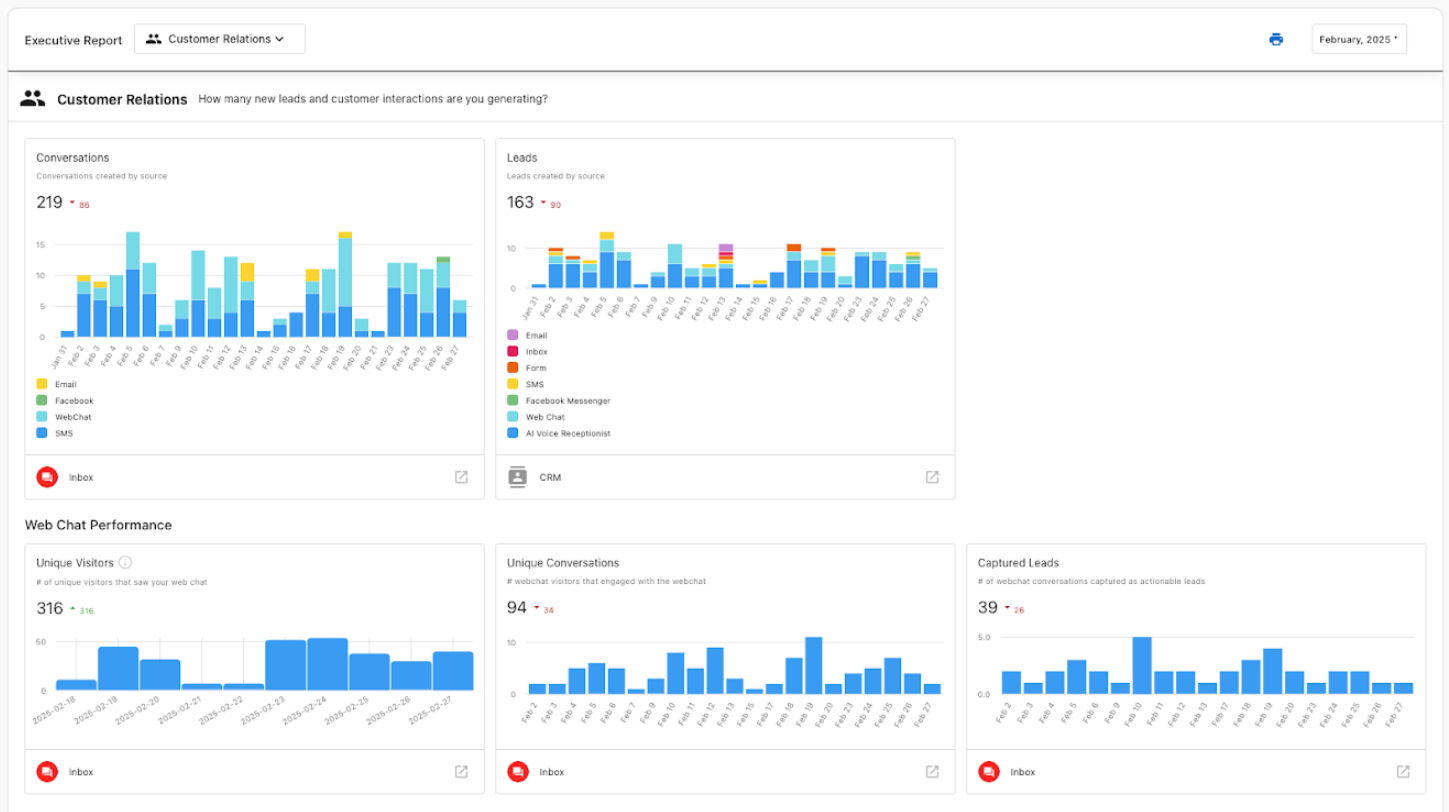
What’s included in Leads reporting
Lead generation summary
- New leads in CRM, by source: Total leads captured with a breakdown by where they came from
- Conversations, by channel: How much communication is happening in each channel
Web Chat metrics
- Unique visitors that saw web chat: Website visitors who had the chat widget available
- Unique conversations: Visitors who actually used the chat
- Leads captured: Chats that led to captured contact information
Lead sources tracked
The Leads section includes only organically captured leads. Sources can include:
- Phone calls (Google Business Profile): Calls from your listing
- AI Voice Receptionist: Calls handled by the AI phone system
- Web Chat: Website chat conversations that become leads
- Zapier: Leads from connected apps
- Forms: Form submissions and contact requests on your site
- SMS: Text conversations that generate leads
- Other: Sources that don't fall into the top 5 sources by total for the period. Hover over or click that row to see the individual sources it includes
Leads are not counted when they come from:
- Bulk import: Contacts added via a contact list import
- CRM UI: Contacts created manually in the CRM
Those are excluded because they aren’t from your marketing or capture tools. To have a manually added contact counted in lead analytics, change its lead source to something other than bulk import or crm ui.
Messages and conversations
- Message volume: Total messages across channels, with a timeline
- Message types: Received from customers vs. sent by AI vs. sent by your team
- Conversations by source: How many conversations came from SMS, web chat, email, etc.
- Lead conversion: Conversations that turned into leads
Understanding your lead data
Lead summary
The report shows something like:
Leads: 59 (-2)
That means 59 total leads in the period, with 2 fewer than the previous period.
Lead source breakdown
You’ll see the total number of leads per source, for example:
- Phone calls (Google Business Profile): 29 leads
- AI Voice Receptionist: 20 leads
- Web Chat: 3 leads
- Zapier: 2 leads
- Forms: 2 leads
- Other: 5 leads
Hover over or click Other to see which sources are included in that total.
Message activity
- Total messages: Volume across all channels
- Timeline: Message activity over time
- Categories: Messages from customers, from the AI, and from your team
Why this data is useful
- See ROI: Know how many leads you’re getting and from where
- Compare channels: See which sources (phone, chat, forms, etc.) perform best
- Track tools: See how AI receptionist and web chat are contributing
- Spot trends: Watch lead volume and mix over time
- Improve quality: Focus on the sources that bring the best leads
How to use lead source analytics
- Enable a lead capture tool in your Business App (e.g., web chat or contact form).
- Capture at least one lead through that source.
- Go to
CRMin Business App to confirm the lead was added. You should see a new contact with a source likeWeb Chat,Form, or similar. - Wait for your next Executive Report (weekly or monthly) to see this data in the Leads (Customer Relations) section.
Lead source data is based on contacts created during the reporting period. The report only shows data when leads have been captured and assigned a valid source.
Getting the most from lead generation
- Use more than one channel: Phone, chat, and forms together give a fuller picture
- Use AI where it fits: AI Voice Receptionist and Web Chat can capture leads around the clock
- Respond quickly: Use message activity to make sure replies are timely
- Connect your tools: Use Zapier and form integrations so all leads are tracked
Setup checklist
- Google Business Profile connected and phone tracking on
- AI Voice Receptionist set up for your business (if you use it)
- Web chat widget on your website (if you use it)
- Forms connected to the CRM
- Zapier or other integrations active if you use them
- SMS set up if you use it for lead capture
Single-location vs multi-location
- Single-location report: Leads for that one location
- Multi-location report: Combined lead analytics across all locations
Tools that feed the Leads section
The Leads section uses data from tools in your Business App, such as:
- AI Voice Receptionist: Phone calls and lead qualification
- Web Chat: Chat on your site and lead capture
- CRM: Stored leads and follow-up
- Forms: Form submissions and contact requests
- Google Business Profile: Calls and actions from your listing
- Conversations AI: Hub for customer messages
Frequently asked questions
Why don’t I see all lead sources in my report?
A source only appears when there’s data for it. If you don’t see something (e.g. AI Voice Receptionist), that product may not be set up or active for your account yet.
How are leads counted vs. conversations?
Conversations are all customer interactions. Leads are interactions that result in a captured contact or qualified prospect. One customer can have many conversations but count as one lead.
Can I see which lead sources convert best?
The Executive Report shows lead volume by source. For conversion and deal closure by source, use the CRM to track opportunities and closed deals.
Why do message counts look higher than lead counts?
Messages include every back-and-forth (first contact, follow-ups, support). Leads count new prospects. One lead can have many messages over time.
How does AI Voice Receptionist show up?
When the service is active, AI Voice Receptionist appears as its own lead source. The report can show total calls handled and calls that became qualified leads or appointments.
I don’t see any metrics in the Leads section. Why?
The report uses data from the last full period (weekly or monthly). You may need to wait for the next report. If you already have contacts in the CRM with sources like web chat or form, they’ll be included in the next report.
Which lead sources are included? Which are excluded?
Leads are counted from every source except bulk import and crm ui, which are manual additions. All other sources (web chat, forms, AI receptionist, phone, SMS, Zapier, etc.) are included. To include a manually added contact in analytics, change its source to something other than bulk import or crm ui.
What does the Other row include?
Other groups the sources that don’t fall into the top 5 sources by total for the period. Hover over or click the Other row in the lead source breakdown to see which sources it includes.
Where do I find these analytics in the report?
Open your Executive Report in Business App. In the top navigation bar dropdown, select Customer Relations (or Leads). That section includes cards summarizing your CRM activity and lead sources.