How do I troubleshoot errors in Social AI?
Most Social AI posting errors come from an expired or broken social account connection. To fix them, reconnect the account in Social AI settings and accept all requested permissions, then follow the platform-specific fixes for Facebook, Instagram, LinkedIn, Google Business Profile, or X. This guide covers the most common error messages, what they mean, and how to fix them.
Quick Reference Table
| Platform | Common Errors | Solutions Summary |
|---|---|---|
| Expired token, flagged token, missing permissions, API errors | Reconnect account, verify your identity with Meta, verify Page roles, reauthorize permissions | |
| Wrong account type, not linked to FB Page, permissions missing | Switch to Business/Creator account, link to Facebook Page, reconnect | |
| Token expired (every 60 days) | Reconnect via Connect Accounts tab when prompted | |
| Google Business Profile | Chain location, restricted business category, rejected content | Post directly in GBP, update business category, remove sensitive content |
| X (Twitter) | Locked account, expired token, failed video upload | Unlock via x.com, reconnect login, meet video file specs |
How do I fix Facebook errors?
Common Facebook Errors
1. "Access has not been granted or has expired" or "Connected Facebook account has expired"
- What it means: The Facebook connection is expired or incomplete.
- Fix it:
- Go to
Social AI>Settings>Connections - Click Reconnect beside Facebook
- Log in and accept all requested permissions
- Select and connect the right Pages
- Go to
2. "You do not have permission to create posts"
- Fix it:
- Log in to the Facebook account with Admin, Editor, or Moderator access to the Page
- Check Page Roles under
Facebook Page>Settings
3. "Unable to find your Business Manager account"
- Confirm you're logged into the correct Facebook account
- Check business.facebook.com for Business Manager setup
- Ensure the Pages are added and you have proper access
4. (#100) API permissions error
- This error means permissions weren’t granted properly
- Fix it: Reconnect the Facebook account and ensure all permissions are accepted
5. Content violates Community Standards
- Run your post through Facebook's Link Debugger to see what’s being flagged
- Avoid spammy links or flagged language
6. Grey Facebook account
A grey Facebook account has limited functionality or is in a restricted state, which can limit posting until it's resolved. This can happen for several reasons:
- Account verification issues: The account needs additional verification
- Policy violations: The account violated Facebook's community standards
- Suspicious activity: Facebook detected unusual activity
- Incomplete setup: The account isn't fully configured
Fix it:
- Log in to Facebook and check for any notifications or warnings
- Complete any verification steps Facebook requires
- Make sure all content complies with Facebook's policies
- If the issue persists, contact Facebook support
7. Access token flagged by Meta
Meta may flag an access token for several reasons, including:
- Sudden account changes, such as adding a new admin or resetting the password
- Admin location or country mismatch
- High-frequency posting
Other activity can trigger a flag too. When it happens, you may also be unable to post directly from your Meta account. To resolve it, verify your identity with Meta:
- Open the Facebook app on your mobile device
- Switch to the Page you want to post to
- When prompted for identity verification, verify using your registered mobile number
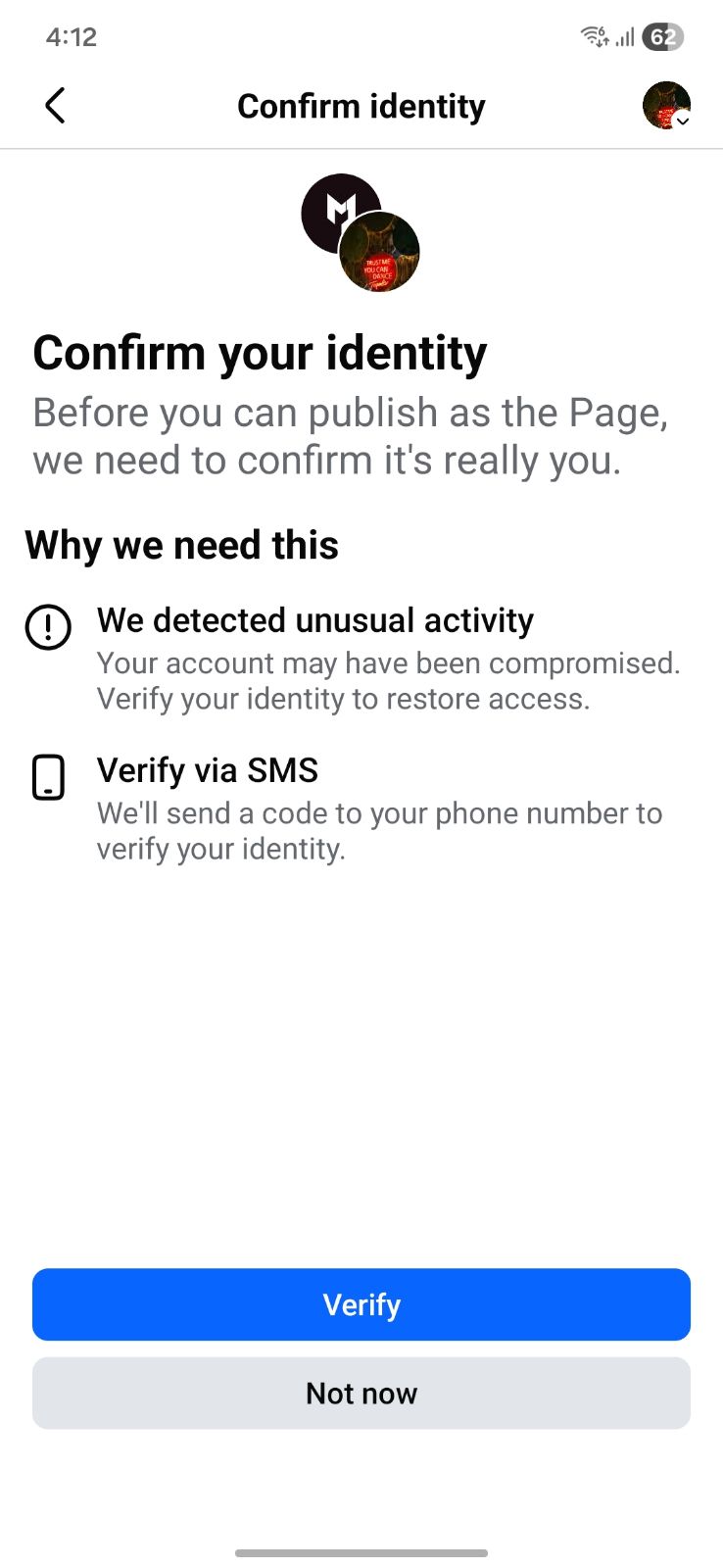
Tap Verify to receive a code by SMS. Posting is unblocked once verification is complete.
Best Practices for Connecting Facebook Pages
Always grant access to all Pages when you connect an account, and don't change which Pages are included between connections. During authorization, make sure these options are selected:
- Opt in to all current and future Pages — for Facebook
- Opt in to all current and future Businesses — for Instagram
With these options enabled, if Facebook breaks your token because of suspicious activity, reconnecting even a single expired Page automatically restores access to all your other Pages.
How do I fix Instagram errors?
Common Instagram Errors
1. "Instagram account is not a Business account"
- Social AI can only post to Business or Creator accounts
- Fix it:
- Go to
IG App>Profile>☰>Settings and Privacy>Account Type>Switch to Professional Account - Link the account to a Facebook Page
- Go to
2. "Instagram account not connected to a Facebook Page"
- Fix it:
- Go to
IG App>Profile>Edit Profile>Pageand select the Facebook Page to connect
- Go to
3. "You do not have permission to manage this Instagram account"
- Fix it:
- Ensure IG is a Business/Creator account
- Confirm the linked Facebook Page is one you have Admin access to
4. "You must be an Admin or Editor on the Facebook Page"
- IG posting permissions come via the linked Facebook Page
- Confirm Page roles in Facebook and reconnect the Instagram account
5. Token Errors (expired, broken, missing)
- These mean your Instagram connection needs to be refreshed
- Fix it:
- Go to
Settings>Connections, click Reconnect beside Instagram
- Go to
6. Publishing Authorization Needed
- You may see (#263) errors if Page Publishing Authorization is incomplete
- Fix it: Complete the authorization at Facebook Business Help
7. IG Account is Restricted
- Log in to Instagram directly and follow their prompts to resolve account restrictions
Tips for Instagram Success
- Use Business or Creator accounts only
- Link to a Facebook Page and confirm the connection
- Reconnect if passwords, permissions, or account types change
- Clear browser cache or try a different browser if problems persist
How do I fix LinkedIn errors?
"The token used has expired"
- LinkedIn requires you to reconnect every 60 days
- You’ll see a yellow banner 10 days before expiration
- Fix it:
- Go to
Settings>Connect Accounts - Click Reconnect beside LinkedIn
- Go to
Reconnection only takes a few seconds. Do this proactively to avoid failed posts.
How do I fix Google Business Profile errors?
1. "This location belongs to a chain"
- Google disables Local Post API for chain businesses
- Fix it: Post directly through Google Business Profile
2. Post rejected
- Common reasons:
- Content includes phone numbers or URLs
- Contains sensitive keywords or regulated topics
- Fix it:
- Reword the post, remove links or sensitive phrases
- Review Google’s policy
3. "Business category isn't eligible"
- Some categories like hotels, casinos, or cannabis shops can’t post
- Fix it: Update your business category, or contact your provider to update it
How do I fix X (Twitter) errors?
1. "Account is locked" or "Looks automated"
- X may temporarily restrict accounts
- Fix it: Log in at x.com to unlock and confirm access
2. "Invalid or expired token"
- Fix it: Go to
Settings>Connect Accounts>⋮>Reconnect
3. "Upload failed" for videos
- Video does not meet format or size requirements
- Check X’s upload guidelines and reformat your video
Why did my post fail to publish?
Post Failed to Publish
- Most often caused by an expired social token (broken token)
- Fix it:
- Go to
Settings>Connect Accounts>⋮>Reconnect - If user permissions changed, reconnect with a different admin
- Go to
Scheduled Posts During Expired Connection
- Social AI saves failed scheduled posts to Drafts
- Reconnect the account and reschedule from Drafts
Only unpublished posts will be saved. If the product is deactivated, posts cannot be recovered.
Error Message Reference Table
| Platform | Error | Meaning | Fix |
|---|---|---|---|
| (#100), permission errors | Token or permission issue | Reconnect, ensure proper Page roles | |
| Link violates standards | URL blocked | Check with Link Debugger | |
| Not a Business account | Personal account used | Convert to Business/Creator | |
| Missing permissions | Account not properly linked | Update Page roles and permissions | |
| Token expired | Every 60 days | Reconnect when prompted | |
| API disabled or rejected post | Chain or restricted content | Post directly or adjust content/category | |
| X | Locked or expired token | Login expired or account locked | Reconnect or unlock at x.com |
Still Having Trouble?
Try the following:
- Disconnect the affected account in Social AI
- Remove the app from the platform (for example,
Facebook>Apps & Websites) - Clear your browser cache or use an incognito/private window
- Try using a different browser
How do I prevent connection errors?
- Monitor your account connections regularly
- Use strong, secure passwords and enable 2FA
- Accept all permission prompts during setup
- Maintain multiple admins for all Pages/accounts
- Reconnect proactively when banners appear
Frequently asked questions
Why does my LinkedIn connection keep expiring?
LinkedIn requires you to reconnect every 60 days. You see a yellow banner 10 days before the connection expires. Go to Settings > Connect Accounts and click Reconnect beside LinkedIn.
Why did my Facebook or Instagram connection expire?
The connection token has expired or broken. Meta may also flag a token after sudden account changes, such as a new admin or a password reset, an admin location mismatch, or high-frequency posting. Reconnect the account and accept all permissions, or verify your identity with Meta if prompted.
What happens to scheduled posts while a connection is expired?
Social AI saves failed scheduled posts to Drafts. Reconnect the account and reschedule the posts from Drafts. If the product is deactivated, posts can't be recovered.
Why can't I connect my Instagram account?
Social AI can only post to Instagram Business or Creator accounts that are linked to a Facebook Page. You also need Admin or Editor access to that Facebook Page.
What does the (#100) error mean?
A (#100) error means permissions weren't granted properly. Reconnect the Facebook account and accept all requested permissions.
How long does reconnecting take?
Reconnecting only takes a few seconds. Reconnect when you see an expiration banner to avoid failed posts.