Score
Score in Business App covers two areas: grades in your Executive Report (e.g. Review Grade, Listing Score) and scoring in your CRM (contact/lead scores). Together they help you see how your business is performing and which contacts or leads to focus on.
What scores you'll see
In the Executive Report
Your Executive Report can include scores such as:
- Review Grade: A letter grade (A–F) that summarizes your online review presence and how it compares to others in your industry. It's based on your average review score, number of review sources, reviews found, and reviews per month.
- Listing Score: How accurate and complete your business listings are across the web.
- Listing Precision: How strict or relaxed that listing accuracy is measured (this varies by account).
These scores help you track performance at a glance and spot areas to improve.
In the CRM
- Contact Score (Lead Score): A numeric score you can assign to each contact based on their activity or value to your business. It appears on the contact's profile and can be updated manually or through integrations. Use it to prioritize follow-ups, segment contacts, and trigger automations.
- Lead or fit scoring: If your account has additional lead or fit scoring enabled, you may also see scores on contacts and companies that help you prioritize who to contact first.
Contact Score (Lead Score)
Contact Scoring lets you assign a numeric score to each contact so you can track engagement, prioritize follow-ups, and segment contacts for marketing and service efforts. It's useful for identifying high-priority contacts, monitoring lead quality, and tailoring communications. The score appears directly on each contact's profile.
Why use contact scoring?
Not all contacts are equally engaged or valuable. Contact Scoring helps you:
- Qualify leads based on behavior or attributes
- Identify high-priority contacts at a glance
- Inform automated workflows or segmentation
How to view and update a contact score
- Go to
Administration. - Select
App settings, then clickScore. - On the scoring page, you can view or update contact scores.
- Enter a new numeric score and click
Save.
Anyone with permission to manage contact records can edit the score.
How to use contact scores in the CRM
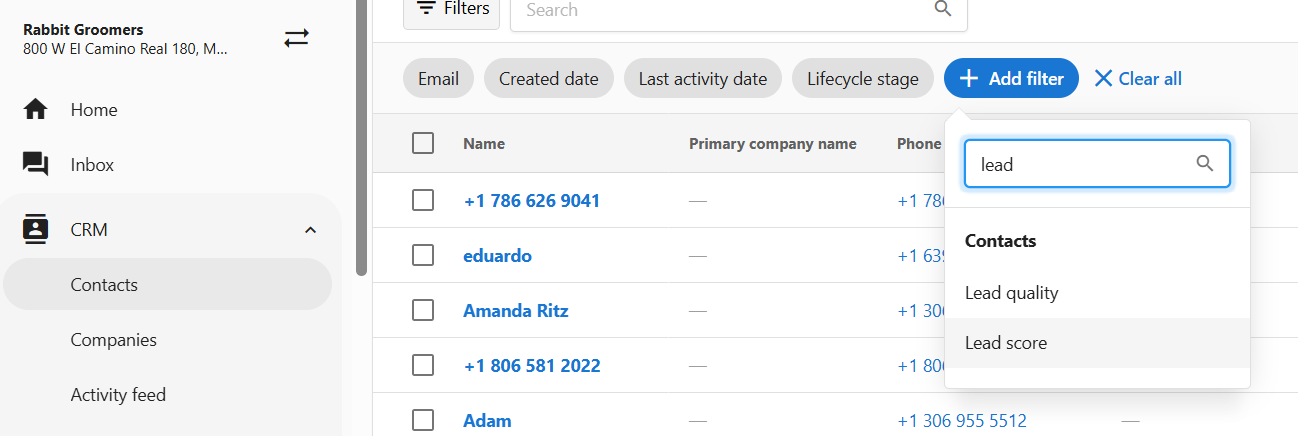
- In your CRM, open
Contactsand useAdd filter. - Choose
Lead scorein the dropdown to filter by score.
You can use contact scores to:
- Segment contacts for targeted messaging (e.g. top scorers receive a referral offer)
- Prioritize follow-ups by sorting or filtering contacts by score
- Track engagement trends over time for each contact
Understanding your Review Grade
The Review Grade is calculated from four areas: average review score, number of review sources, reviews found, and reviews per month. Each is compared to the industry average and combined into one letter grade:
- A = 90th–100th percentile
- B = 75th–89th percentile
- C = 50th–74th percentile
- D = 30th–49th percentile
- F = 0th–29th percentile
For more detail and how to improve your grade, see the Reputation section of the Executive Report.
- Reputation and Review Grade: How the Review Grade is calculated and what it means for your business.
How scores are used
- Executive Report: Review Grade and Listing Score give you a clear view of reputation and listing health. Use them to set goals and track progress over time.
- CRM: Use contact and lead scores to prioritize contacts and companies, align follow-up with pipeline stages, and trigger automations (e.g. when a score reaches a threshold).
- Conversations: Your grades in the report can guide discussions about where to focus (e.g. getting more reviews or improving listing accuracy).
Tips
- Check your scores regularly so you know where you stand and can work on areas that need improvement.
- Understand what affects your grade: For Review Grade, things like review volume, star rating, and number of sources all matter. For Listing Score, completeness and accuracy of your business info matter.
- Use the Executive Report: If you don't see a score or section, some sections may not be visible depending on your account setup.
- Define a scoring range for contact scores (e.g. 1–10 or 0–100) and use it consistently so filtering and automations stay meaningful.
Frequently asked questions
Can I use contact score in automations or integrations?
Yes. The Score field can be read or updated via integration tools and APIs.
What kind of values can I use for contact scoring?
Scores must be numeric. You can define your own range (e.g. 1–10, 0–100) and scoring rules.
Is the contact score visible to contacts?
No. The contact score is internal to app users only.
Where do I see my Review Grade and Listing Score?
They appear in your Executive Report. If you don't see them, some sections may not be visible depending on your account setup.
Related
- Executive Report overview: What the Executive Report includes and how to use it.
- Reputation and Review Grade: How your Review Grade is calculated and how to improve it.