Business Profile Overview
What is my Business Profile?
Your Business Profile allows you to manage your core business information in one central place. This includes your name, location, website, branding, services, social profiles, and operational details.
This profile ensures that your business information is accurate and consistent across listings, reports, lead capture tools, and across all features of your app.
Why is my Business Profile important?
Keeping your Business Profile complete and up to date helps your business:
- Appear accurately in local search and online listings
- Build trust with customers through consistent branding and clear service offerings
- Power tools like lead capture tools, automations, and inbox messaging with the correct business details
Access the Business Profile
You can open this page by going to Administration → Business Profile.
Keep profile data in sync
Your Business Profile is used by other products in the app when they are active on your account (such as Local SEO or Reputation AI). Editing your profile here updates it everywhere, so you only need to maintain it in one place.
Primary Info
In the Primary Info tab, you can update:
Business nameandcommon nameWebsite URLPrimary business categoryand additional categoriesPhysical addresswith map markerPhone number(must be formatted internationally)Service area businesstogglePrimary operating language
Click Save to apply your updates.
These details power your listings.
Primary operating language
The Primary operating language field controls the language used for outgoing booking notifications — the [My Meetings](../crm/My meetings/index.md) confirmation and reminder emails and SMS messages sent to your customers.
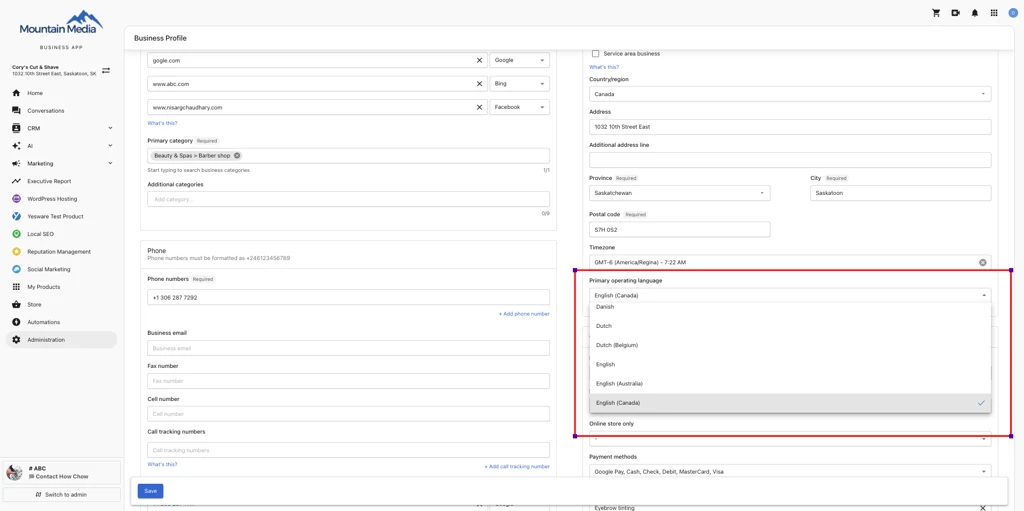
This field is empty by default, and notifications go out in English until you set a language. Supported languages include Danish, Dutch, Dutch (Belgium), English, English (Australia), English (Canada), and others available in the dropdown.
This is different from [booking page language](../crm/My meetings/index.md#booking-page-language), which automatically translates the booking page itself based on your customer's browser — no setup required. Primary operating language only affects the language of confirmation and reminder messages sent after booking.
Hours
In the Hours tab, you can update:
Hours of operation- Special hours (like holidays)
Descriptions
In the Descriptions tab, you can add a:
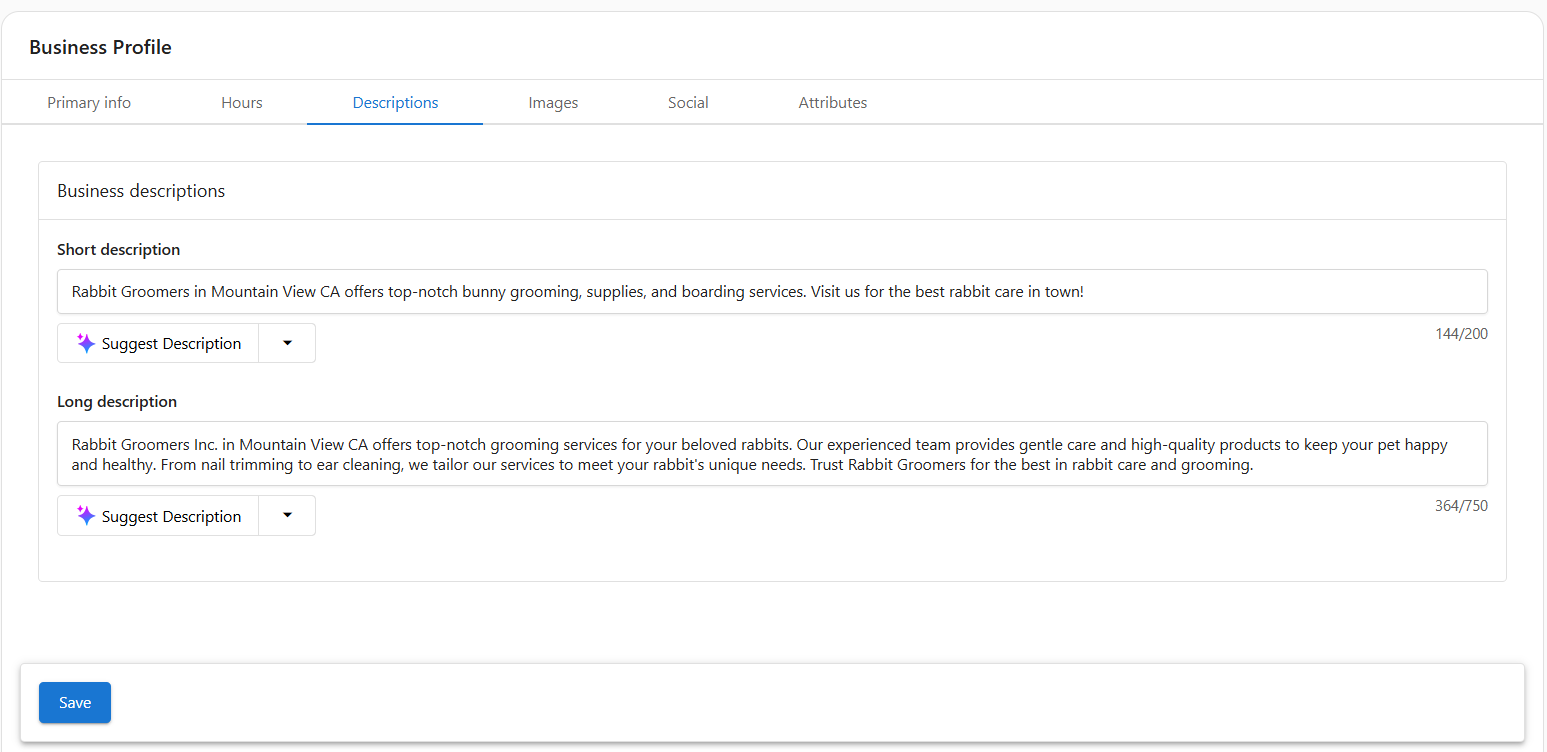
Short description(up to 200 characters)
Appears in previews and listingsLong description(up to 750 characters)
Describes your business in more detail
You can also use the Suggest Description button to generate content with the help of AI. Click Save to apply your updates.
Images
Use the Images tab to visually represent your brand across applications:
Main logoSecondary logo(optional)Cover photoGallery images(shared on listings that accept images)
Click Edit or Choose images to upload or update files. These images help create a trustworthy and professional online presence. Click Save to apply your updates.
Social
In the Social tab, you can add links to your active business pages:
- X (Twitter)
- YouTube
- Foursquare
You can also enter your Blog or RSS feed URL to integrate recent content where supported. Click Save to apply your updates.
Attributes
The Attributes tab allows you to define specific qualities and services your business offers. These attributes enhance how your business appears on platforms like Google and Bing, and can improve your discoverability in local search.
You can search or scroll through the dropdown to add applicable options for each platform. Once selected, they will be synced to the appropriate listings platform when supported. Click Save to apply your updates.
When your profile data syncs, AI Employees can also use your Business Profile attributes as part of your Knowledge Base.
Examples of available attributes
Depending on your business type, you can select attributes such as:
- Identifies as women-owned
- Language assistance
- LGBTQ+ friendly
- Menu or services link
- On-site parking
- Wheelchair accessible
- Pet-friendly
- Curbside pickup
- Delivery service
Confirm Google Business Profile verification
Use the Verified tag in Business App or your Google Business Profile dashboard to confirm verification status. See the FAQ below for detailed steps.
Frequently asked questions (FAQs)
How do I confirm if my Google Business Profile listing has been verified?
If your Google Business Profile is connected in Business App, you will see a Verified or Unverified tag.
If your Google Business Profile is not connected in Business App, log into your Google Business Profile dashboard to check verification:
- Log into the Google Business Profile dashboard.
- Under "Your business on Google," look for a blue check mark (verified) or a red shield (unverified).
- A blue check mark means the profile is verified. A red shield means verification still needs to be completed.
Why should I complete my Business Profile?
A complete profile improves visibility, enables automation, and powers accurate reporting across all app features.
What happens if I leave a field blank?
Missing information may reduce your visibility in listings and create gaps in reporting or customer-facing tools.
Can I update my Business Profile at any time?
Yes. You can return to this section anytime to make updates as your business evolves.
How often should I review this section?
We recommend reviewing your Business Profile every few months, or whenever key business information changes.