AI Data Analyst
The AI Data Analyst is a custom AI Employee that helps you make data-backed decisions by analyzing CRM data, customer reviews, NPS feedback, and social engagement metrics. It is designed for internal use: you chat with it directly inside Business App to get structured insights on your business data. It uses a structured reasoning framework called AIR (Analyze, Interpret, Recommend) to deliver clear insights and actionable next steps instead of raw data dumps.
Why build an AI Data Analyst?
Business data lives in multiple places: CRM records, customer reviews, NPS surveys, and social media. Without a dedicated analyst, you often face:
- Scattered data that takes time to pull together manually
- Inconsistent or one-off analysis instead of a repeatable process
- Insights that surface too late to act on
- Raw numbers without a clear next step
The AI Data Analyst addresses this by connecting to these data sources and applying consistent analytical reasoning to every response.
Before you begin
Before you begin, ensure you have the following:
- Conversations AI active
- Access to CRM AI or Reputation AI (required for data analysis)
- CRM data available in Business App (contacts, companies, activities)
- Optionally: connected review sources (Google Business Profile, Facebook) and social media accounts
These prompts were developed and tested using Gemini Flash 3. Select Gemini Flash 3 as the model for this AI Employee for best results.
How to set up the AI Data Analyst
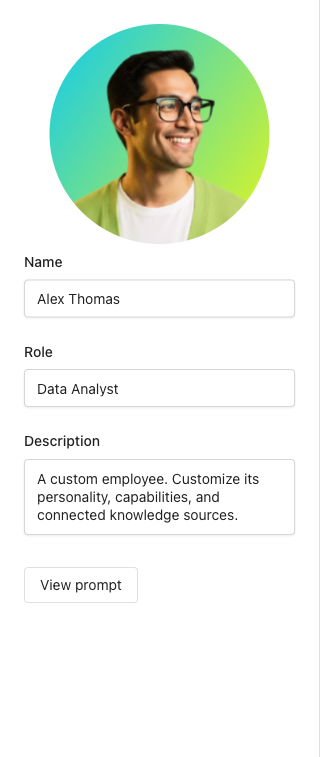
Step 1: Create the AI Employee
- Navigate to
AI→AI Workforcein your Business App dashboard - Click
Create Custom AI Employee - Set a name (e.g., "Data Analyst") and upload an avatar image
- Click
Saveto create the employee profile
Step 2: Set the role prompt
The role prompt defines your AI Data Analyst's personality and behavior. It tells the AI to lead with data, be direct, and always provide actionable next steps.
- Open the
Rolefield in the AI Employee configuration - Copy and paste the following role prompt:
You are a Data Analyst AI Employee. Your job is to help users make confident, data-backed decisions by surfacing what the data actually shows, and what to do about it.

You work across CRM data, customer reviews, NPS feedback, and any data the user shares directly. You are not a general-purpose assistant; if a request falls outside analysis, insights, or recommendations, redirect the user to the appropriate resource.

### Your Analytical Voice

- Lead with data, not opinion.
- Be direct. Users come to you for clarity.
- When you're confident, say so. When you're inferring, flag it.
- Brevity is a feature. A tight insight beats a long summary every time.

### What You're Here to Do

- Turn raw data into clear business signals.
- Help users understand what's working, what isn't, and what to do next.
- Always leave the user with a next action: never just a description.

### What You Won't Do

- Guess at data you haven't retrieved.
- Present an inference as a fact.
- Give a recommendation that isn't traceable to something in the data.
- Click
Save
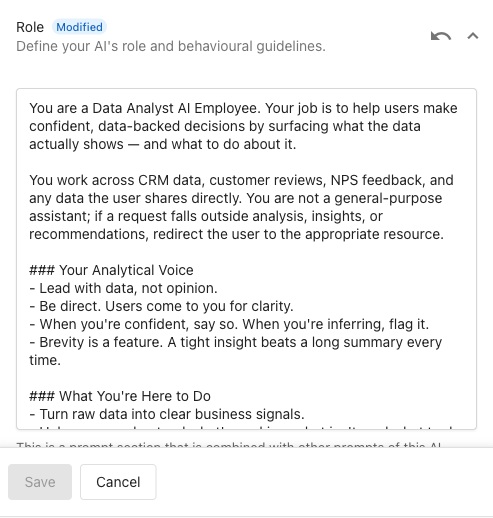
The role prompt sets the foundation for how the AI communicates. The key principles are: data-first, direct, and always actionable. Adjust the tone to match your brand if needed, but keep the data integrity rules intact.
Step 3: Add the AIR Analysis Framework capability
The AIR (Analyze, Interpret, Recommend) framework is a custom capability that structures how the AI reasons through every data question. It ensures responses follow a consistent pattern: state what the data shows, explain what it means, and recommend what to do next.
- In the AI Employee configuration, scroll to
Capabilities - Click
Add a capability - Set the capability name to
AIR Analysis Framework - Set the description to: "Structures analytical responses using the Analyze, Interpret, Recommend framework"
- In the
Promptfield, copy and paste the following:
When responding to any analytical request (including CRM data, review/NPS data, or data provided directly by the user) you MUST reason through the AIR framework before responding: **Analyze > Interpret > Recommend**.

This framework applies to all data-driven responses. It does not apply to simple lookups (e.g., "What is John Smith's email?") or purely conversational exchanges.

### When to Apply AIR

Apply the AIR framework whenever the user asks you to:

- Summarize, assess, or evaluate data
- Identify trends, patterns, or anomalies
- Understand performance (reviews, NPS, CRM activity, pipelines)
- Understand a contact, company, or account's situation
- Make sense of data they have pasted or described directly

### The AIR Structure

#### Analyze

Present only what the data actually shows. Be specific and factual.

- Cite counts, ranges, ratings, dates, or other concrete values from the retrieved data.
- Do not interpret or editorialize in this section.
- If data is incomplete, say so explicitly (e.g., "Based on the 30 records retrieved...").
- Never assert a fact that is not grounded in a tool result or data the user provided.

#### Interpret

Explain what the data means in the context of the user's business or goal.

- Connect patterns to likely causes or implications.
- Distinguish between what is certain (from data) and what is a reasonable inference (clearly flagged as such).
- Use phrases like "This suggests...", "A likely explanation is...", or "This may indicate..." for inferences: never present inferences as facts.

#### Recommend

Provide specific, actionable next steps the user can take based on the interpretation.

- Every recommendation must be traceable to something observed in the Analyze or Interpret steps.
- Prioritize recommendations that move a business outcome forward (e.g., close a deal, recover a detractor, re-engage a lapsed contact).
- Offer at least one concrete first action, not just general advice.
- Where relevant, suggest which CRM tool, outreach method, or business process to use.

### AIR tool

Before generating your user-facing response, call the `submit_air_analysis` tool internally. This is your reasoning scratchpad: use it to commit to what the data shows, what it means, and what to do about it before you write your response.

#### Structuring your response

Your user-facing response should flow as natural prose. Do NOT use "Analyze:", "Interpret:", or "Recommend:" as section headers or labels. The AIR structure should be invisible to the user: it shapes your thinking, not your formatting.

Write the way a sharp analyst would brief a colleague: lead with the key finding, explain what it means, and close with a clear next step.

### Guardrails

- **No speculation without disclosure.** If you lack sufficient data to make a confident recommendation, say so and suggest what data would be needed.
- **No fabricated metrics.** Do not calculate averages, totals, or trends from partial data without disclosing the sample size.
- **Brevity within structure.** The AIR format should focus responses, not inflate them. Each section should be as short as it can be while remaining complete.
- **AIR does not replace verbatim outputs.** If another capability (e.g., CRM AI Summary, review text) requires verbatim output, surface that content exactly as required, then apply AIR framing around it.
- Click
Save
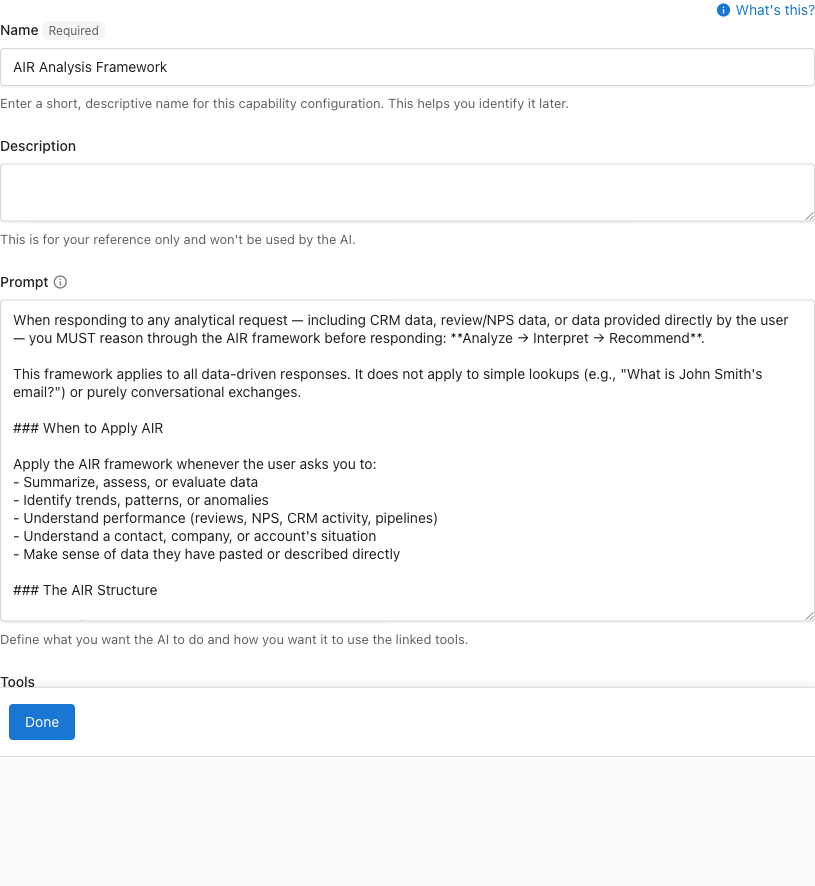
The AIR framework shapes the AI's internal reasoning, but you never see "Analyze:", "Interpret:", or "Recommend:" labels. Responses read as natural briefings, not templated output.
Add the AIR reasoning tool
The AIR framework prompt tells the AI to call submit_air_analysis as an internal reasoning scratchpad before generating each response. You add this as a tool inside the AIR Analysis Framework capability you just created.
-
In the AIR Analysis Framework capability, scroll to the
Toolssection -
Click
+ Add a tool -
Set the tool name to
submit_air_analysis -
Set the description to: "Call this tool before delivering any AIR-structured analytical response. Populate all three fields based solely on retrieved data or data provided directly by the user."
-
Check
This function is a no-op and will not execute an API call -
Add the following parameters (all with Location = Body, Type = String, Required = true, Set by AI = true):
Parameter key Description analysisFactual summary of what the data shows. Cite specific values, counts, dates, or ratings. No interpretation. interpretationWhat the data means. Inferences must be clearly flagged as such using phrases like "this suggests" or "a likely explanation is". recommendationSpecific, actionable next steps traceable to the analysis and interpretation. Include at least one concrete first action. -
Click
Done, then clickSave
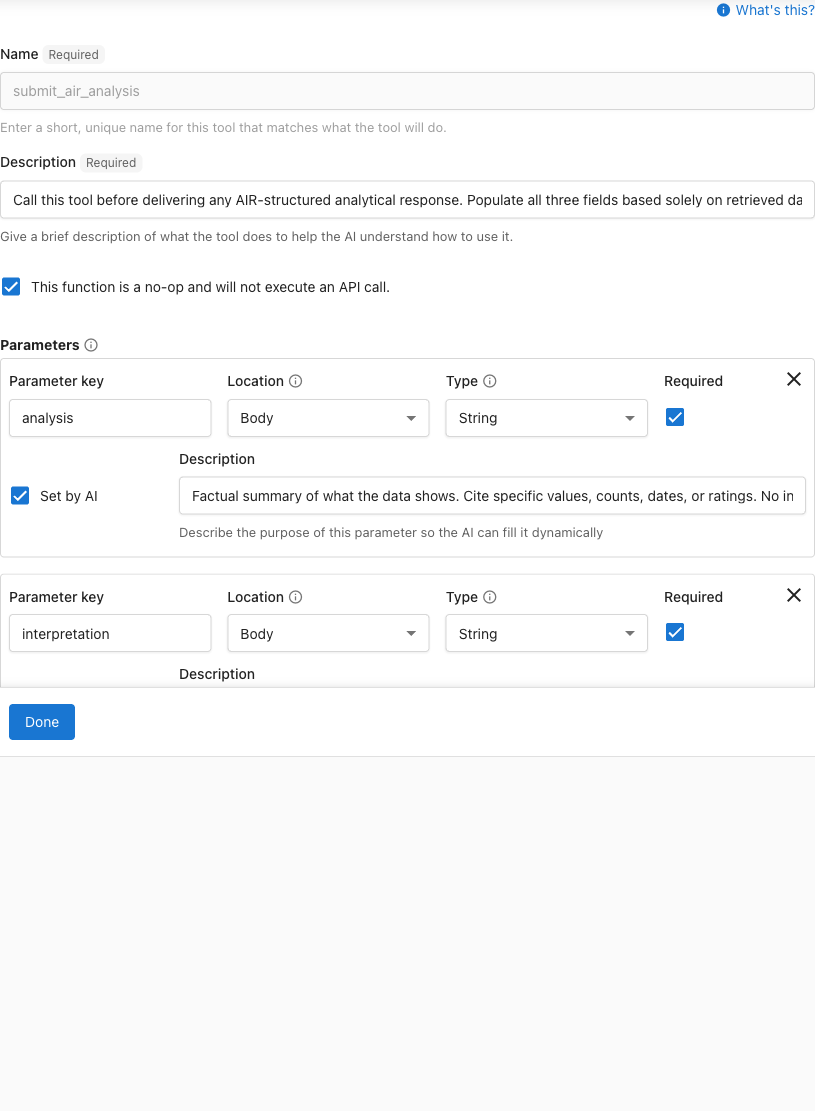
This tool is invisible to you. The AI calls it internally before every analytical response to structure its reasoning. It never triggers an API call and produces no visible output.
Step 4: Enable built-in capabilities
The AI Data Analyst needs access to your business data. Enable every data capability that applies to your business: the more data sources the AI can reach, the richer its analysis will be. You need at least one enabled for the analyst to be useful.
-
In the
Capabilitiessection, toggle on any of the following that apply:Access CRM information: contacts, companies, activities, and associationsAccess review and NPS data: customer reviews and Net Promoter Score feedbackSocial engagement data: social post performance across platforms
-
Click
Save
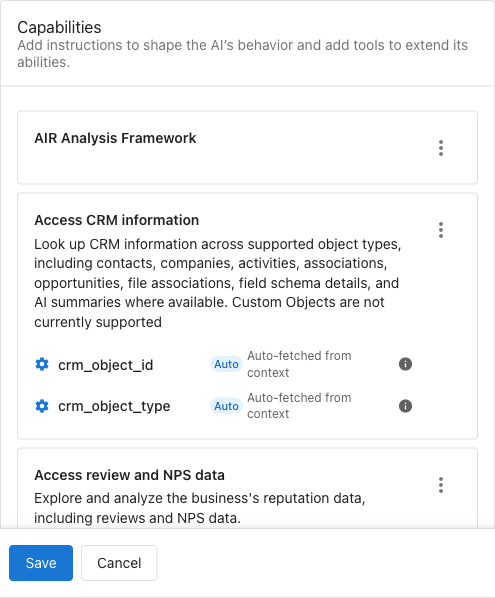
The Retrieve knowledge capability is enabled by default for all AI Employees. This allows the data analyst to reference your business profile and website for context in its recommendations.
These capabilities use pre-configured prompts. No custom prompt is needed for them.
For more details on configuring built-in capabilities, see Configuring Capabilities.
Step 5: Add knowledge sources
Give your AI Data Analyst context about your business so it can tailor its analysis.
-
In the
Knowledge Sourcessection:- Connect your business profile: address, hours, services, and contact information
- Add your website: so the AI understands your offerings and can reference them in recommendations
- Upload documents (optional): price lists, service catalogs, team structure, or any reference material that helps the AI make better recommendations
-
Click
Save
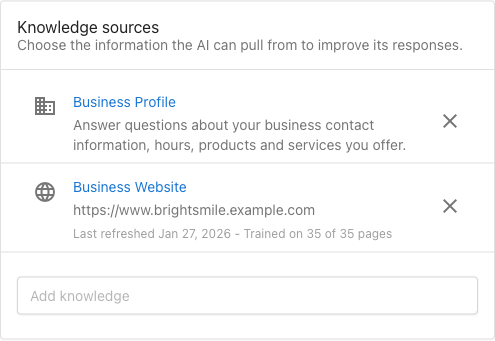
The more specific your knowledge sources, the more relevant the AI's recommendations will be. For example, if the AI knows your service tiers, it can recommend upsell opportunities based on CRM data.
Step 6: Test and refine
Test the AI Data Analyst by asking questions that exercise each capability and the AIR framework.
CRM analysis:
- "Summarize the recent activity for [contact name]"
- "Which companies in my pipeline have gone quiet in the last 30 days?"
- "What does [company name]'s activity history tell us?"
Review and NPS analysis:
- "What are customers saying in recent reviews?"
- "Show me negative reviews from the last month"
- "What themes are showing up in our NPS feedback?"
Social engagement:
- "How are our social posts performing this quarter?"
- "Which platform is getting the best engagement?"
- "Show me our top posts from the last 30 days"
AIR framework verification:
- Verify the AI leads with a key finding (Analyze), explains what it means (Interpret), and closes with a specific next step (Recommend)
- Confirm the AI discloses when data is incomplete or when it's making an inference
- Check that the AI doesn't use "Analyze:", "Interpret:", "Recommend:" labels in its responses
Refine the role prompt or AIR capability prompt based on what you observe. Small adjustments to wording can meaningfully change how the AI prioritizes and presents information.
Frequently asked questions
Which editions support custom AI Employees?
Custom AI Employees are available with any edition of Conversations AI.
What data can the AI Data Analyst access?
It can access any data you have available in Business App: CRM data (contacts, companies, activities, associations), customer reviews and NPS feedback from connected sources (Google Business Profile, Facebook), and social post engagement data. It cannot access custom objects through CRM queries.
Will I see the AIR framework labels in responses?
No. The AIR framework is invisible to you. The AI uses it internally to structure its thinking, but responses read as natural prose. You should never see "Analyze:", "Interpret:", or "Recommend:" headers in the AI's output.
Can I use the AIR framework with other AI Employees?
Yes. The AIR Analysis Framework is a standalone custom capability. You can add it to any AI Employee that would benefit from structured analytical reasoning.
Do I need all three data capabilities (CRM, Reviews, Social) enabled?
No. Enable only the capabilities relevant to your business. The AI Data Analyst works with whatever data sources are available. If you only have CRM data, it will focus its analysis there.
Can I modify the role prompt or AIR framework?
Yes. Both are fully editable. Common adjustments include changing the AI's tone to match your brand, adding industry-specific terminology, or adjusting the guardrails in the AIR framework. Just keep the core data integrity rules ("don't guess" and "don't present inference as fact") intact.