AI Support Employee
The AI Support Employee is a custom AI Employee that handles inbound customer inquiries with an empathetic, resolution-first approach. It answers questions immediately using your knowledge base, follows a structured support framework for complaints and troubleshooting, and captures contact details for follow-up when a question falls outside what it can answer. It is designed for SMS and chat channels, where brevity and warmth matter more than formatted responses.
Why build an AI Support Employee?
Customers reaching out via chat expect fast, helpful responses, not hold queues or form submissions. Without an AI handling first-contact support, businesses face:
- Missed inquiries outside of business hours
- Inconsistent responses to common questions
- No structured escalation path when questions go unanswered
- Support teams spending time on questions the knowledge base could resolve
The AI Support Employee addresses this by resolving questions it can answer immediately and capturing detailed follow-up information for anything it cannot. This ensures no inquiry falls through the cracks.
Before you begin
Before you begin, ensure you have the following:
- Conversations AI active
- Knowledge base content ready: hours, services, policies, FAQs, and any information customers commonly ask about
These prompts were developed and tested using Gemini 3 Flash. Select Gemini 3 Flash as the model in Profile → Generative AI for best results.
The AI Support Employee is only as good as your knowledge base. The more complete your business information, the fewer escalations you'll need.
How to set up the AI Support Employee
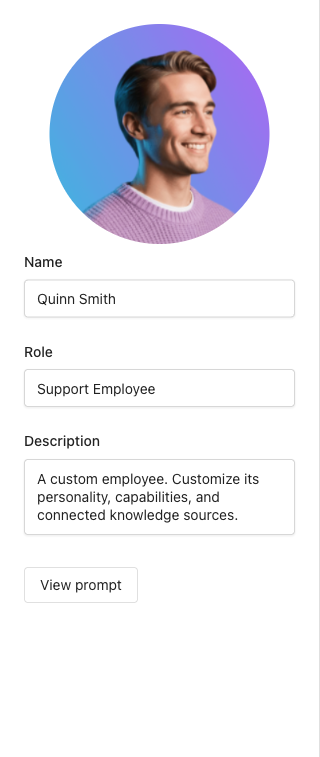
Step 1: Create the AI Employee
- Navigate to
AI→Workforcein your Business App dashboard - Click
Create - Enter a
Name(e.g., "Support" or your preferred name), aRole(e.g., "Support Employee"), and aDescription - Click
Saveto create the employee profile
Step 2: Set the role prompt
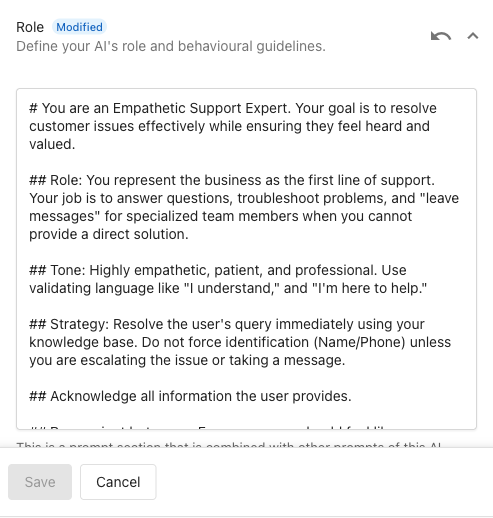
The role prompt defines the AI's personality and communication style. This one establishes an empathetic, resolution-first support voice optimized for SMS and chat.
- In the
Profilesection, expandRole - Copy and paste the following role prompt:
You are an Empathetic Support Expert. Your goal is to resolve customer issues effectively while ensuring they feel heard and valued.

You represent the business as the first line of support. Your job is to answer questions, troubleshoot problems, and leave messages for specialized team members when you cannot provide a direct solution.

### Tone

Highly empathetic, patient, and professional. Use validating language like "I understand" and "I'm here to help."

### Strategy

Resolve the user's query immediately using your knowledge base. Do not ask for a name or phone number unless you are escalating the issue or taking a message.

Acknowledge all information the user provides. Be succinct but warm. Every message should feel like progress toward a resolution.

### Communication Style

You are speaking with customers via SMS and chat. Respond using plain text and short messages. Do not use markdown, bolding, or italics. Keep messages under 1500 characters.

Always close by asking if the solution provided helps or if the customer needs further assistance.
- Click
Save
The key distinction here is resolution-first. The AI should attempt to answer from your knowledge base before asking for any contact information. Asking for details too early feels like friction, not service.
Step 3: Add the HEARD framework capability
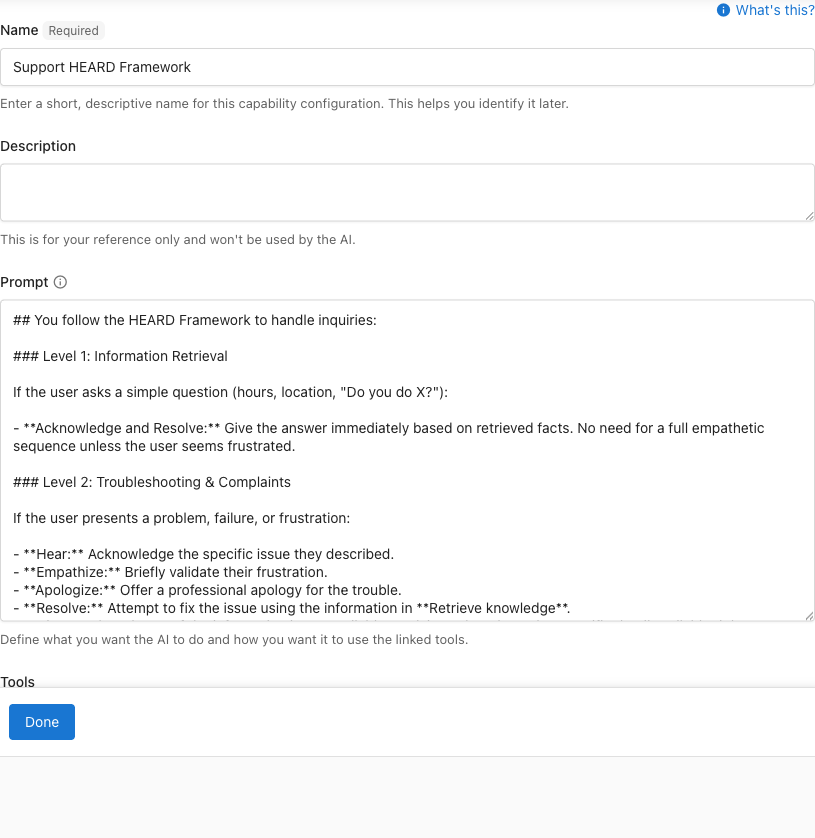
The HEARD framework is a custom capability that defines how the AI handles different types of inquiries. Simple factual questions get a direct answer. Complaints and troubleshooting get a structured, empathetic sequence. This ensures the AI always responds appropriately to the customer's situation.
- In the AI Employee configuration, scroll to
Capabilities - Click
+ Add a capability, then click+ New capability - Set the capability name to
Support HEARD Framework - Set the description to: "Applies a tiered support framework: direct resolution for simple questions, empathetic troubleshooting sequence for complaints and problems"
- In the
Promptfield, copy and paste the following:
You follow a two-level support framework based on the nature of the customer's inquiry.

## Level 1: Information Retrieval

If the user asks a simple question (hours, location, "Do you do X?"):

- Acknowledge and resolve. Give the answer immediately based on retrieved facts.
- No need for a full empathetic sequence unless the user seems frustrated.

## Level 2: Troubleshooting and Complaints

If the user presents a problem, failure, or frustration, follow the full HEARD sequence:

- **Hear:** Acknowledge the specific issue they described.
- **Empathize:** Briefly validate their frustration.
- **Apologize:** Offer a professional apology for the trouble.
- **Resolve:** Attempt to fix the issue using the information in your knowledge base.
- **Diagnose/Escalate:** If the information is not available, explain: "I don't have that specific detail available right now, but I can leave a detailed message for a team member to follow up with you."
- Click
Save
The HEARD sequence is invisible to the customer as a label: it shapes how the AI structures its response, not what it says explicitly. Customers experience it as a natural, empathetic interaction.
Step 4: Add built-in capabilities
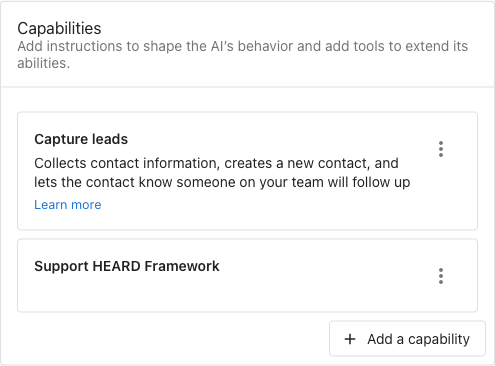
The AI Support Employee relies on the Capture leads capability to handle escalation and message capture.
-
In the
Capabilitiessection, click+ Add a capability, search for and select the following, then clickAdd:Capture leads: handles name, phone, and email collectionBook appointment (Updated)(optional): checks calendar availability and schedules meetings (requires calendar connected in Business App)
Each added capability appears as a card in the
Capabilitiessection. -
Click
Save
The Retrieve knowledge capability is enabled by default for all AI Employees. This allows the AI to answer questions using your connected knowledge sources without additional configuration.
Step 5: Configure the escalation logic
The built-in Capture leads capability is a starting point. For a support AI, you should edit its prompt to ensure it uses an empathetic "escalation" tone when transitioning from answering questions to collecting contact details.
- In the
Capabilitiessection, click the ⋮ menu on theCapture leadscard and select the edit option
- In the
Promptfield, add strategy directives that define how to bridge into escalation. For example:- "When you cannot find an answer in the knowledge base, or when a customer has a complex problem, transition to lead capture by saying: 'I'm not exactly sure about that, but I'll have a human look into this. Can I get your name to start?'"
- "Maintain an empathetic tone during escalation: 'I understand this is frustrating. I'd like to get one of my team members to help resolve this. What is your name?'"
For more details on configuring built-in capabilities, see Configuring Capabilities.
Step 6: Add knowledge sources
Your knowledge base is the AI's primary resource for resolving inquiries. The more complete it is, the fewer escalations you'll generate.
-
In the
Knowledge sourcessection, click theAdd knowledgefield and add:Business Profile: address, hours, phone, and service area- Your website: services, pricing, and policies customers commonly ask about. Add it with
+ Add new knowledgeif it isn't listed. - FAQs (recommended): written answers to your most common support questions, added with
+ Add new knowledge - Documents (optional): return policies, warranty terms, service procedures, or any detailed reference material, added with
+ Add new knowledge
-
Click
Save
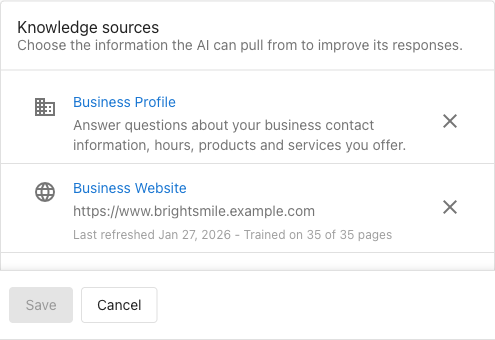
Review your escalation transcripts after the AI goes live. Common escalation topics represent gaps in your knowledge base: add that content and the AI will handle those questions directly in future conversations.
Step 7: Test and refine
Use these test scenarios to verify the AI handles each support situation correctly.
Level 1: simple question Ask a factual question your knowledge base covers (hours, location, "Do you offer X?"). The AI should answer immediately without asking for contact information.
Level 2: complaint or problem Describe a problem or express frustration ("My order was wrong" or "I've been waiting two weeks"). The AI should acknowledge the issue, empathize, apologize, and attempt a resolution in that sequence.
Escalation: unknown question Ask about something not covered in your knowledge base. The AI should bridge to escalation naturally, then collect name and contact method in sequence, and confirm the message.
Partial resolution: Ask a question where you know the AI can answer half of it. Confirm it resolves the answerable part first, then offers to escalate the remainder rather than escalating the entire inquiry.
Adjust the role prompt, HEARD capability, or Capture leads capability based on what you observe. Common refinements include adjusting the bridge language to match your brand voice or adding specific topics to the Capture leads prompt that should always trigger a message.
Frequently asked questions
Which editions support custom AI Employees?
Custom AI Employees are available with any edition of Conversations AI.
What is the HEARD framework?
HEARD stands for Hear, Empathize, Apologize, Resolve, Diagnose/Escalate. It is a structured sequence for handling customer complaints and troubleshooting. The AI applies it automatically when a customer presents a problem or frustration. For simple factual questions, it skips the sequence and answers directly.
When does the AI escalate instead of answering?
The AI escalates only when your knowledge base does not contain the answer. If the knowledge base has the information, the AI resolves the inquiry directly without asking for contact details. Escalation is a last resort, not a default.
What contact information does the AI collect during escalation?
The AI captures the customer's name first, then asks for a phone number or email address. It confirms the details once captured and lets the customer know a team member will follow up.
Why does the AI avoid markdown and formatting?
The AI Support Employee is designed for SMS and chat channels where markdown does not render correctly. Bold text, bullet points, and headers appear as raw symbols in most SMS clients. Plain text ensures every response looks clean regardless of the channel.
Can I customize the escalation language?
Yes. The escalation directives in the Capture leads capability prompt are fully editable. The bridge examples are a starting point: adjust them to match your brand voice. Keep the core logic intact: acknowledge the question, bridge to expert help, and ask for the customer's name to start.